User Guide: RTK Base Station
Product overview
The ArduSimple RTK Base Station, powered by the Septentrio mosaic-X5 GNSS receiver module, is designed to function as a Continuously Operating Reference Station (CORS) to provide high-precision RTK corrections over the internet. You can also use it as a local RTK base station via an optional radio link.
This product is compatible with, but does not include, a triple-band GNSS antenna, which is required for operation.
Initial configuration must be performed using a Windows computer. Once configured, the station can be accessed from other operating systems. Please contact us if you do not have access to a Windows computer for the setup.
Package
The RTK Base Station includes the following components:
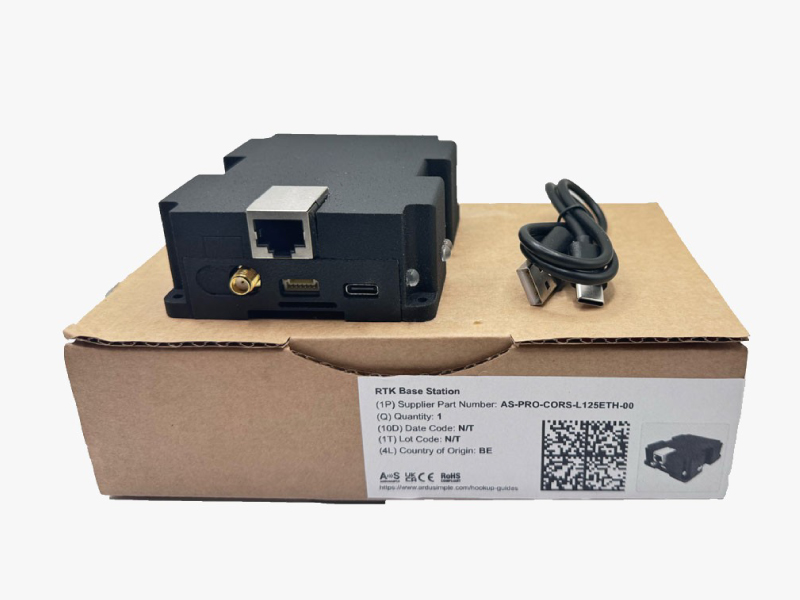
- simpleRTK3B Pro receiver with Shield for Septentrio Native Ethernet, housed in a plastic case.
- USB to USB-C cable.
Get started
Step A: Connect the receiver to a PC
IMPORTANT: This Base Station kit uses a traditional RTK module and is designed for outdoor use only. It will not function properly if placed indoors near a window.
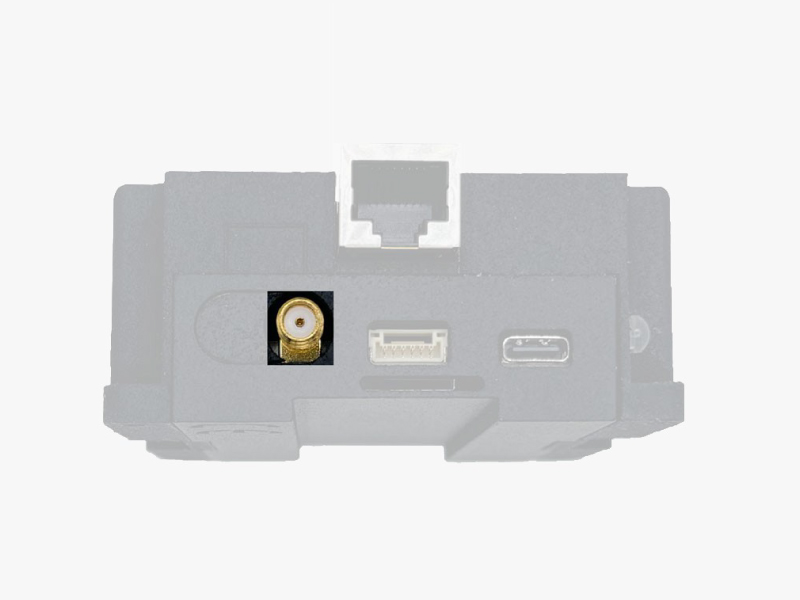
- Screw the GNSS antenna onto the receiver module’s antenna connector by hand; do not use any tools.
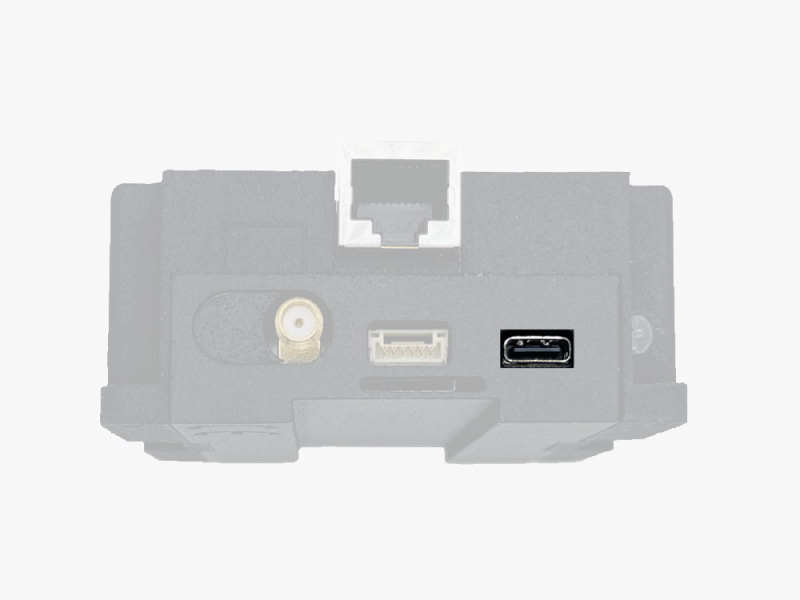
- Connect the RTK Base Station to your PC using the provided USB to USB-C cable.
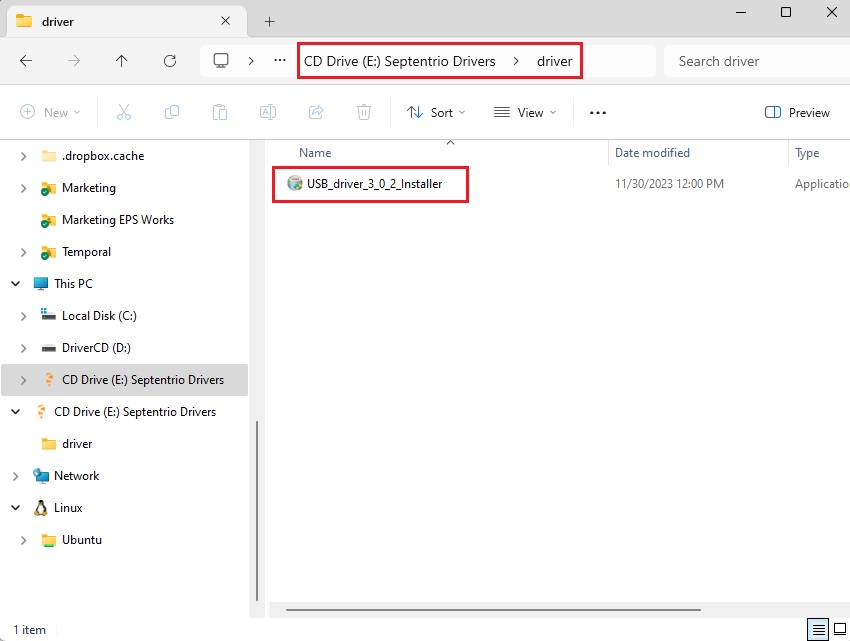
Note on Initial Setup: When you first connect the device to a PC, it may not be recognized. You will instead see a new hard drive appear on your computer. Open this drive and install the provided Septentrio driver. Once the installation is complete, disconnect and reconnect the USB cable. Your PC should now correctly recognize the receiver.
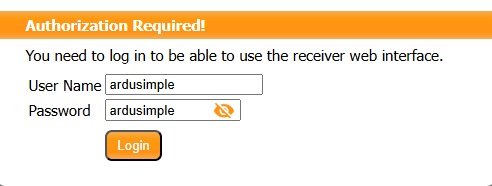
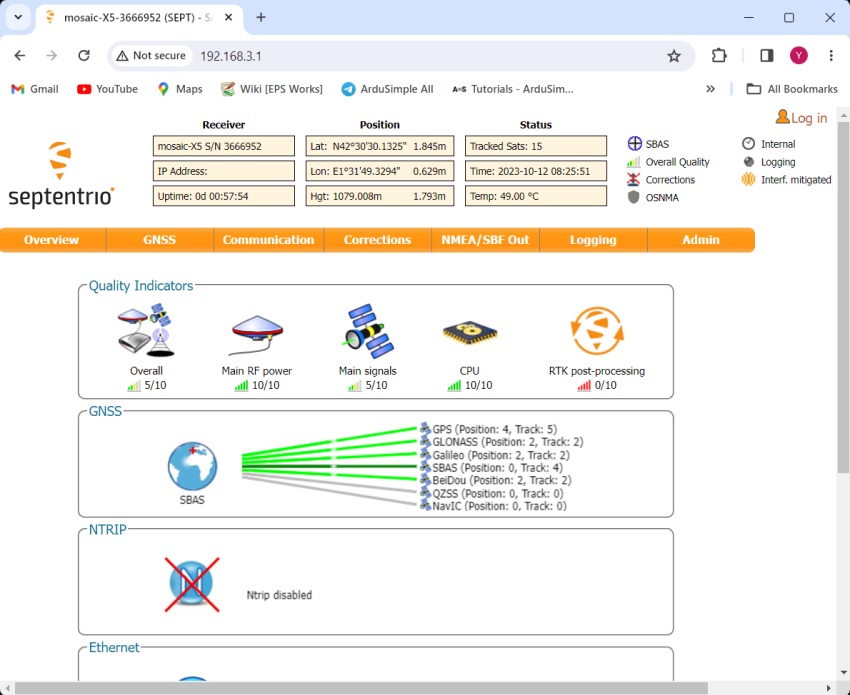
- Open a web browser and enter 192.168.3.1. This will launch the Septentrio web interface, which you can use to both configure and monitor the receiver. (192.168.3.1 is not the actual IP address of the RTK Base Station; it is a virtual website accessed over the USB connection). You will learn how to activate and check your base station’s IP address in a later section.
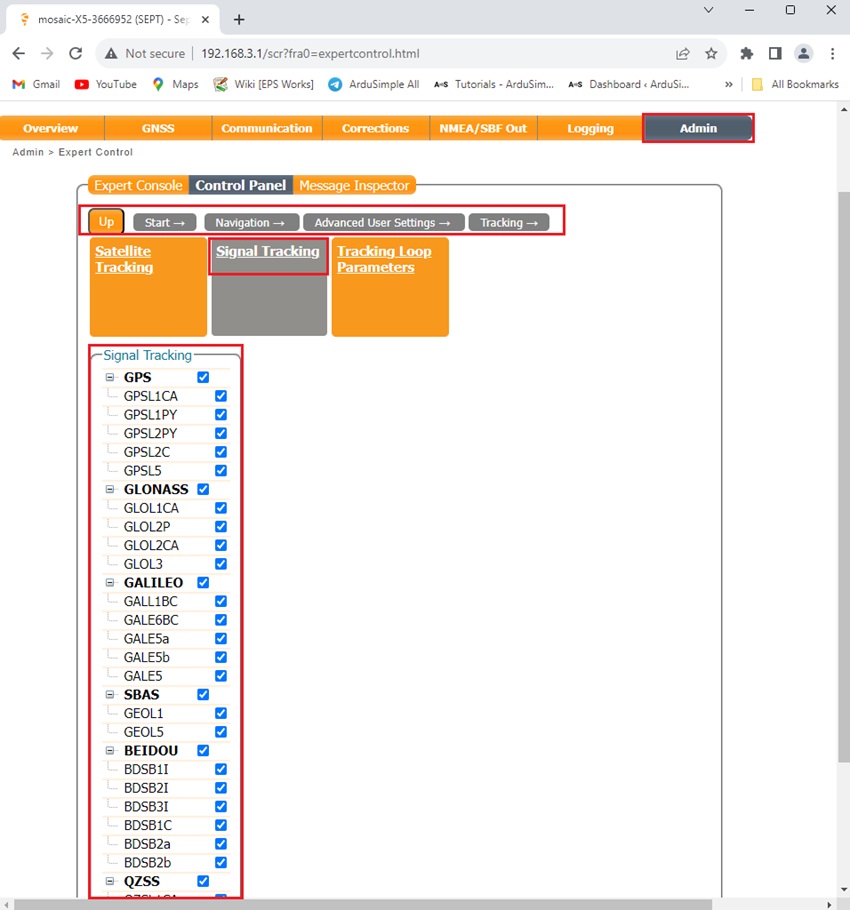
- L5 is disabled by default on the Septentrio mosaic-X5. Therefore, to enable it, navigate through the menu as follows:
Menu Bar → Admin → Expert Control → Control Panel → Navigation → Advanced User Settings → Tracking → Signal Tracking.
Expand all satellite signal groups and select all bands.
Click OK and save configuration.
- L5 is disabled by default on the Septentrio mosaic-X5. Therefore, to enable it, navigate through the menu as follows:
Step B: Configure the receiver as a static Base Station
To configure a base station, you can set its coordinates in two ways:
When the Base Station’s coordinates are unknown, you can configure the receiver for automatic positioning. After collecting data for a specified period of time, it will calculate an average value to use as the base station coordinates (similar to the Survey-in mode of u-blox receivers).
The absolute accuracy for your Rover using this method will be approximately 1-2 meters, while the relative accuracy can reach 1 centimeter.
Use Case for Auto Mode: In land surveying, accurately measuring the distance between two ground points is often more critical than knowing their absolute global positions.
Configuration Steps:
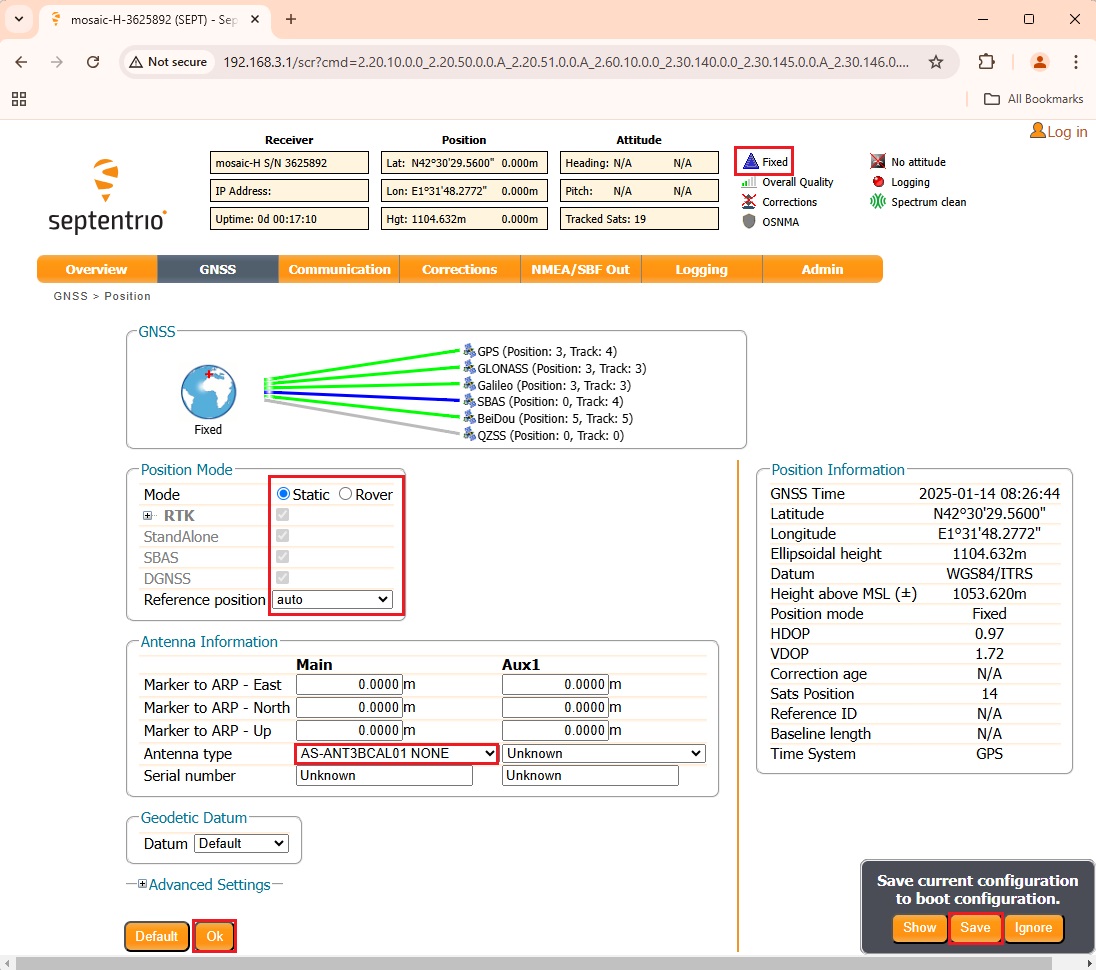
- In the web interface, navigate to GNSS → Position.
Set Mode to Static.
Set Reference position to Auto. - If using a Calibrated Survey GNSS Tripleband + L-band antenna (IP67), such as the AS-ANT3BCAL01, select it from the Antenna type menu. This will automatically upload the corresponding antenna Calibration file.
- Press Ok and Save Configuration.
- Within a few minutes, the Position Mode should change to Fixed.
There are 3 ways to determine the coordinates of the base station.
You can refer to tutorial How to determine the exact position of your base station.
The absolute accuracy of your rover can reach to 1cm.
Example where Fixed position is a good choice: In autonomous vehicle navigation, the vehicle needs to know its precise location within a global reference frame to navigate accurately.
Step C: Share the base station online, accessible from anywhere with an internet access
You can make your Base Station’s RTK corrections available to anyone with an internet connection by adding it to an NTRIP service.
NTRIP (Networked Transport of RTCM via Internet Protocol) uses the internet to make correction data accessible from anywhere with a network connection, unaffected by terrain or physical obstructions. It supports multiple users simultaneously without requiring additional hardware or complex tuning. In contrast, traditional radio links are limited by range, require a clear line-of-sight, and involve higher initial setup costs.
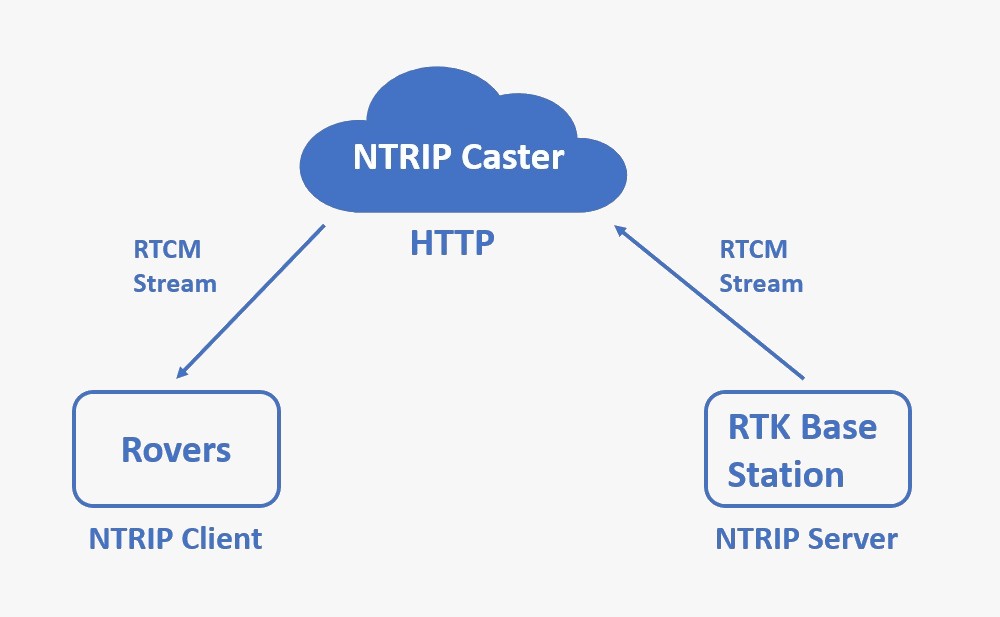
NTRIP caster acts as a central server, efficiently managing and distributing GNSS correction data between an RTK Base Station and multiple rovers.
The caster uses standard internet protocols (HTTP/HTTPS), enabling rovers to connect over diverse networks, including cellular, Wi-Fi, or Ethernet. This approach overcomes common network challenges like NAT (Network Address Translation) and firewalls that can block direct peer-to-peer connections.
Several NTRIP caster services are available, each offering unique features to meet diverse needs. Services like RTK2go and Onocoy are free, but they make your base station publicly accessible.
To maintain privacy and restrict access to your base station, you can use software such as SNIP and BKG, which provide secure, private connections. Note that some advanced features may require a paid subscription.
The following examples demonstrate how to share your base station with some of the most commonly used NTRIP caster services.
RTK2GO (recommended for beginners)
RTK2go is a free, community-based NTRIP caster that enables users to publish and access GNSS correction streams globally. It is an ideal, cost-effective solution for real-time positioning.
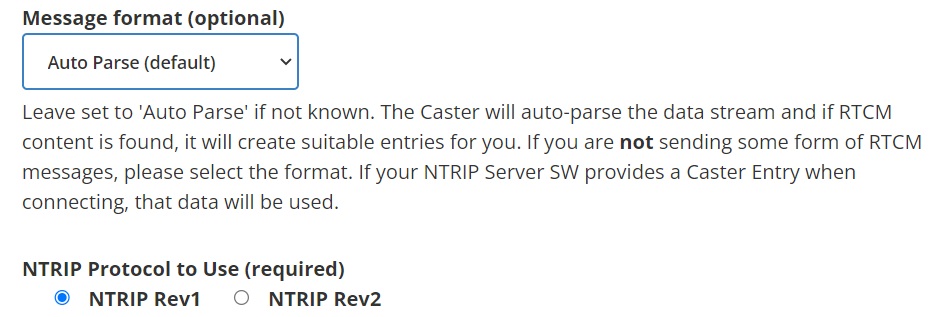
- Register using this link. You will be prompted to enter your name, email address, and a mountpoint. Leave Message format set to Auto Parse and NTRIP Protocol set to NTRIP Rev1. All other fields are optional.
- An automatic email will be sent. You must reply to the sender to confirm your registration.
- A few hours after your reply, you will receive another email confirming that your mountpoint is active.
- You now have the credentials (your mountpoint and password) to connect to RTK2go.
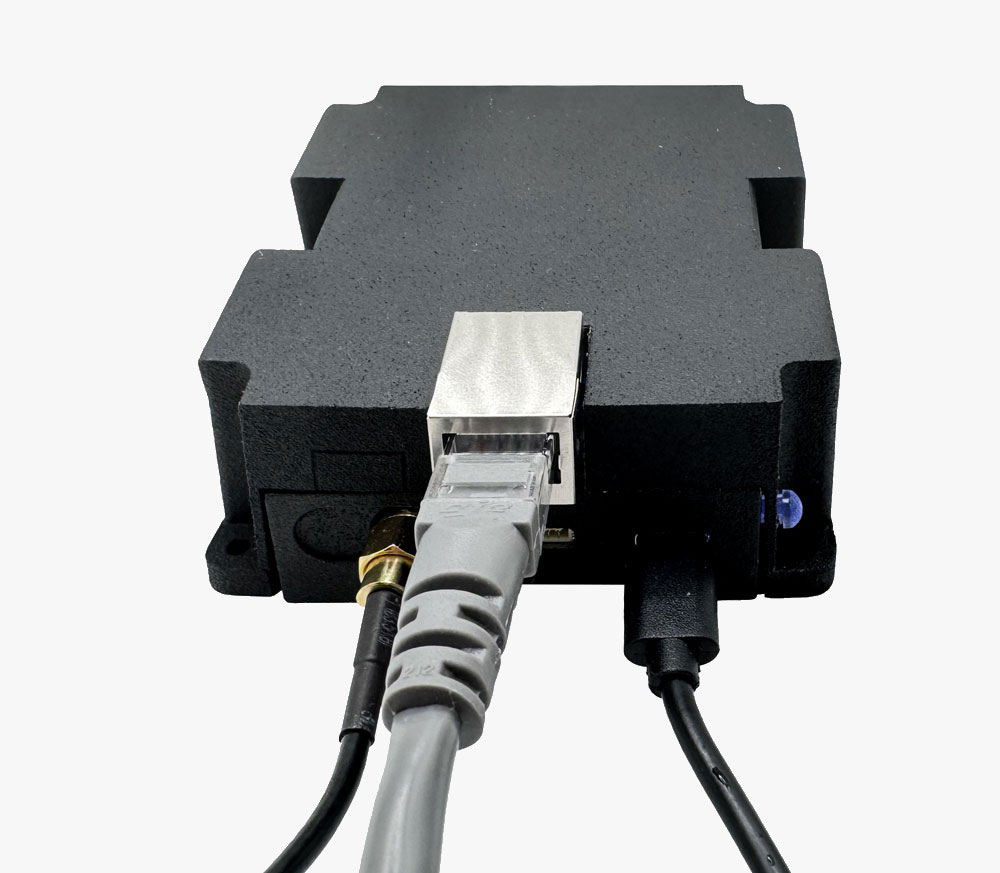
- Connect the RTK base station to your router using an Ethernet cable.
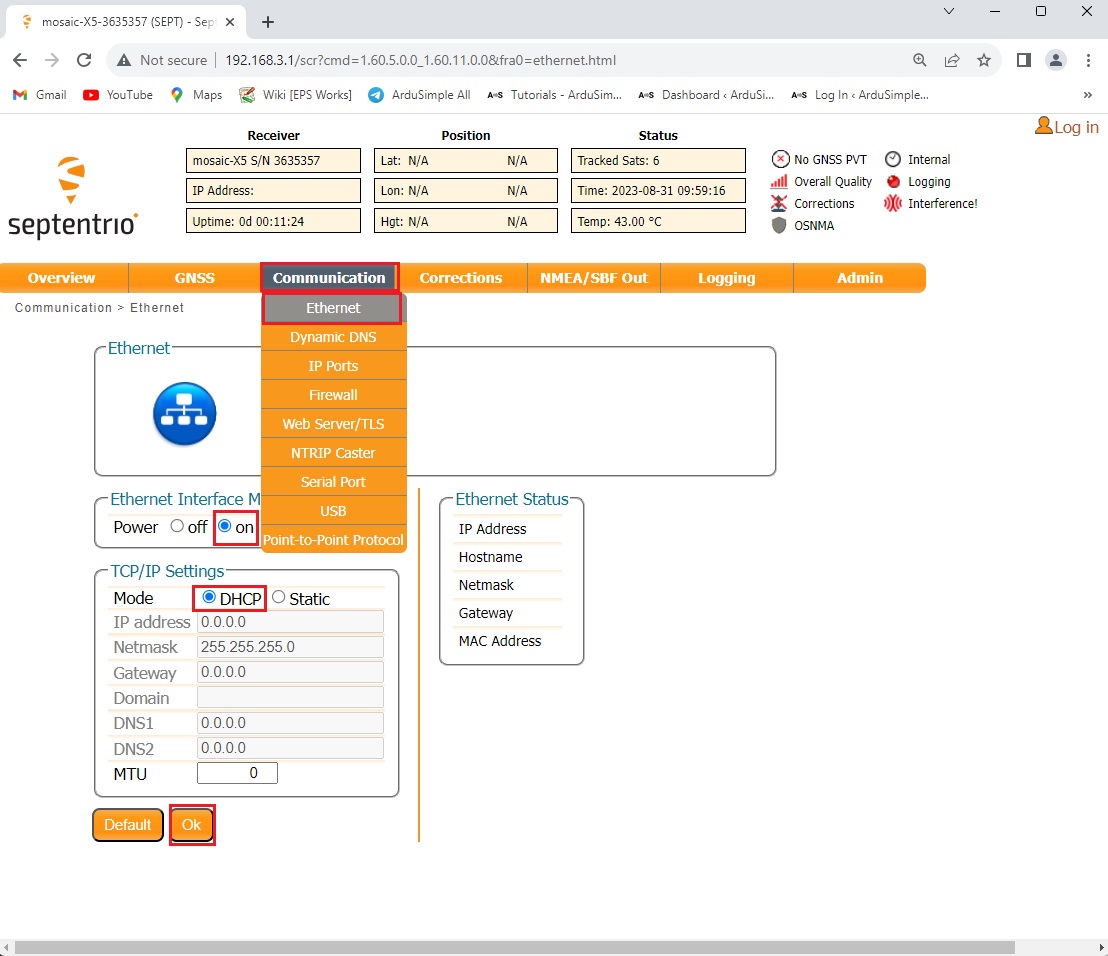
- In the toolbar, navigate to Communication → Ethernet. For the Ethernet Interface Mode, ensure Power on is checked. Most routers use an automatic IP configuration by default. To work with this standard setting, select DHCP from the menu. If you prefer to assign a static IP address manually, you can also configure this within the same menu.
Once configured, press OK.
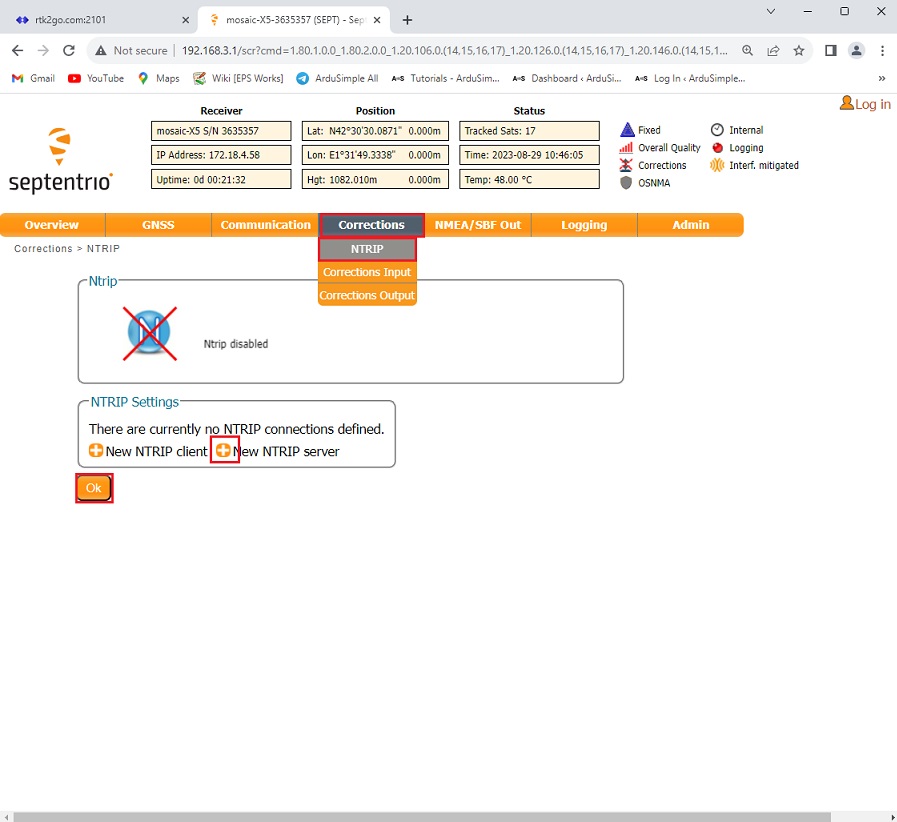
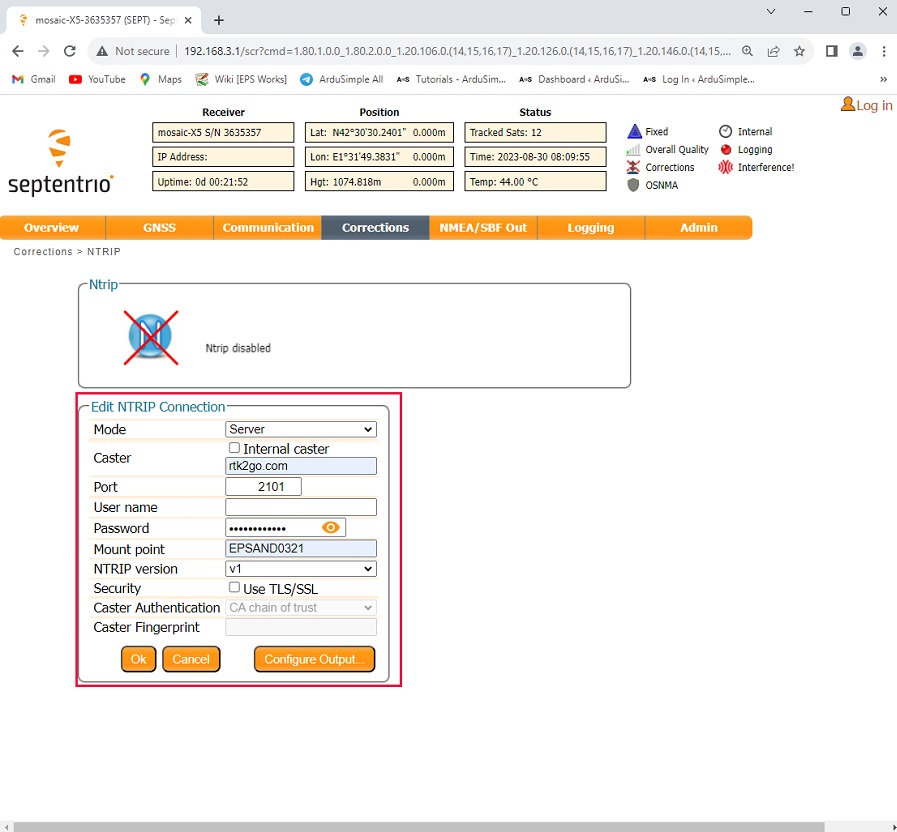
- In the toolbar, navigate to Corrections → NTRIP. Select +New NTRIP Server and click OK.
- Configure the NTRIP connection as shown in the following image:
- Mode: Server
- Caster: rtk2go.com
- Port: 2101
- Password: (Enter your registered password at step 7)
- Mount Point: (Enter your registered mount point at step 7)
- NTRIP Version: v1
Then, click OK and Save Configuration.
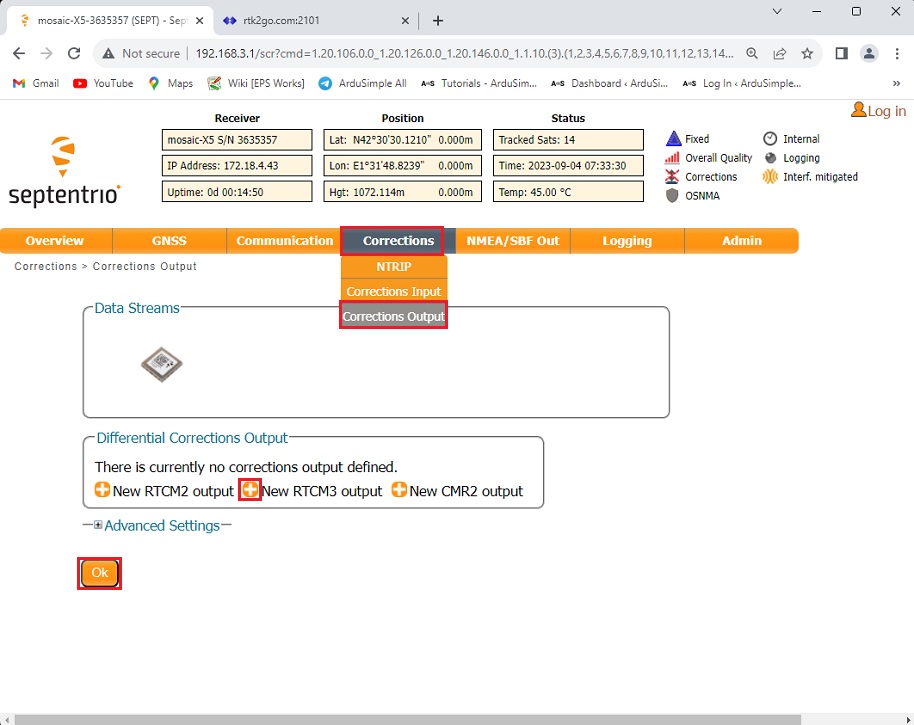
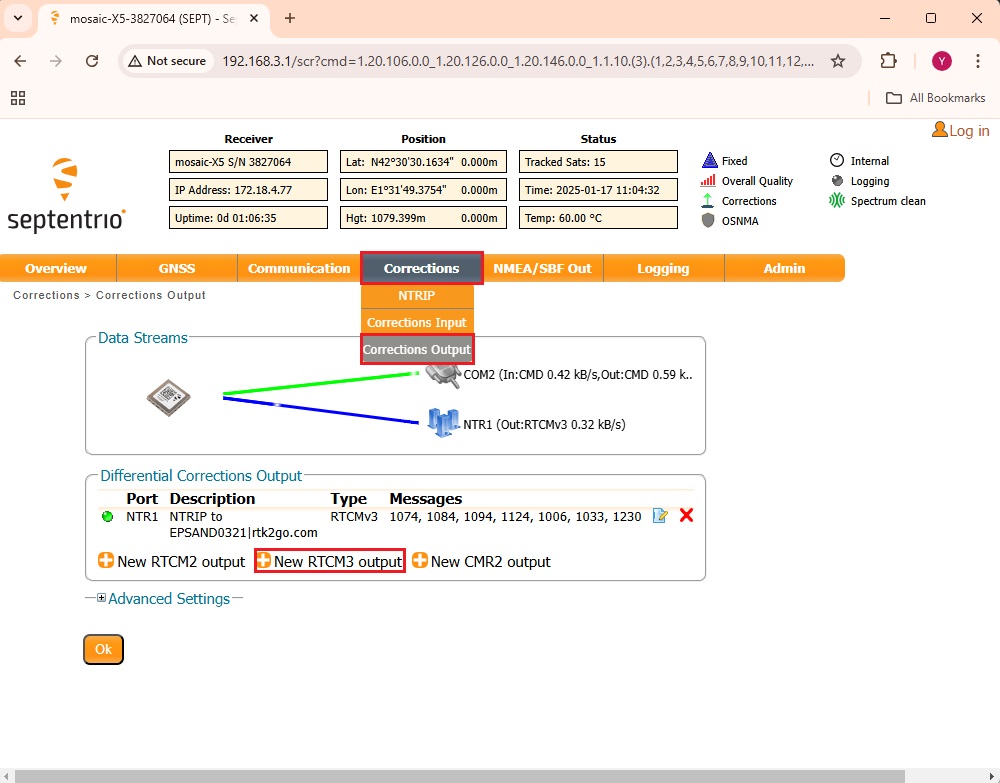
- In the toolbar, navigate to Corrections → Corrections Output. Select +New RTCM3 Output and click OK.
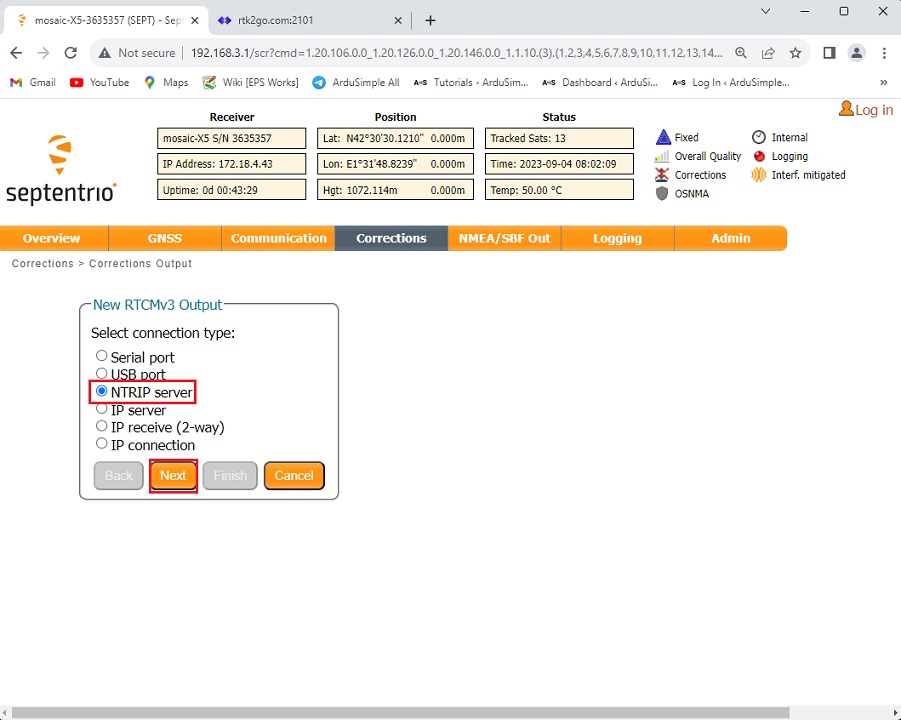
- Select NTRIP server. Press Next.
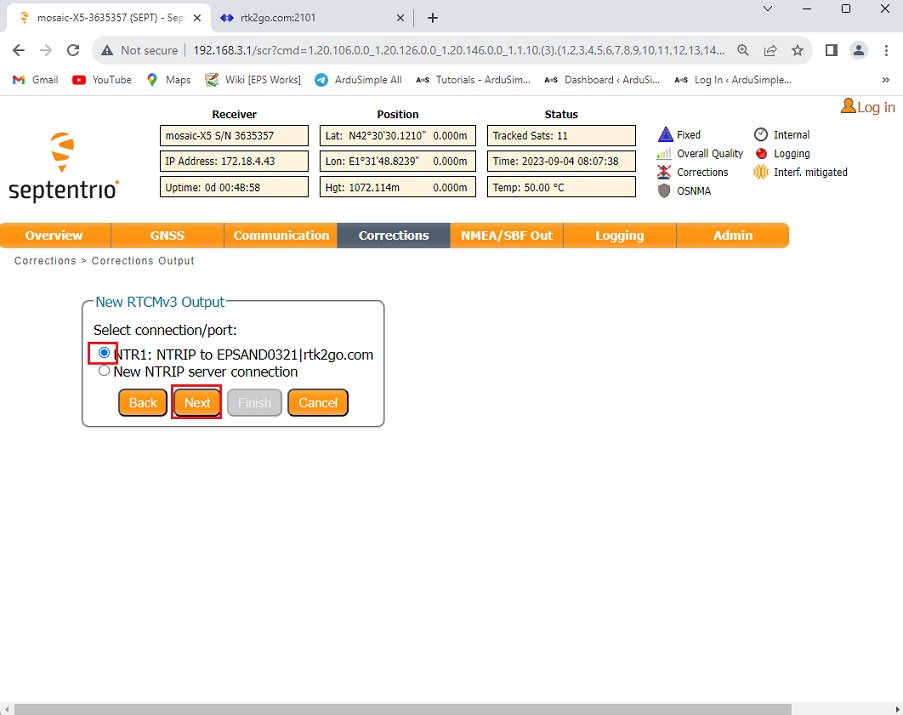
- Choose NTRIP to mount point|rtk2go.com.
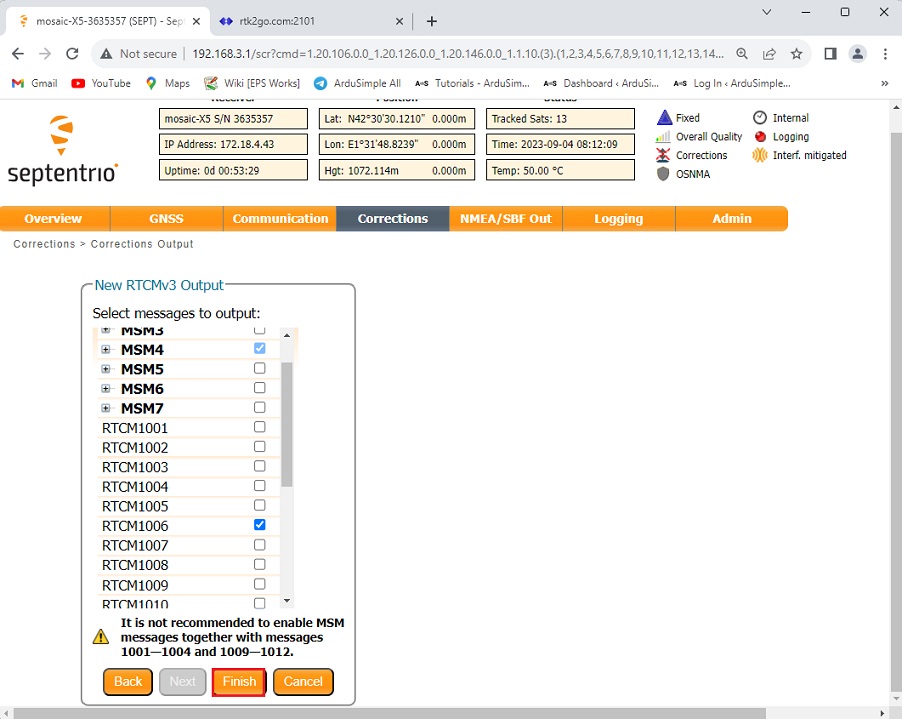
- Select RTCM v3 Output. The default selection (including MSM4, 1006, 1033, and 1230) is generally optimal and compatible with most systems. You can customize these settings here if you have specific requirements. Click Finish and Save Configuration.
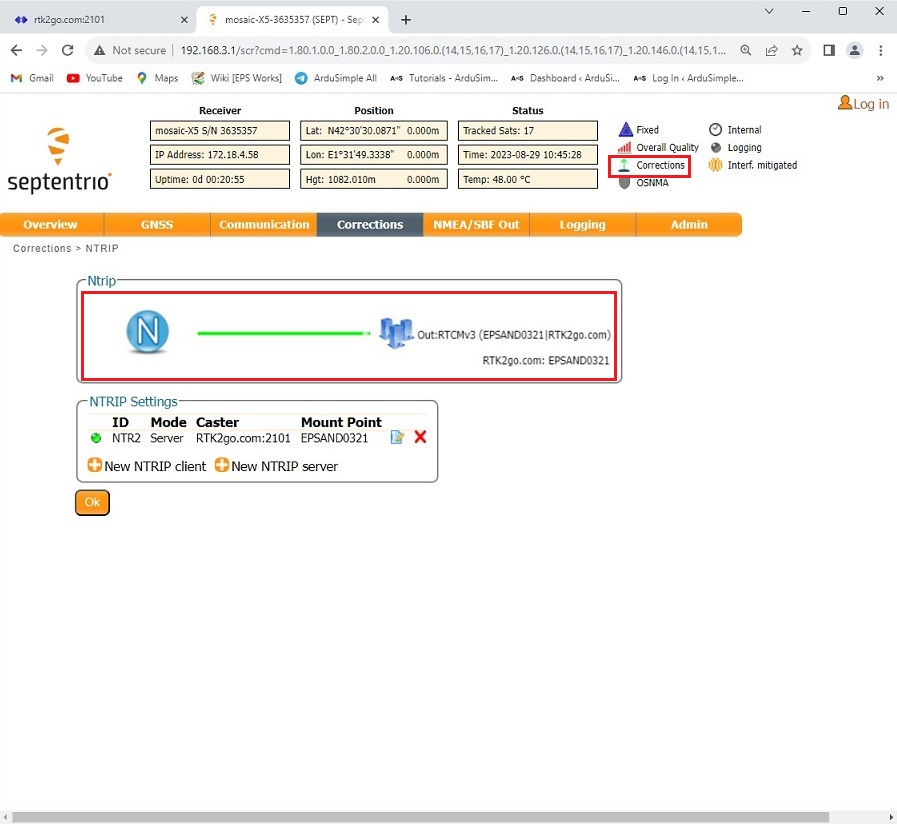
- You can now see that it is sending RTCM messages to your mount point on RTK2go. In the upper-right corner of the screen, you will see a green arrow indicating an active data flow next to Corrections.
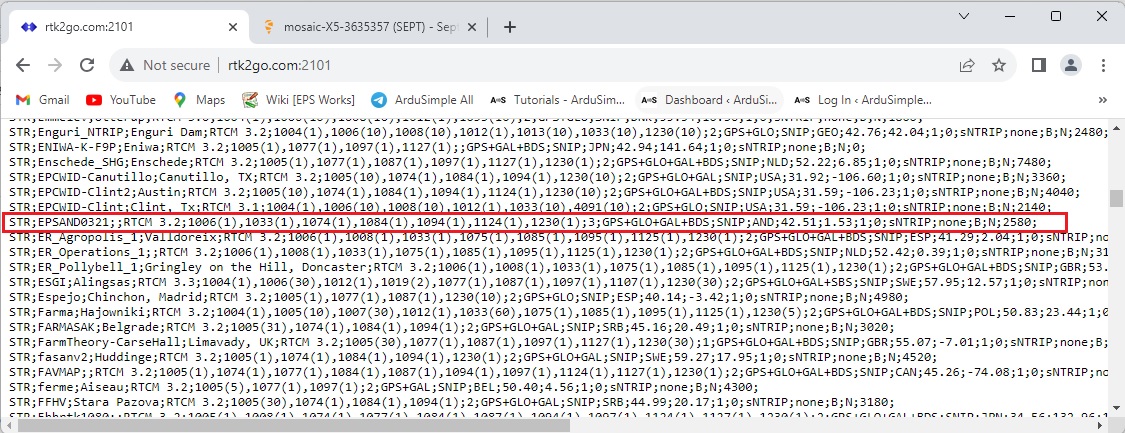
- To verify that everything is working correctly, you can visit rtk2go.com. You can now use any NTRIP client to connect to your mount point.
Built-in NTRIP Caster (advanced users only).
The RTK Base Station includes an integrated NTRIP Caster that supports up to 10 simultaneous rovers, each with an individually configured username and password.
However, most internet service providers (ISPs) block incoming connections by default. Consequently, if a rover attempts to connect directly to your base station’s public IP address, the connection will fail.
To use this mode, you must configure your ISP’s router to open the necessary ports.
Onocoy
Onocoy is a platform that enables users to share and access GNSS correction data. It features a reward system that provides cryptocurrency incentives for maintaining a well-calibrated and reliable base station. A key advantage is that Onocoy automatically calibrates your base station’s position within its network, ensuring excellent pass-to-pass accuracy.
For a detailed setup guide, please refer to our tutorial: How to get paid for installing and sharing your base station with Onocoy.
Step D: Enable radio link (optional)
The kit does not include a radio module, but one can be added to transmit RTCM corrections wirelessly. If you are operating in an area with limited or no internet connectivity and the rover maintains a clear line of sight to the Base Station, a radio link is an effective solution for sending and receiving correction data.
To enable the radio link functionality, you will need to add one of the following components.
- Plugins
Radio module Long Range (LR)
101,00€ This product has multiple variants. The options may be chosen on the product page - Plugins
Radio module eXtra Long Range (XLR)
161,00€ This product has multiple variants. The options may be chosen on the product page
Please note that the dipole antenna for the Long Range and Extra Long Range radio modules must be ordered separately.
- Accessories
Vehicle Mount LR/XLR Antenna
48,00€ This product has multiple variants. The options may be chosen on the product page
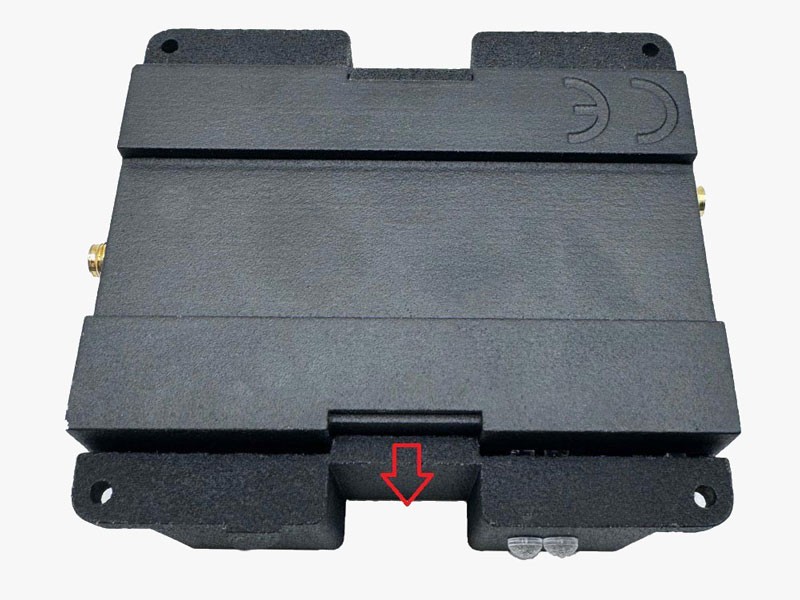
This section provides an integration guide for adding a radio interface to your RTK Base Station to transmit RTCM corrections over a radio link.
- To open the case, pull the outer edge outward.
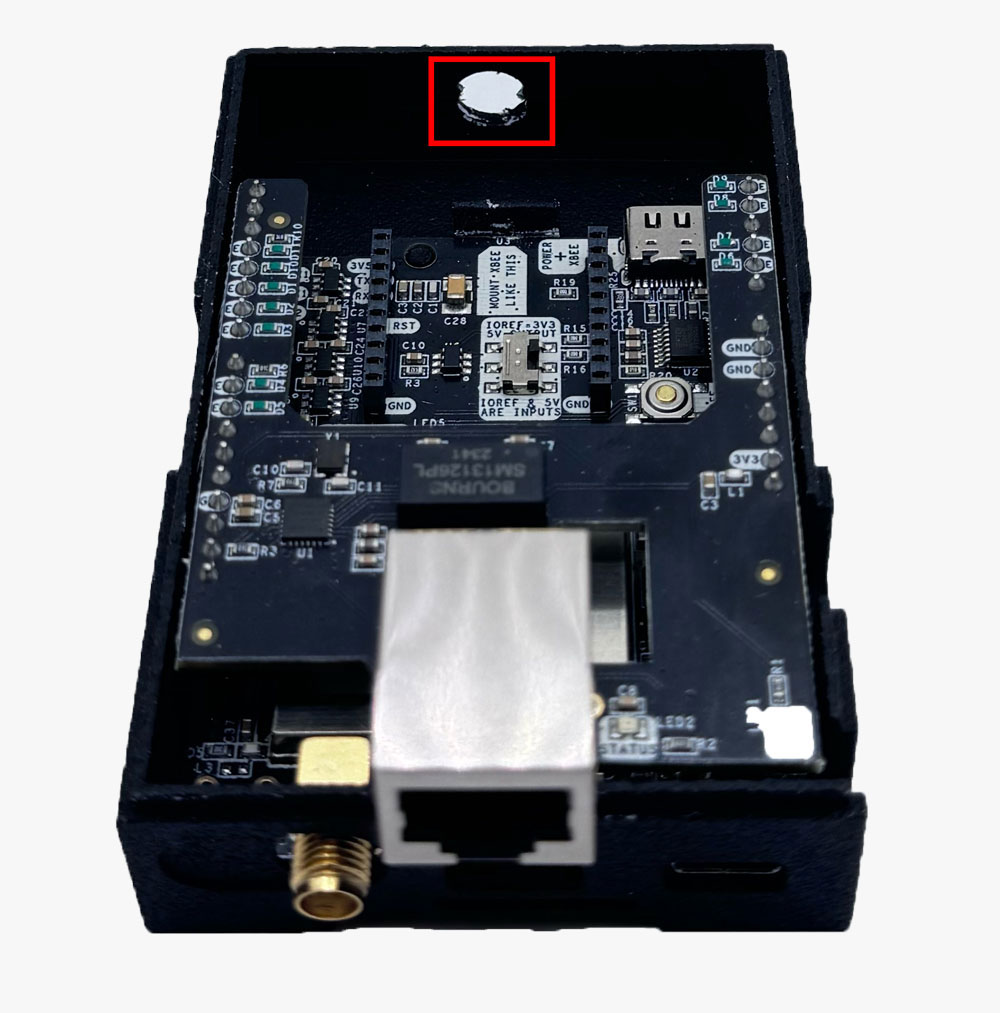
- Use a knife or screwdriver to remove the cover from the pre-cut hole.
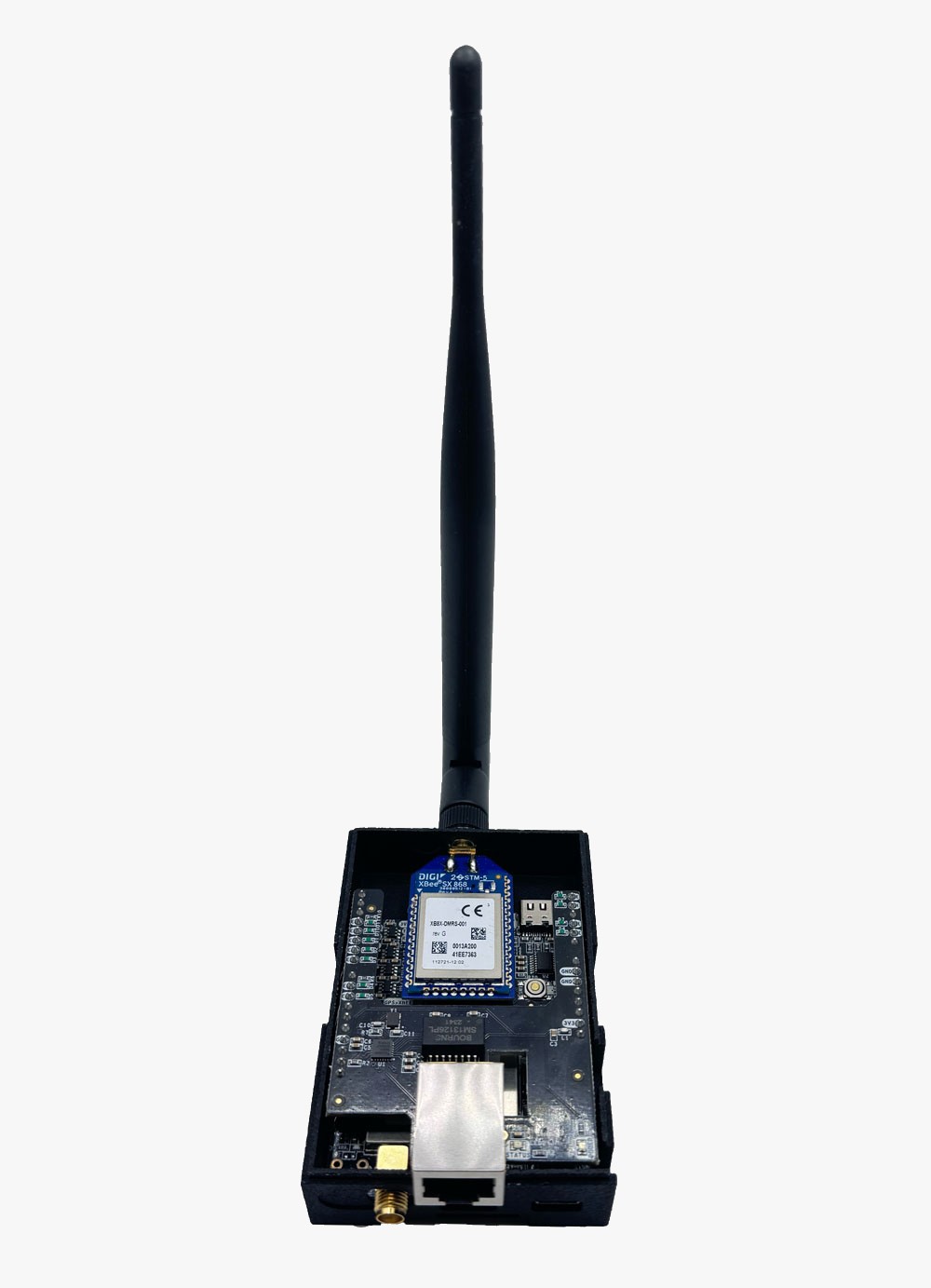
- Mount the radio module on the XBEE Socket and connect the radio antenna.
- Close the case and connect your RTK Base Station to a PC via USB.
- In the Septentrio web interface, navigate to Corrections → Corrections Output and create a +New RTCM v3 Output.
- Select Serial Port → COM2. The default message selection (MSM4, 1006, 1033, and 1230) is robust and compatible with most systems. Adjust these settings here if you have specific requirements.
- Click Finish and Save Configuration. Your rover can now receive the RTCM corrections over this radio link.
Hardware
The hookup guide in this section provides a detailed description of each hardware component and its function.
Power
The RTK Base Station can be powered from two different sources:
- USB-C port
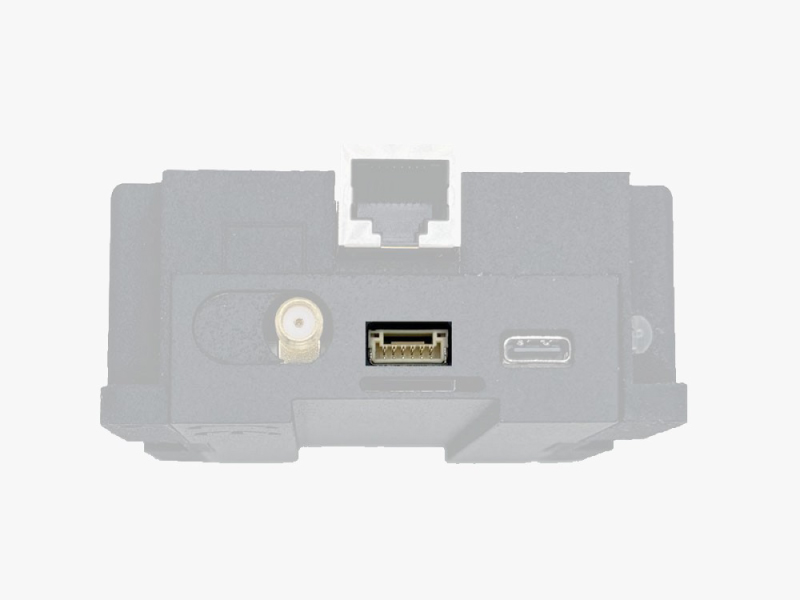
- Pixhawk connector
Only one power source is required, but both can be connected simultaneously without risk.
Power Supply Requirements:
- Use only high-quality USB-C cables no longer than 1 meter.
- If connected via a low-power USB hub or a PC with low-power USB ports, the Pixhawk connector must also be connected to a wall outlet or a high-capacity battery.
GNSS Antenna
The RTK Base Station does not include, but requires a high-quality GPS/GNSS triple band (L1/L2/L5) antenna. In order to get the best performance we recommend using one of our triple band antennas, as the Budget Survey Tripleband GNSS Antenna (IP66).
The board is compatible with both active antennas (maximum output is 150mA @ 3.3V) and passive antennas.
Installation Notes:
- Always connect the antenna before powering the board. This is very important as some board components could overheat if no antenna is connected.
- Screw the antenna to the SMA connector by hand, never use any tools. You could break the connectors if too much force is applied.
- Install the antenna with the clearest possible view of the sky. Use it outdoors and as far as possible from surrounding buildings, mountains, …
- For best results, install the antenna on top of a metallic flat plate of at least 20cm side lenght (e.g. a car top surface).
- Ensure the antenna is mounted on a stable pole, magnetic base, or structure capable of withstanding heavy winds.
For more information on how antenna installation impacts performance, follow our GPS/GNSS antenna installation guide and video.
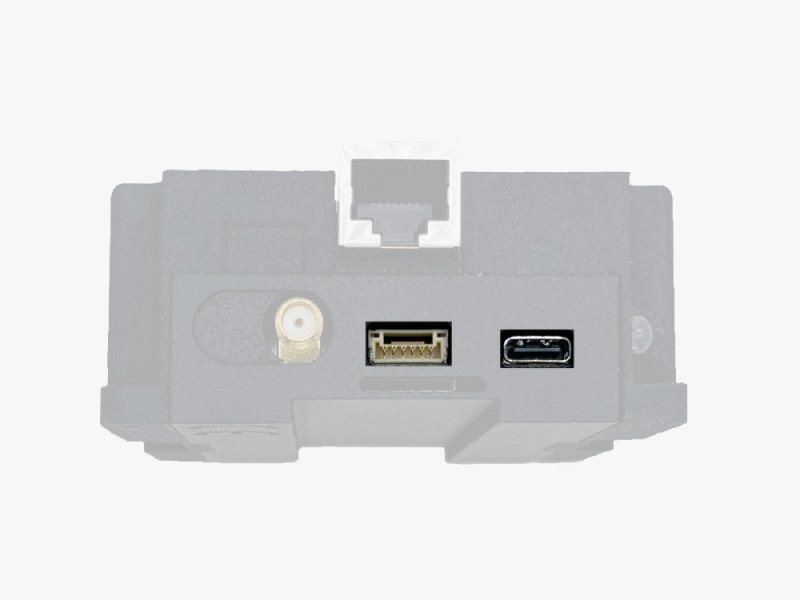
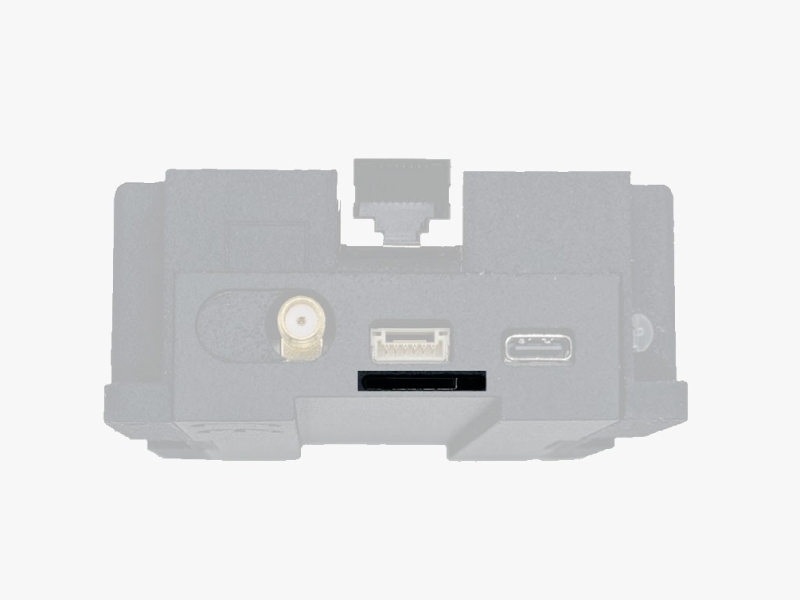
Interfaces
The following section explains the RTK Base Station’s interfaces in detail.
USB-C connector
This USB-C connector is used for the initial configuration of the Base Station.
Its functions include:
- Configuring the Base Station when connected to a PC.
- Powering the Base Station from a power bank or PC.
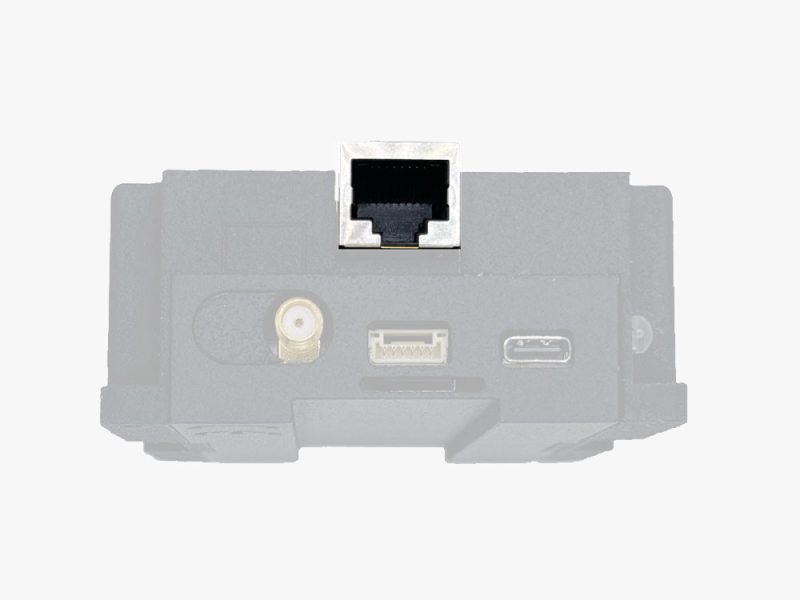
Ethernet connector
Use this Ethernet connector to connect the receiver to a router. This provides internet access to the Base Station and, once configured, allows you to monitor and configure it from a remote computer.
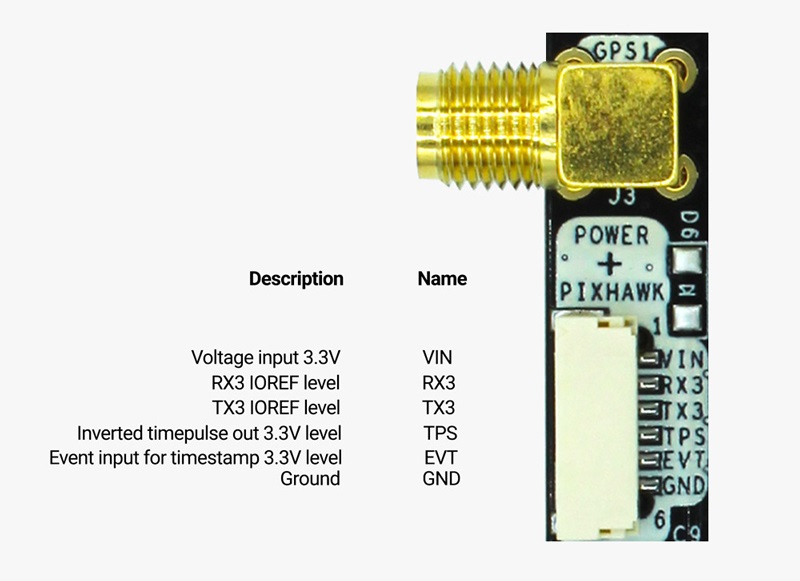
Pixhawk connector
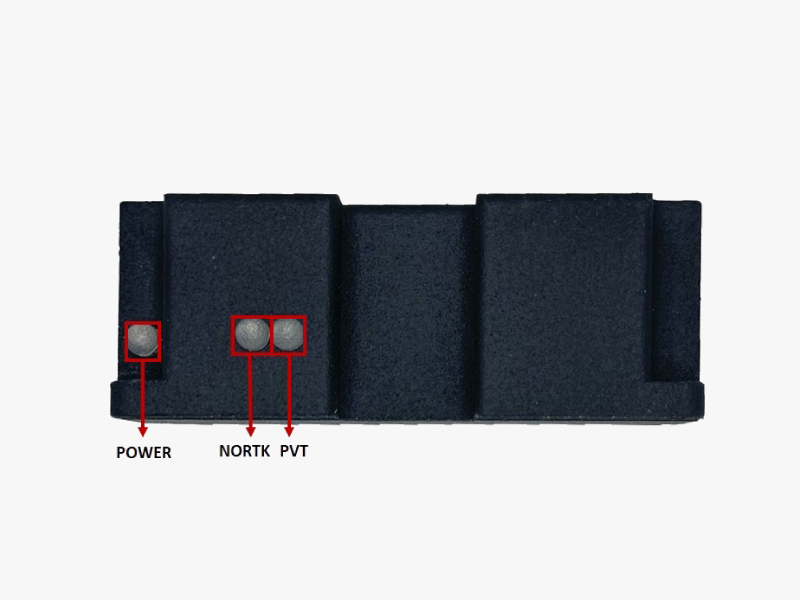
LEDs
- POWER: Illuminates when the receiver is powered on.
- PVT: Illuminates when sufficient satellite data is available to calculate a position.
- NORTK: Blinking indicates that correction data is being received, while solid red indicates that the unit is in Base Station mode.
Onboard datalogging (MicroSD card)
Insert a microSD card (not included in the package) here for data logging, and configure its parameters via the Septentrio’s web interface. This function allows you to continuously log GNSS data for monitoring purposes or as a fallback in case of real-time RTK correction data interruptions.
For detailed steps, see the tutorial: How to generate RINEX files with simpleRTK3B Pro.
Related tutorials
- How to determine the exact position of your base station with simpleRTK3B Pro
- How to configure simpleRTK3B Pro as static base station
- How to share your triple-band Septentrio base station with RTK2go via Septentrio Native Ethernet
- How to get paid for installing and sharing your base station with Onocoy
Accessories
- Plugins
Radio module Long Range (LR)
101,00€ This product has multiple variants. The options may be chosen on the product page - Plugins
Radio module eXtra Long Range (XLR)
161,00€ This product has multiple variants. The options may be chosen on the product page