
 and
and 

How to configure u-blox ZED-F9P
Introduction
This page applies to the simpleRTK2B series receivers powered by the ZED-F9P modules. We will guide you through the steps for the basic usage of the u-center software, which is designed for evaluating performance, conducting performance analysis, and configuring u-blox receivers.
Get started
To use the board with the ZED-F9P, you basically need to go through the next steps to achieve an RTK fix and reach centimeter-level accuracy with your RTK board:
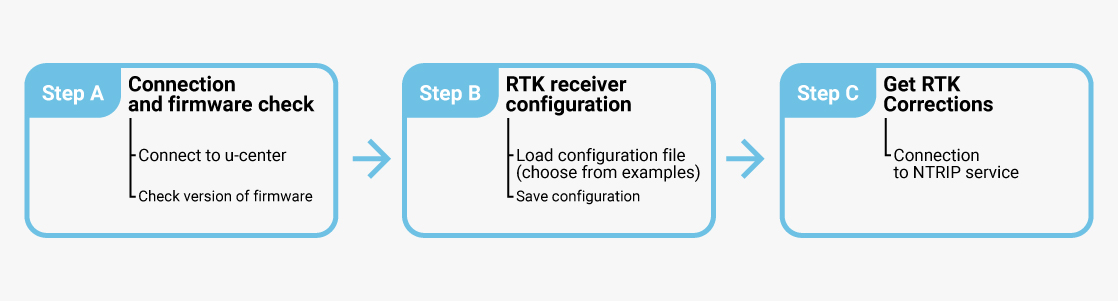
Step A: Connect and check firmware
Connect to u-center
- Install u-center on your PC. You can download it for Microsoft Windows here (download version for F9, not u-center2). If you want to use on Linux and Mac computer check our tutorial How to install u-center on Ubuntu and How to install u-center on macOS.
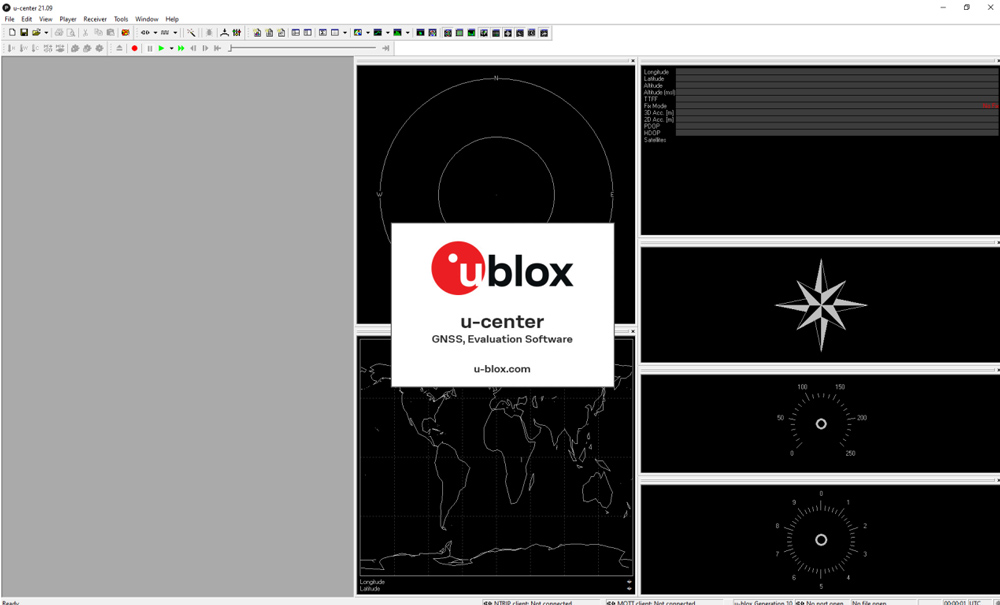
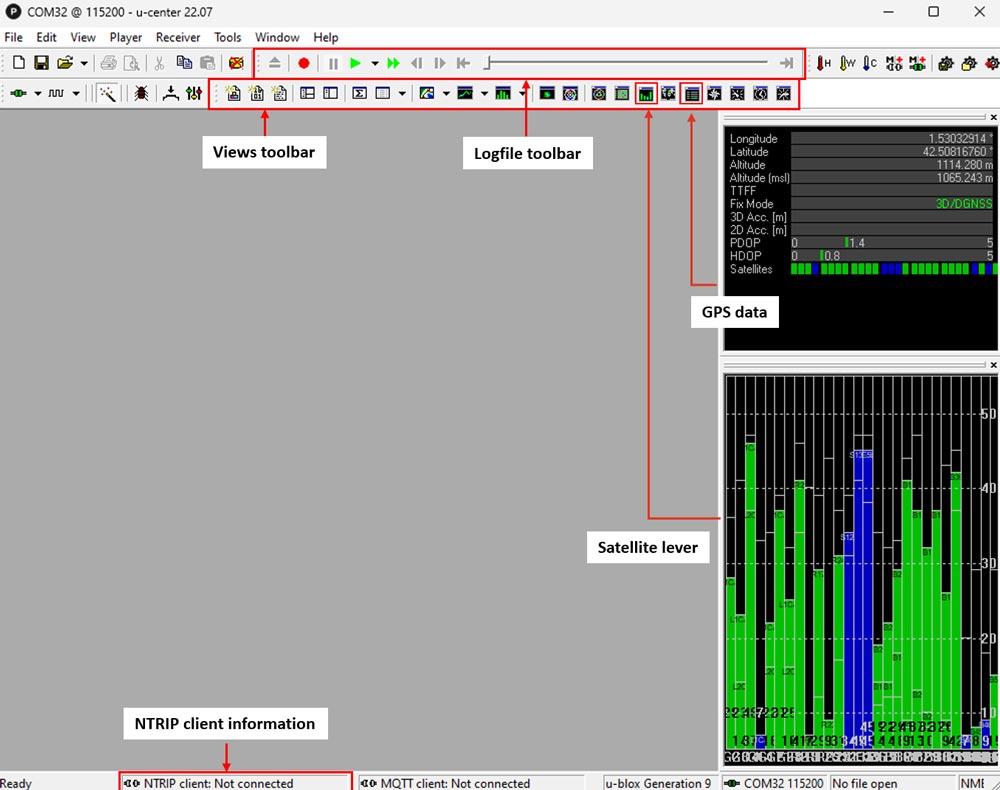
- After a successful installation, u-center can be started from the Start Menu and will start up as shown in following image.
- Connect the GNSS antenna to your receiver. Make sure the antenna has a good view of the sky for testing functionality. Otherwise, you won’t see satellites view and signal.
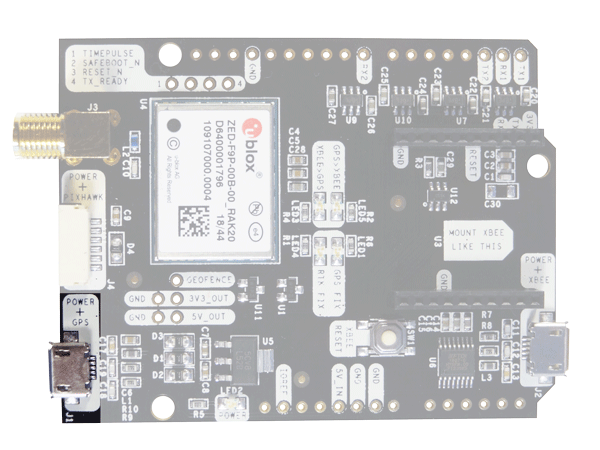
- Connect the receiver to your PC via the USB port labelled as POWER+GPS.
- Open u-center. Select the COM port to connect your receiver. If you don’t know which COM port your receiver is connected, check the Device manager of your PC.
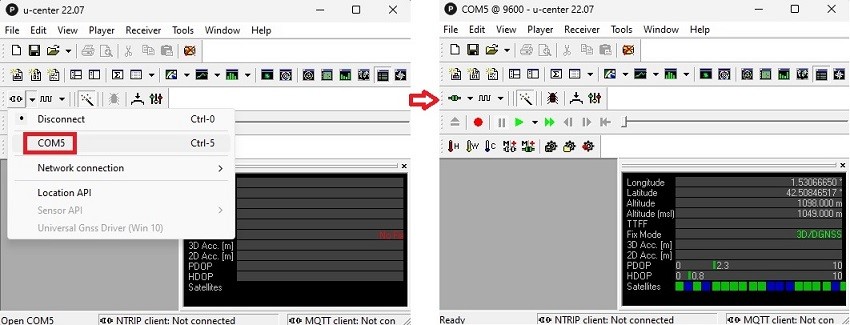
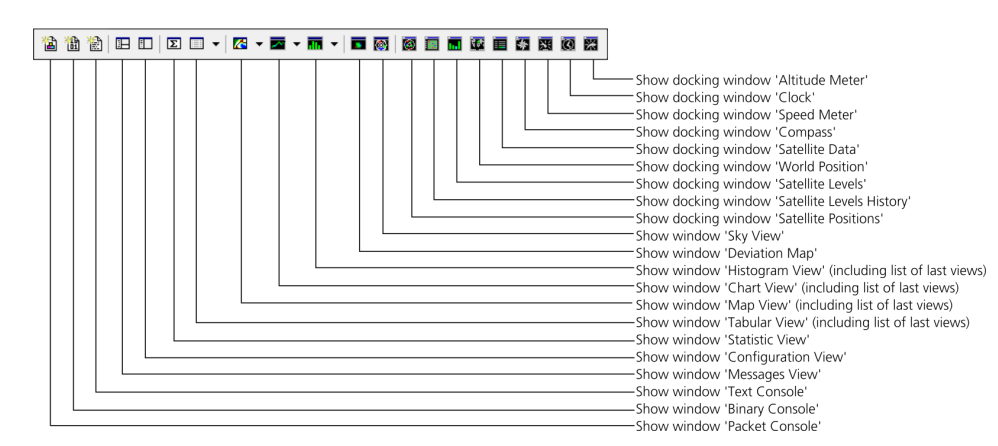
- In the views toolbar, you can choose the data you want to visualize. We recommend enabling GPS data and satellite levels by clicking the icons highlighted in the red squares to view the coordinates and signal strength.You can arrange the location or toolbar by clicking and dragging with the mouse. Additionally, you can change the position and size of the docking window using the mouse.
Check version of firmware
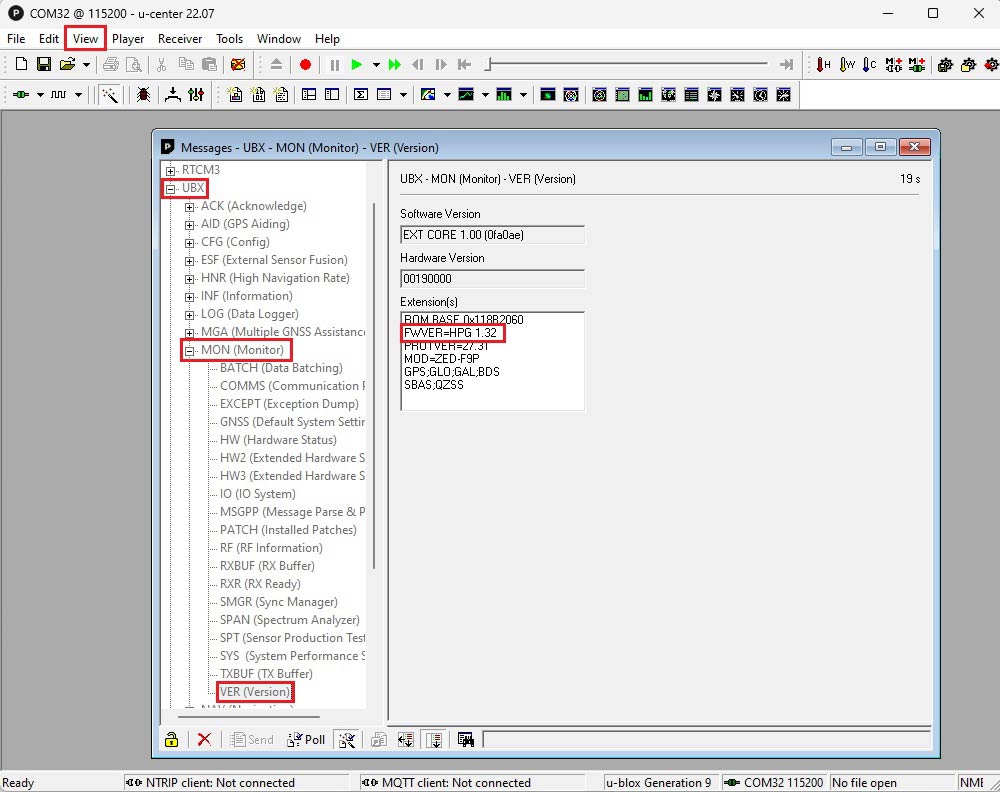
- You can check the firmware version of your receiver by going to View–>Message View–>UBX–>MON–>VER. Depending on when you purchase your board it might be shipped with different firmwares. If you find that you need to change your firmware check the Advanced functionality: Update firmware.
Step B: Configure the receiver
To help you to configure your ZED-F9P receiver, we have prepared several examples of configuration file.
Load configuration file
- Find the configuration file that best fits your project’s requirements in the table below and click it to download it to your PC.
If the selected configuration requires a different firmware version than the one currently installed on your device, follow the instructions for updating the firmware on your ZED-F9P module before proceeding to the next steps.
| Configuration | Firmware 1.51 | Firmware 1.13 |
|---|---|---|
Base Details It will set your receiver as a base station using the survey-in mode of u-blox. Starting from a default ZED-F9P configuration: Enable survey-in with target accuracy 2.5m (should take no more than 5-10min) Change UART2 baudrate to 115kbps. This improves the buffer use of the radio links. Activate following RTCM messages 1005: Stationary RTK reference station ARP 1074: GPS MSM4 1084: GLONASS MSM4 1094: GALILEO MSM4 1230: GLONASS code-phase We have selected this combination of messages because it's a good tradeoff between performance and required data link: Performance can be improved by using MSM7 messages RF Bandwidth can be improved by eliminated more constellations (e.g. remove Galileo), or increase 1005 to only be sent once every 5 seconds. | Base_1.51 | Base_1.13 |
Rover 1Hz Details Starting from a default ZED-F9P configuration: Change UART2 baudrate to 115kbps. This improves the buffer use of the radio links. Disable SBAS, to avoid position jumps during short RTK corrections interruptions. Disable Beidou, to make it simpler to increase navigation rate to 10Hz without troubles. | Rover_1Hz_1.51 | Rover_1Hz_1.13 |
Rover 5Hz Details Starting from a default ZED-F9P configuration: Change UART2 baudrate to 115kbps. This improves the buffer use of the radio links. Disable SBAS, to avoid position jumps during short RTK corrections interruptions. Disable Beidou, to make it simpler to increase navigation rate to 10Hz without troubles. Disable GSV on UART to avoid buffer overflow Change navigation rate to 200ms | Rover_5Hz_1.51 | Rover_5Hz_1.13 |
Rover 10Hz Details Starting from a default ZED-F9P configuration: Change UART2 baudrate to 115kbps. This improves the buffer use of the radio links. Disable SBAS, to avoid position jumps during short RTK corrections interruptions. Disable Beidou, to make it simpler to increase navigation rate to 10Hz without troubles. Disable GSV on UART to avoid buffer overflw Change navigation rate to 100ms | Not supported (FW1.51 doesn't support 10Hz update rate) | Rover_10Hz_1.13 |
Rover 1Hz + send NMEA messages to Bluetooth, BLE, or radio pluginDetails Enable NMEA on COM2 of the receiver, allowing you to connect the receiver to your mobile device via Bluetooth, BLE, or use radio and other communication plugins on Xbee socket. Disable SBAS, to avoid position jumps during short RTK corrections interruptions UART2 activate NMEA output via UBX-CFG-PRT and change baudrate to 115'200bps Activate GST so accuracy estimates are also visible Enabled High Precision NMEA with one extra decimal digit Enable SPARTN mode for PP compatibility (only on fw v1.51) | Rover_1Hz_plugin_1.51 | Rover_1Hz_plugin_1.13 |
Rover 1Hz + send GGA messages to 4G NTRIP plugin Details This configuration file allow connection to NTRIP client with VRS mountpoints. Starting from a default ZED-F9P configuration: Change UART2 baudrate to 115kbps. This improves the buffer use of the radio links. Disable SBAS, to avoid position jumps during short RTK corrections interruptions. Disable Beidou, to make it simpler to increase navigation rate to 10Hz without troubles. Enable UART2 Protocol Out to NMEA NMEA-GGA as output on UART2 to allow compatibility with VRS mountpoints Disable the rest of NMEA messages on UART2 Only on FW v1.51 RTCM+SPARTN+UBX are enabled as Protocol In on both UART1 and UART2 | Rover_1Hz_4G_1.51 | Rover_1Hz_4G_1.13 |
Post-processing RAW data (PPK) over UART1 & USB at 1Hz Details NMEA messages disabled on UART1 and baudrate changed to 115'200 bps. UART1, UART2 and USB output UBX-RXM-RAWX and UBX-RXM-SFRBX. | PPK_1.51 | Not supported (FW 1.13 does not support exporting PPK raw data) |
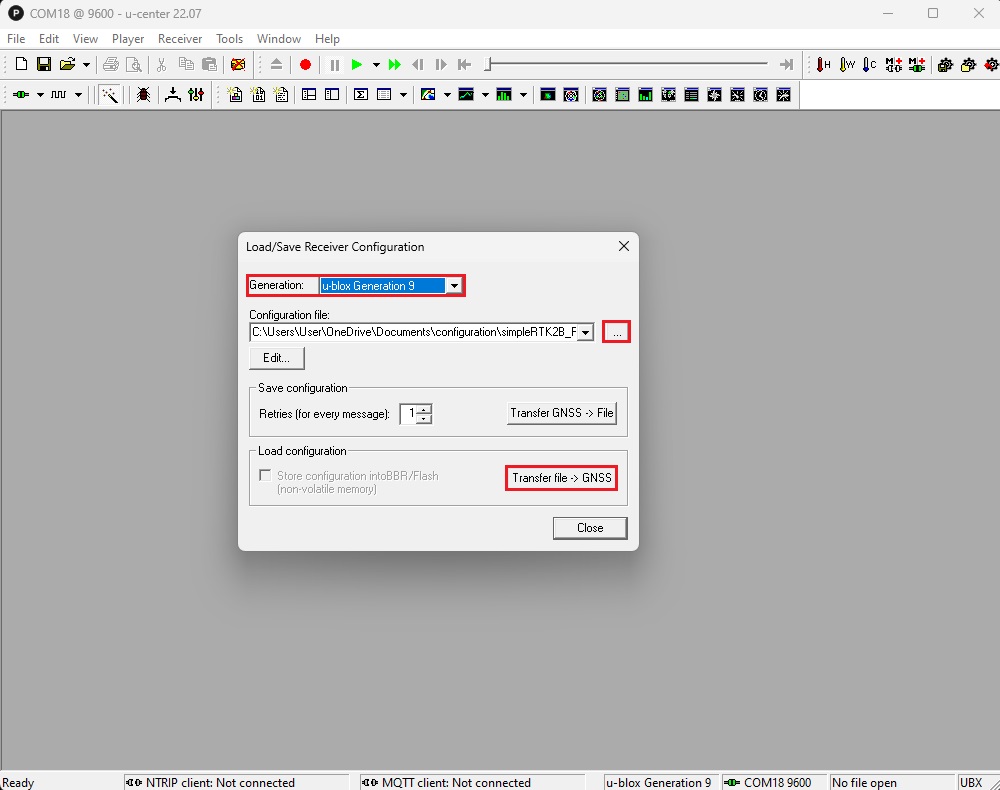
- To load a configuration file go to Tools –> Receiver Configuration… and select Generation u-blox Generation 9.
- Select the configuration file from your hard disk and click Transfer file –> GNSS.
Save configuration
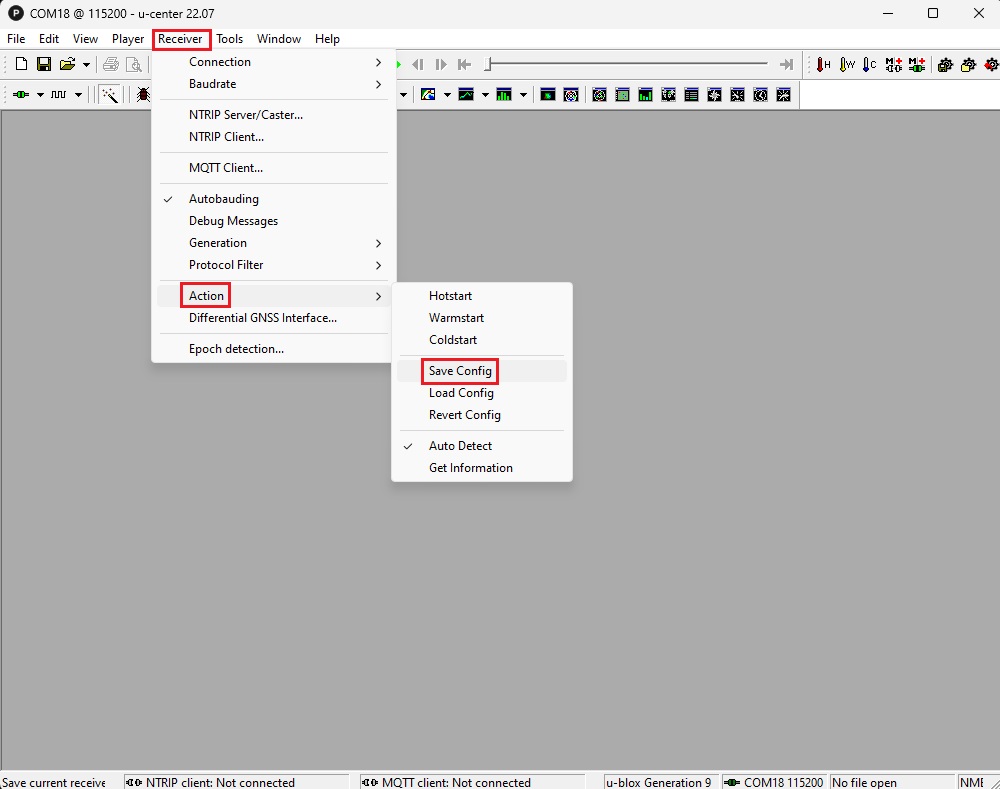
- When finished configuration, the ZED-F9P will start using the new configuration immediately. But if you remove the power, it will revert back to the previous one. To permanently store our new configuration, in the menu bar, go to Receiver–>Action–>Save Config to save your configuration.
Step C: Get RTK corrections
To achieve centimeter-level accuracy with GNSS receivers RTK corrections are required. There are 2 ways of getting RTK corrections:
- NTRIP correction service (preferred option): it only requires a rover receiver and access to an correction service. It eliminates the need to deploy and maintain an additional base station.
- Base–Rover setup: In this configuration, you operate your own local base station, which generates RTK corrections and transmits them directly to the rover.
NTRIP correction service
NTRIP (Networked Transport of RTCM via Internet Protocol) is a protocol used for streaming GNSS data over the internet. It facilitates the transmission of real-time correction data from a reference station to a rover or user device.
You can search for available RTK Correction Services in your Country to gain credentials (server address, port, user and password) of NTRIP.
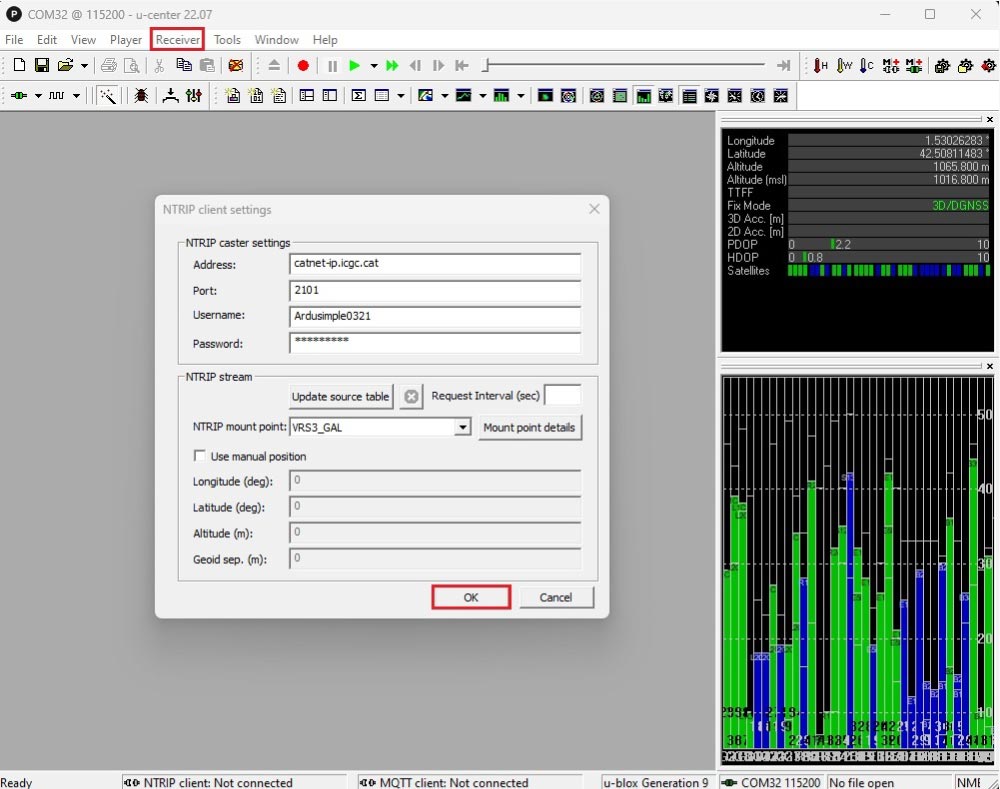
- At menu bar go to Receiver–>NTRIP Client… Set up the Address, Port, Username, Password and Mount point of your NTRIP. Click OK.
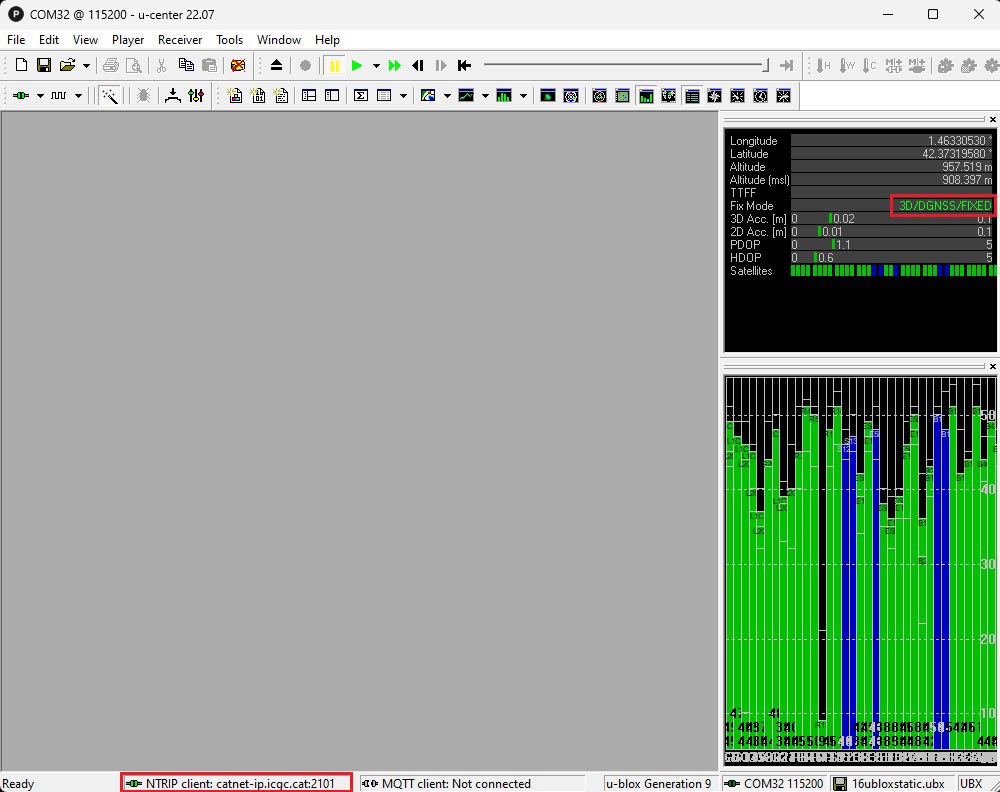
- In a few minutes, you will see the Fix Mode change to FIXED or FLOAT.
At the bottom of the screen the NTRIP client icon will turn green.With valid FIXED you should see the 3D Acc.(accuracy) and 2D Acc. are centimeter-level.
- You can also connect to NRTIP using your mobile device, which is convenient for fieldwork. For more information, check our tutorial How to use centimeter GPS with any Android app (mock location).
- You can also connect to NRTIP correction with one of our communication plugin below. For more information, check the User Guide of each product.
- Sale!
 Plugins
4G NTRIP Master
156,00€ This product has multiple variants. The options may be chosen on the product page - Sale!Made in Europe
-
Base-Rover Corrections
- In a Base-Rover setup you will need two RTK receivers: one configured as a Base which is sending correction data via a radio module to the other receiver configured as a Rover.
-
- Plugins
Radio module eXtra Long Range (XLR)
161,00€ This product has multiple variants. The options may be chosen on the product page - Plugins
Radio module Long Range (LR)
101,00€ This product has multiple variants. The options may be chosen on the product page -
- Alternatively, you can use our pre-configured GNSS RTK base and rover kits.
Advanced functionality
Firmware update
- Download the firmware you need. There are two versions of the ZED-F9P firmware available for download:
- Version 1.13 (supports up to 10Hz, ideal for high-frequency applications like ArduPilot).
- Version 1.51 (supports up to 8Hz, compatible with the SSR service PointPerfect).
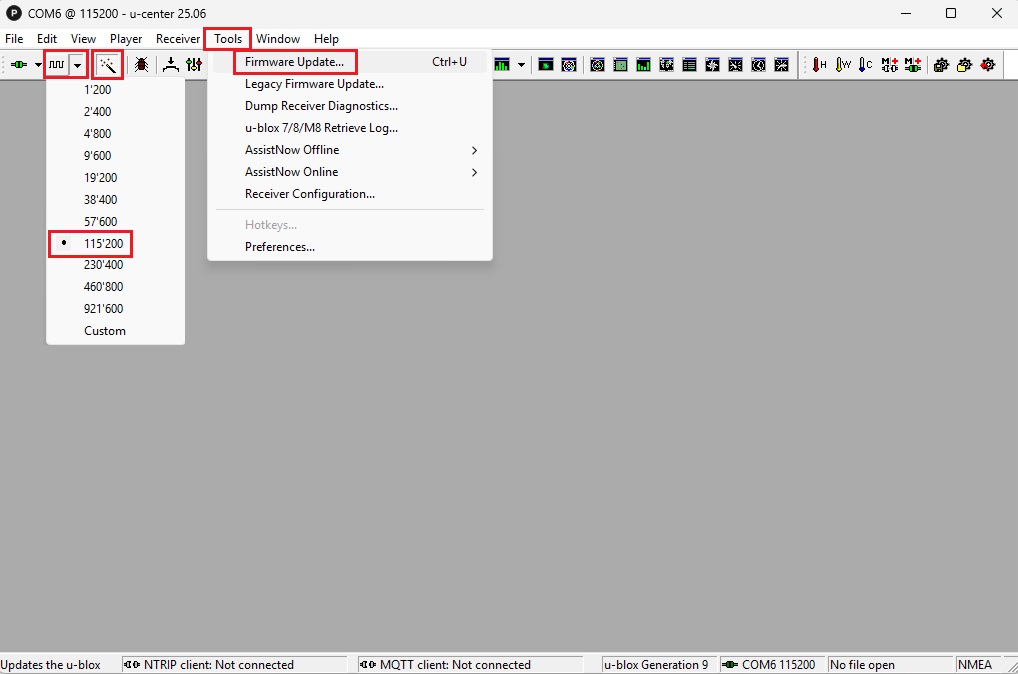
- SimpleRTK2B Lite boards support a maximum baudrate of 115200bps, so use that value for connection and press the magic wand button to allow auto-bauding on other simpleRTK2B series boards.
- Go to Tools -> Firmware Update.
- Select the Firmware image file you downloaded on step 1 from your computer drive.
- Set baudrate to 115200bps.
- At the bottom-left corner of the application window, press the GO button.
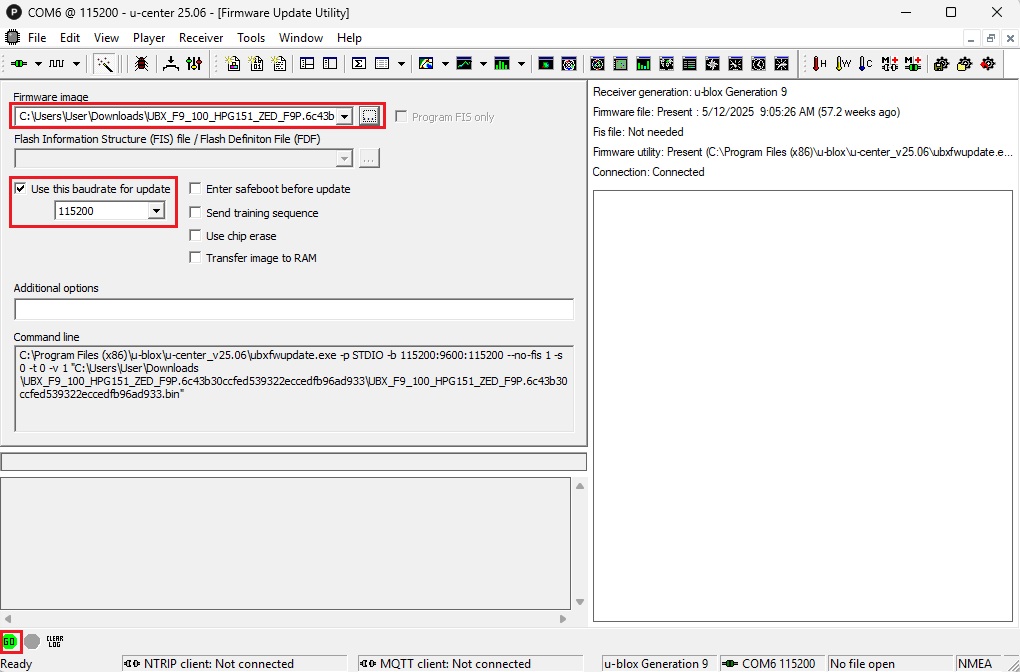
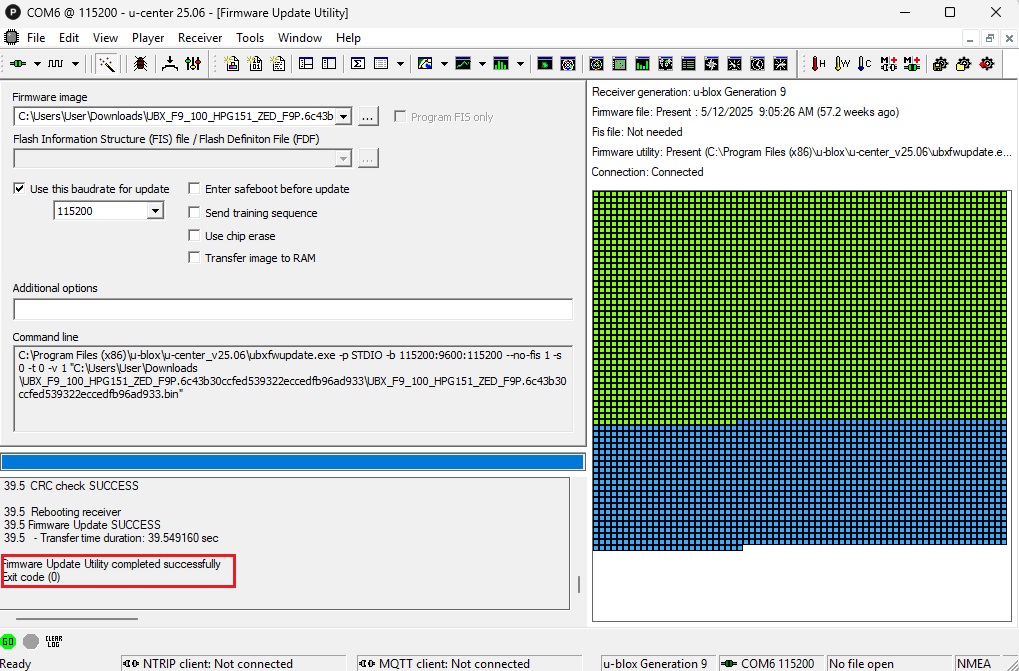
- Once the firmware update process is finished, you will get a success message.
Create your own configuration file
You can customize your receiver configuration manually using u-center software and create your own configuration file. The configuration file will be saved in the computer as a local file in ASCII format, making it easy to use with other receivers.
- To create the configuration file and save it as a local file, go to Tools–>Receiver Configuration… At Configuration file choose the folder and file name you want to save the configuration. Click Transfer GNSS–>File.
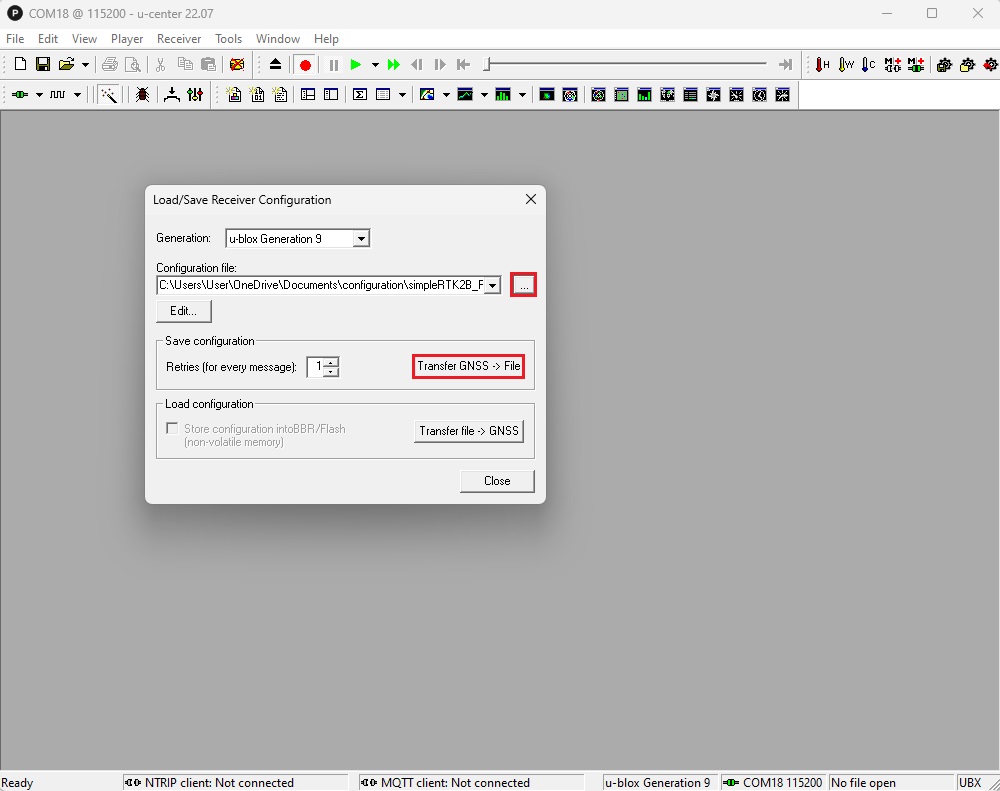
- Once finished, the configuration file will be saved.
Record log file
You can record your u-center software session while running it, and replay it at any time to simulate the conditions you had at the field for debugging and testing purposes.
- Click the record button in the toolbar, then select the folder and filename where you want to save the logfile. Click Save.
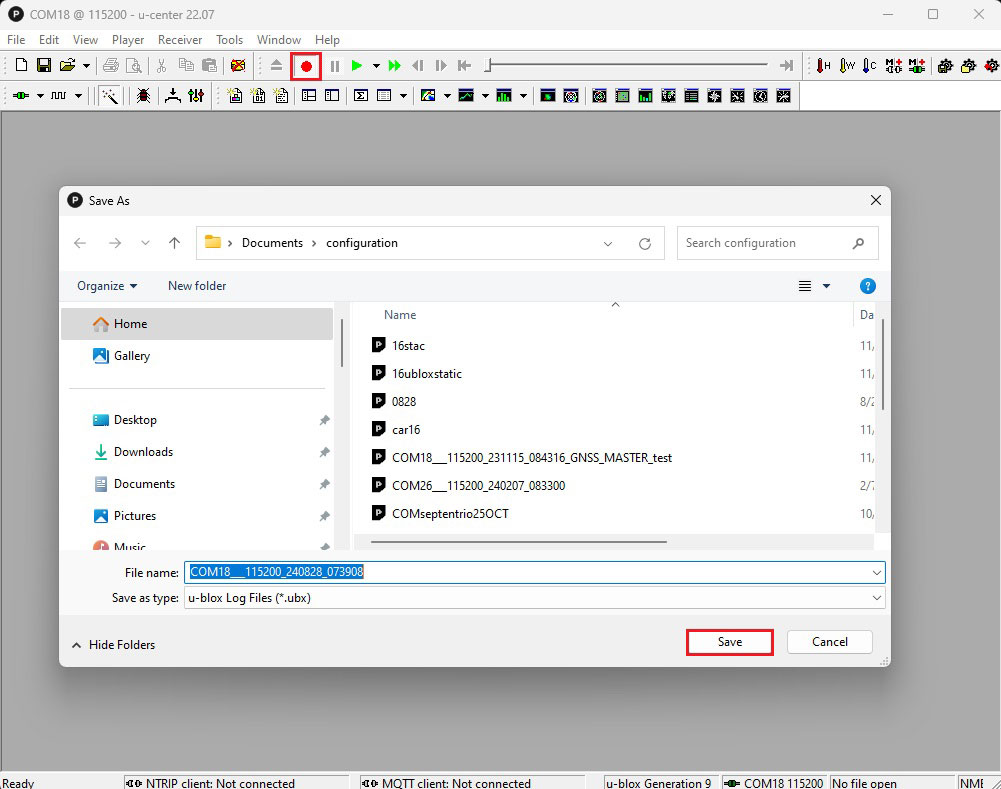
- To stop recording, simply click the eject button in the toolbar.
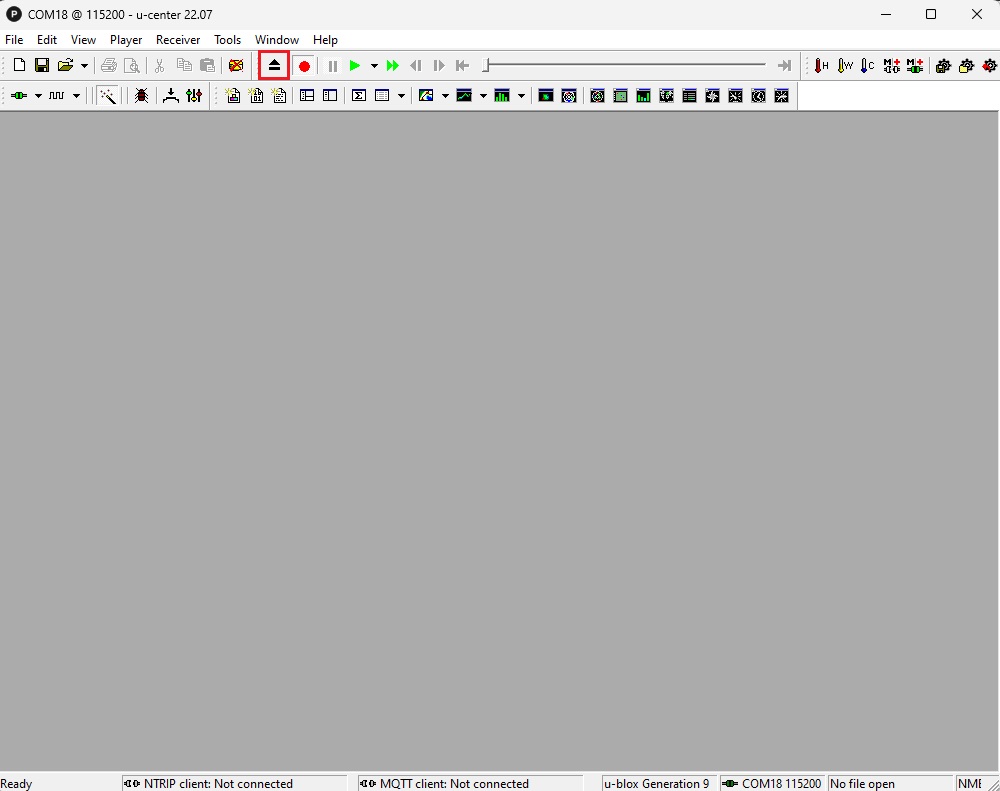
Play log file
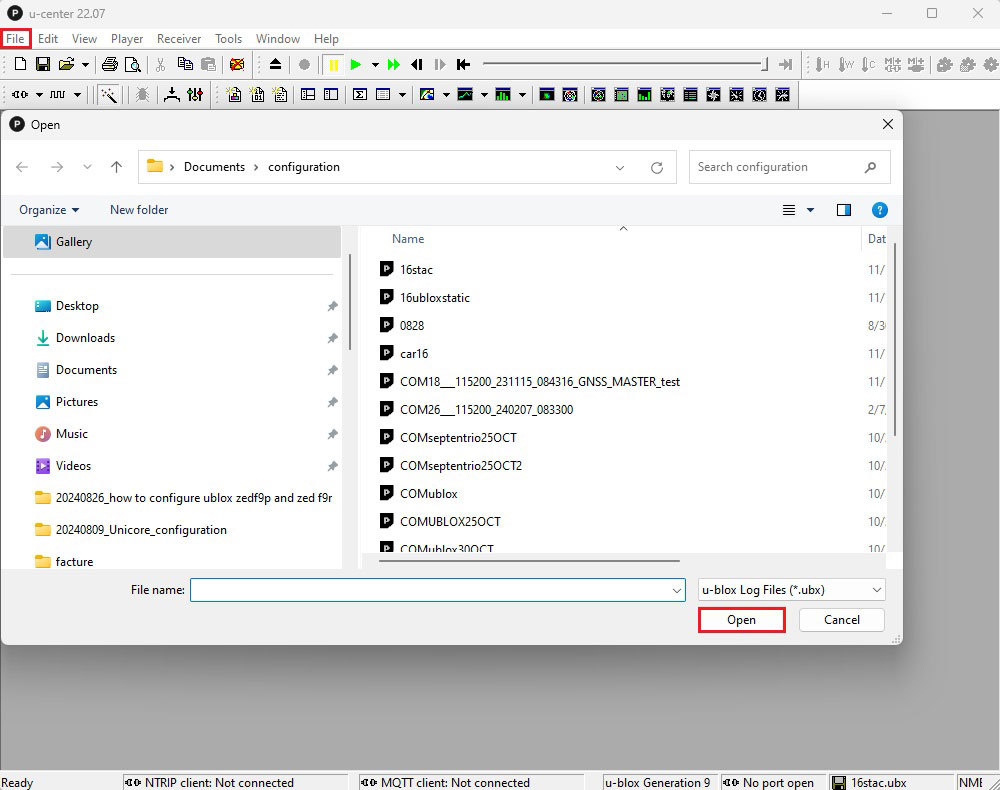
- To replay a log file, go to File–>Open. Select the log file, then click Open.
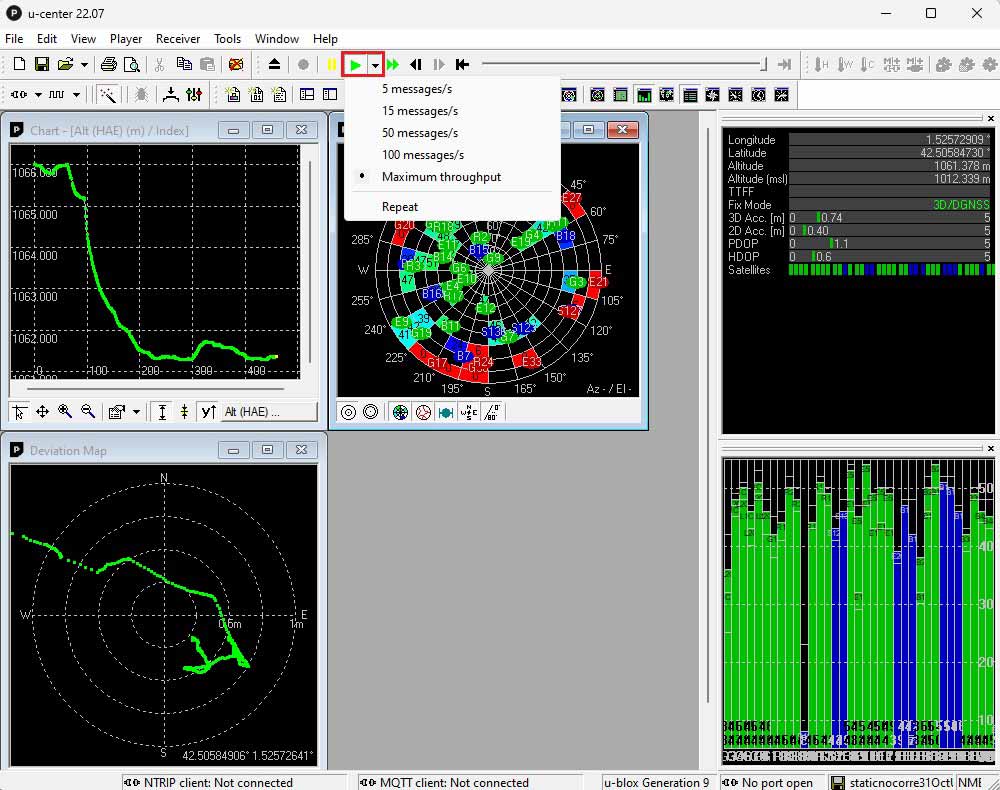
- Click the play icon to start playback. You can adjust the replay speed as needed. In the view toolbar, you can select the data you are interested in.
Documentation
If you are an advanced user seeking detailed information, please refer to the u-center User Guide.
- Sale!Made in EuropeRTK starter kits
Medium Range Radio – RTK Starter Kit
512,00€Original price was: 512,00€.499,00€Current price is: 499,00€. - RTK2B Boards
simpleRTK2B Micro
From 199,00€ This product has multiple variants. The options may be chosen on the product page - RTK2B Boards
simpleRTK2B Pro
From 226,00€ This product has multiple variants. The options may be chosen on the product page