plane icon
Shipping to
Next-day shipping from Europe with DHL. Get your order worldwide in 2-4 days!
Buy online and get delivered in 2-4 days via our local partners, like shopping locally!
We ship from Europe with DHL, get your order without surprises in 1-3 days!
Next-day shipping from Europe with DHL. Get your order in 14-21 days!
We deliver to Singapore in 2-4 business days. Need help? Contact our team at +65 3174 3631
We deliver to Hong Kong with DHL in 2-4 business days. Need help? Contact our team at +852 5808 4561
We deliver to China in 2-4 business days. Need help? Contact our team at +86 18367375467
We deliver to Taiwan in 2-4 business days. Need help? Contact our team at +886 2 7734 4400
Update (23/01/2026): We have plenty of stock of all our products, find us also in and    Shop now

How to use Field Navigator with ArduSimple RTK receiver for Enhanced Precision

cover for Tutorials field navigator

Field Navigator allows connecting external receivers. But RTK receivers require access to a base station or a correction service to achieve centimeter accuracy, and this feature is not supported by Field Navigator.

But no worries, as we have alternative methods to overcome this limitation.

  • By using Mock location on your Android device
  • An economical choice by eliminating the requirement of setting up a personal base station or using additional communication plugins.
  • By using a RTK kit with NTRIP Plugin inside
  • By connecting one of our add-ons to the Plugin socket, you can receive NTRIP or PointPerfect correction on your receiver.
  • By using a base-Rover set up
  • If you don’t have access to an online RTK correction service (NTRIP), you can build you own base station with one of our boards, as all our boards can be configured as rover or as a base. 

Required software:

How to use ArduSimple with Field Navigator on Android device?

Firstly, you need to decide how you will enable centimeter accuracy in your RTK board.

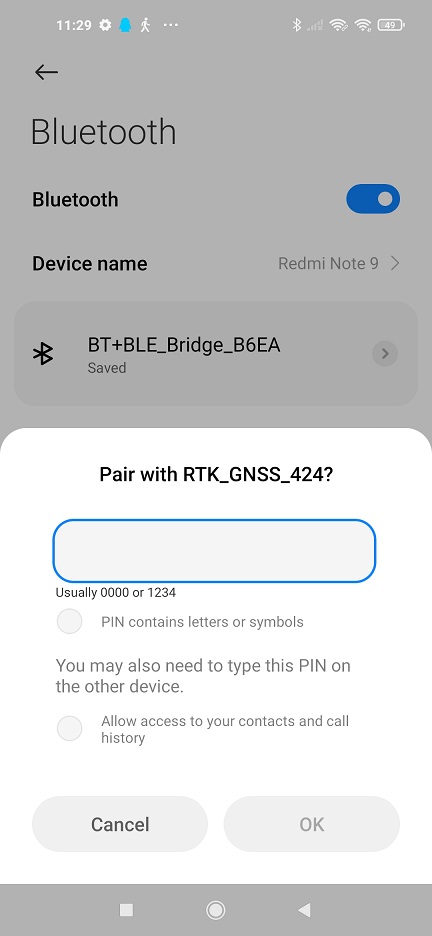
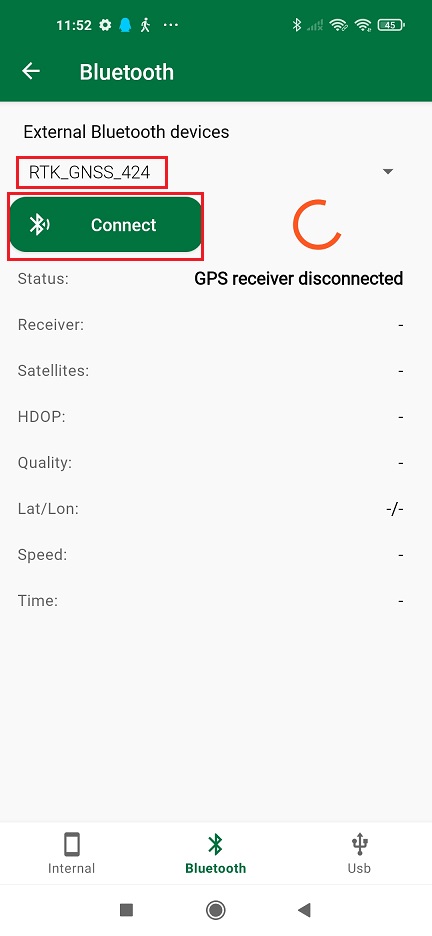
Secondly, connect your receiver to Field Navigator.

  1. Connect the RTK antenna to your receiver, in a location with good view of the sky or near a window for testing the functionality.
  2. Install Field Navigator on your Android device.
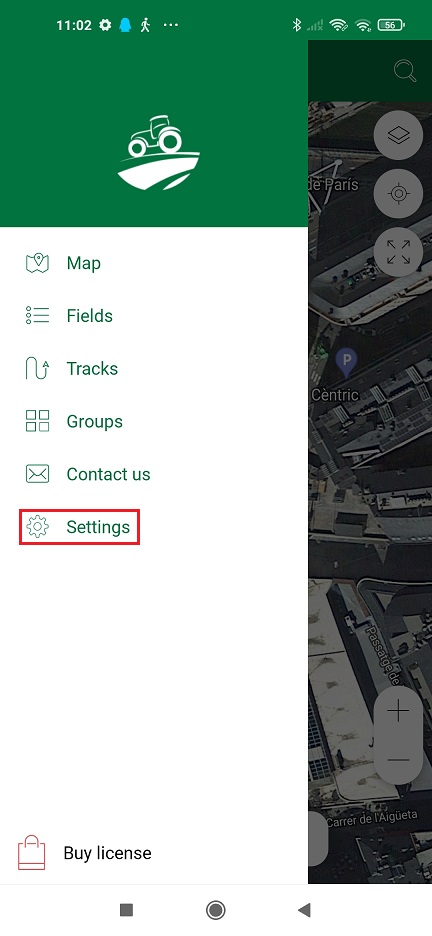
  3. Open Field Navigator. In the menu, choose Settings.
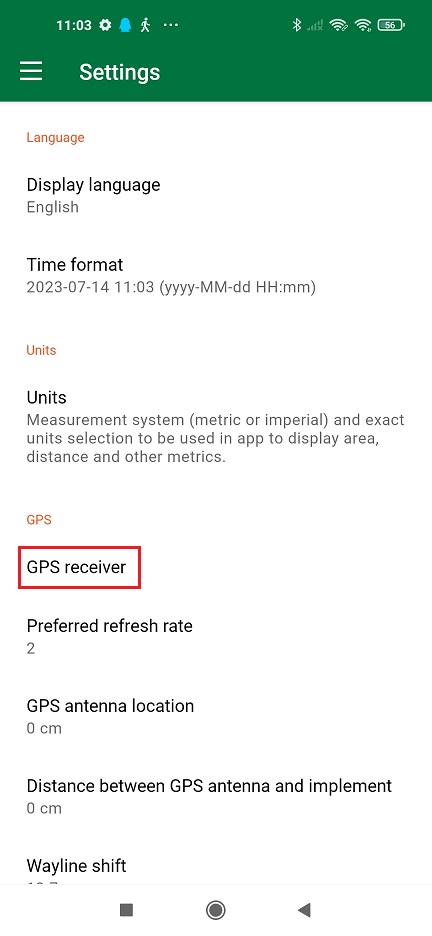
  1. Tap on GPS receiver.
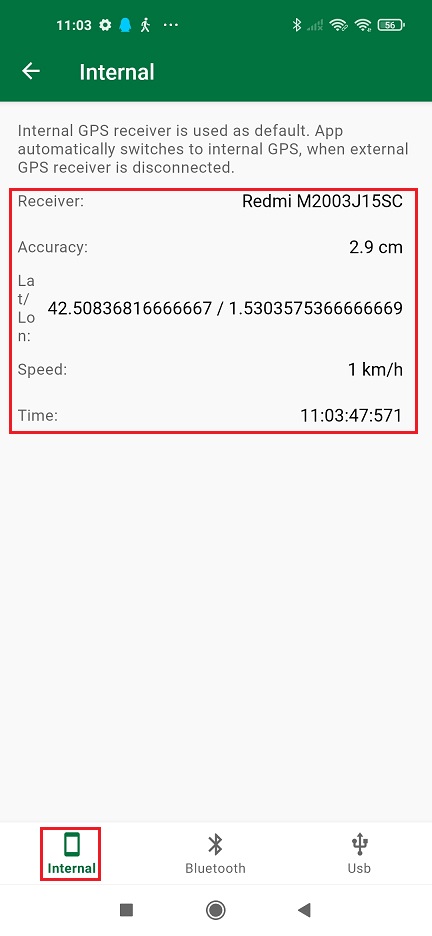
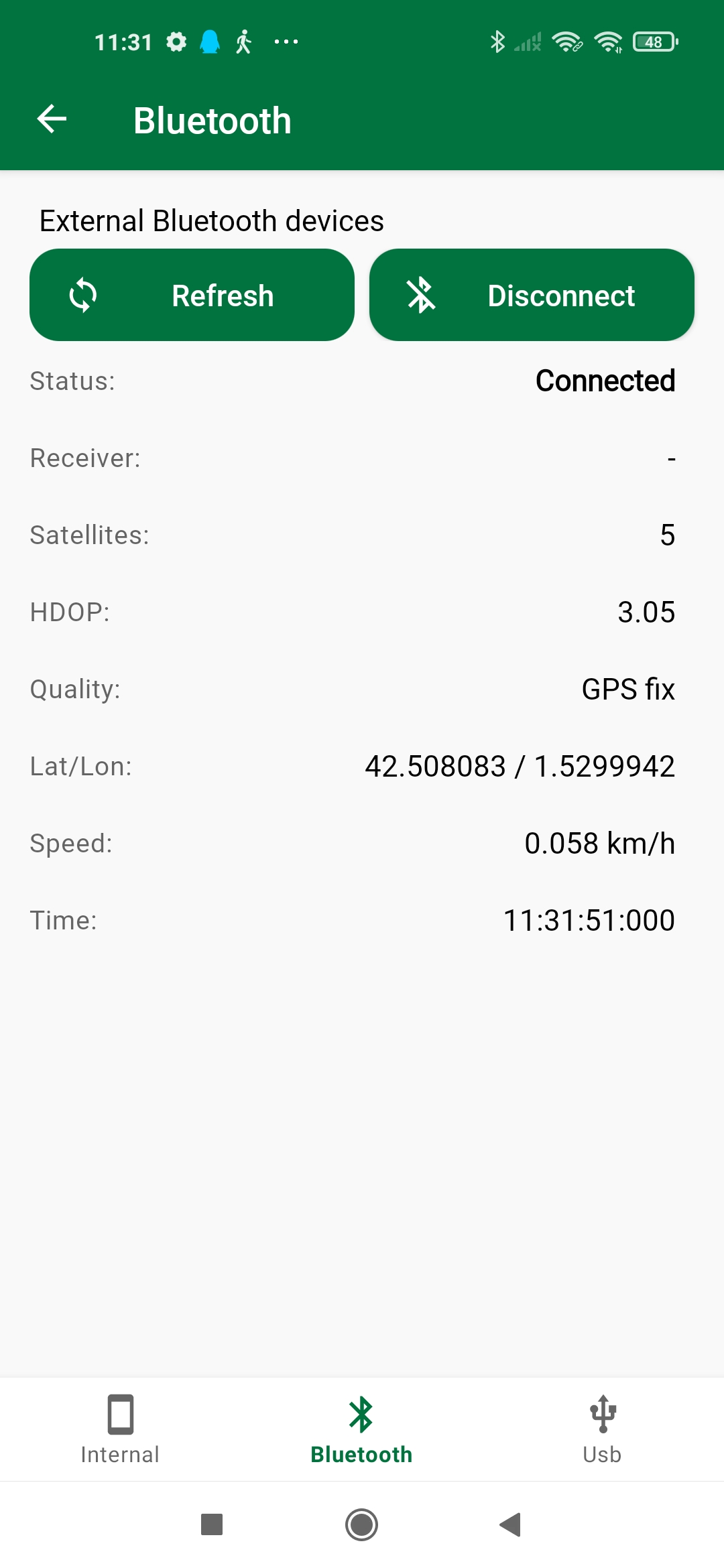
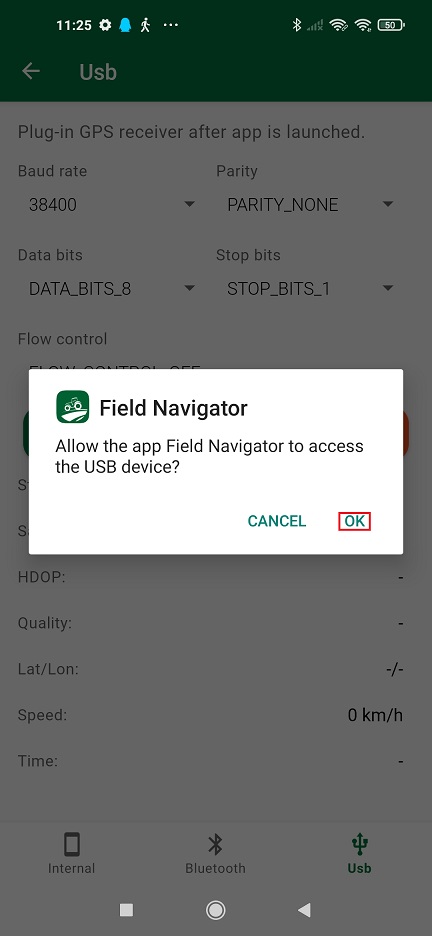
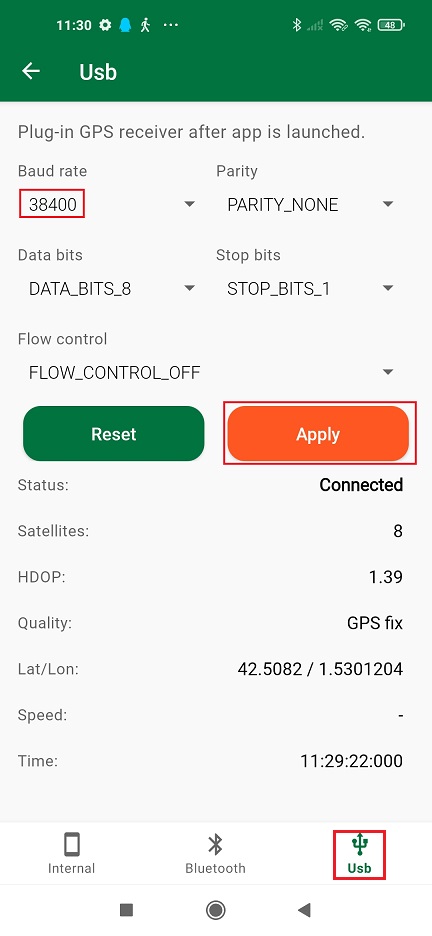
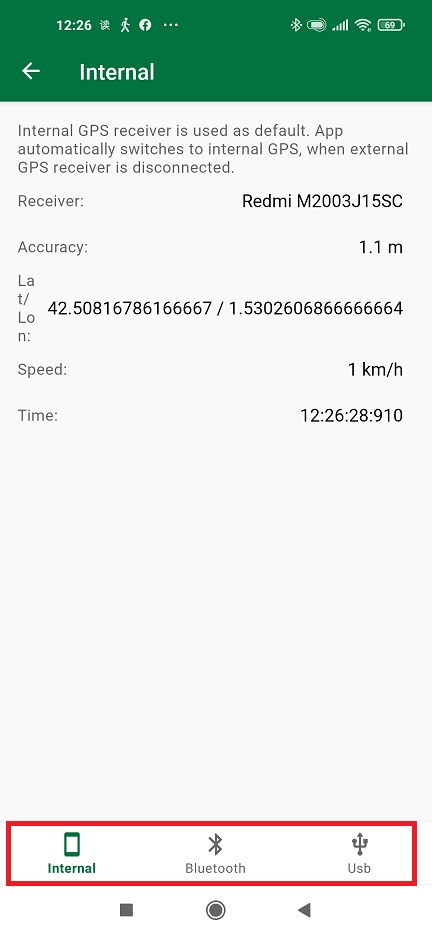
  1. You will see three connecting options.

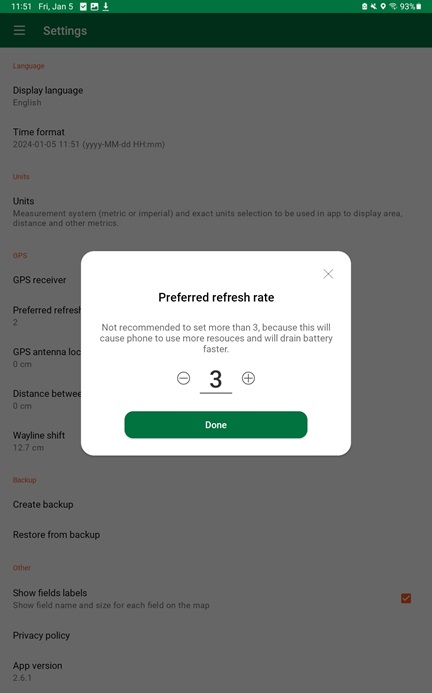
  1. In Settings –> Preferred refresh rate, you can change the refresh rate. Note that Field Navigator does not recommend setting the refresh rate to more than 3. Based on our tests, setting the refresh rate to 5 and 10 won’t yield smoother results.

Now you are ready to navigate and to measure the size of your farm, field or grassland with centimeter level accuracy using Field Navigator.

If you want to do this tutorial, we have all the products in stock and ready to be shipped:

If you liked this content, you can follow us on Twitter, YouTube, Facebook or LinkedIn to stay updated of content like this.

Got any questions or requests?
Contact us! We'll answer <24 hours!

Icon
Contact ArduSimple
Close

Want to learn more about GPS/RTK?

1. Our engineering team will contact you to solve any questions
2. We will keep you updated about promotions and new product releases
3.You will only hear from us when we have important news, we won’t spam your email