How to set up the simpleRTK3B Compass with the Unicore UM982 in ArduPilot for high-precision GNSS heading
Table of contents
In this tutorial we will guide you through setting up the simpleRTK3B Compass (powered by the Unicore UM982 RTK module) to provide high-precision GNSS-based heading in your ArduPilot project.
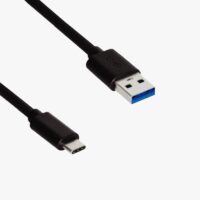
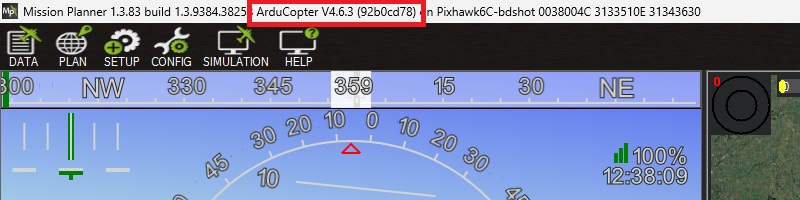
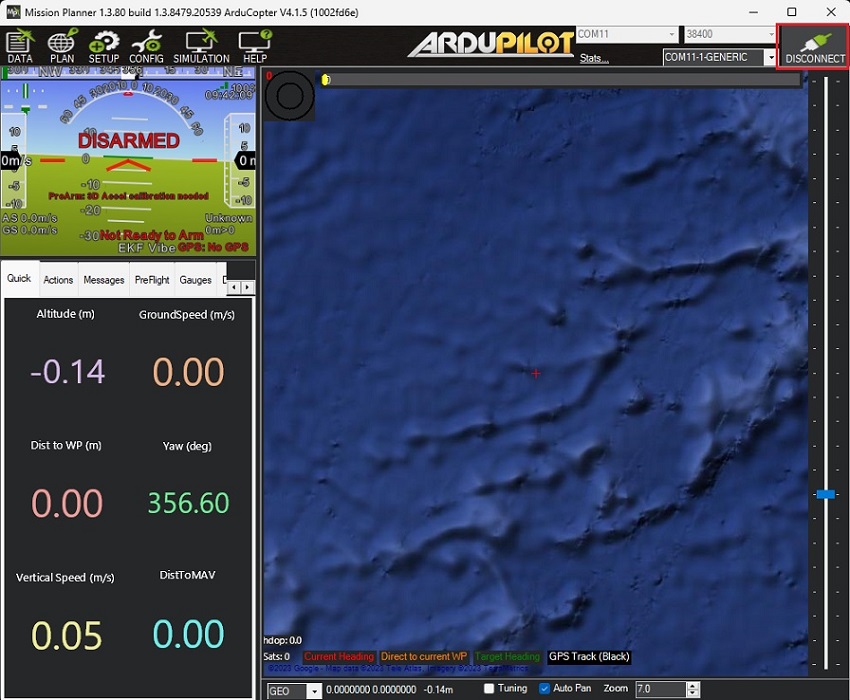
Please check your ArduPilot firmware by connecting your Pixhawk to your computer using a USB to USB-C cable and opening Mission Planner. The firmware version shows at the top bar of the Mission Planner window.
Note that we have validated the tutorial with these firmware versions:
ArduRover 4.6.0 and 4.6.3
ArduCopter 4.6.0 and 4.6.3
ArduPlane 4.6.0 and 4.6.3
If you are running firmware version 4.0 or below, please update the firmware following the ArduPilot Loading Firmware tutorial. Otherwise some described parameters may not apply.
How to setup and connect the UM982 RTK Receiver with ArduPilot
Configure simpleRTK3B Compass (UM982) receiver
Connect both GNSS antennas to your receiver. Make sure the antennas have a good view of the sky for testing functionality. Or you won’t be able to see satellites view and signal.
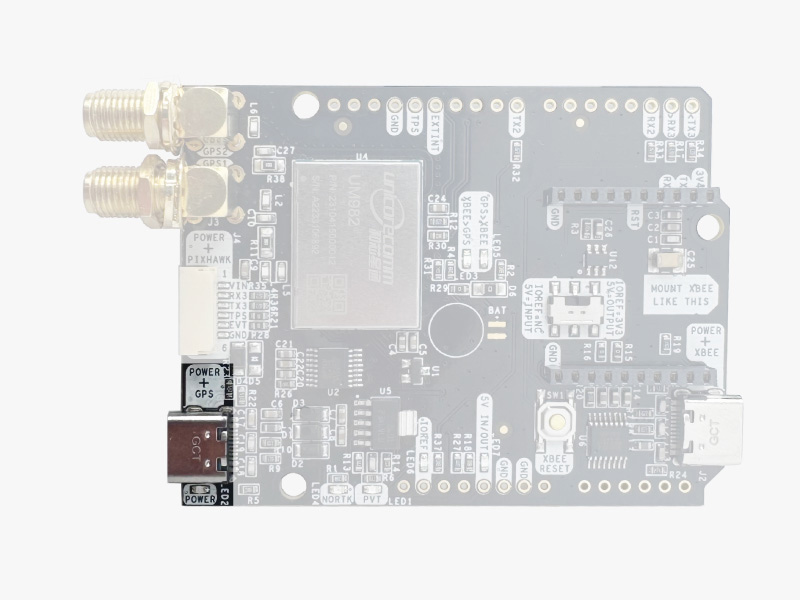
Connect the simpleRTK3B Compass to your PC via the USB port labeled with POWER+GPS using USB-C cable.
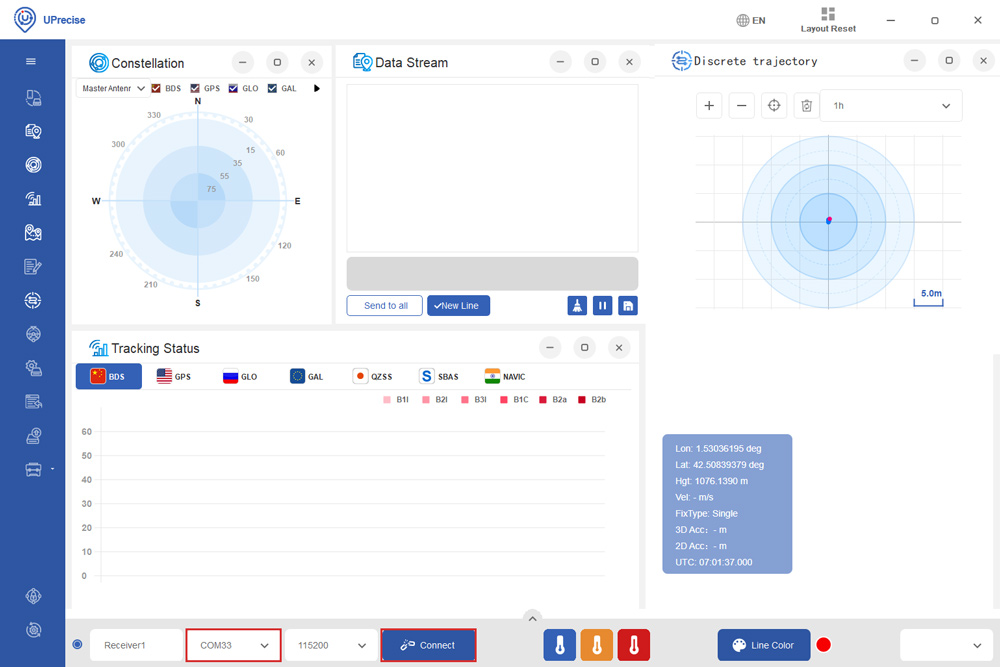
Open Uprecise. Select the COM port (If you don’t know which COM port check the device manager of your PC) and set baud rate to 115200 or AUTO. Press Connect.
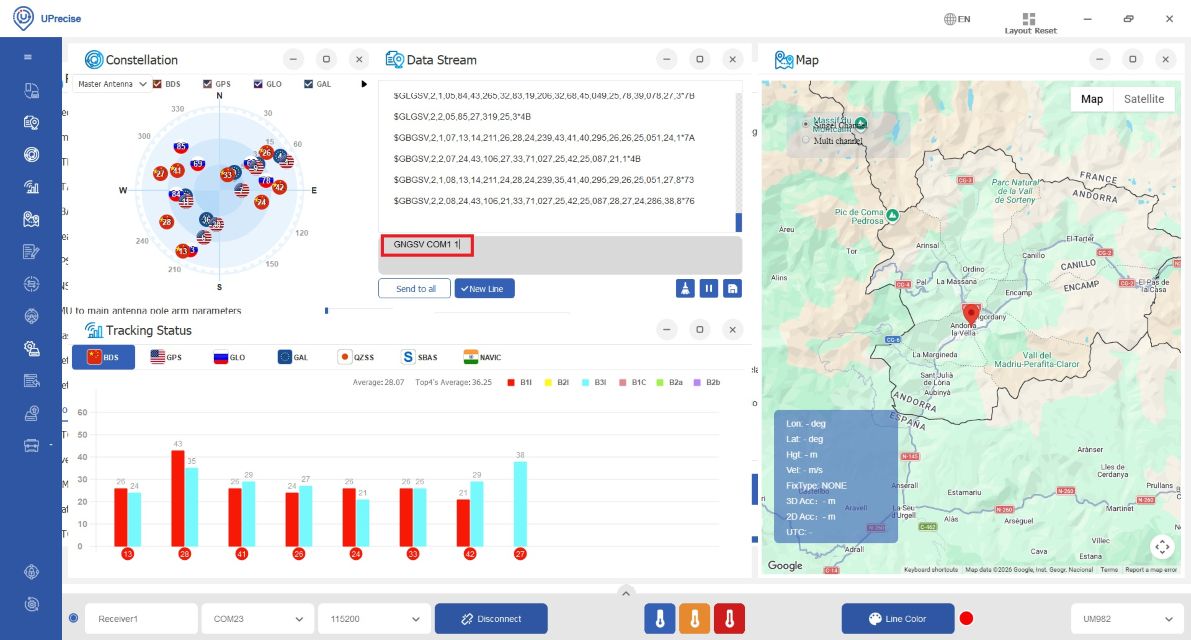
Input the following commands into the Data Stream window (lower grey box) to transmit NMEA messages to COM1 for debugging and send NMEA messages to Pixhawk via COM3 at 1HZ. If a higher frequency is needed, adjust the commands (e.g. GNGGA COM1 0.1 for a 10 Hz frequency).
GNGSV COM1 1
GNGSA COM1 1
UNIHEADINGA COM1 1
GNGGA COM3 1
GNRMC COM3 1
GPHDT COM3 1
SAVECONFIG
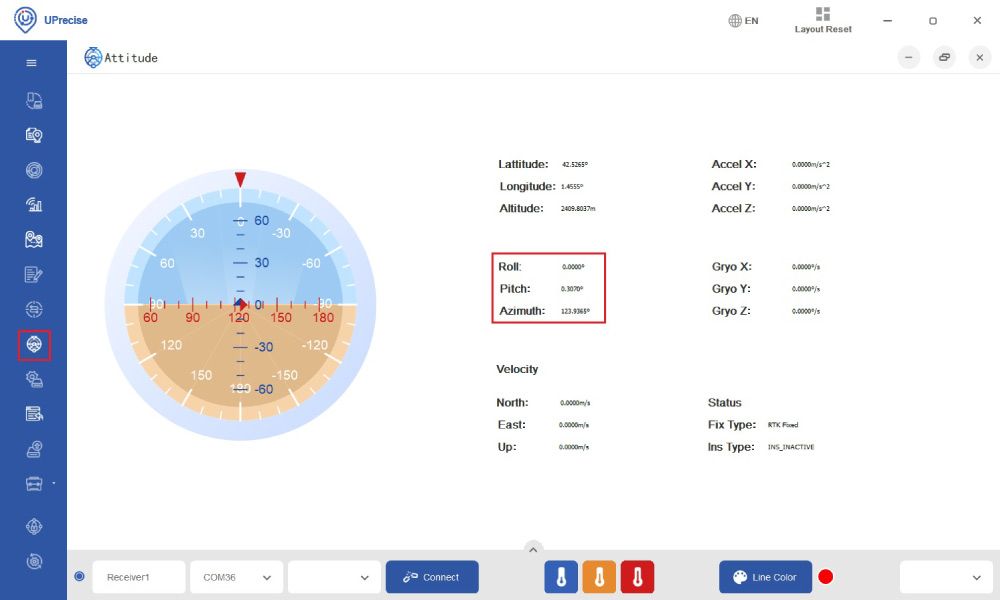
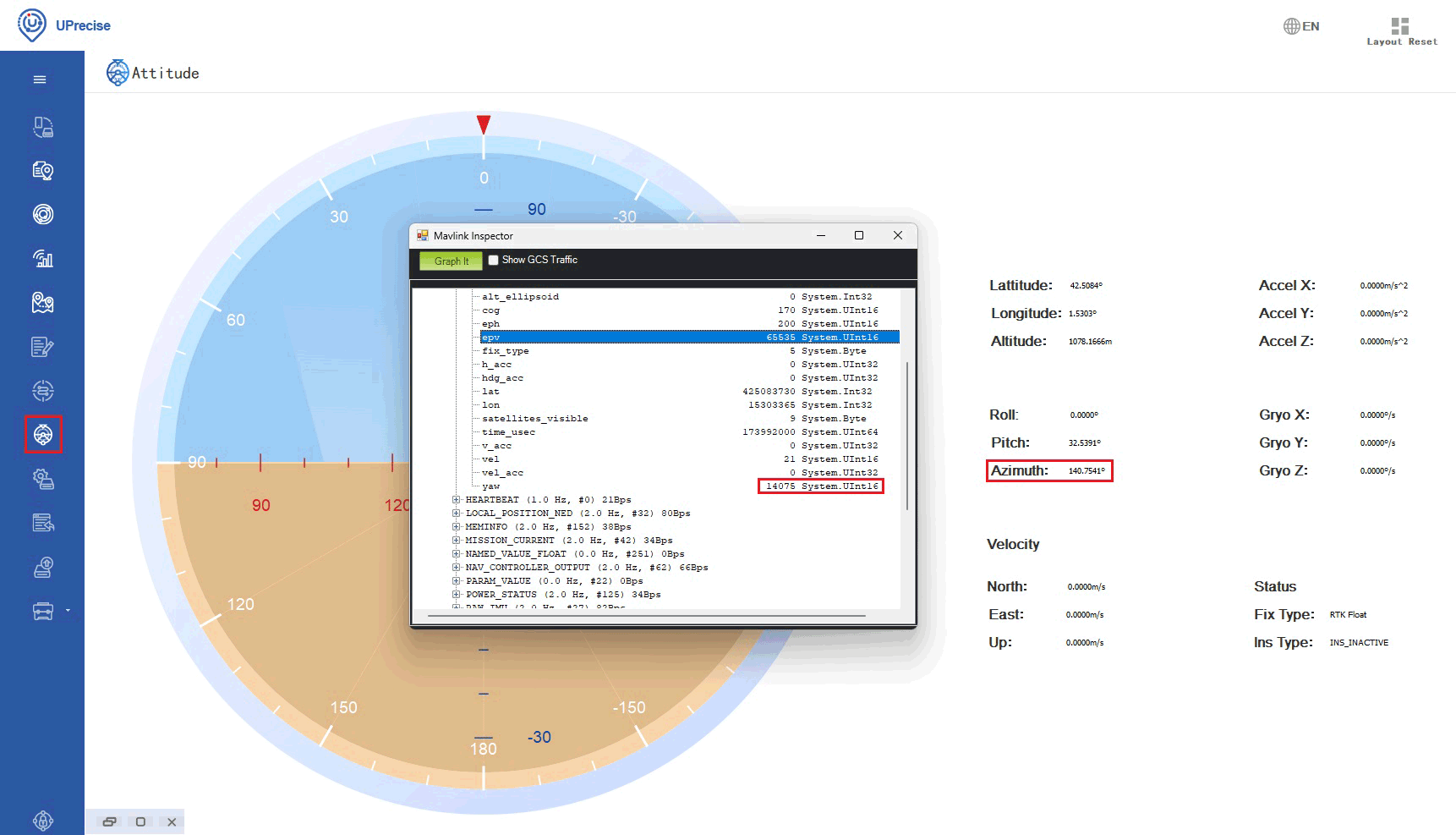
At menu bar go to Attitude, you will see heading value shown as Azimuth.
Configure ArduPilot
Connect your Pixhawk to your computer using a USB to USB-C cable.
Open Mission Planner and connect your Pixhawk to it with COM port with baud rate 115200.
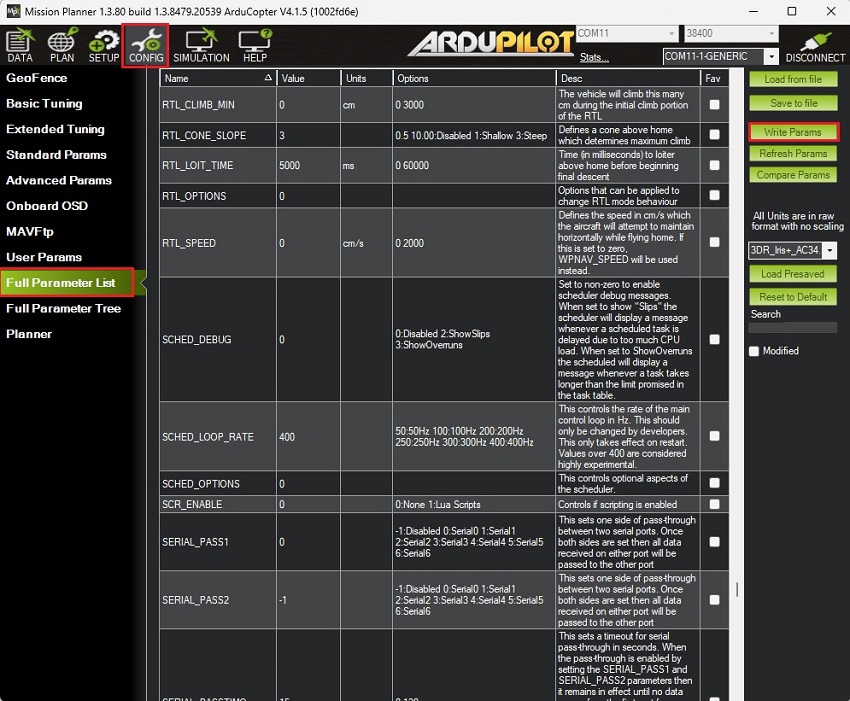
Go to CONFIG -> Full Parameter List. Given that the firmware version might differ from yours, this is a list of all parameters that have been modified from their default values:
After saving all the parameters make sure you restart your autopilot by disconnecting and reconnecting the USB-C cable.
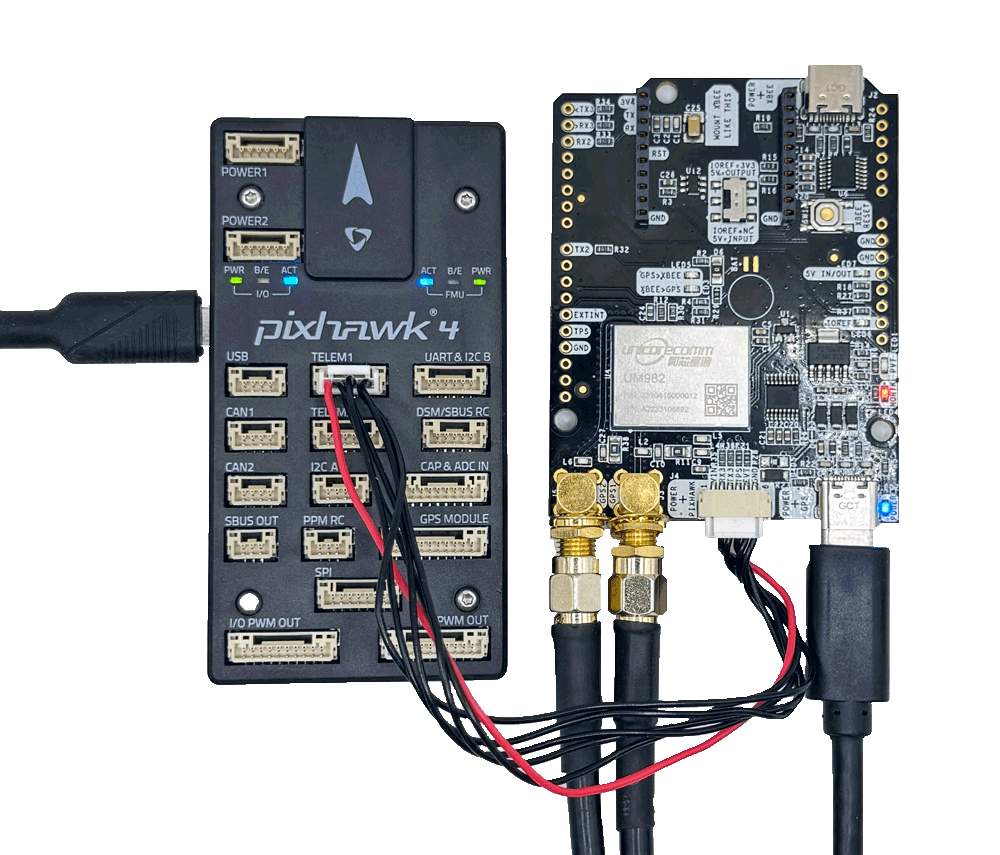
Connect the RTK UM982 heading board to your autopilot
Use the JST connector on the simpleRTK3B Compass and connect it to the TELEM1 port.
Unicore heading result is the angle from True North to the baseline of the master antenna (labelled as GPS1 on board) to the slave antenna (labeled as GPS2) in a clockwise direction. Pitch angle refers to the angle of the car or drone relative to the horizontal plane.
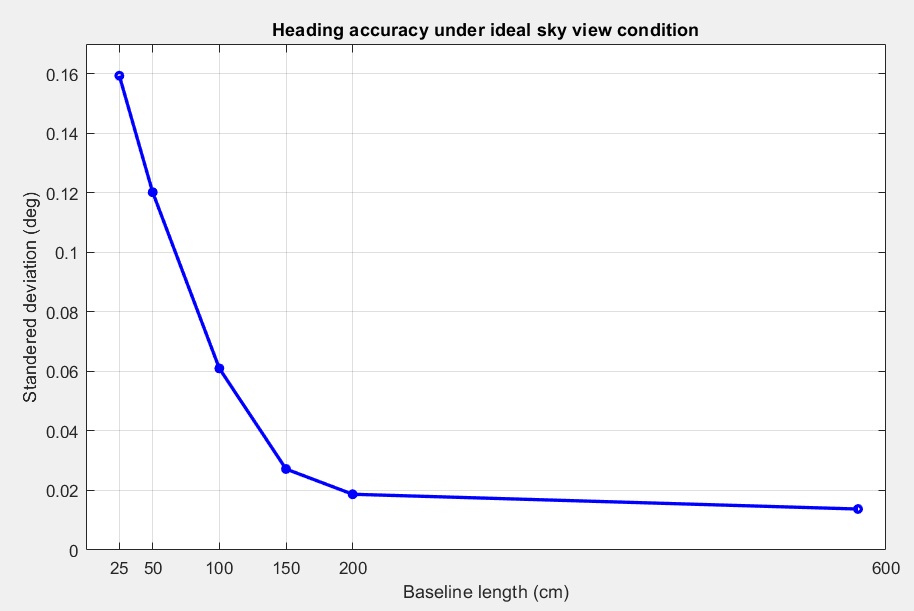
Ensure that both antennas are positioned in a completely open area with a clear view of the sky, and with a baseline distance between them of minimum 0.3 meters. For further information follow the User guide: simpleRTK3B Compass Heading Configuration section.
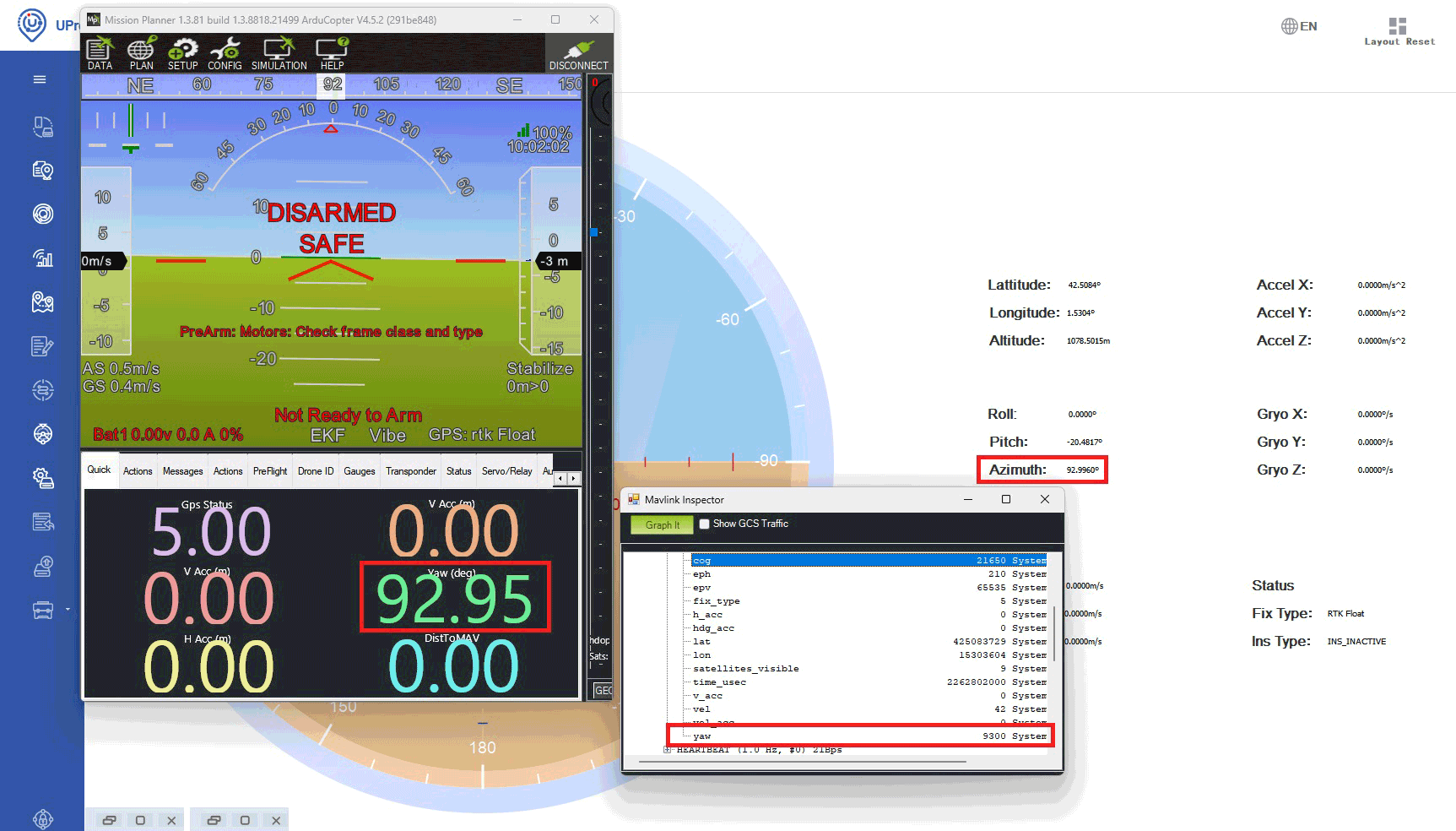
Power the autopilot and open Mission Planner. Press CTRL+F ->MAVlink inspector -> GPS2_RAW -> yaw. The value should match the Azimuth value in UPrecise.
The Yaw value of the AHRS in Mission Planner will slowly synchronize with the GPS2_RAW yaw value. This process may take a few minutes.
Note that the EKF takes into account the gyroscope readings, so if you rotate the autopilot alone without turning the entire vehicle frame (where the antennas are mounted), the heading may temporarily change. However, after a few seconds, it will correct itself and align with the GNSS-calculated heading.
For the best results during dynamic testing, ensure that both the Pixhawk and the GNSS antennas are mounted on the same device or surface.
Connect to RTK corrections
To achieve centimeter-level precision in positioning, correction data must be transmitted to the rover. There are two main methods for delivering this correction data:
Using online correction service (NTRIP): In this method, the rover receives real-time corrections through the NTRIP (Networked Transport of RTCM via Internet Protocol) protocol. This method is convenient for areas with reliable internet access and eliminates the need for setting up a physical base station. For guidance on integrating NTRIP corrections with ArduPilot, you can follow ArduSimple’s tutorial on sending NTRIP corrections to ArduPilot.
Setting up a Base Station: This method is useful in areas where there is no internet access or NTRIP network available, but it requires extra equipment and setup. You can refer to ArduSimple’s tutorial on sending RTK base station corrections to ArduPilot for detailed instructions.
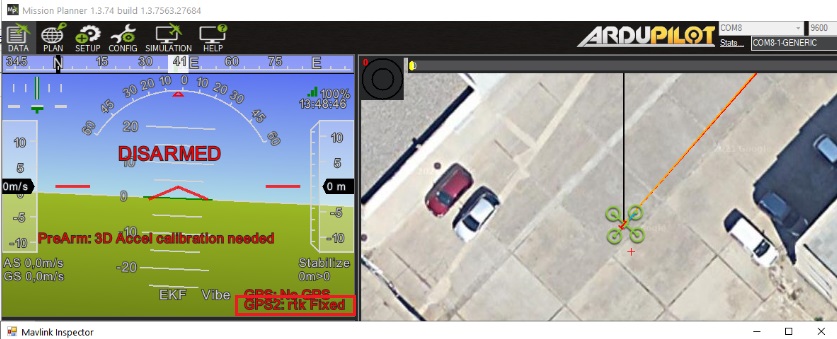
In a few seconds, on Mission Planner you will GPS2 status change to rtk Float or rtk Fixed.
Related products
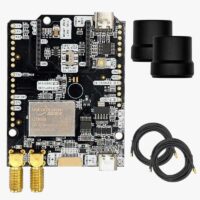
If you want to follow this tutorial, we have all the products in stock and ready to be shipped.


 and
and  How to get a quotation