User Guide: RTK Smart Antenna
Product Overview
The ArduSimple RTK Smart Antenna is designed for easy, high-precision surveying and mapping tasks with millimeter-level accuracy. It supports 3 primary modes: a Rover configuration (default) for collecting and staking out data in the field, a Base station configuration for delivering corrections, and a PPK workflow. It also includes an easy-to-use web interface for configuration and monitoring.
If this is your first time using your RTK Smart Antenna, follow this quick guide to get started.
Package contents
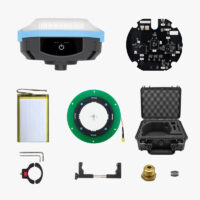
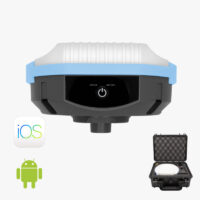
The RTK Smart Antenna kit includes:
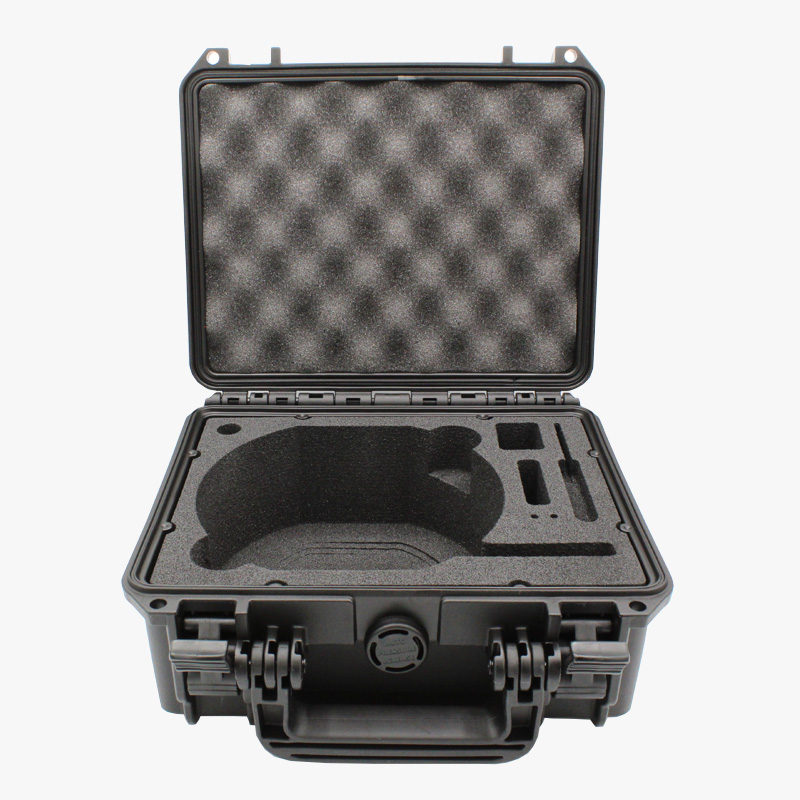
- IP67 waterproof transport case with custom foam to store all components.
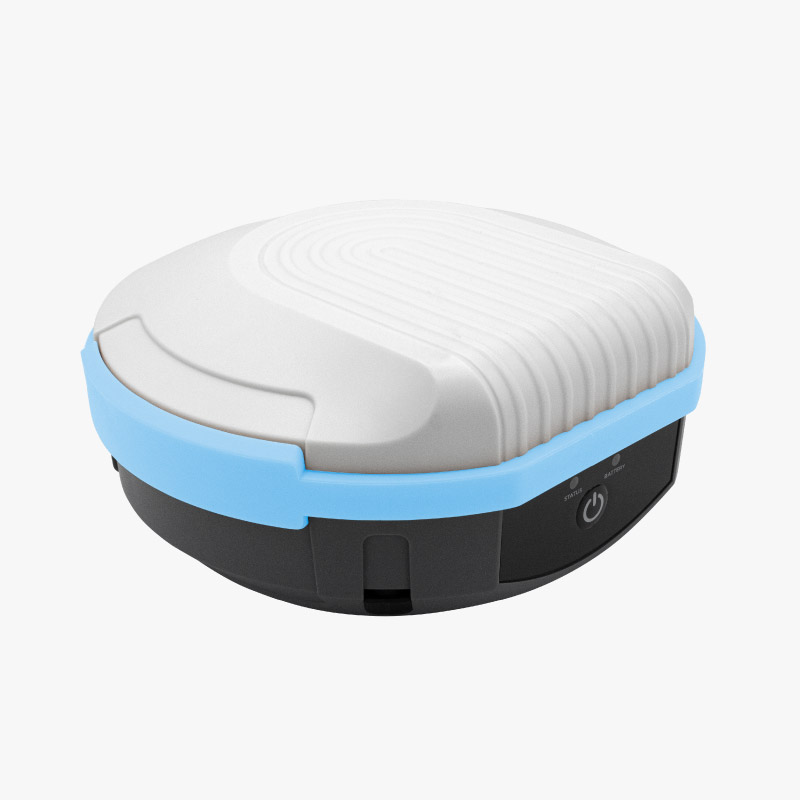
- RTK Smart Antenna (featuring the ZED-F9P RTK receiver, IP65 waterproof).
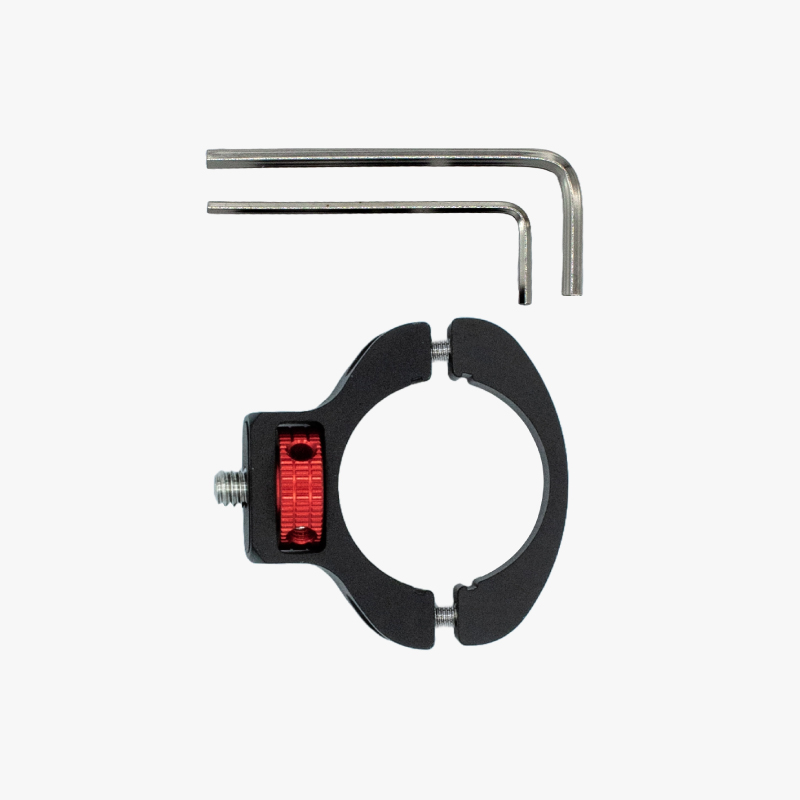
- Compact clamp for surveyor pole.
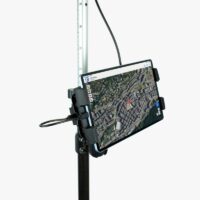
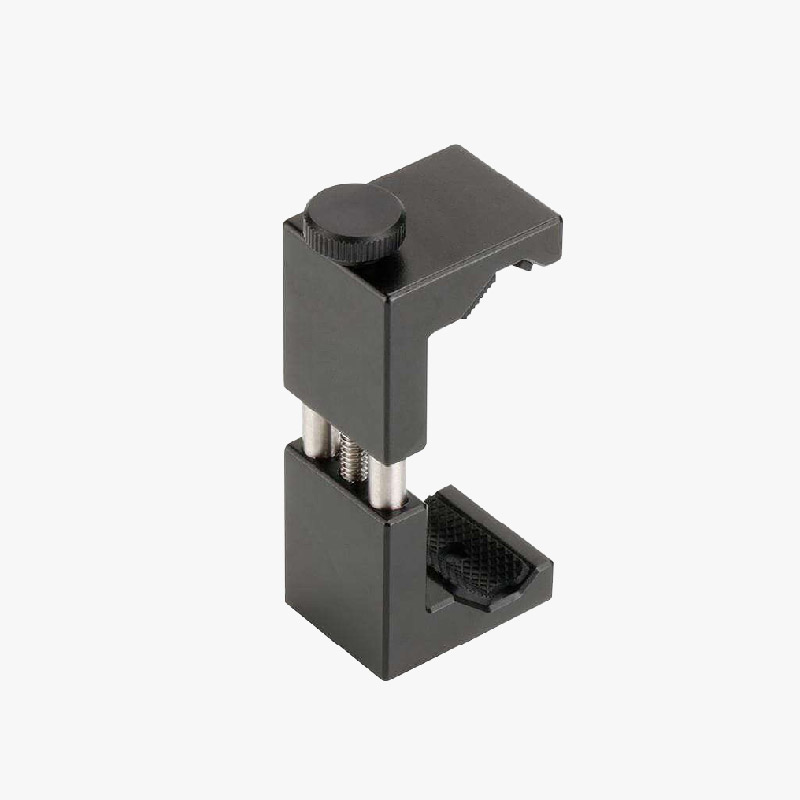
- Phone holder.
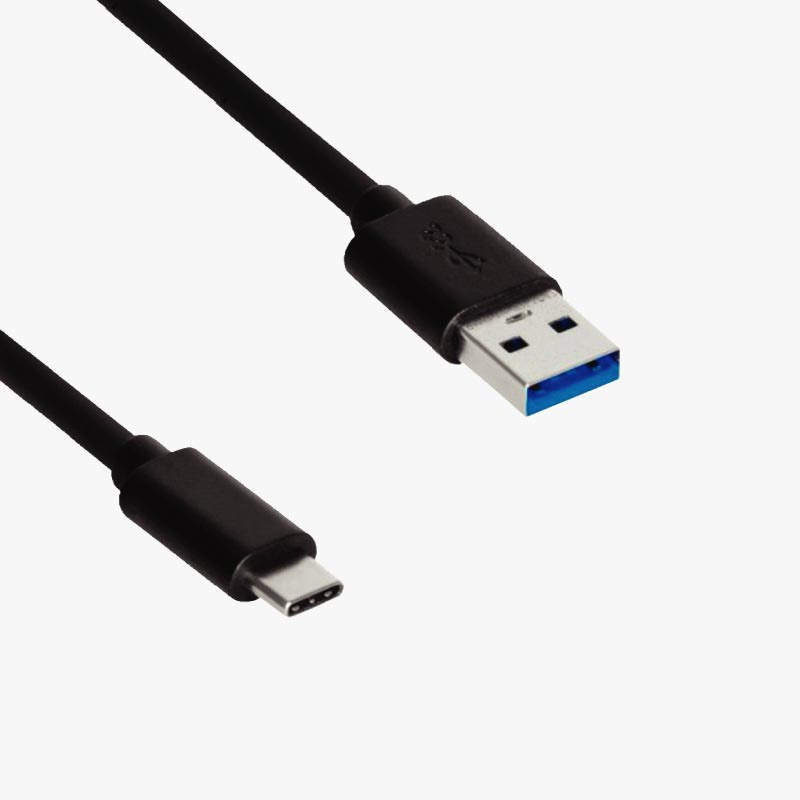
- USB-C cable.
- Screwdriver.
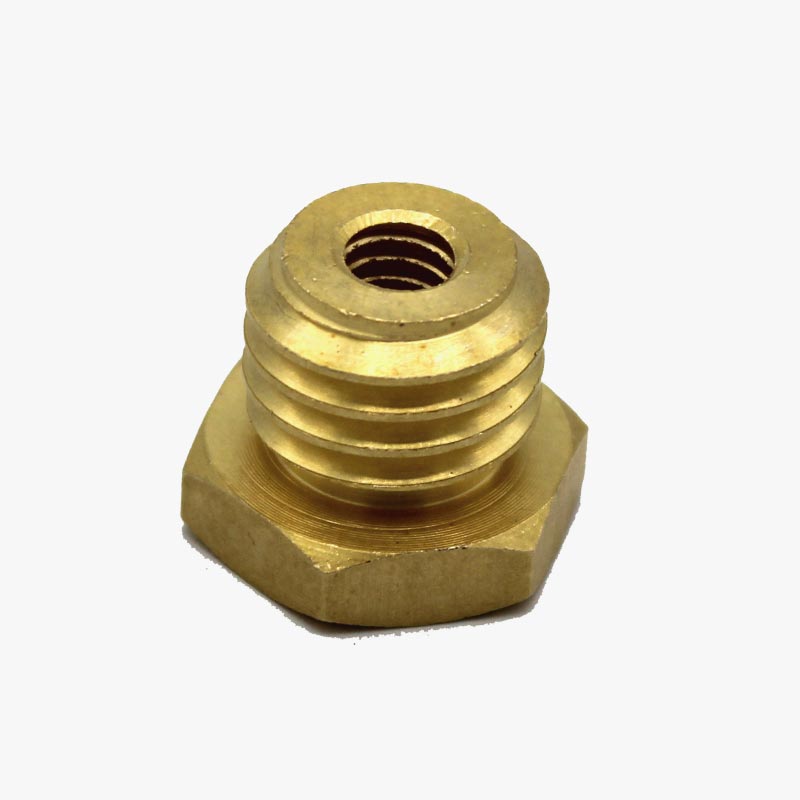
- Thread adapter accessory for mounting the Smart Antenna to tripod poles.
Getting started
The RTK Smart Antenna comes pre-assembled and pre-configured in its default Rover mode. Follow this quick guide to set it up.
Before start
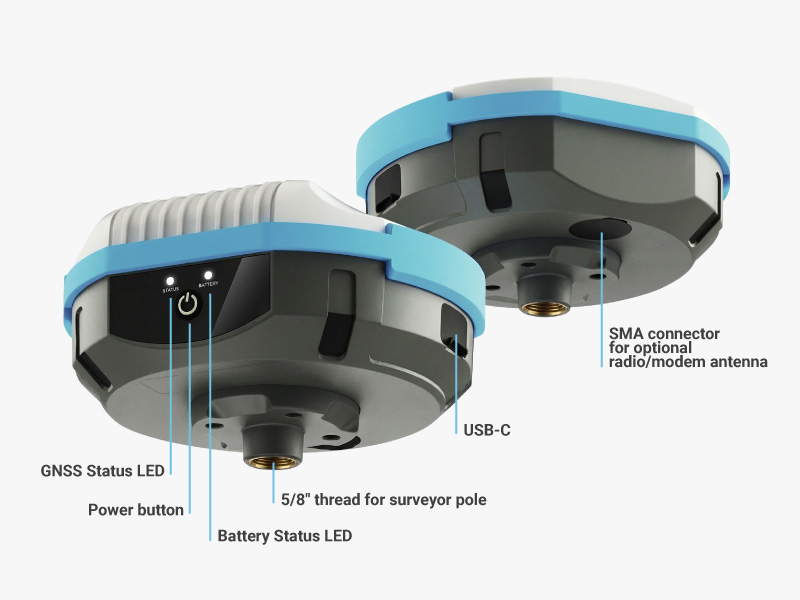
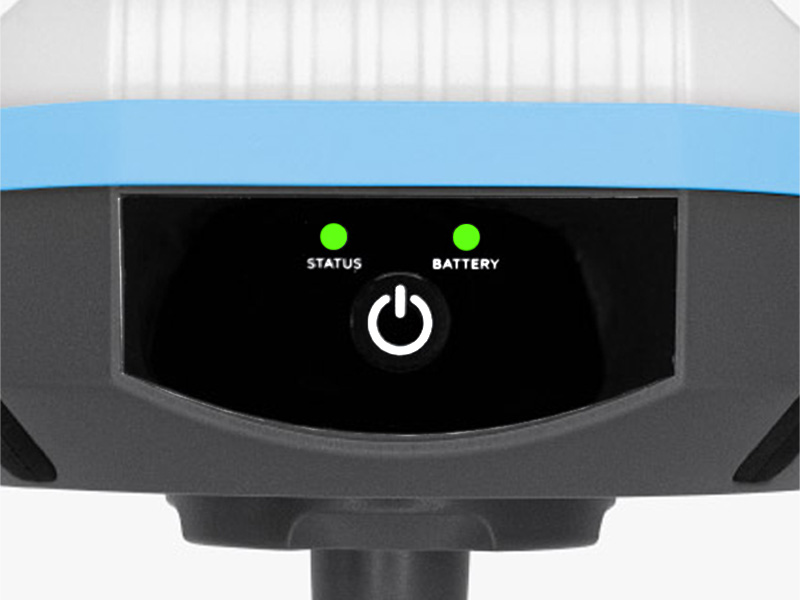
Power button:
Use the power button to:
- Power On/Off: Press and hold the button for 3 seconds. An audible tone will indicate the status change.
Check Battery (Unit Off): Short press the button to display the current battery status.
Front panel LEDs:
The RTK Smart Antenna has two LEDs on the front panel:
| Status LED | Battery LED |
|---|---|
| No Fix | Battery fully charged |
| 3D Fix (no RTK) | / Battery >30% (blinks when charging) |
| RTK Float | / Battery >10% <30% (blinks when charging) | 30%>
| RTK Fix | / Battery <10% (blinks when charging) | 10%>
As RTK Rover
Your RTK Smart Antenna is pre-configured and ready for use as a Rover.
This kit is compatible with numerous mobile GIS apps. This tutorial uses the SW Maps app to demonstrate how to connect the RTK Smart Antenna to your Android or iOS device.
- Install SW Maps app on your mobile device from the Google Play or Apple App store.
- Open the app and grant the required permissions (first time only).
- Power on the RTK Smart Antenna by pressing the POWER button on the front panel.
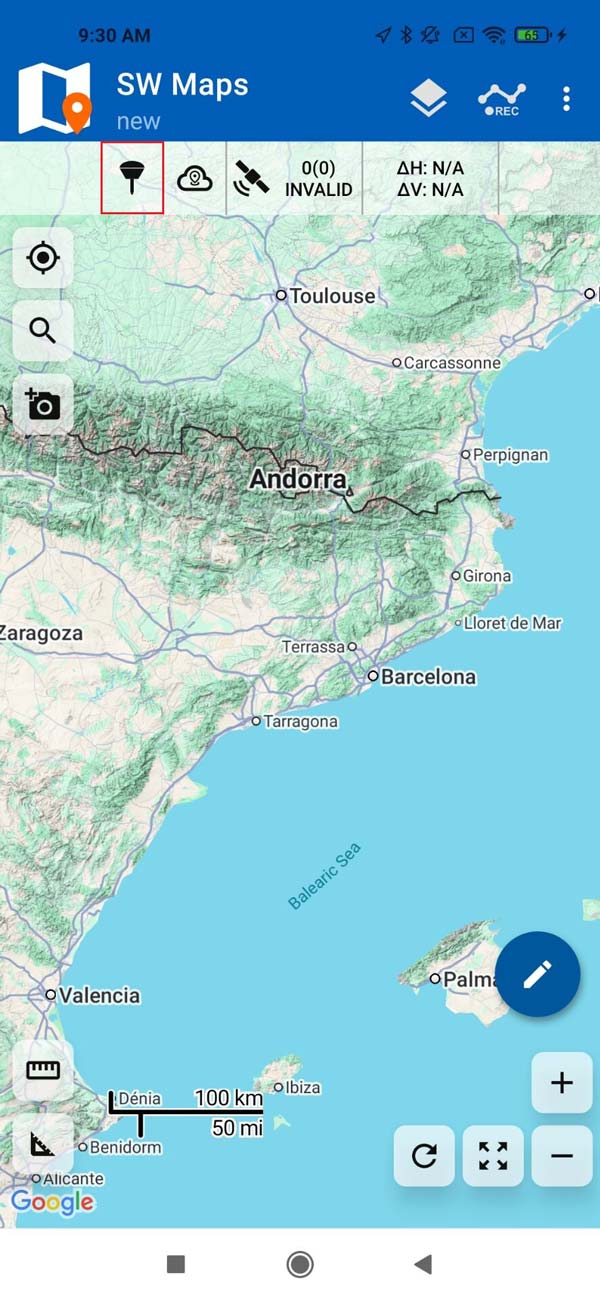
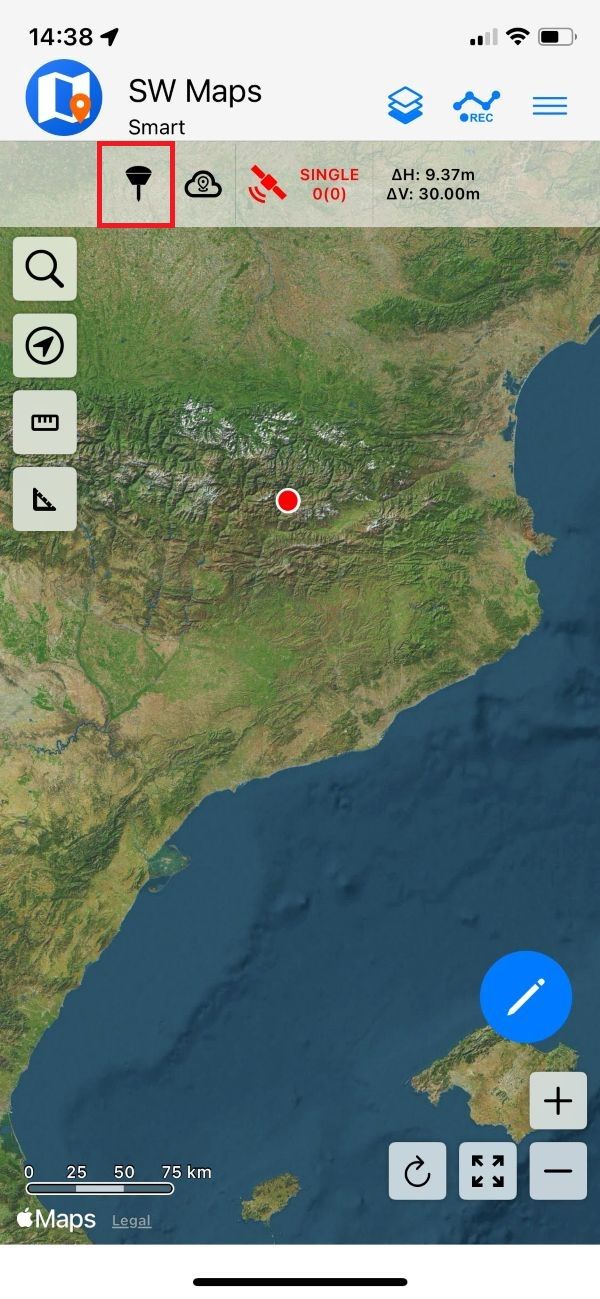
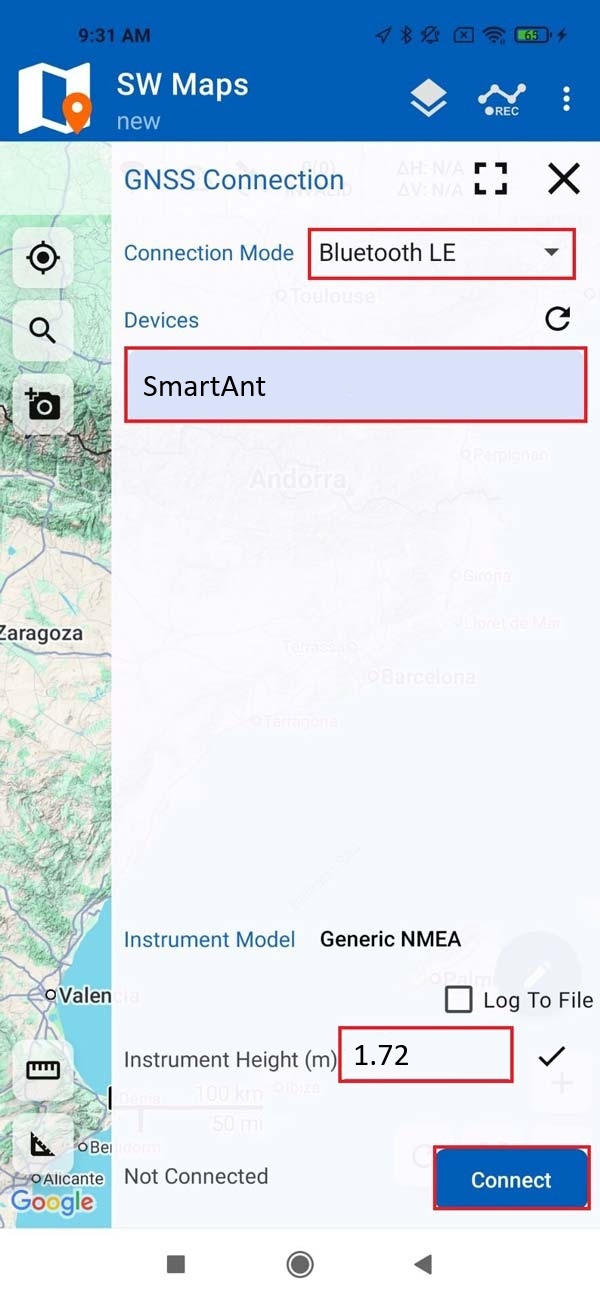
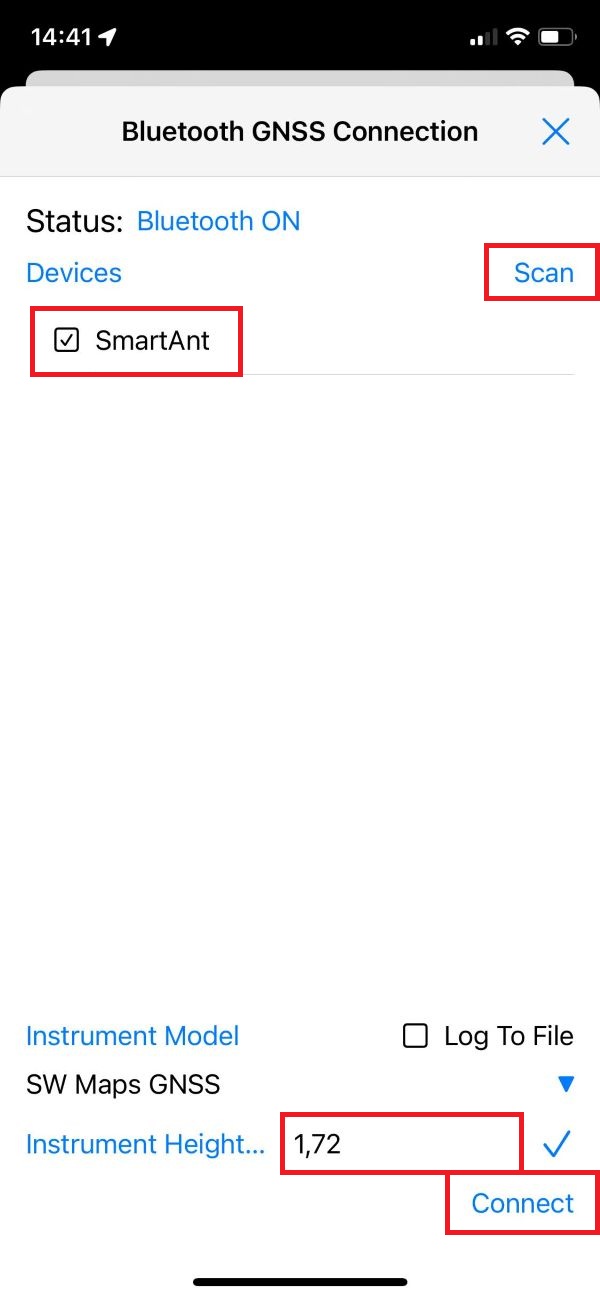
In SW Maps, tap the antenna icon to open the GNSS Connection menu.
In the GNSS Connection menu:
- Set Connection Mode to Bluetooth LE and press the refresh icon (Android only).
- Press Scan (iOS only).
- Make sure to select the device named SmartAnt.
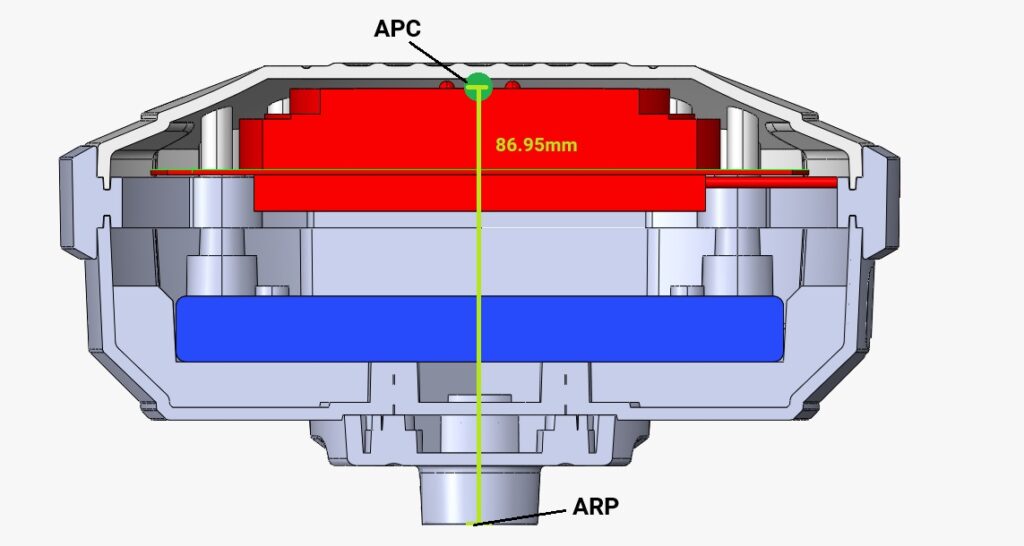
- Instrument Height refers to the expected receiver elevation from the ground. Set the instrument height to the exact height of the pole + 87mm (this is the distance between the bottom of the 5/8″ thread and the phase center of the internal antenna).
- Press CONNECT.
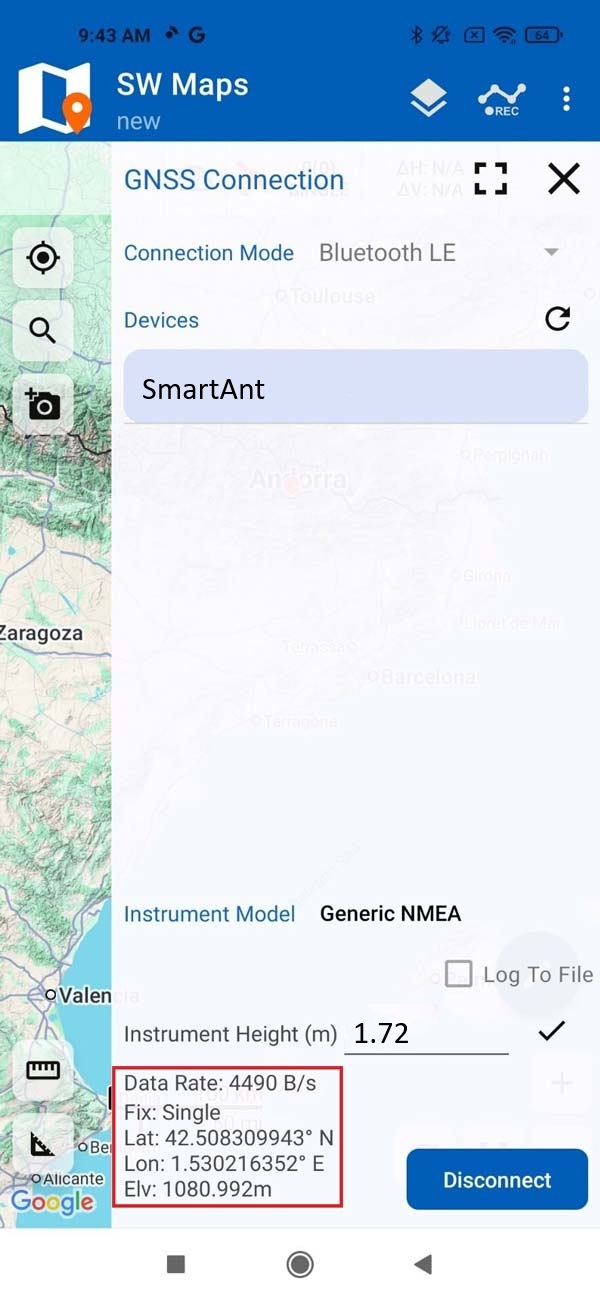
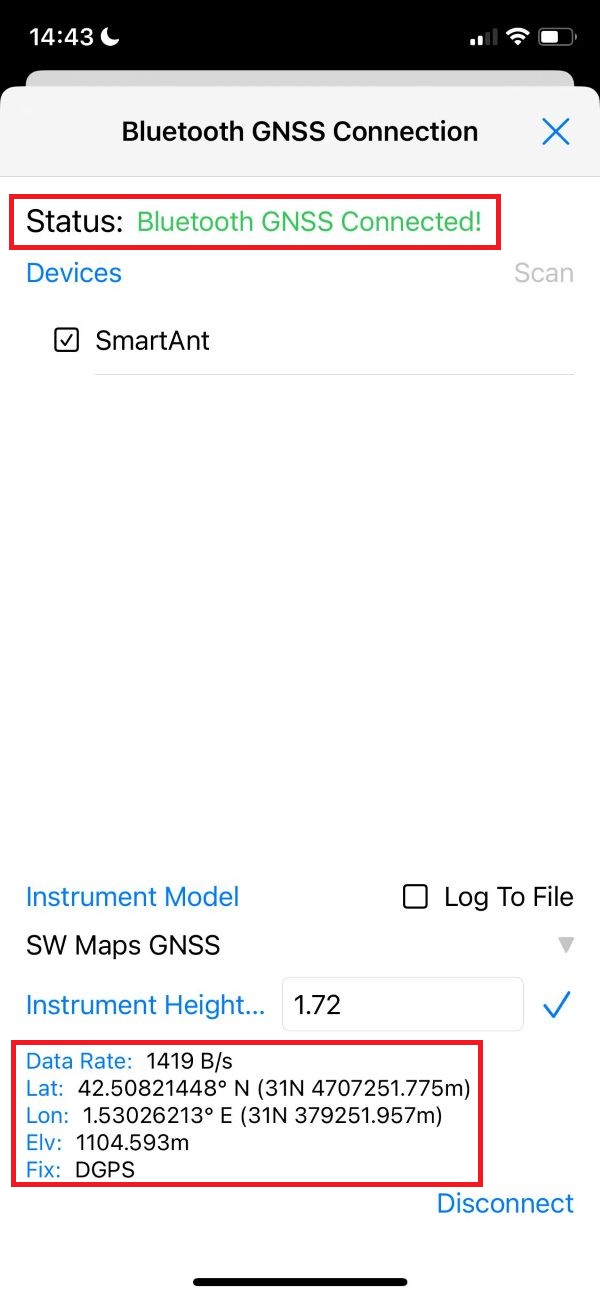
You should now see a confirmation of a successful connection and data transfer from the RTK Smart Antenna.
- For centimeter-accurate measurements, you must connect to an NTRIP service to receive RTK corrections. If you need assistance finding one, consult our prepared list of RTK correction services in your country.
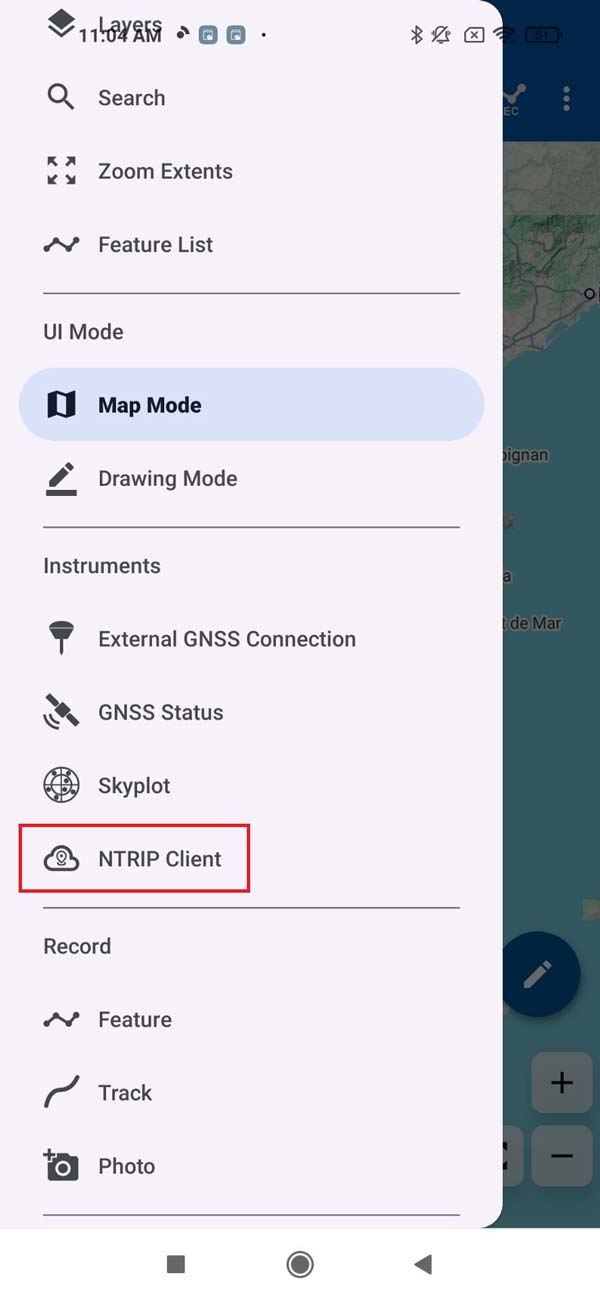
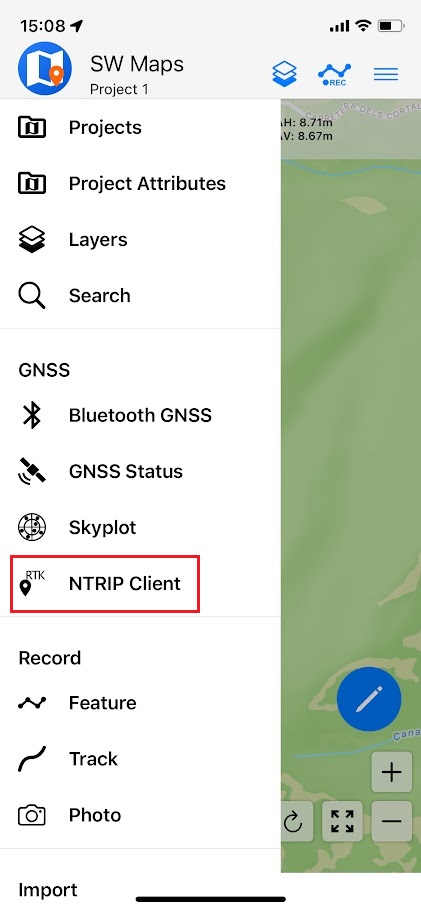
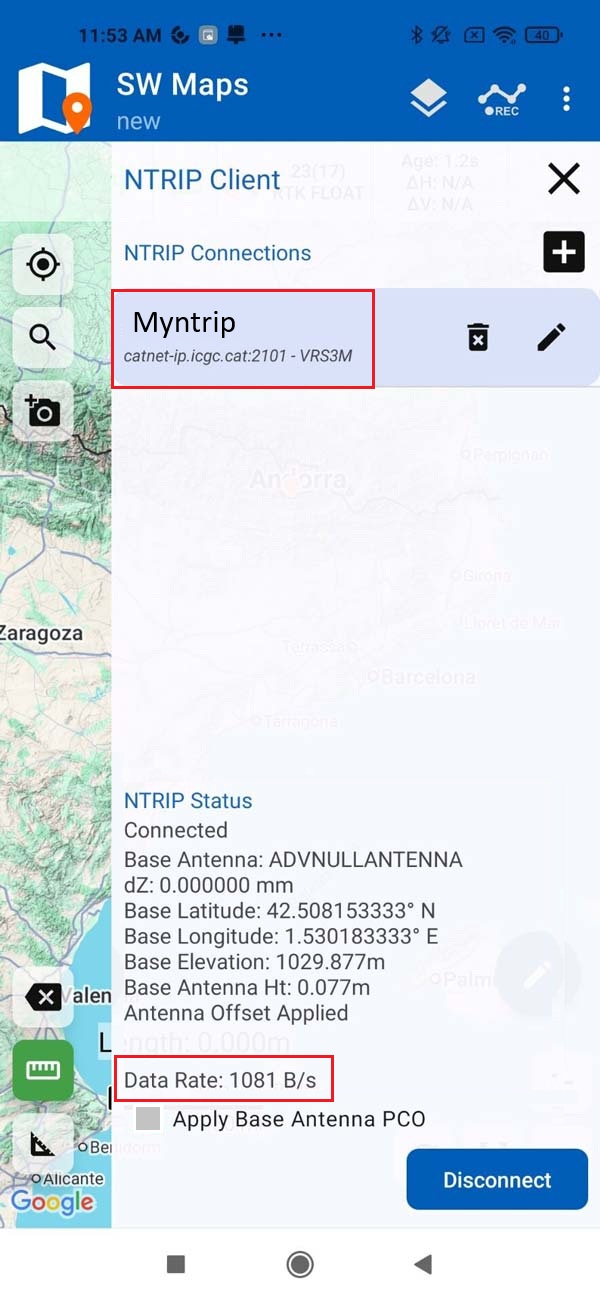
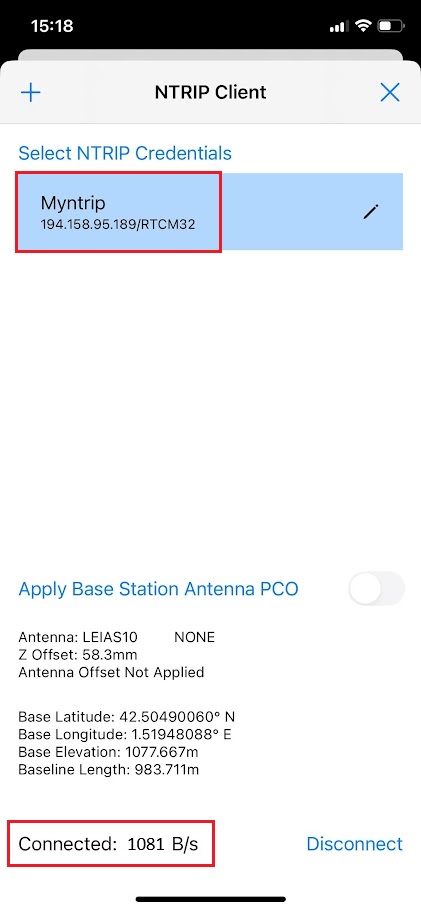
- Next, return to the SW Maps main menu and select NTRIP Client.
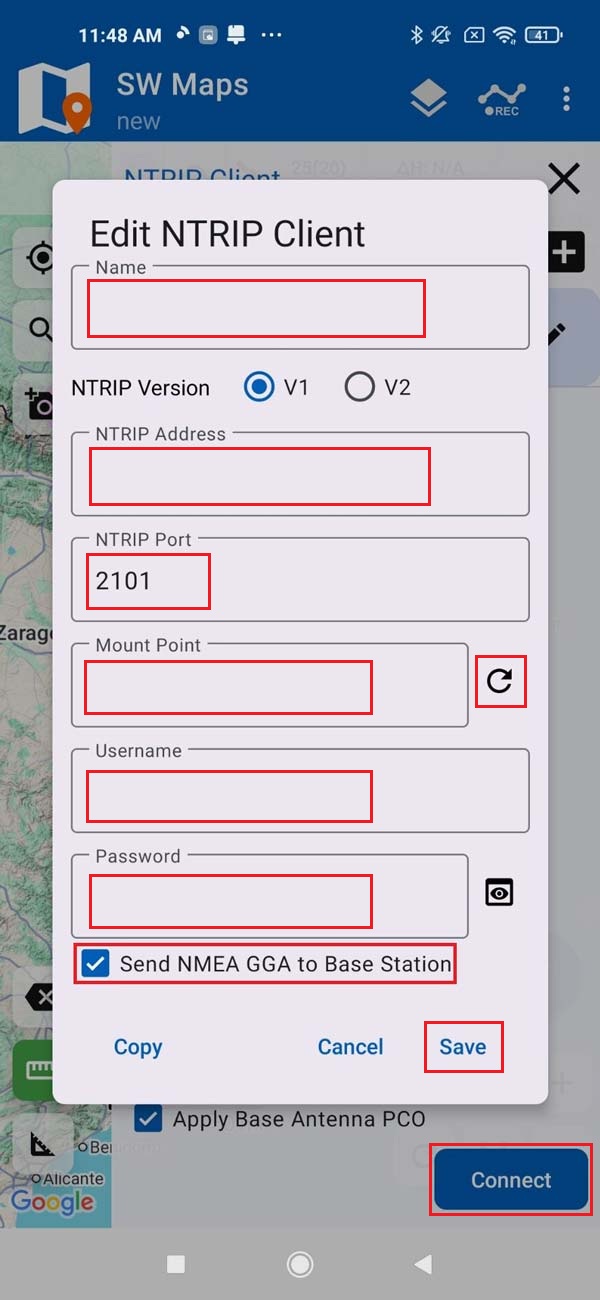
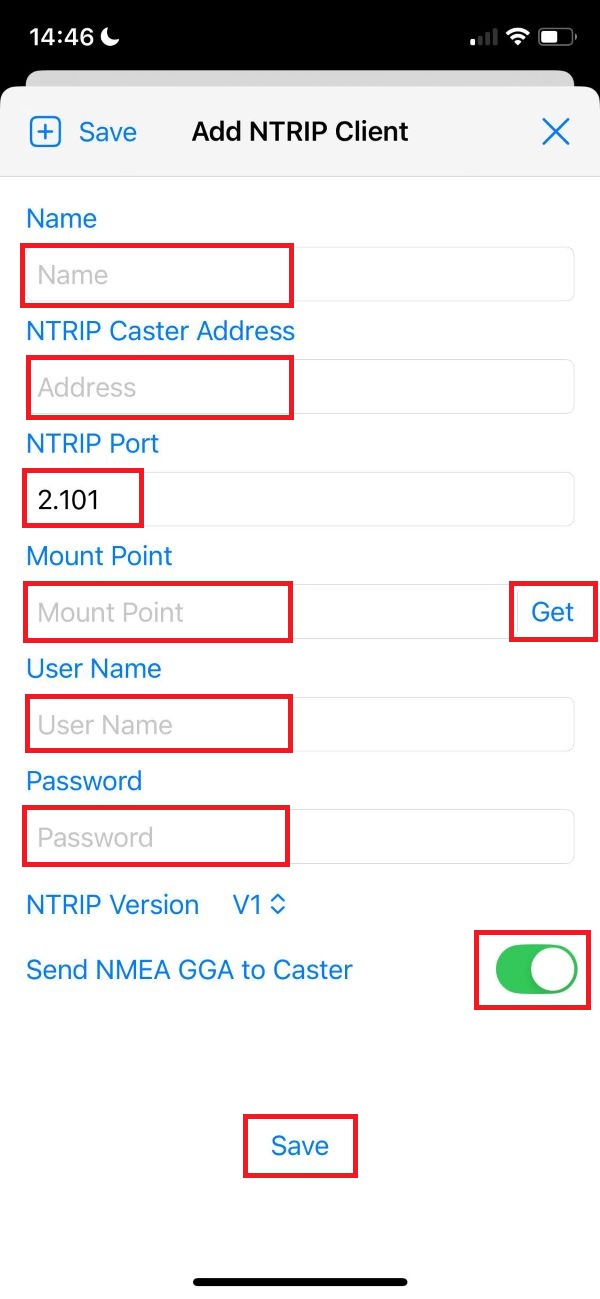
- Enter your NTRIP Client credentials: Name, NTRIP Port, Mount Point, Username and Password. We recommend enabling Send NMEA GGA to Base Station option to send your location to the NTRIP caster.
- Press Save.
- Press Connect.
The NTRIP Status section will show a confirmation of a successful connection and active data streaming to your device.
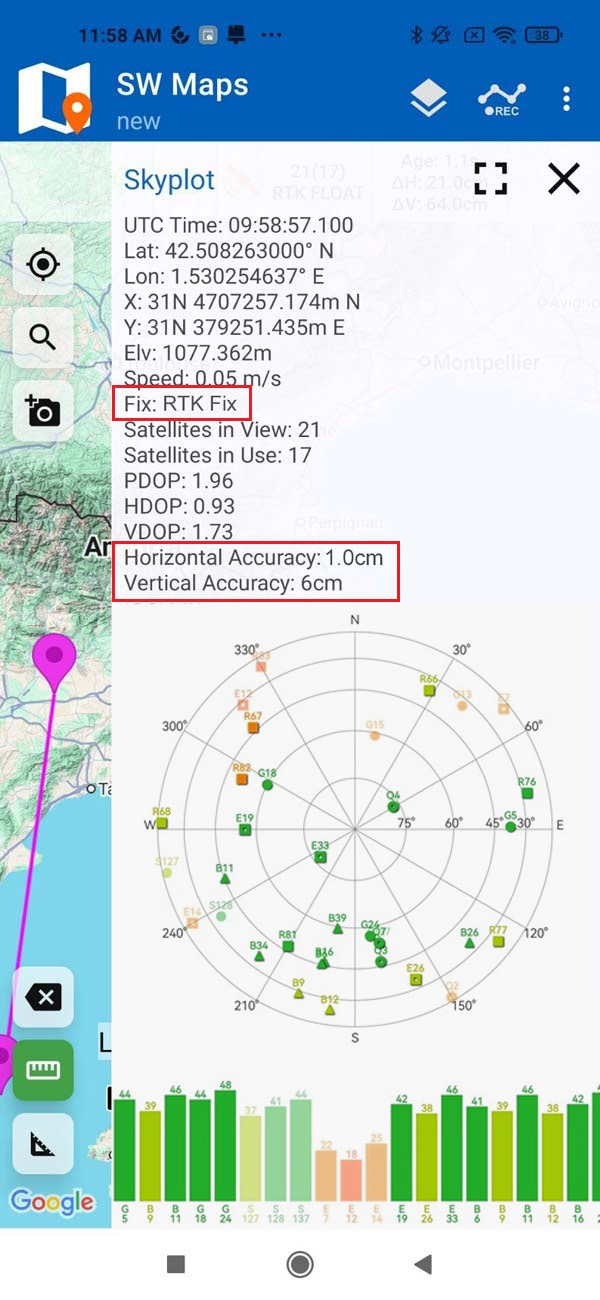
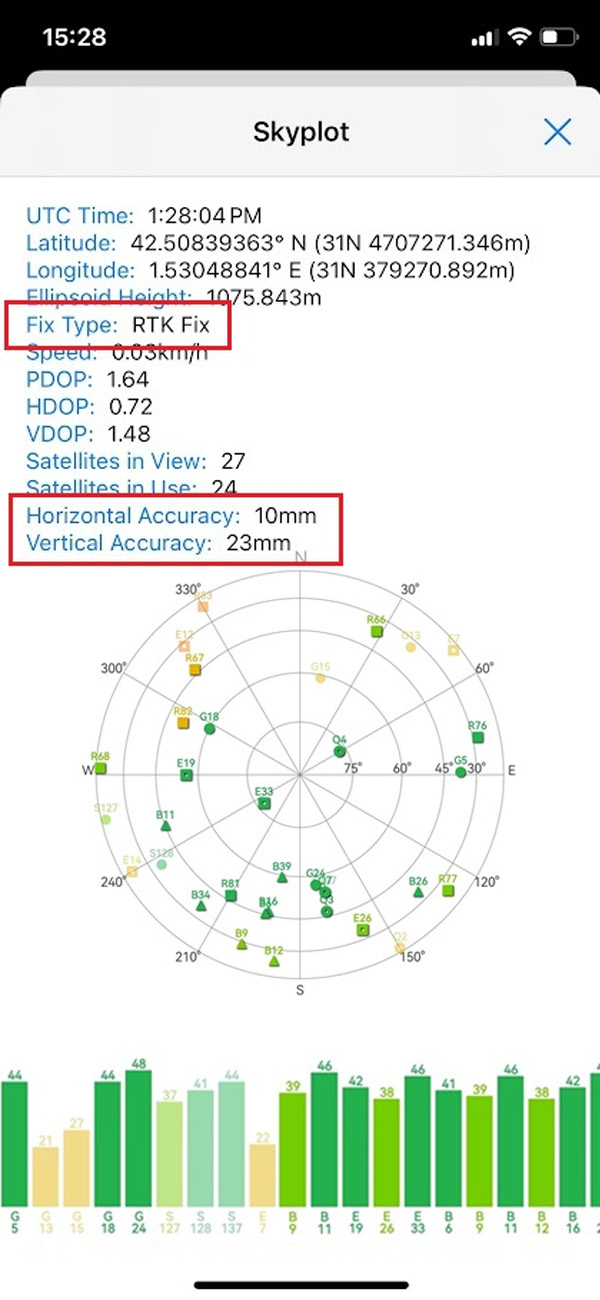
- Navigate back to the SW Maps main menu and tap Skyplot. You should now see the number of available satellites at your position, Fix status to RTK Float/Fix, and millimeter-level horizontal and vertical accuracy.
The RTK Smart Antenna supports integration with a wide range of third-party software and applications. Please consult our Compatible Software list for supported apps and related tutorials.
If your preferred application is not listed, please contact us, and we will test the integration for you.
As RTK Base
(Documentation is under development)
PPK
(Documentation is under development)
Specifications
USB-C Connector
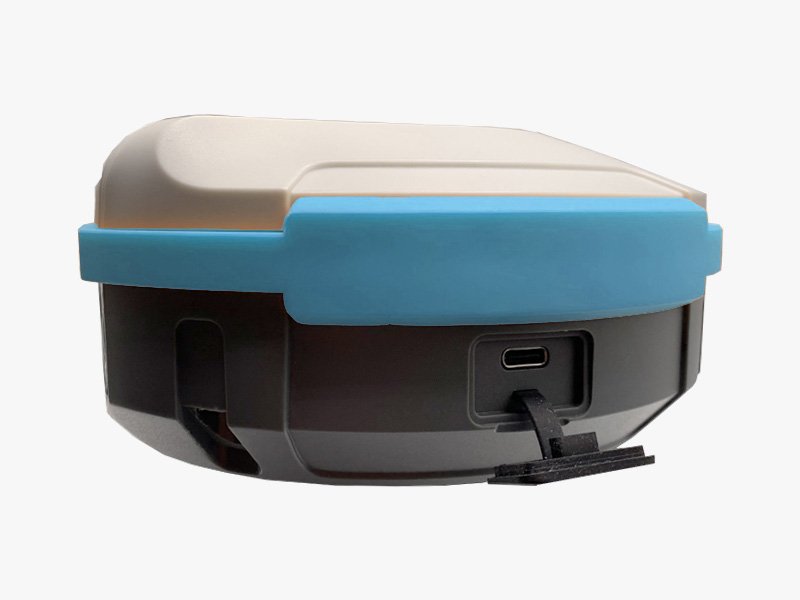
This connector is located on the right side of the RTK Smart Antenna (under a rubber cover). It serves two functions:
- Charge the internal battery.
- Connect the RTK Smart Antenna to a PC for configuration using our unified web-interface, or for advanced settings using tools like u-center, RxTools, …
Battery
The RTK Smart Antenna has a built-in Li-Ion battery that should be charged using the provided USB-C cable connected to a power bank or USB wall adapter.
The Battery LED on the front panel will blink during charging and remain solid when the battery is fully charged.
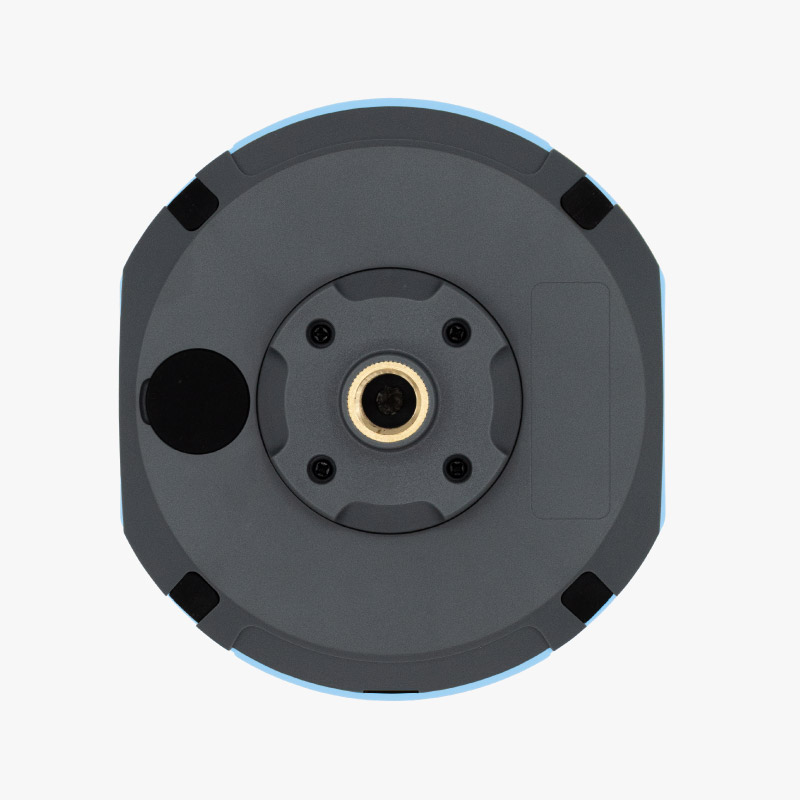
5/8" thread for surveying pole
This is the standard survey pole thread size, making the antenna compatible with any standard survey pole for field use.
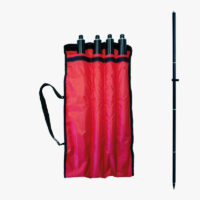
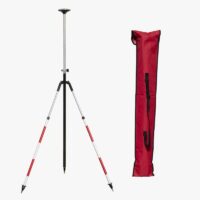
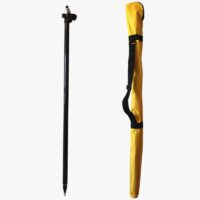
For optimal performance, we recommend the ArduSimple Pole for survey GNSS antenna.
Web interface
The RTK Smart Antenna features a unified web interface (common to all supported u-blox, Unicore and Septentrio modules) with an intuitive design for:
- Easy configuration of the device as a Base or Rover.
- Firmware updates.
- Monitoring GNSS signals and resolved position status.
To access the web interface:
- Remove the rubber cover from the USB port located on the right side of the device.
- Connect the antenna to your PC using the provided USB-C cable.
- Open a web browser and navigate to http://10.0.0.1:8080.
General
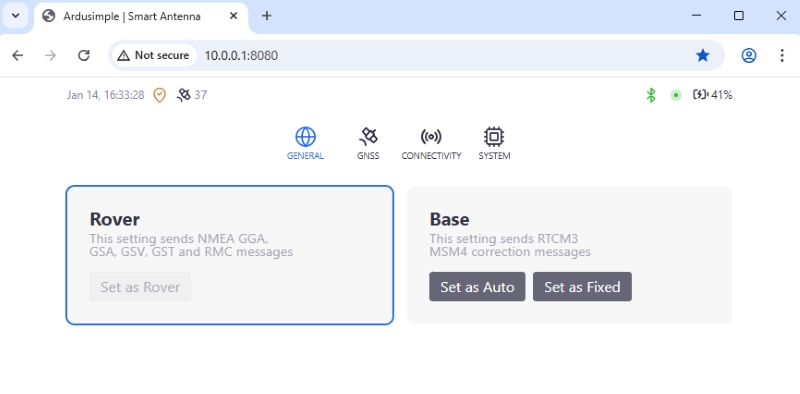
In the General section of the web interface, you can easily switch the RTK Smart Antenna’s operating mode.
- Rover: This mode configures the receiver to output standard NMEA messages.
- Base: This mode enables the device to broadcast RTK correction data to connected Rover receivers. You can set the Base position automatically or by entering coordinates manually.
GNSS
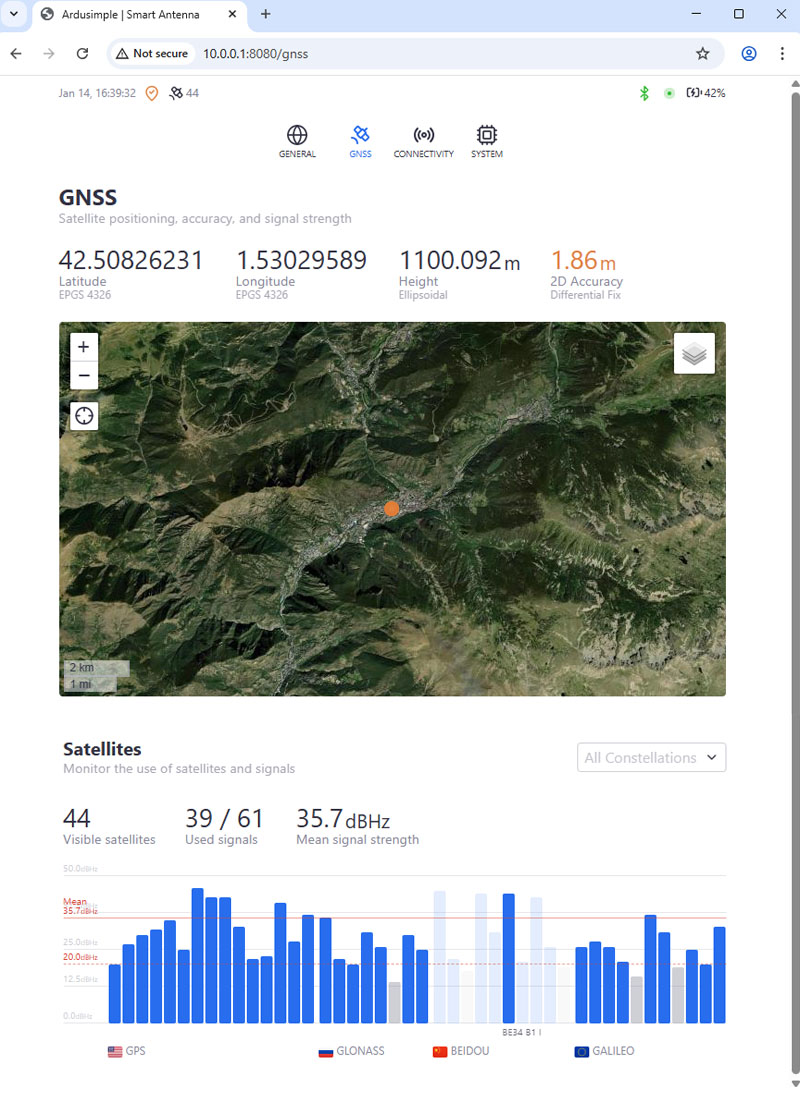
The GNSS section of the web interface is used to monitor the satellite signal status, quality, and the position fix resolved by the RTK Smart Antenna’s internal receiver.
- GNSS: Displays the current position coordinates and their accuracy.
- Map: Allows you to track the resolved position, zoom in/out, and choose between a default map view and a satellite image view.
- Satellites: Shows the number of visible satellites (per constellation) and the signal strength of those in use.
Connectivity
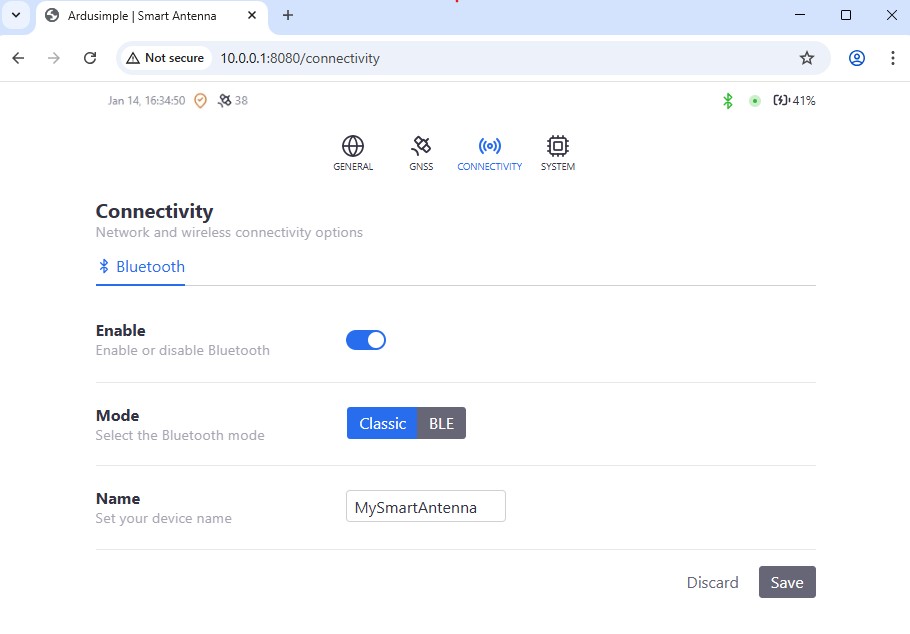
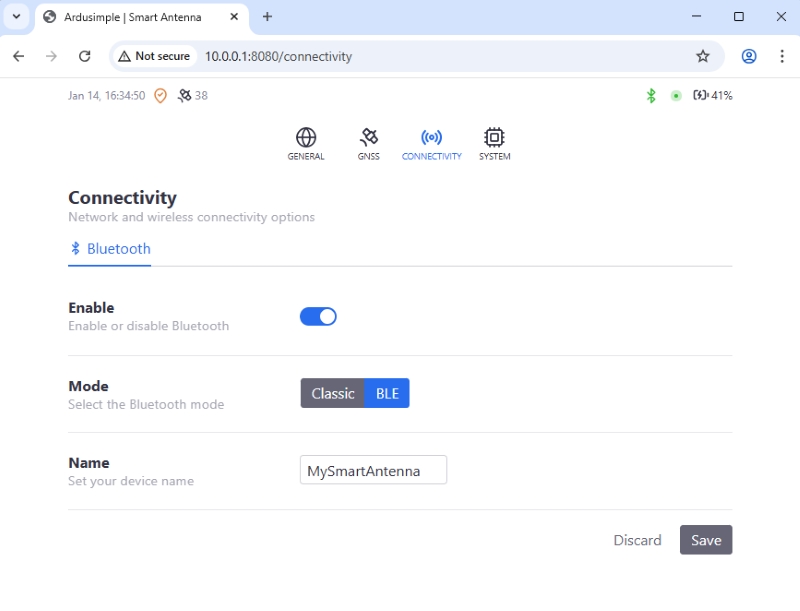
The Connectivity section of the web interface is used to configure the connection (Bluetooth) used between the RTK Smart Antenna and mobile devices used in surveying tasks.
- Enable: Activates the Bluetooth connection.
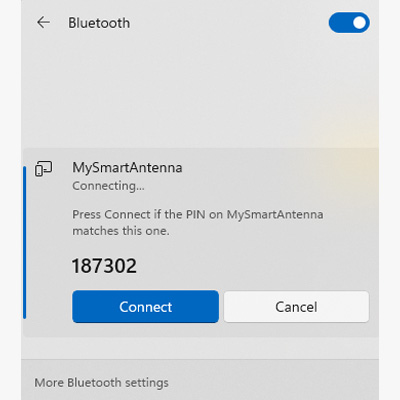
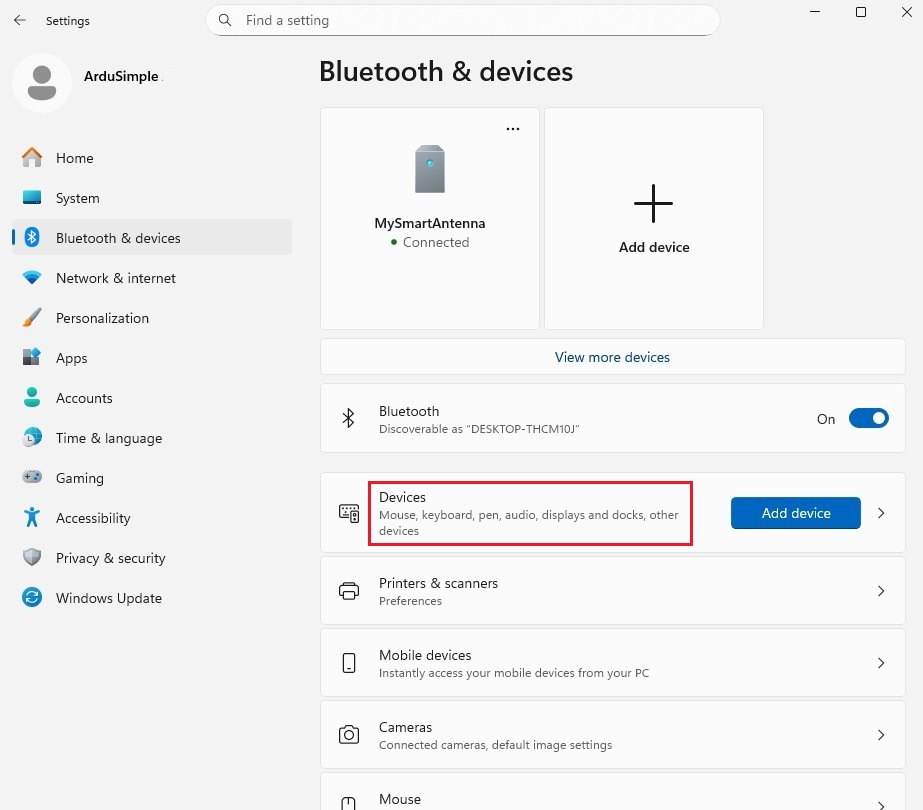
- Mode: Allows you to choose between Classic Bluetooth (used on PC) and BLE (Bluetooth Low Energy used for Android and iOS devices). BLE is the default and recommended option unless not supported by the connecting device.
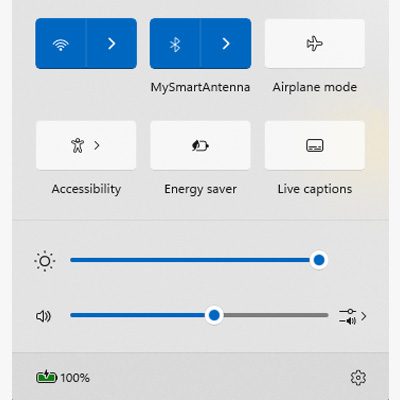
- Name: Here you can type your desired device name, that will appear as a connection option on the mobile device.
Remember to press Save to apply the changes.
System
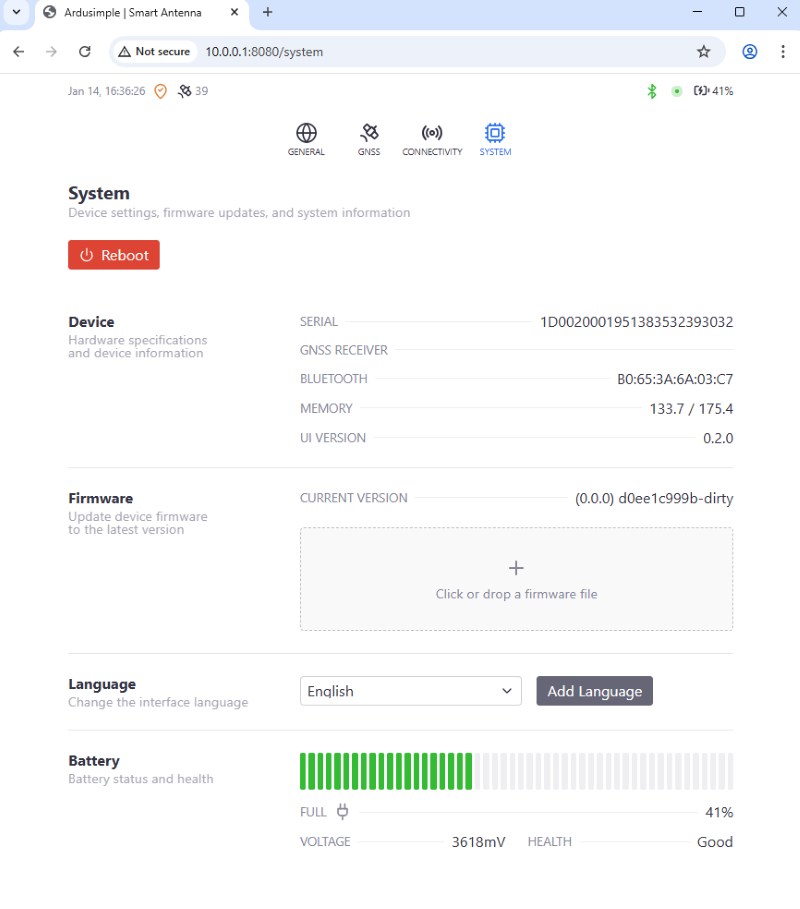
The System section of the web interface is used to configure the main functionality of the RTK Smart Antenna.
- Reboot: Resets the device.
- Device: Hardware specifications of the device components.
- Firmware: Used to update the device firmware version.
- Language: Choose your preferred language for the web interface.
- Battery: The state of charge and health of the built-in battery.
Firmware
The RTK Smart Antenna is a product under continuous development.
We will add features over time and you can easily upgrade your existing product.
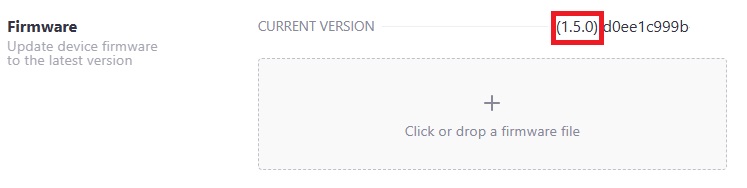
Installed firmware version
Update firmware instructions
In the section below you will find the latest firmware as a .tar file.
- Connect the RTK Smart Antenna to your PC via the USB connector
- Open your browser and go to http://10.0.0.1:8080/
- Go to the System tab, go to the Firmware section and click (or drop) and select the .tar file with the latest firmware
It is important that you don't disconnect the Smart Antenna from the PC, the whole process takes around 5 minutes, go grab a coffee and be patient 🙂
The RTK Smart Antenna will restart automatically. Once ready, if you refresh the web interface system page, you should see the new firmware version displayed. After that, you can safely disconnect the unit from your PC.
Latest firmware and changelog
*** RTK Smart Antenna Changelog *** 2026-01-21 - FW V1.6.0 * First release
Accessories and spare parts
You may also need:
- Sale!Made in EuropeProfessional
RTK Smart Antenna
749,00€Original price was: 749,00€.649,00€Current price is: 649,00€.