
 and
and 

User Guide: RTK Smart Antenna

Product Overview
The ArduSimple RTK Smart Antenna is designed for easy, high-precision surveying and mapping tasks with millimeter-level accuracy. It supports 3 primary modes: a Rover configuration (default) for collecting and staking out data in the field, a Base station configuration for delivering corrections, and a PPK workflow. It also includes an easy-to-use web interface for configuration and monitoring.
If this is your first time using your RTK Smart Antenna, follow this quick guide to get started.
Package contents
The RTK Smart Antenna kit includes:
- IP67 waterproof transport case with custom foam to store all components.
- RTK Smart Antenna (featuring the ZED-F9P RTK receiver, IP65 waterproof).
- Compact clamp for surveyor pole.
- Phone holder.
- USB-C cable.
- Screwdriver.
- Thread adapter accessory for mounting the Smart Antenna to tripod poles.

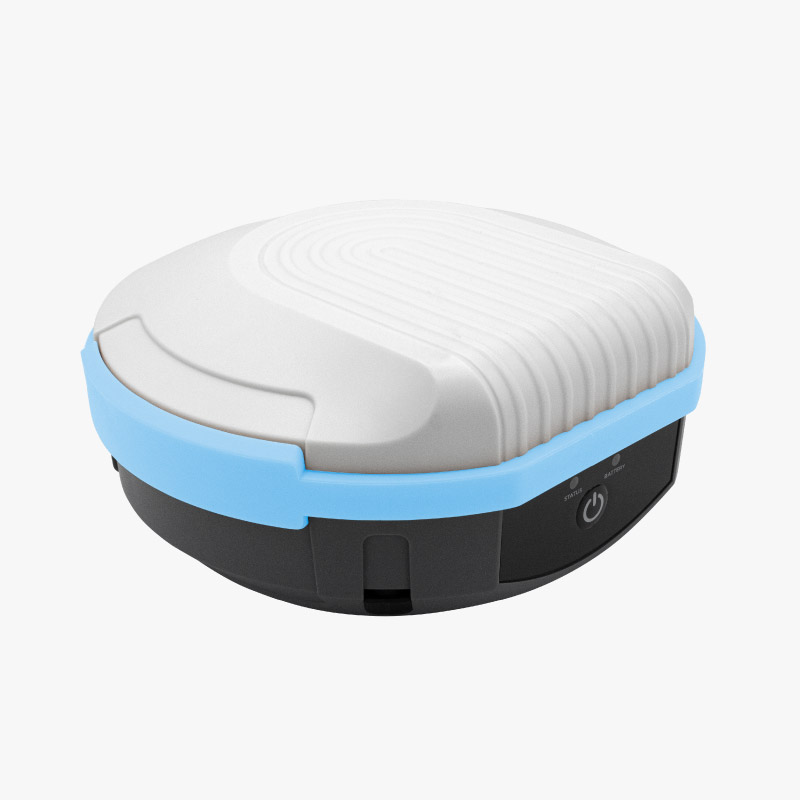
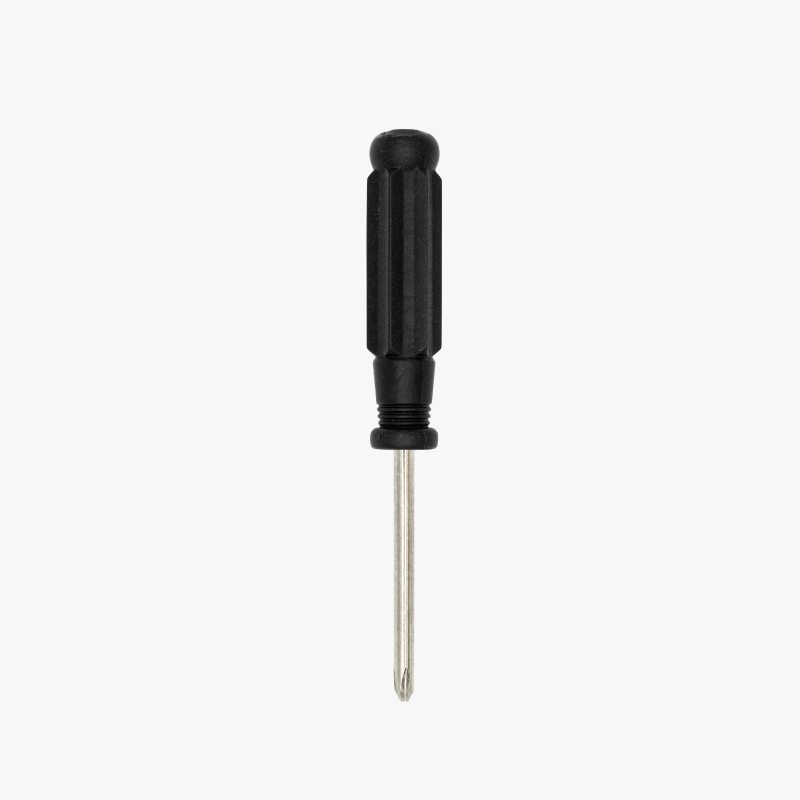
Getting started
The RTK Smart Antenna comes pre-assembled and pre-configured in its default Rover mode. Follow this quick guide to set it up.
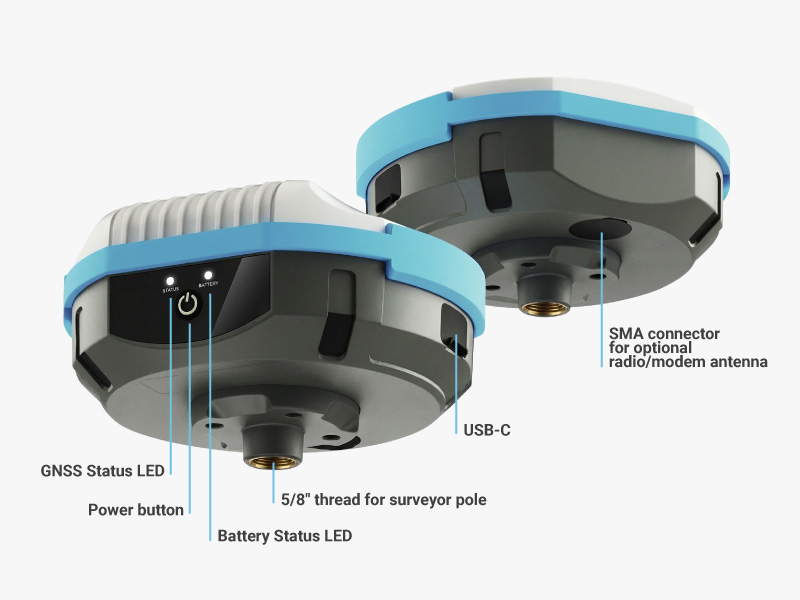
Power button
Use the power button to:
- Power On/Off: Press and hold the button for 3 seconds. An audible tone will indicate the status change.
Check Battery (Unit Off): Short press the button to display the current battery status.
Front panel LEDs
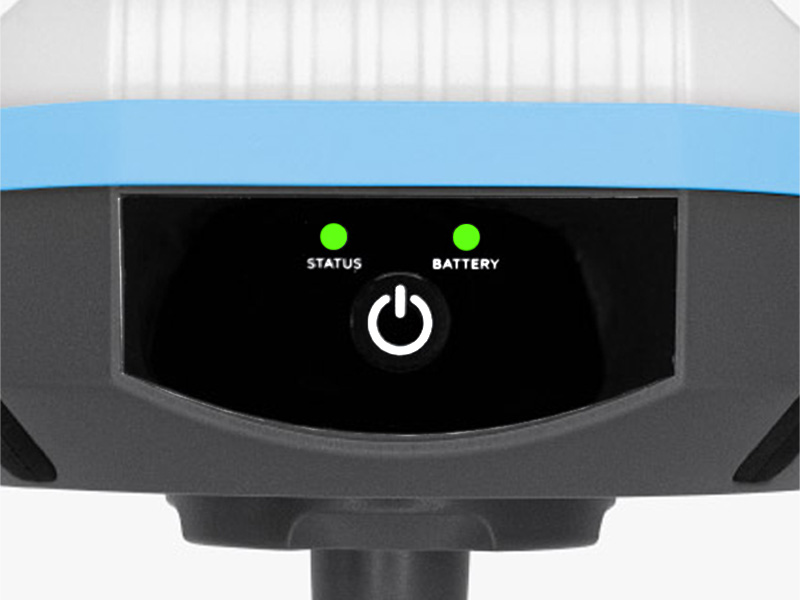
The RTK Smart Antenna has two LEDs on the front panel:
| Status LED | Battery LED |
|---|---|
| / No Fix (blinks if IMU enabled and not calibrated) | Battery = 100% (fully charged) |
| / 3D Fix (no RTK) (blinks if IMU enabled and not calibrated) | / Battery >30% (blinks when charging) |
| / RTK Float (blinks if IMU enabled and not calibrated) | / Battery <10% >30% (blinks when charging) |
| / RTK Fix (blinks if IMU enabled and not calibrated) | / Battery <10% (blinks when charging) |
Tilt Compensation calibration
If your RTK Smart Antenna has the Feymani IM19 IMU for tilt compensation, you will need to calibrate it at every startup. Please follow these steps:
- Make sure your IMU is enabled from the web interface, that your surveyor pole length matches the one in the web interface.
We suggest also to add some of the fallback notifications method that will help you notice when the calibration process succeeds.
Please check how to do it here. - Power on the RTK Smart Antenna keeping it more or less vertically and static for 10 seconds
- Connect to the RTK Smart Antenna and provide corrections and wait to have RTK Fix.
This is important, without RTK Fix, the IMU can’t be calibrated properly. - Place the surveying pole tip on the ground and keep it fixed, move back and forth the pole, to approximately +-30deg for 5 seconds.
- Without moving the pole tip, move the pole left and right, to approximately +-30deg for 5 seconds.
- That should be it, if IMU is not calibrated, walk 5 meters and repeat the process once again.
- During your surveying job, the unit may require re-calibration, if this happens, follow steps 2-6 again.
Smart Antenna Geometry
The RTK Smart Antenna calibration file can be downloaded from NGS website (Manufacturer: ArduSimple, Model: AS-PROSMARTANT): https://www.ngs.noaa.gov/ANTCAL/index.xhtml#
The RTK Smart Antenna APC (Antenna Phase Center) is located 80.70mm from the ARP (Antenna Reference Point), which is located at the bottom of the unit, along the vertical revolution axis, as can be seen at the below picture.

Below you can find a more detailed geometry in case your software requires it.
NOM (North Orientation Mark) is perpendicular to the surface where the ON/OFF button is located, this is useful when doing precise static measurements as you should face this surface pointing to the North.
SHMM (Slant Height Measurement Mark) is not a single marc but whatever point aroung the complete diameter of the RTK Smart Antenna at the base, 65mm from the vertical axis of the unit. When setting up over a point on a wide tripod, it is usually impossible to drop a tape measure straight down, so you measure diagonally (the slant height) from the ground peg to this exact mark. The software then uses the known dimensions of the antenna to mathematically convert your slant measurement into a true vertical height.
Finally, you can find the precise location of L1 and L2 phase centers, although usually the APC offset is enough.

Configuration
As RTK Rover
on Android or iOS
This kit is compatible with numerous mobile GIS apps. This tutorial uses the SW Maps app to demonstrate how to connect the RTK Smart Antenna to your Android or iOS device.
- Install SW Maps app on your mobile device from the Google Play or Apple App store.
- Open the app and grant the required permissions (first time only).
- Power on the RTK Smart Antenna by pressing the POWER button on the front panel.
In SW Maps, tap the antenna icon to open the GNSS Connection menu.
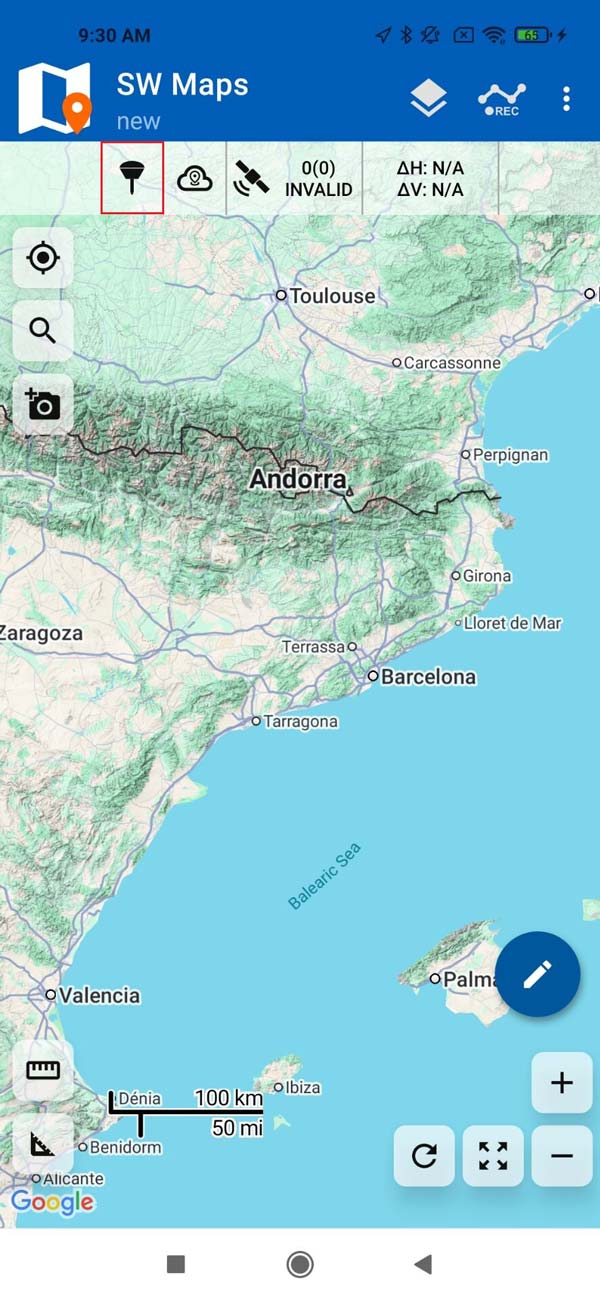
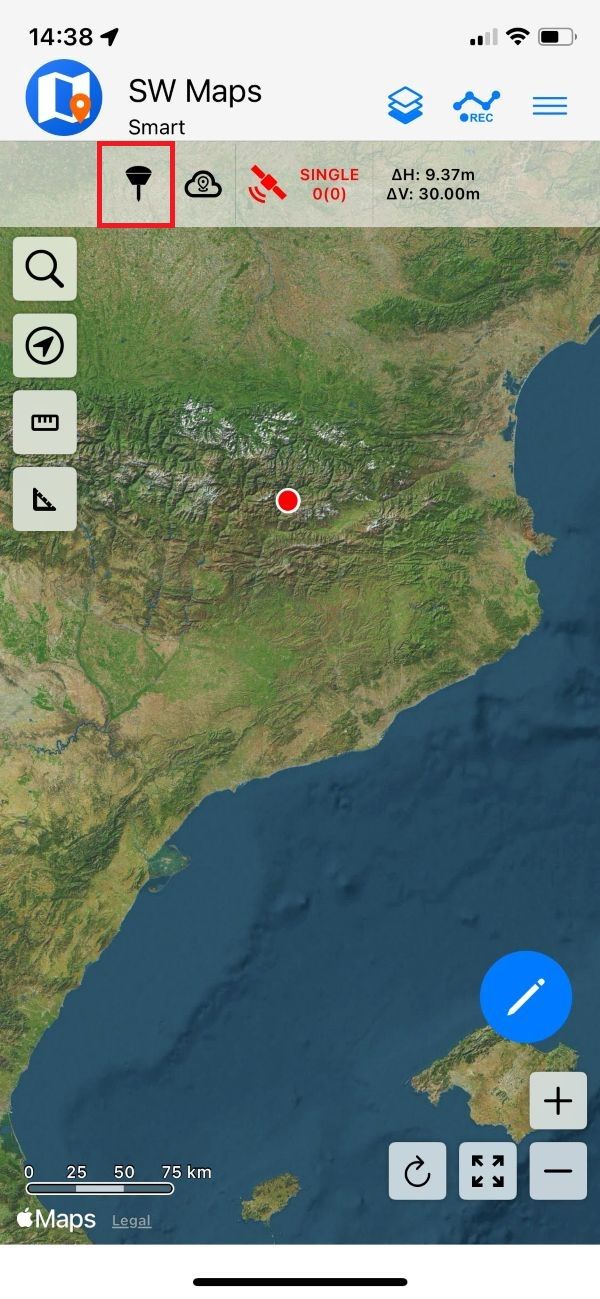
In the GNSS Connection menu:
- Set Connection Mode to Bluetooth LE and press the refresh icon (Android only).
- Press Scan (iOS only).
- Make sure to select the device named SmartAnt.
- Instrument Height refers to the expected receiver elevation from the ground. Set the instrument height to the exact height of the pole + 87mm (this is the distance between the bottom of the 5/8″ thread and the phase center of the internal antenna).
- Press CONNECT.
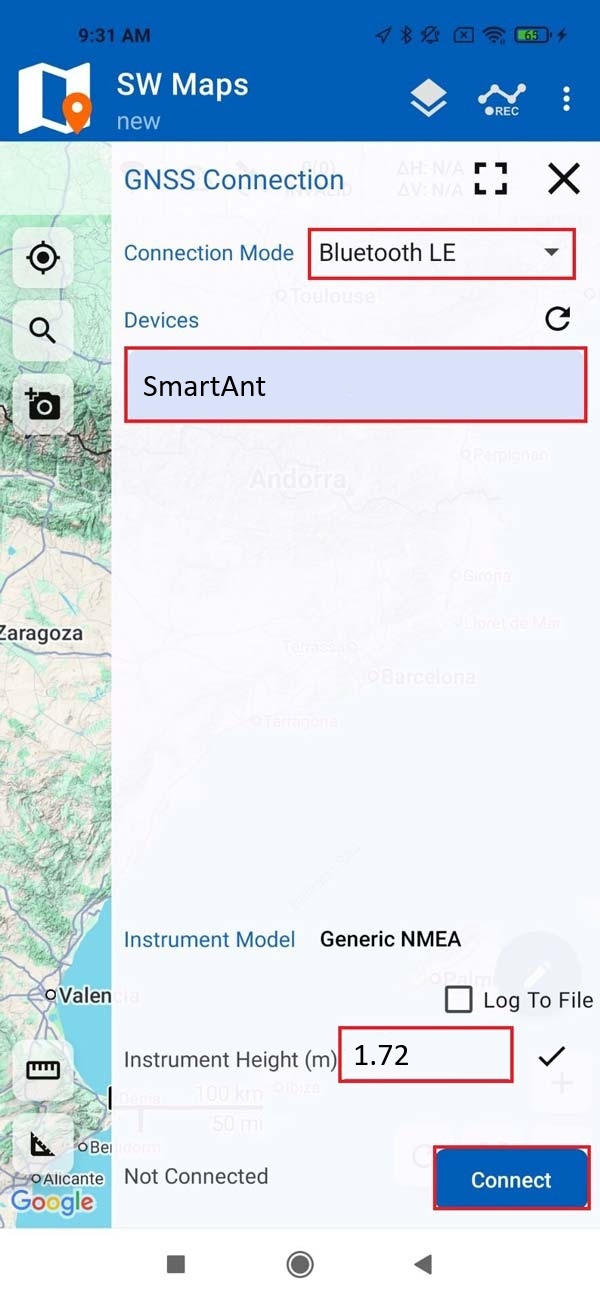
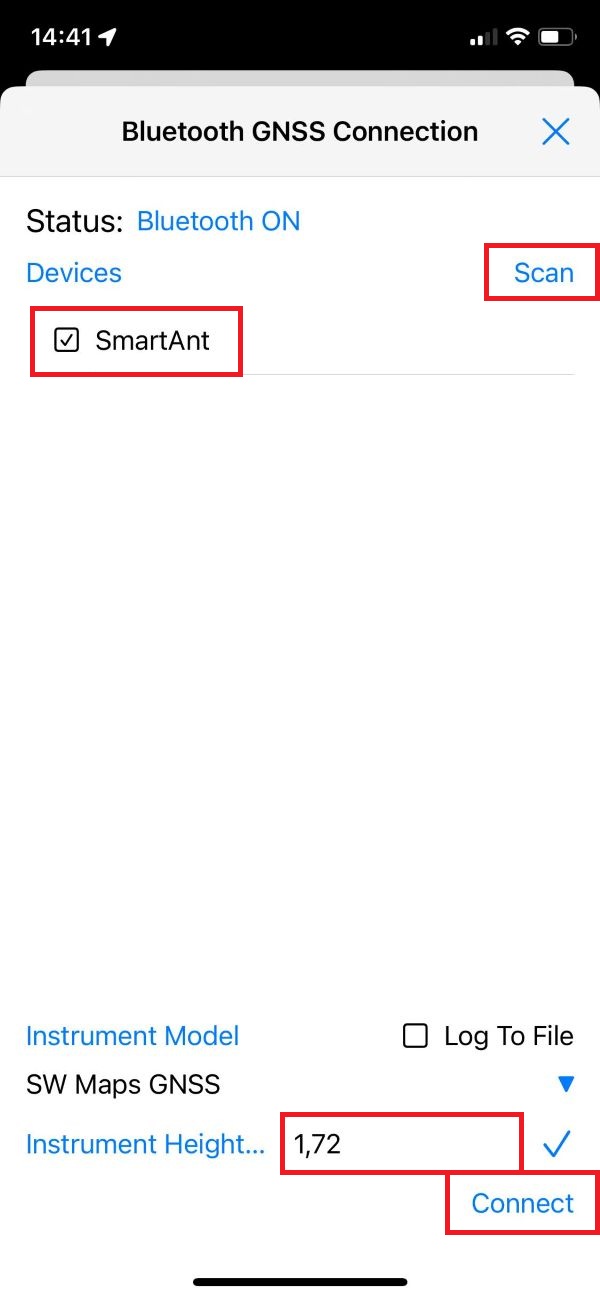
You should now see a confirmation of a successful connection and data transfer from the RTK Smart Antenna.
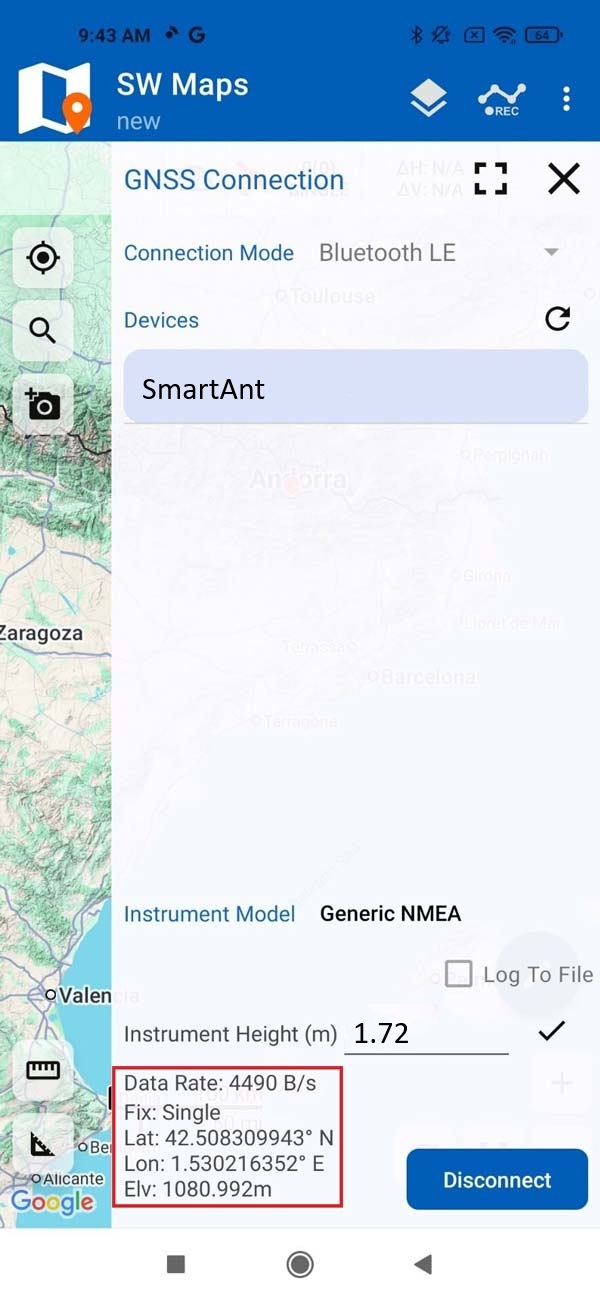
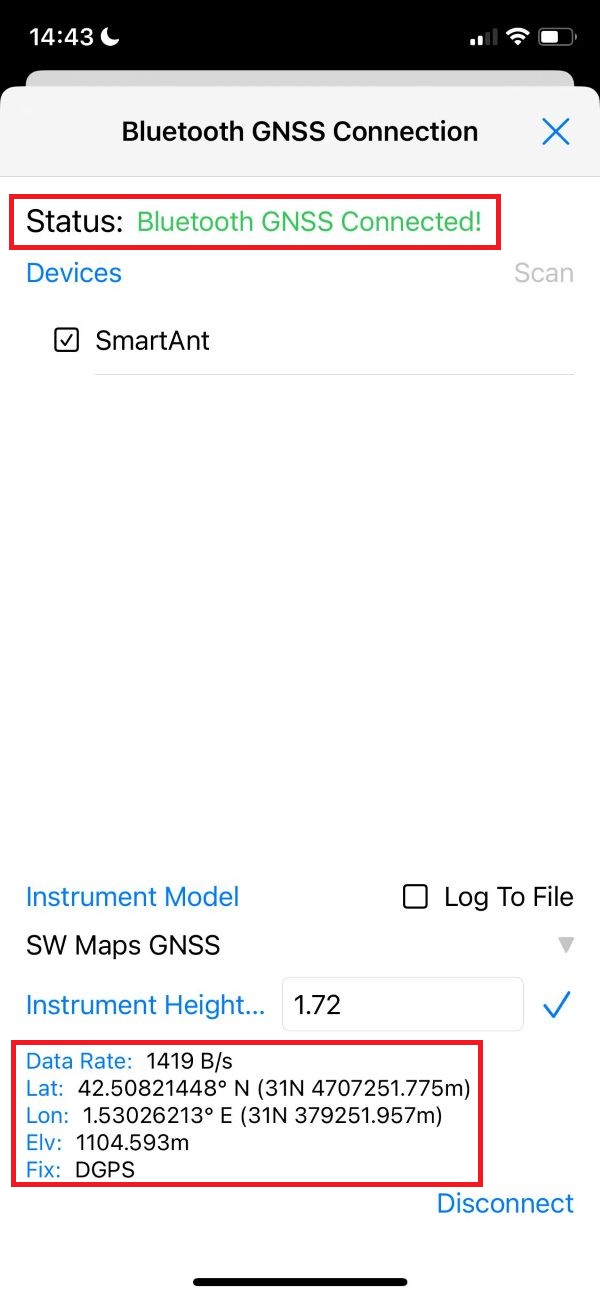
- For centimeter-accurate measurements, you must connect to an NTRIP service to receive RTK corrections. If you need assistance finding one, consult our prepared list of RTK correction services in your country.
- Next, return to the SW Maps main menu and select NTRIP Client.
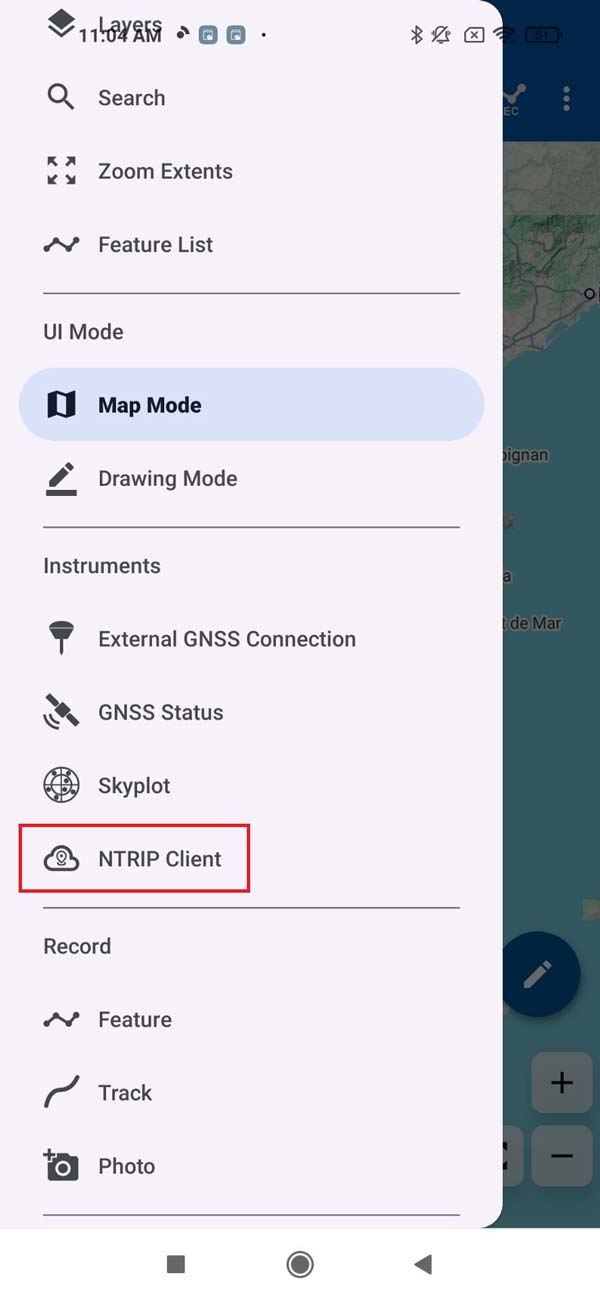
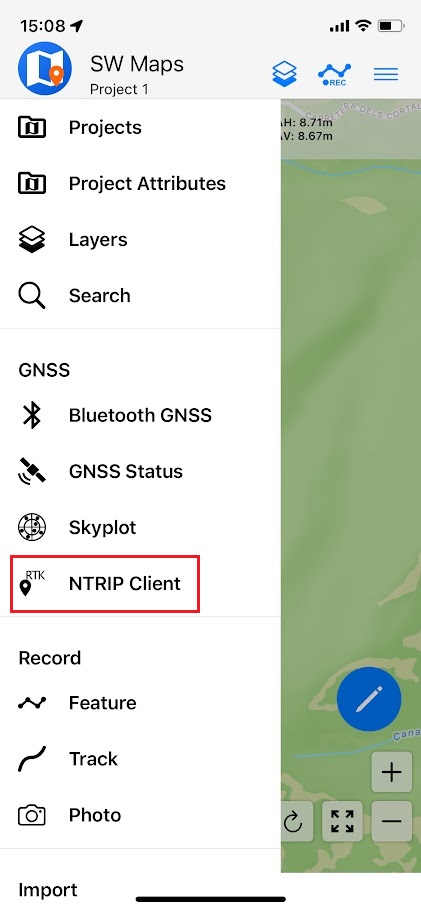
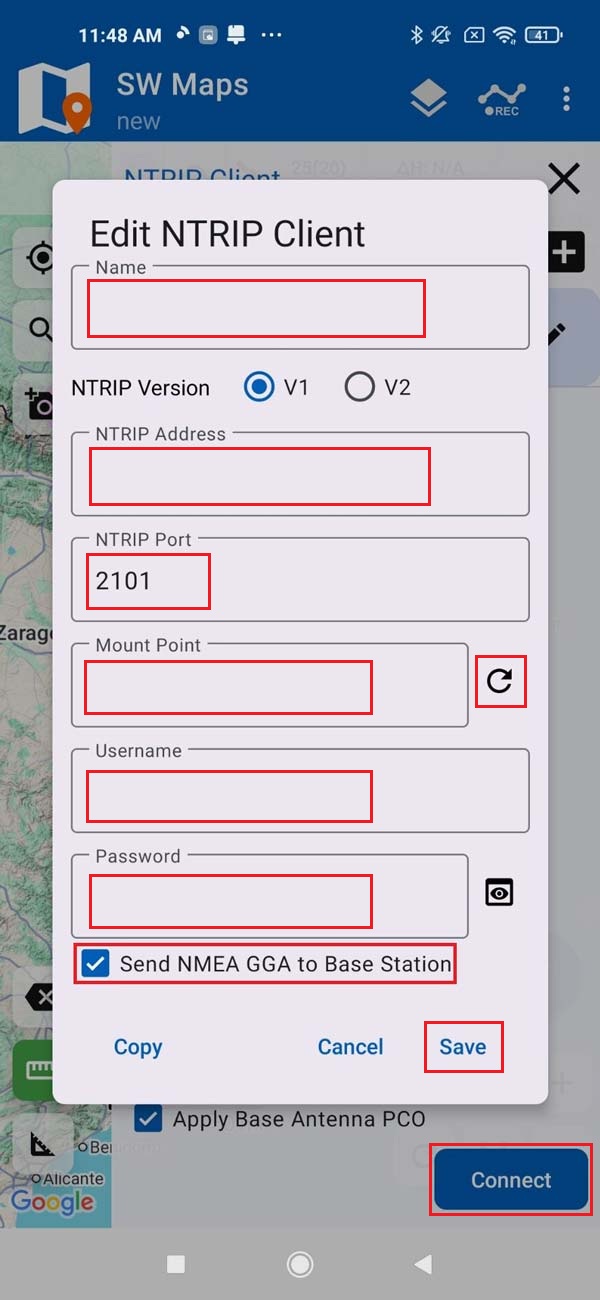
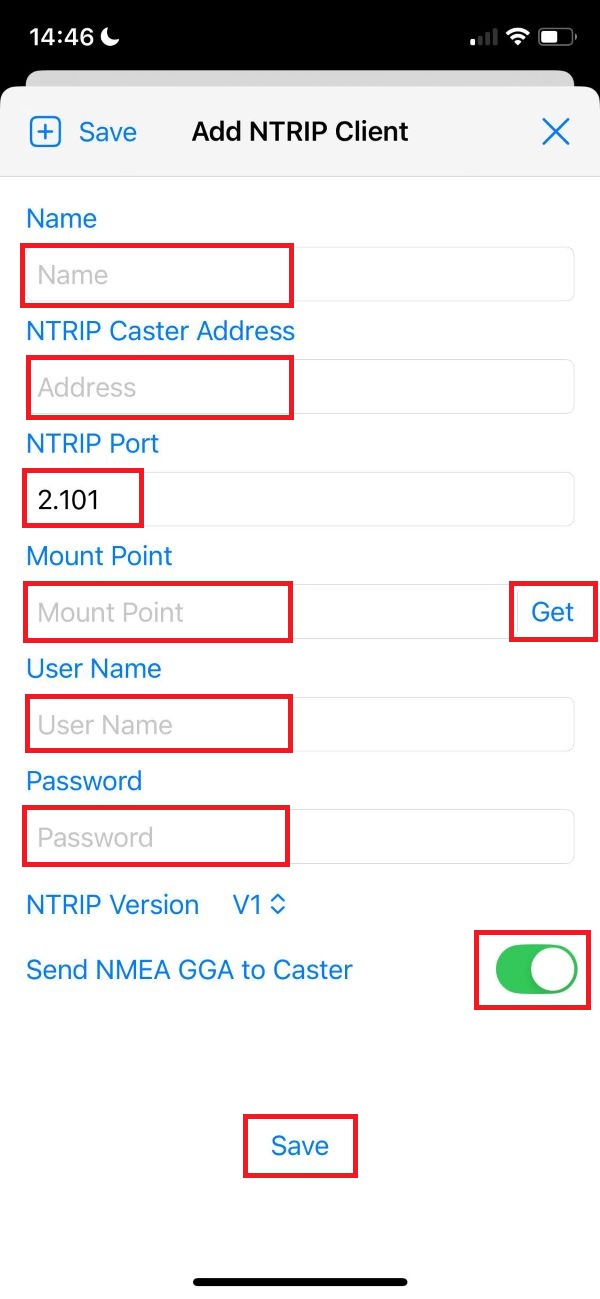
- Enter your NTRIP Client credentials: Name, NTRIP Port, Mount Point, Username and Password. We recommend enabling Send NMEA GGA to Base Station option to send your location to the NTRIP caster.
- Press Save.
- Press Connect.
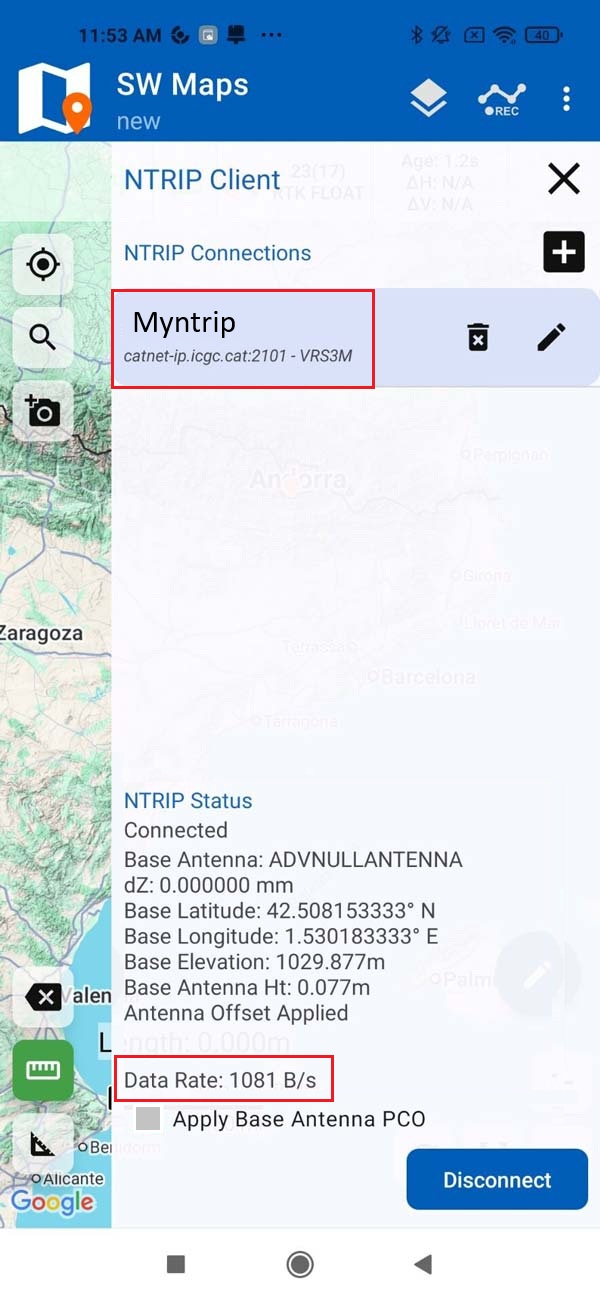
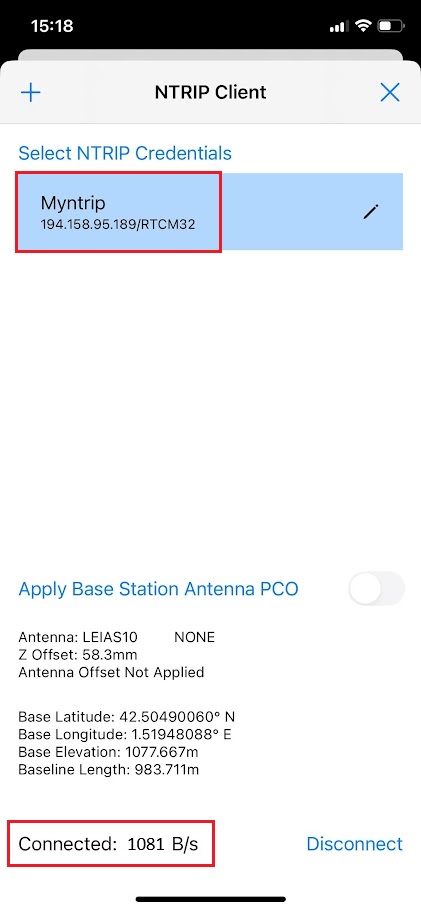
The NTRIP Status section will show a confirmation of a successful connection and active data streaming to your device.
- Navigate back to the SW Maps main menu and tap Skyplot. You should now see the number of available satellites at your position, Fix status to RTK Float/Fix, and millimeter-level horizontal and vertical accuracy.
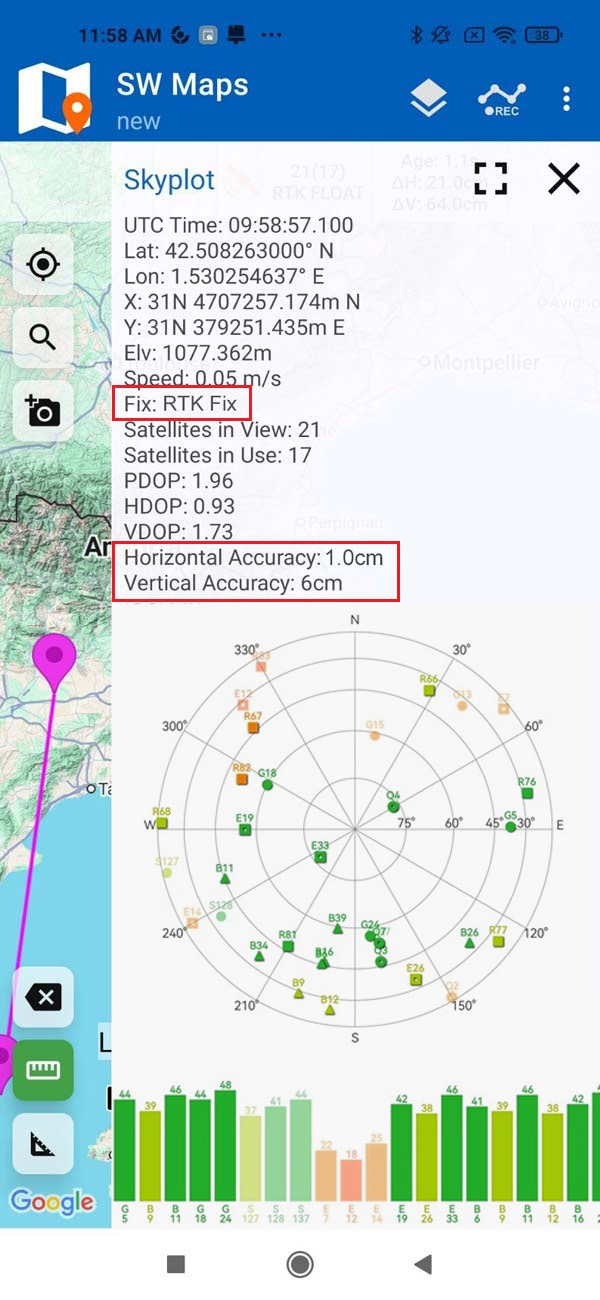
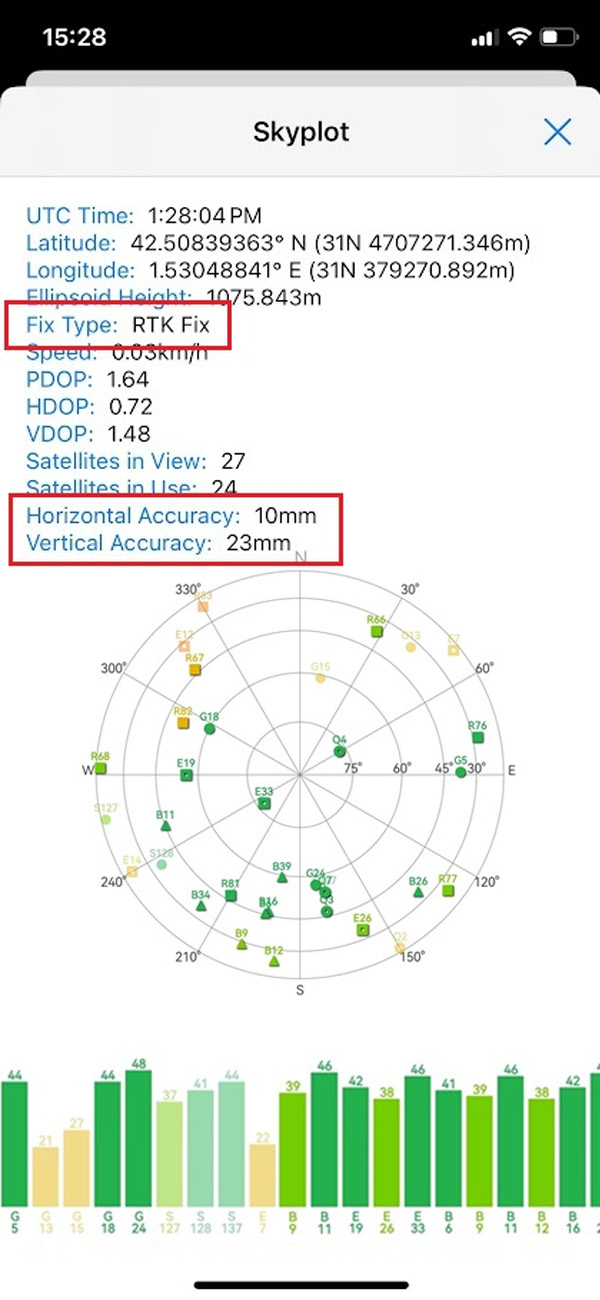
The RTK Smart Antenna supports integration with a wide range of third-party software and applications. Please consult our Compatible Software list for supported apps and related tutorials.
If your preferred application is not listed, please contact us, and we will test the integration for you.
on Windows
There are numerous GIS applications for Windows that are compatible with the RTK Smart Antenna Kit, but in this step-by-step tutorial we will explain how to connect it to a Microsoft Windows to obtain centimeter accurate positioning in the software developed by the embedded receiver manufacturer u-blox.
- To connect the RTK Smart Antenna to a PC it needs to be configured to use a Classic Bluetooth connection (instead of the default BLE connection). So, you will have to change it in the Connectivity section of the Web Interface. Please follow the corresponding section in this guide to do so.
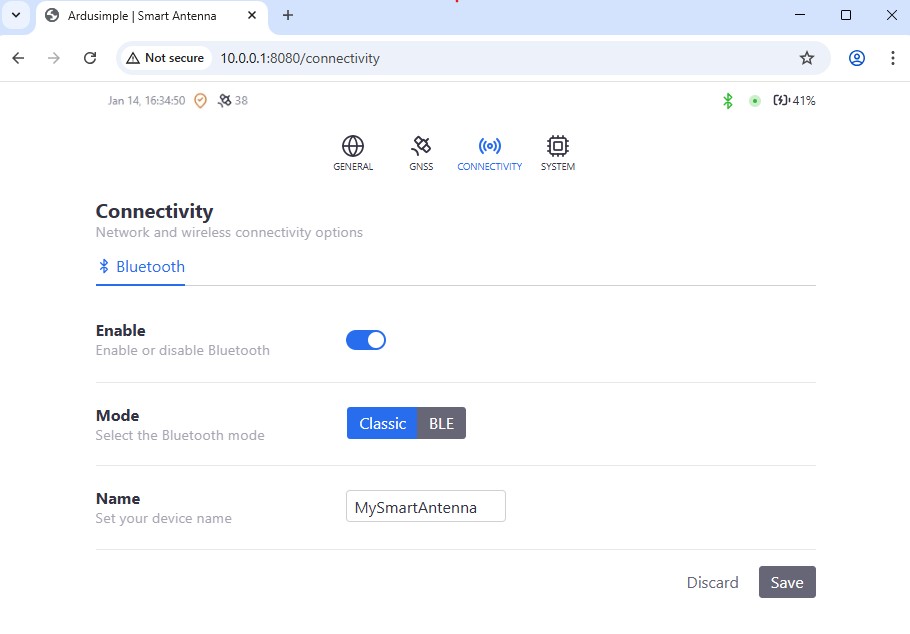
- Once the Bluetooth Classic mode was activated and saved (RTK Smart Antenna is re-booted), please disconnect the USB-C cable.
- Turn on the RTK Smart Antenna by pressing and holding for 3 seconds the Power button. Make sure your RTK Smart Antenna is charged (see the Battery section if charging is needed).
- Place the RTK Smart Antenna outdoors in an open area with a clear view of the sky. For testing purposes, you can place it near a window.
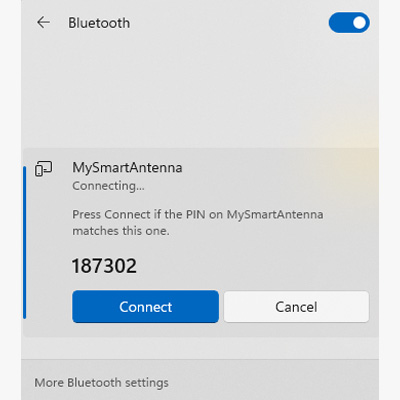
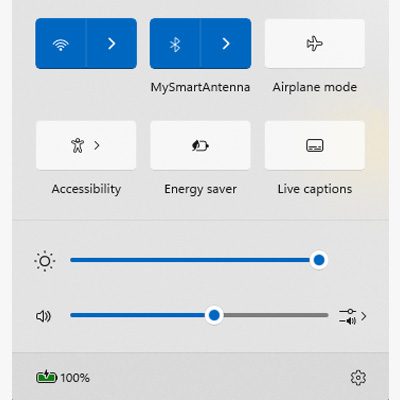
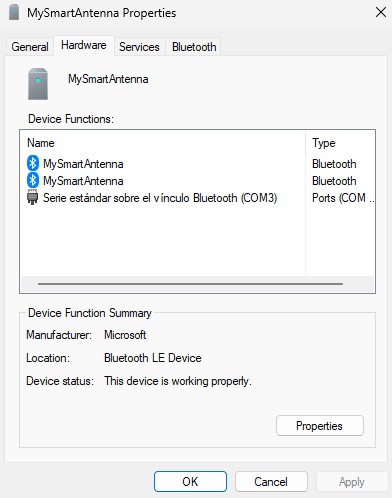
- Activate Bluetooth in the PC and search for a device called “Smart Antenna” (or the name you used in the Name section of the web interface; MySmartAntenna in the picture below) and press Connect. (Ignore the PIN number… it is not used in this tutorial).
- We will use u-center (version for M8, M9, F9 and legacy GNSS products) software to connect to an NTRIP service and get RTK corrections, so if you don’ have it installed please download it from the u-blox website.
- Download the classic u-center software for legacy GNSS products, not the new u-center 2.
- Do not change additional parameters in u-center aside the ones included in this guide, as they could alter the functionality of the RTK Smart Antenna.
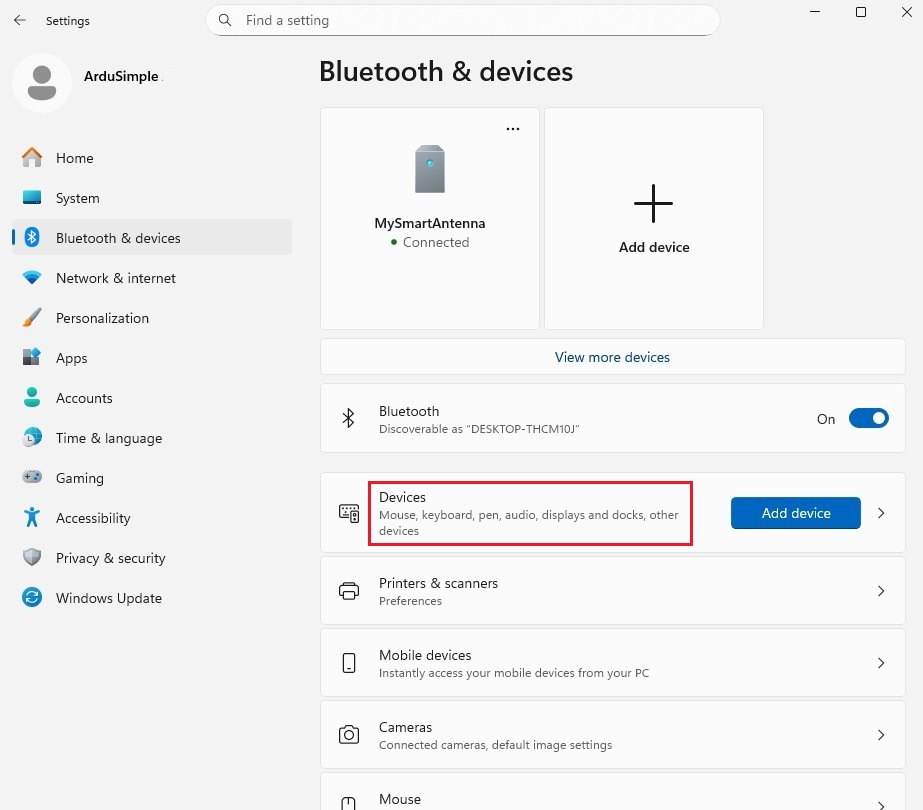
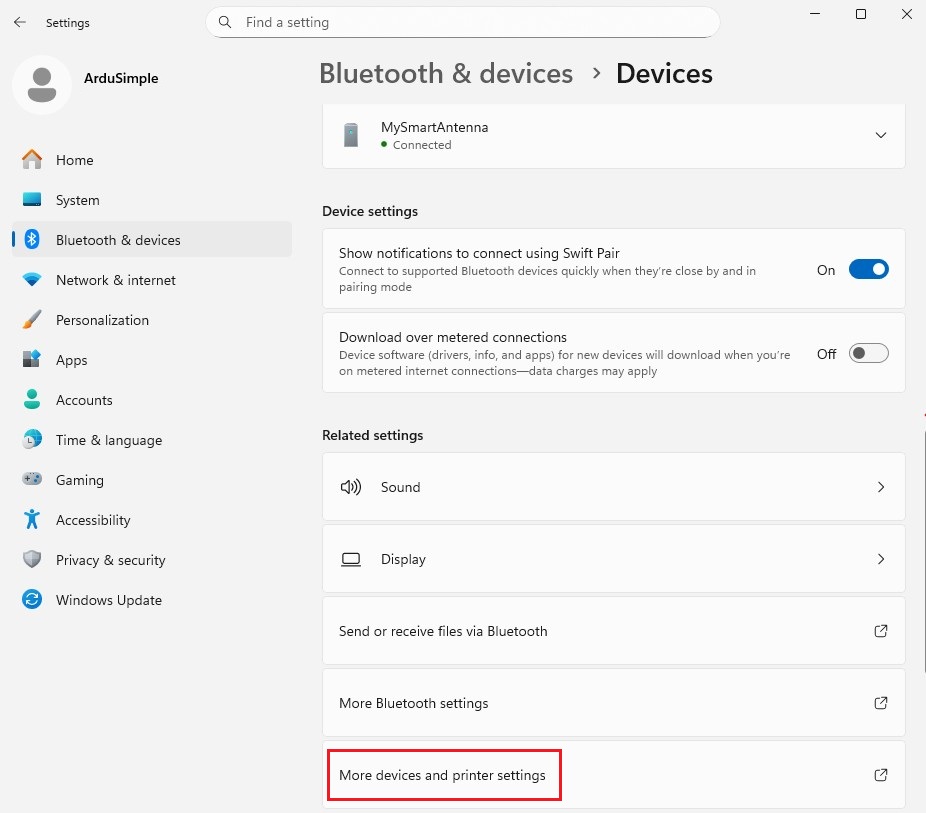
- To identify which Bluetooth COM port your device is using. Go to PC Settings -> Bluetooth & Devices -> Devices -> More devices and printer settings.
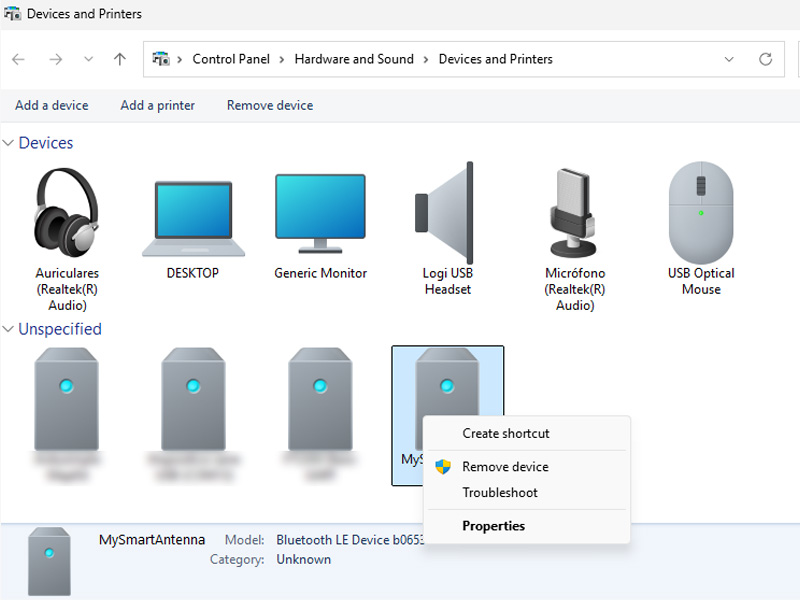
- Select the Smart Antenna device and show its properties. Under the Hardware tab you will find the Bluetooth COM port used (COM3 in our case).
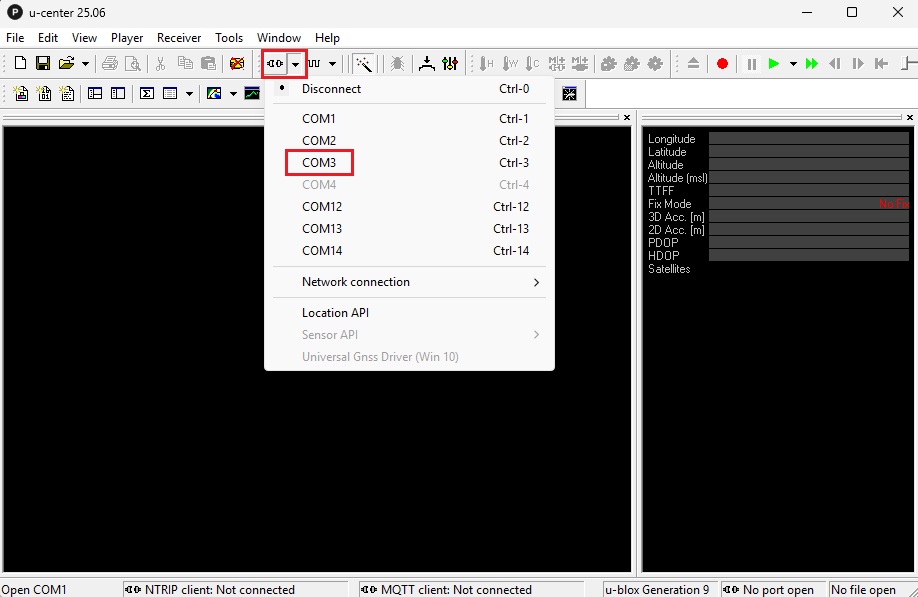
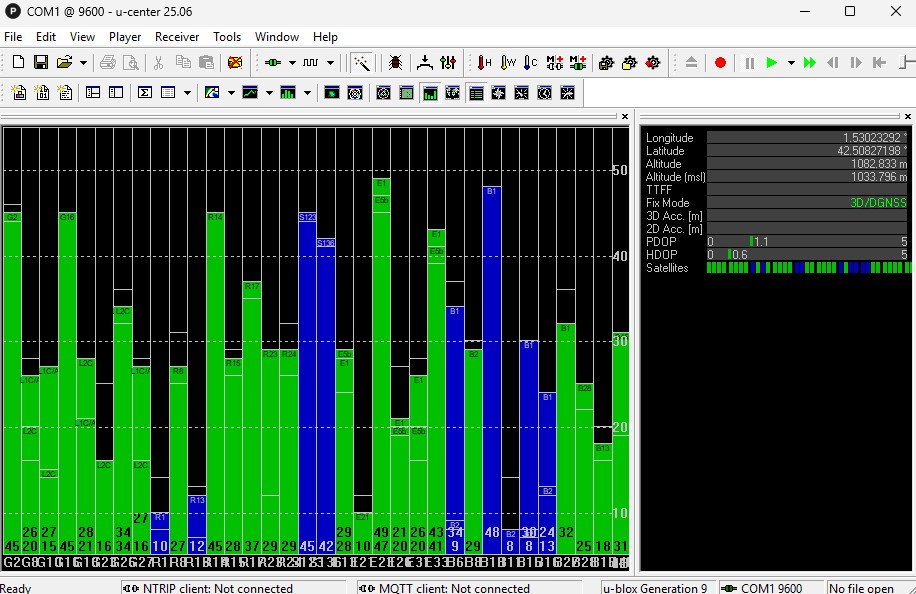
- Open u-center and connect using the Bluetooth COM port you found in the previous step (COM3 in our case). You should see satellite signals and 3D Fix Mode in the Satellite levels and data views.
- To get centimeter accurate measurements, it is needed to connect to a NTRIP service to get RTK corrections. If you need help to finding one, check the list of RTK Correction Services in your Country which we have prepared for you. At menu bar go to Receiver –> NTRIP Client… Set up the Address, Port, Username, Password and Mount point from your NTRIP service. Click OK.
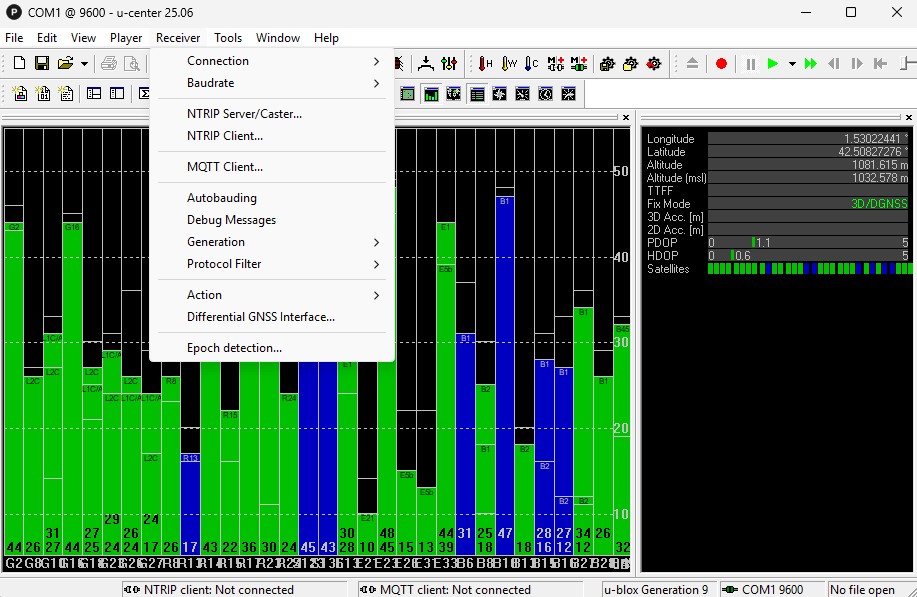
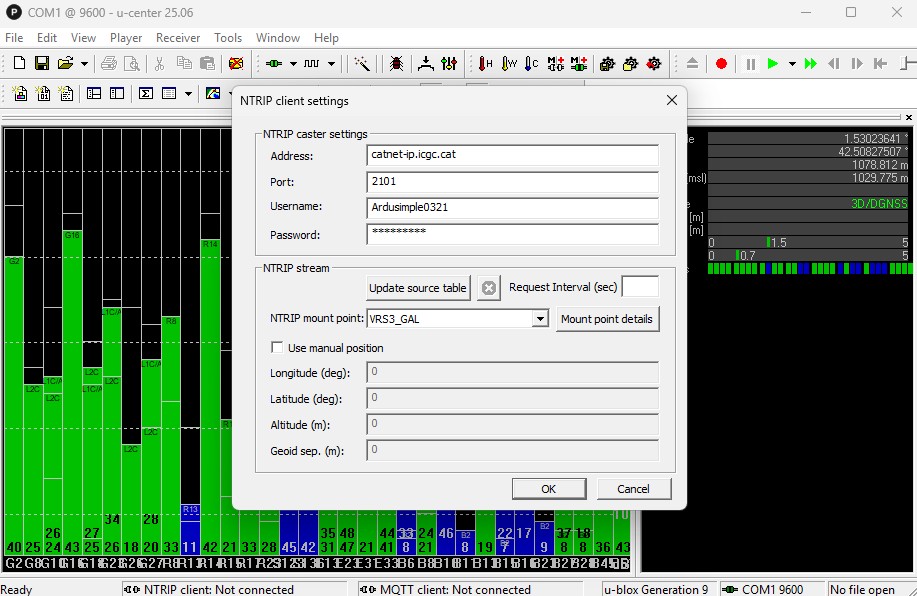
- In a few seconds, you will see the Fix Mode switching to RTK FIXED or FLOAT and 2D/3D accuracy changing to centimetre level.
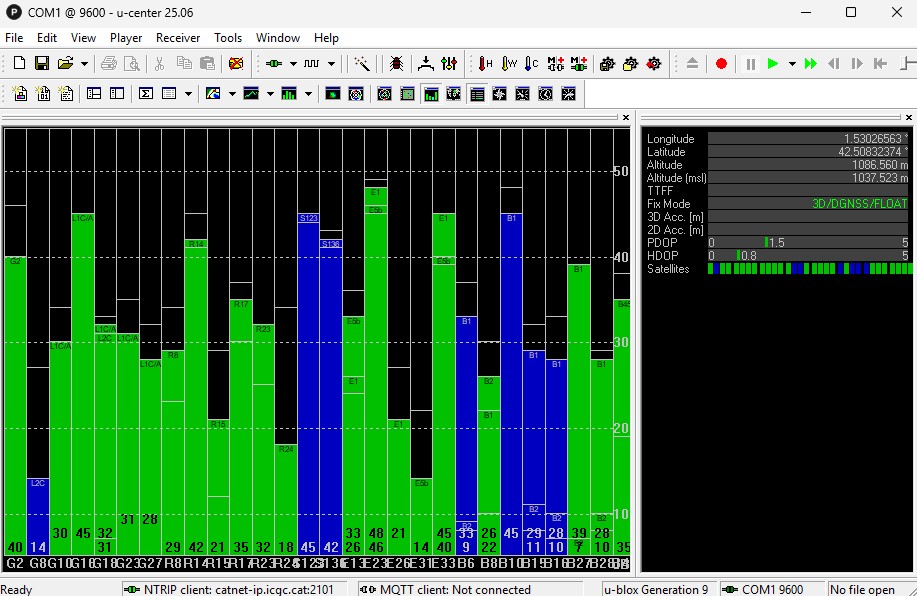
At this point you can use the new RTK resolved position to improve the accuracy of your measurements in any other GIS application for Windows. For example, here you can find How to connect to QGIS for real time positioning.
As RTK Base
Select Base Set as Auto or Set as Fixed via RTK Smart Antenna web interface.
Currently, RAW data generation when Base configuration is active is not possible. Coming soon.
Unmanaged
Select this option to bypass the auto-configuration of the GNSS receiver.
You can setup your GNSS receiver with u-center/UPrecise/Septentrio web interface with your preferred configuration.
If Unmanaged configuration is selected, the web interface will not show the GNSS receiver model.
If you want to see data via web interface, please enable NMEA GGA, GST, GSV, GSA and RMC messages via UART1 at 115200bps.
If you want to transmit data via Bluetooth/Radio socket, set UART2 at 460800bps with your preferred messages at your preferred frequency. You are responsible to don’t overload the UART buffer.
Enable the Use radio option if you want to forward all the UART2 data also over the radiolink socket of the RTK Smart Antenna.
If you want to go back to default configurations (Rover, Base), you only need to set your GNSS receiver to its factory settings.
Specifications
USB-C Connector
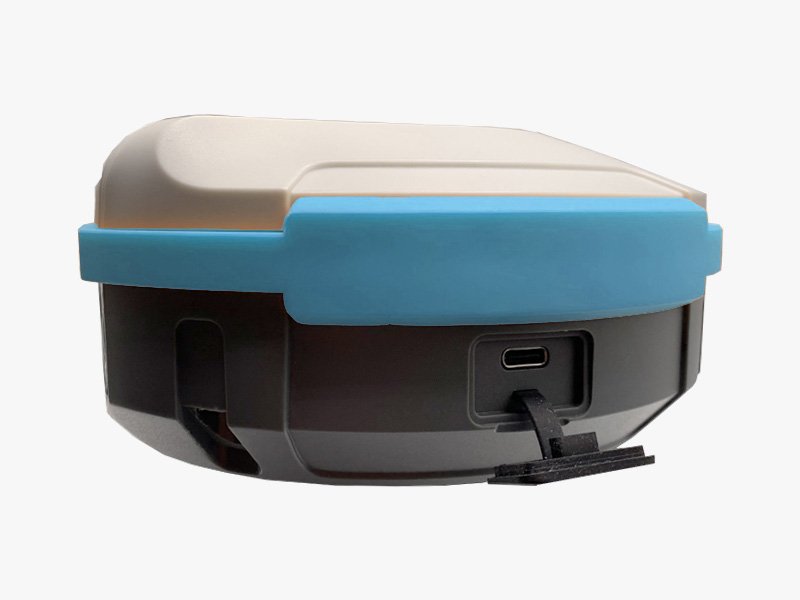
This connector is located on the right side of the RTK Smart Antenna (under a rubber cover). It serves two functions:
- Charge the internal battery.
- Connect the RTK Smart Antenna to a PC for configuration using our unified web-interface, or for advanced settings using tools like u-center, RxTools, …
Battery
The RTK Smart Antenna has a built-in Li-Ion battery that should be charged using the provided USB-C cable connected to a power bank or USB wall adapter.
The Battery LED on the front panel will blink during charging and remain solid when the battery is fully charged.
5/8" thread for surveying pole
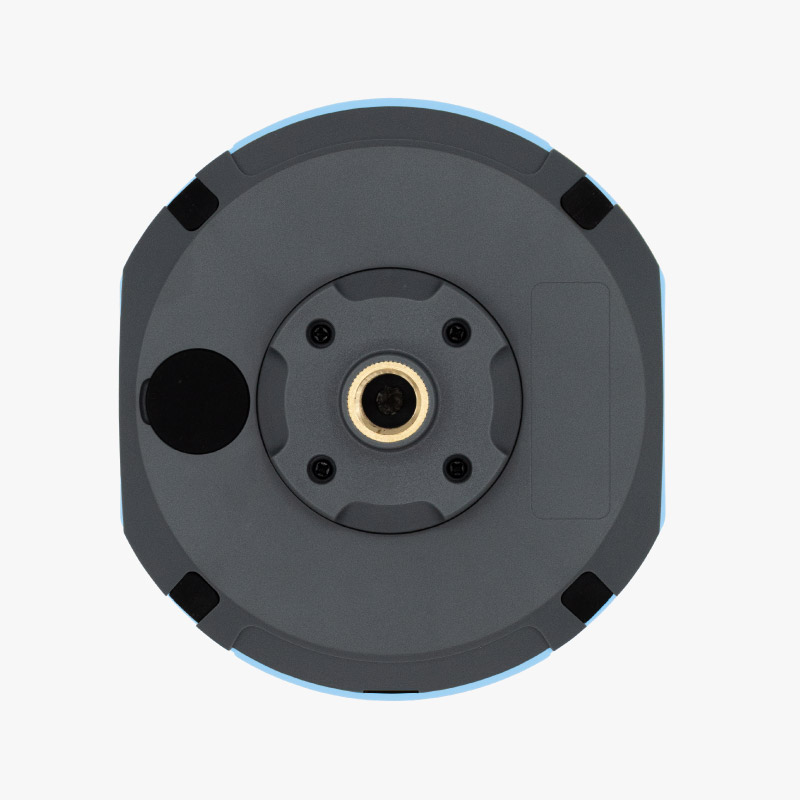
This is the standard survey pole thread size, making the antenna compatible with any standard survey pole for field use.
For optimal performance, we recommend the ArduSimple Pole for survey GNSS antenna.
Web interface
The RTK Smart Antenna features a unified web interface (common to all supported u-blox, Unicore and Septentrio modules) with an intuitive design for:
- Easy configuration of the device as a Base or Rover.
- Firmware updates.
- Monitoring GNSS signals and resolved position status.
To access the web interface:
- Remove the rubber cover from the USB port located on the right side of the device.
- Connect the antenna to your PC using the provided USB-C cable.
- Open a web browser and navigate to http://10.0.0.1:8080.
General
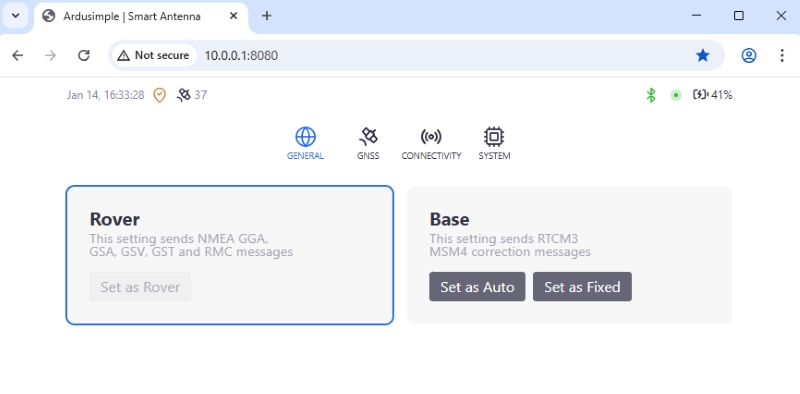
In the General section of the web interface, you can easily switch the RTK Smart Antenna’s operating mode.
- Rover: This mode configures the receiver to output standard NMEA messages.
- Raw data checkbox: enable if you need RAW data reported via Bluetooth for postprocessing logging via your smartphone/tablet.
- Use radio checkbox: enable if you need to forward to the radio socket the same data being reported via Bluetooth. In a rover, this is useful if you have the 4G NTRIP Master connected as it may need to receive NMEA GGA for NTRIP connection.
- Base: This mode enables the device to broadcast RTK correction data to connected Rover receivers. You can set the Base position automatically or by entering coordinates manually. In this mode, all data is forwarded automatically to the radio socket.
- Unmanaged: Mode for expert users. In this mode the RTK Smart Antenna will not try to detect the GNSS receiver nor configure it. You can also choose to forward data to radio socket.
Don’t use this mode unless you know what you are doing.
GNSS
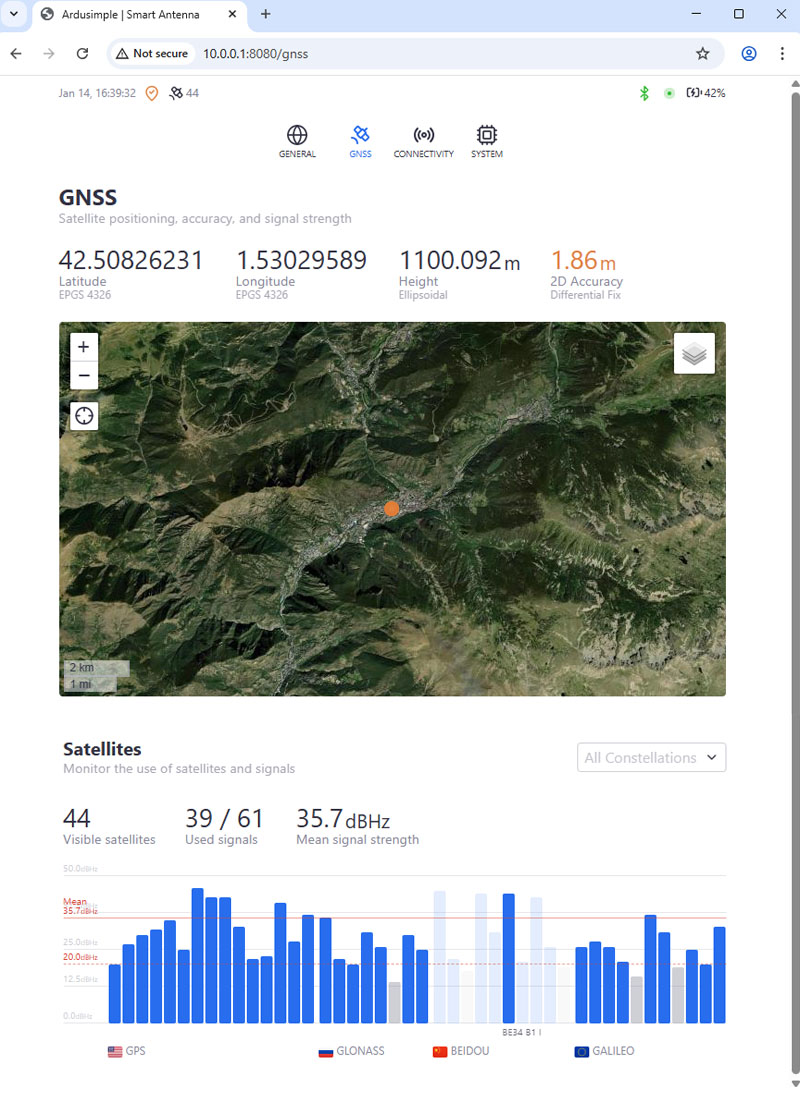
The GNSS section of the web interface is used to monitor the satellite signal status, quality, and the position fix resolved by the RTK Smart Antenna’s internal receiver.
- GNSS: Displays the current position coordinates and their accuracy.
- Map: Allows you to track the resolved position, zoom in/out, and choose between a default map view and a satellite image view.
- Satellites: Shows the number of visible satellites (per constellation) and the signal strength of those in use.
IMU (Tilt Compensation)
This section has two tabs:
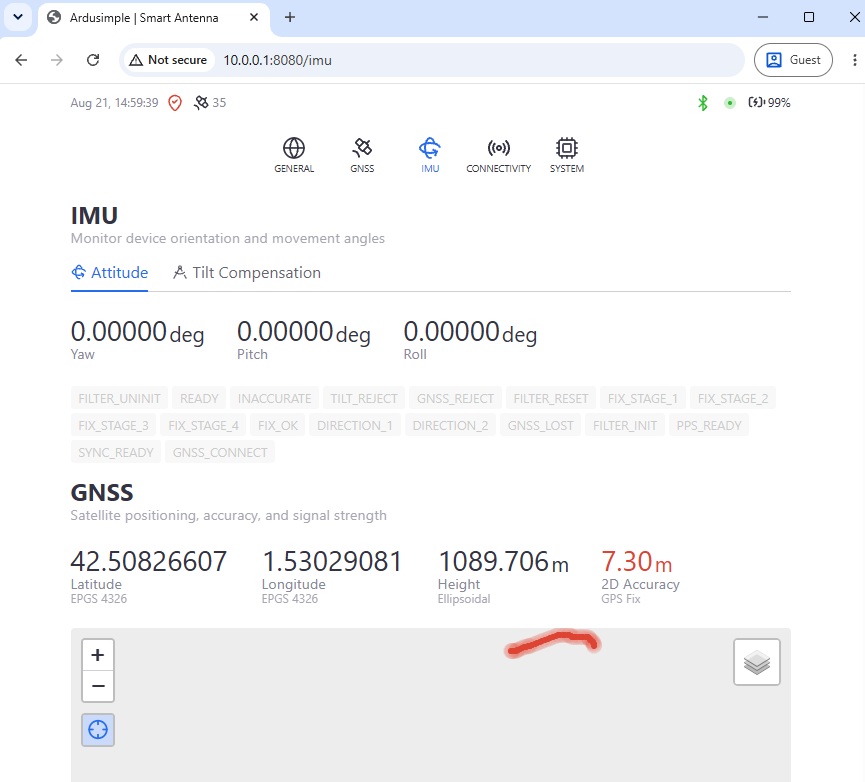
- Attitude: Displays the current status of the IMU (pitch, roll, yaw angles), IMU status flags and a map with the overlay of the GNSS reported coordinates and the corrected coordinates thanks to the IMU.
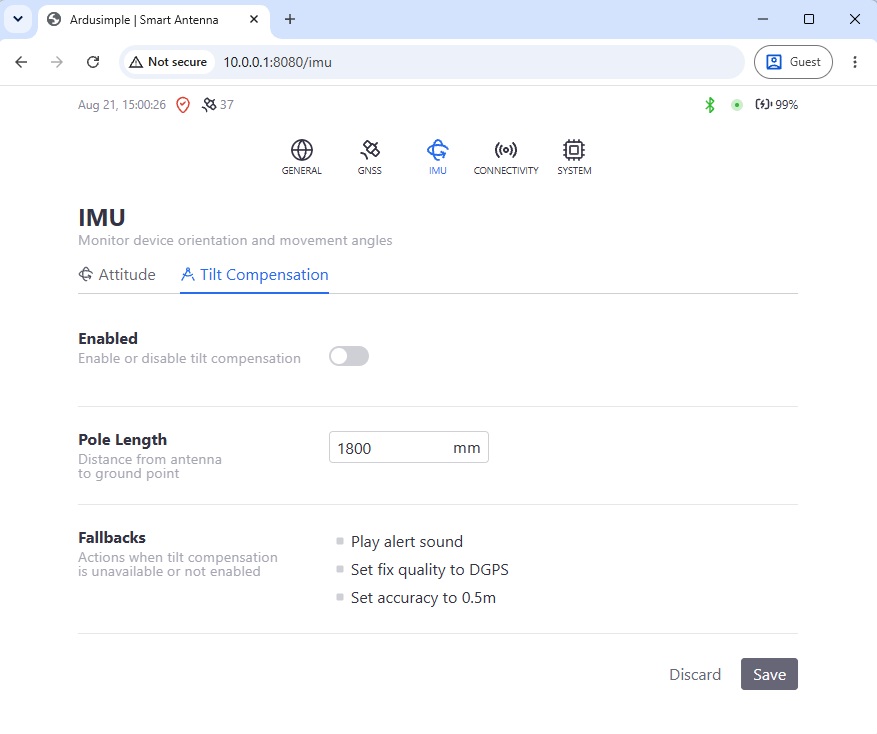
- Tilt Compensation: Allows you to set it up:
- Enabled: toggle to enable/disable the tilt compensation functionality if IMU is installed.
- Pole length: enter your pole length in mm. Only the pole length, the RTK Smart Antenna will add its phase offset automatically.
- Fallbacks: very useful to notify the operator that the tilt compensation is not active and needs re-calibration.
- Play alert sound: will activate the buzzer to notify acoustically that the unit needs calibration. When there’s no sound, everything is ok.
- Set fix quality to RTK Float: fix quality reported via Bluetooth will be the real one, except if GNSS is RTK Fix, in which case it will report RTK Float. Some apps display the fix quality in a color code, so if you see RTK Fix or green color, everything is ok.
- Set accuracy to 0.5m: estimated accuracy reported via Bluetooth will be the real one, except if <0.5m, in which case it will report 0.5m. When recording data, if you see accuracy static at 0.5m it means that the units needs re-calibration.
Connectivity
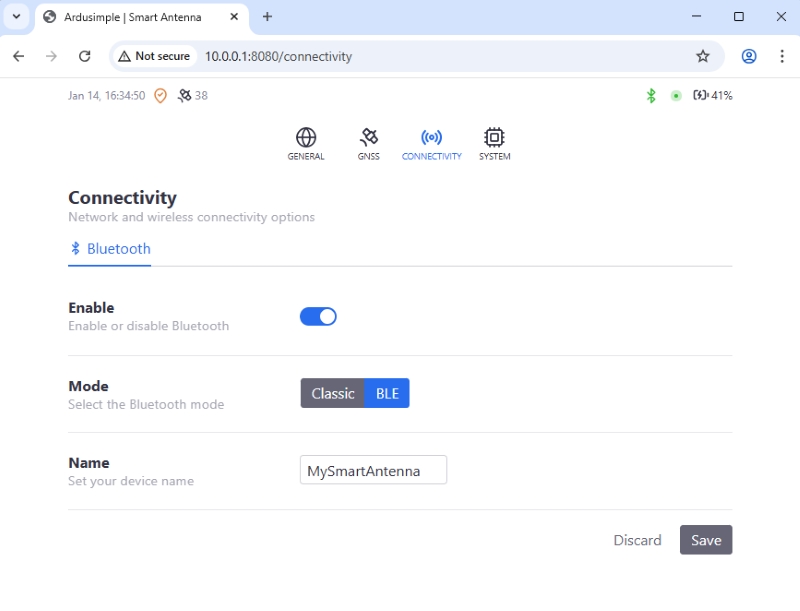
The Connectivity section of the web interface is used to configure the connection (Bluetooth) used between the RTK Smart Antenna and mobile devices used in surveying tasks.
- Enable: Activates the Bluetooth connection.
- Mode: Allows you to choose between Classic Bluetooth (used on PC) and BLE (Bluetooth Low Energy used for Android and iOS devices). BLE is the default and recommended option unless not supported by the connecting device.
- Name: Here you can type your desired device name, that will appear as a connection option on the mobile device.
Remember to press Save to apply the changes.
System
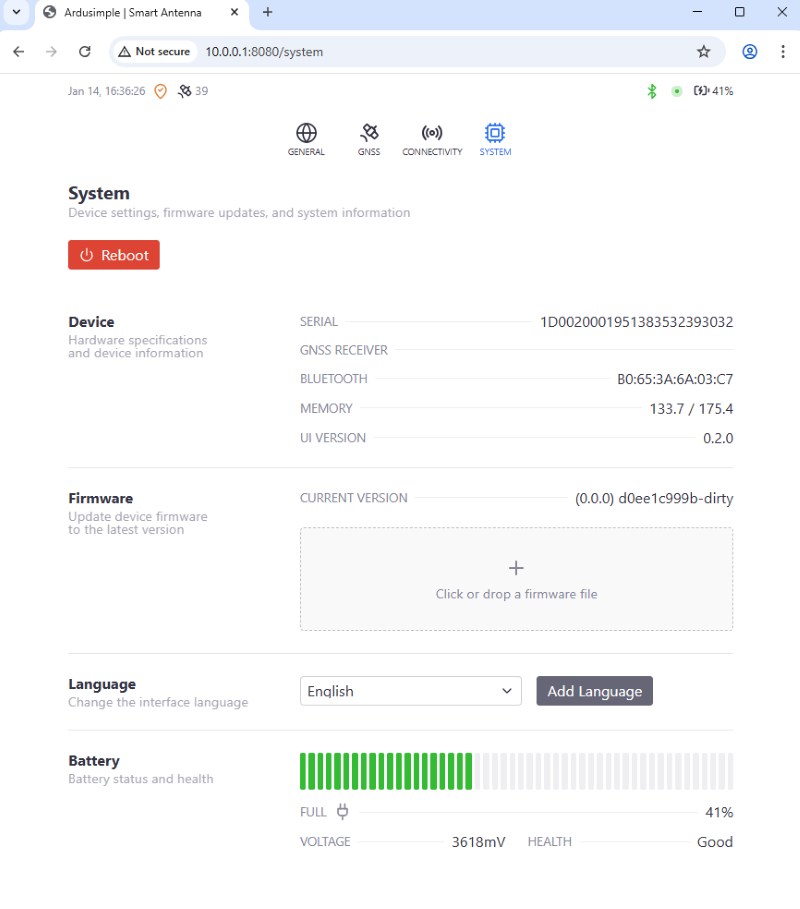
The System section of the web interface is used to configure the main functionality of the RTK Smart Antenna.
- Reboot: Resets the device.
- Device: Hardware specifications of the device components.
- Firmware: Used to update the device firmware version.
- Language: Choose your preferred language for the web interface.
- Battery: The state of charge and health of the built-in battery.
Firmware
The RTK Smart Antenna is a product under continuous development.
We will add features over time and you can easily upgrade your existing product.
Installed firmware version
First of all, you need to check the actual firmware version you are running:
- Connect the RTK Smart Antenna to your PC via the USB connector
- Open your browser and go to http://10.0.0.1:8080/
- Go to the System tab, you will find the firmware version here:

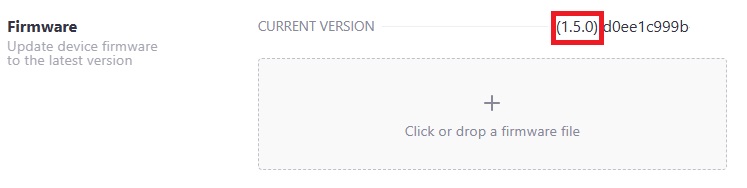
Update firmware instructions
In the section below you will find the latest firmware as a .tar file.
- Make sure the RTK Smart Antenna is powered off
- Connect the powered off RTK Smart Antenna to your PC via the USB connector
- Open your browser and go to http://10.0.0.1:8080/
- Go to the System tab, go to the Firmware section and click (or drop) and select the .tar file with the latest firmware
It is important that you don't disconnect the Smart Antenna from the PC, the whole process takes around 5 minutes, go grab a coffee and be patient 🙂
The RTK Smart Antenna will restart automatically. Once ready, if you refresh the web interface system page, you should see the new firmware version displayed. After that, you can safely disconnect the unit from your PC.
Latest firmware and changelog
*** RTK Smart Antenna Changelog ***

2026-04-29 - FW V1.8.1
* Fix: web interface stability issue

2026-04-28 - FW V1.8.0
* Hardware revision automatic detection
* Improved battery capacity estimation as function of voltage and temperature
* Fix: stability improvements when upgrading firmware

2026-04-02 - FW V1.7.17
* Fix: Smart Antenna can be disconnected form charging on all conditions and will power off automatically
* Improvements in battery voltage reporting at UI

2026-03-09 - FW V1.7.15
* RAW messages implemented
* Radio socket enable/disable in unmanaged configuration
* Stability fixes in UI

2026-02-02 - FW V1.7.10
* Intelligent battery charging x3 speed
* GNSS -> radio socket communication is optional. This is useful for base-rover setups with radiolinks, where the rover should not transmit
* Unmanaged configuration, to allow customers to use their own setups (5Hz, extra messages, ...)
* Several fixes

2026-01-21 - FW V1.6.0
* First release
Accessories and spare parts
You may also need:
