
 and
and 

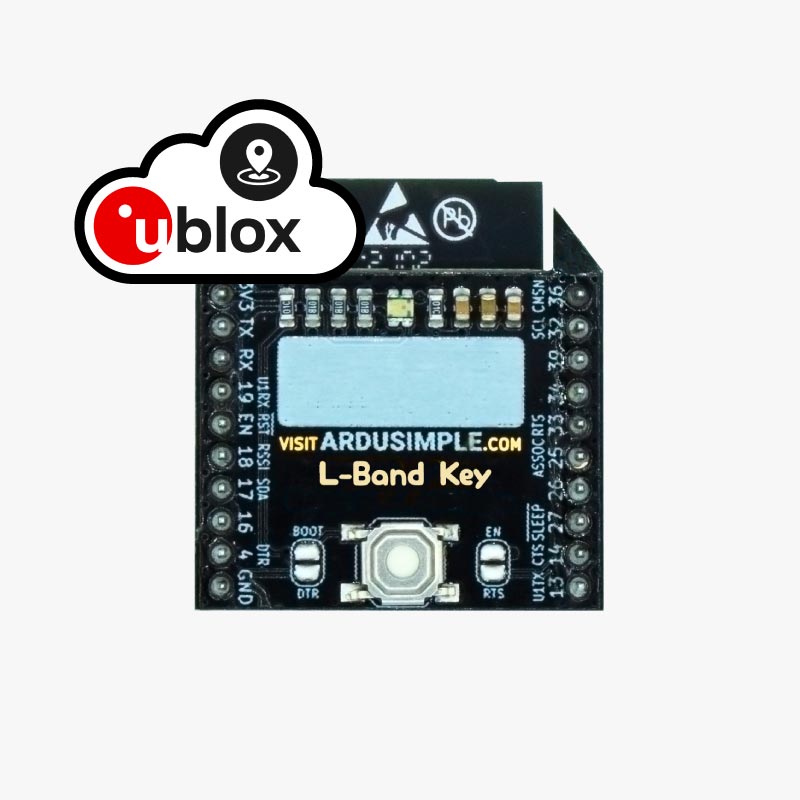
In this brief tutorial we will show you step by step how to load the PointPerfect L-Band key storage firmware so you don’t need to send the keys at every startup.
This firmware can be loaded on the WiFi NTRIP Master or on the BLE Bridge devices. Notice that the original functionality of this devices will stop working once the new firmware is loaded, but you can always go back to the previous functionality by loading again the original firmware.
- Download the firmware update tool from here
Unzip the file and save the folder in your computer.
This tool won’t change between firmware releases. - Download the latest firmware from here and unzip it, you should have this file:
firmware_main.bin - If you have a simpleRTK2B/3B receiver: Make sure your simpleRTK2B/3B board has the UARTs disabled, here’s a tutorial.
Connect the WiFi NTRIP Master board to your simpleRTK2B/3B board and connect a USB cable from your PC to the POWER+XBEE port
If you have a simpleRTK2Blite: remove the simpleRTK2Blite from the USB to XBEE “blue board” and plug the WiFi NTRIP Master on the “blue board”. Connect the “blue board” to your PC. - Run flash_download_tools_v3.6.7.exe tool
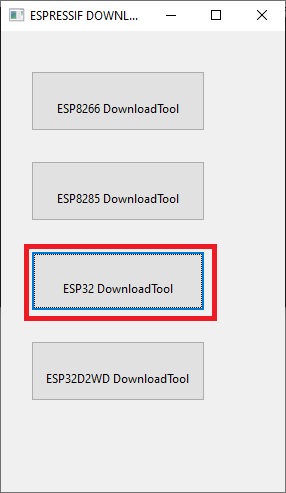
- Select ESP32 DownloadTool option
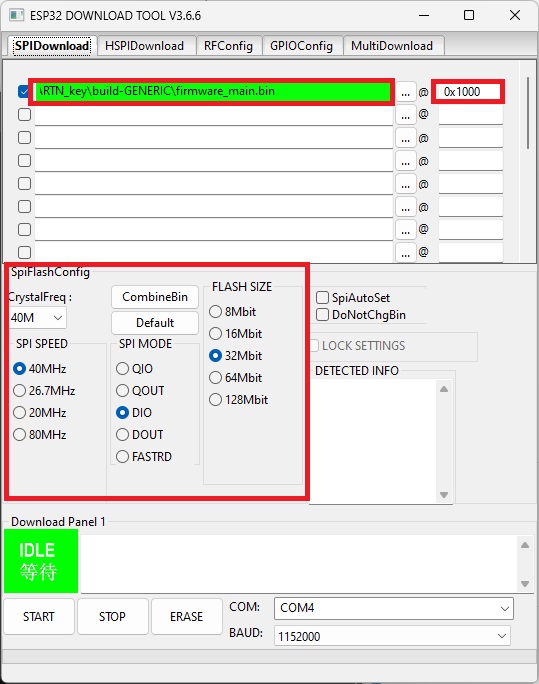
- Select the proper path to the binaries you downloaded in step 2 and make sure to set the tool as in this screenshot. Select the right COM port. (the paths and the COM port may differ)
- Press and keep pressed the WiFi NTRIP Master BOOT button, then press once the XBEE RESET button on the simpleRTK2B board.
Release BOOT button. - Press ERASE button and wait until process is finished
- Press and keep pressed the WiFi NTRIP Master BOOT button, then press once the XBEE RESET button on the simpleRTK2B board.
Release BOOT button. - Click the START button and wait until the progress bar reaches the end and FINISH is shown
- After that, you only need to click the XBEE RESET button 🙂
Don’t worry if you don’t see any LEDs, it is ok