
 and
and 

How to use ArduSimple GNSS RTK receiver with Mapit GIS for mapping and data collection

On this page
Products used in this tutorial
Mapit GIS is a professional, cost-effective mapping and surveying application designed to optimize productivity during your fieldwork. The application supports various file formats for input and output. Mapit GIS supports high-accuracy GNSS receivers such as the RTK Smart Antenna. However, the way RTK corrections are handled depends on the app version (free vs paid).
One important limitation to understand is that the built-in NTRIP client in Mapit GIS is only available in the paid (Pro+) version. Because of this, the workflow depends on your device:
- iOS: you must use the paid version and its built-in NTRIP client to use external high-accuracy GNSS receivers.
- Android: Supports mock location, so you can use the free version of Mapit GIS together with GNSS Master to receive RTK corrections and feed them to Mapit GIS. If you use the paid version on Android, you can follow the same workflow as iOS using the built-in NTRIP client.
In this tutorial, we show you how to use the Ardusimple RTK Smart Antenna with:
- iOS + paid Mapit GIS (built-in NTRIP client)
- Android + free Mapit GIS + free app GNSS Master (mock location workaround)
If you use the paid version on Android, you can follow the iOS workflow.
Required hardware
- RTK Smart Antenna
- Smartphone or tablet running on Android/iOS
Required software
- Mapit GIS for Android or Mapit GIS for iOS
- GNSS Master (required to use free version of Mapit GIS app on Android)
Connect to Mapit GIS via Bluetooth LE
Bluetooth LE (Low Energy) provides an efficient wireless connection without the need for classic Bluetooth password validation pairing.
- Turn on the ArduSimple RTK Smart Antenna and wait for the LED indicators to confirm it is powered and searching for satellites. Place it outdoors in a place with a good sky view, for testing purposes you could place it near to a window. The next steps will depend on if you have iOS or Android device:
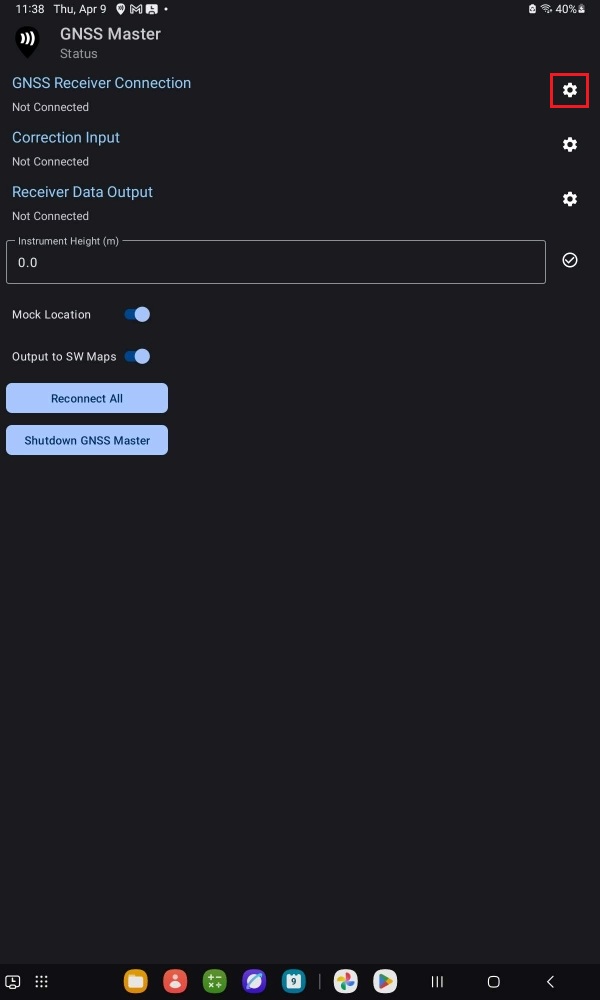
- Open GNSS Master app and press the gear icon for GNSS Receiver Connection.
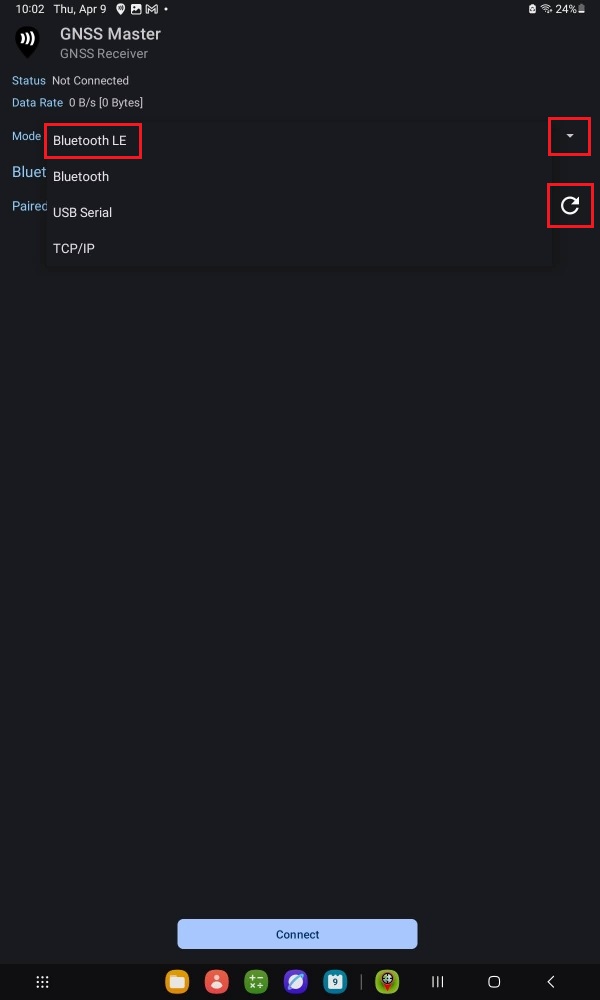
- At Mode expand the drop-down menu and select Bluetooth LE.
- Press the Refresh icon.
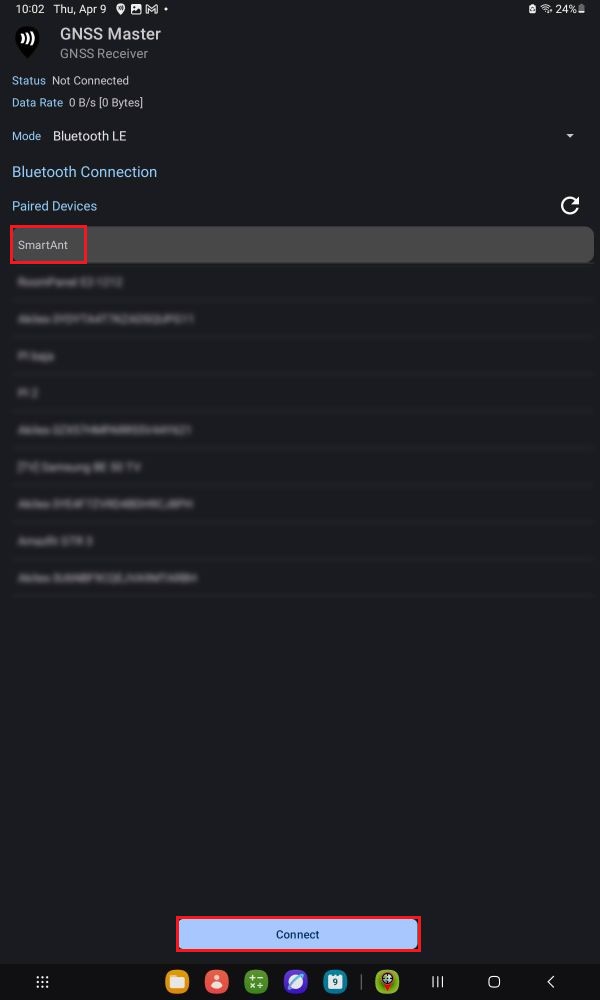
- Select the SmartAnt device from the list.
- Press Connect.
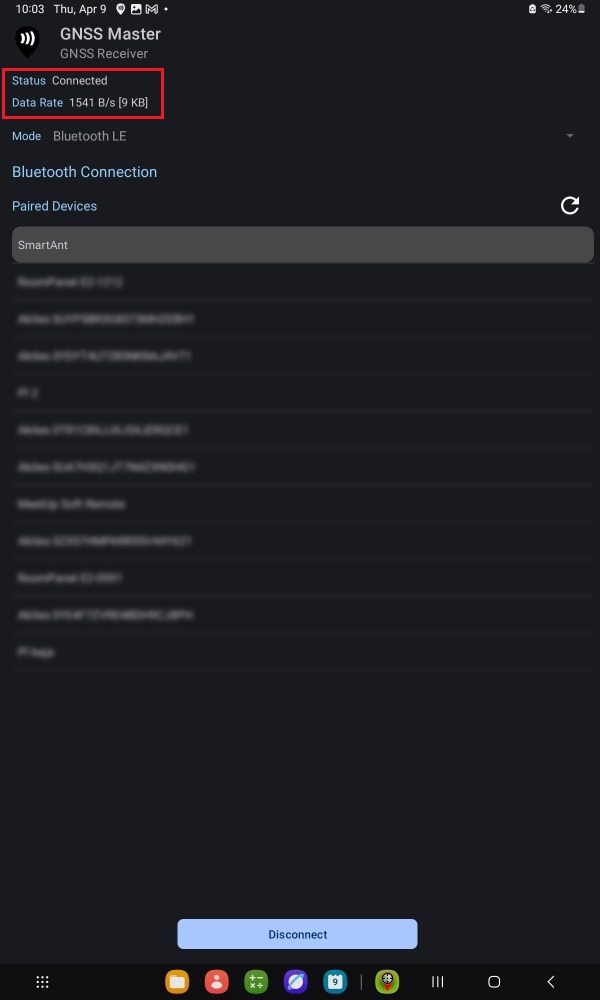
- Check that the Status is set to Connected. After a few seconds the GNSS receiver should find enough satellite signals and start sending data.
- Open Mapit GIS app and go to Menu > Settings > GPS Settings.
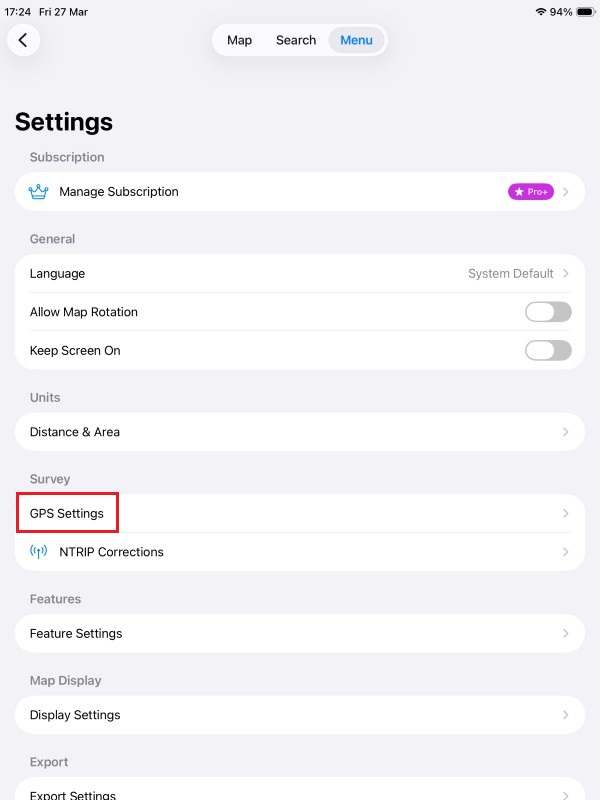
- At GPS Source expand the drop-down menu and select Bluetooth BLE.
- Press Select Device.
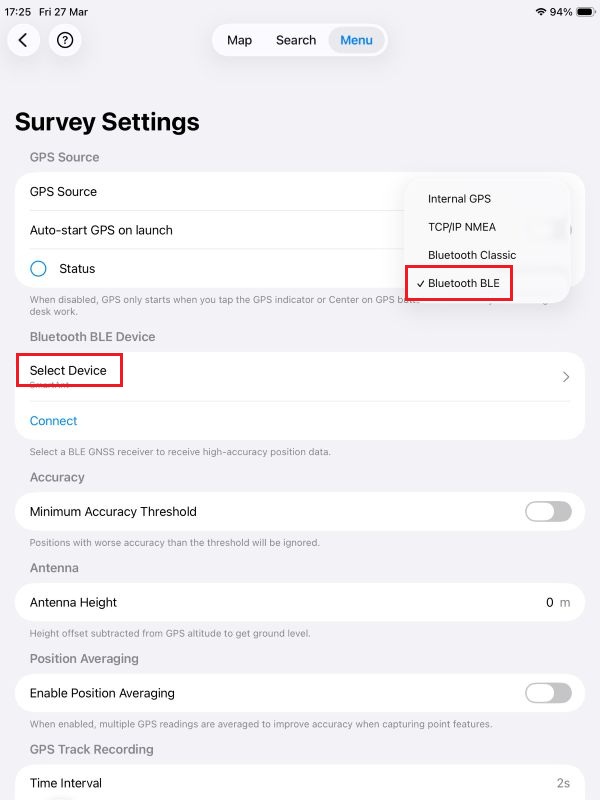
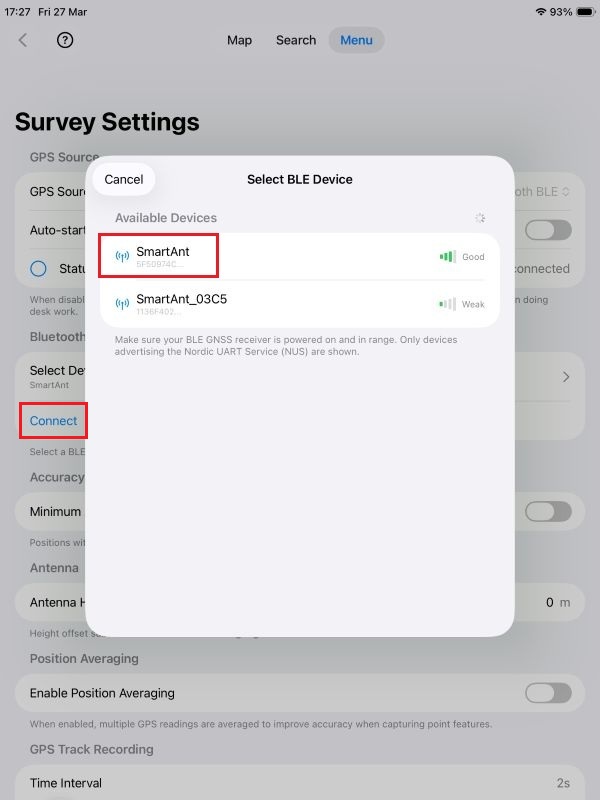
- Select the Ardusimple RTK Bluetooth device from the list.
- Press Connect.
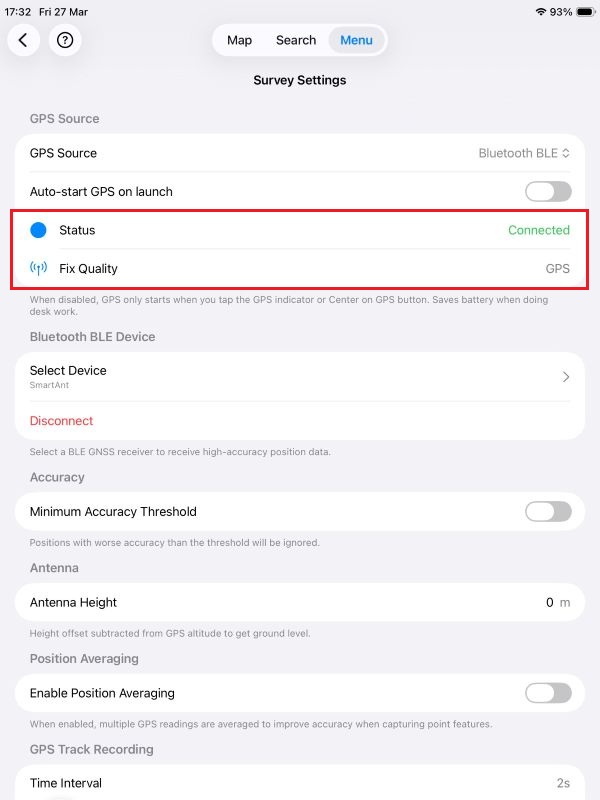
- Check that the Status is set to Connected. After a few seconds the GNSS receiver should find enough satellite signals and a Fix Quality entry should appear with a GPS value.
Get RTK corrections
For centimeter-level positioning accuracy, you must connect to an NTRIP service to receive RTK corrections. If you need assistance finding one, consult our prepared list of RTK correction services in your country.
Mapit GIS built-in NTRIP Client is only available for paid Pro+ accounts. Luckily there is a workaround on Android devices using GNSS Master app to overcome this limitation and use mock location mode.
If you have a paid Mapit GIS subscription on Android, follow the iOS section, as the workflow is the same. The steps below describe how to use Mapit GIS for free.
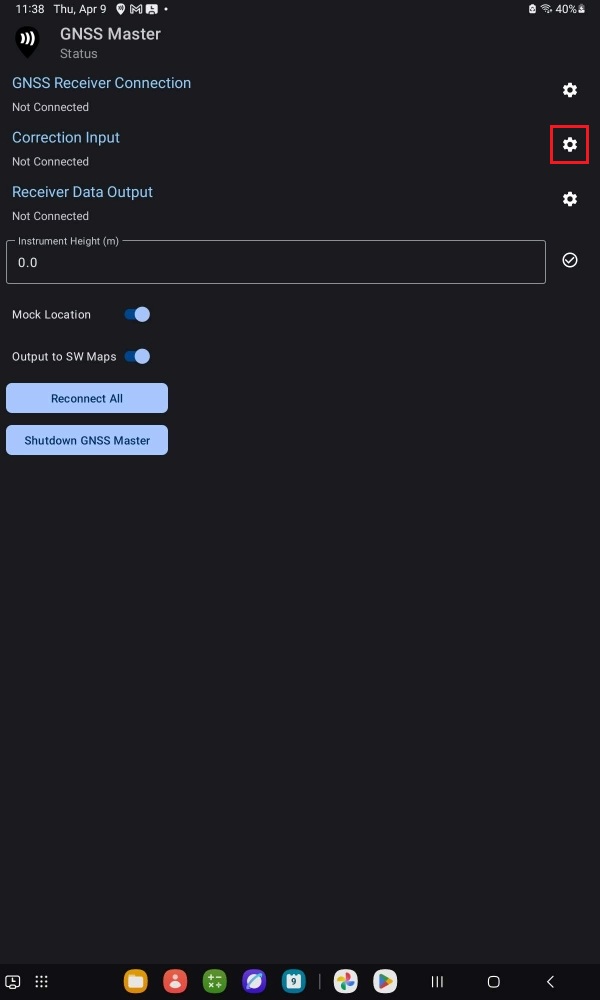
- Go back to GNSS Master app Status and press the gear icon for Correction Input.
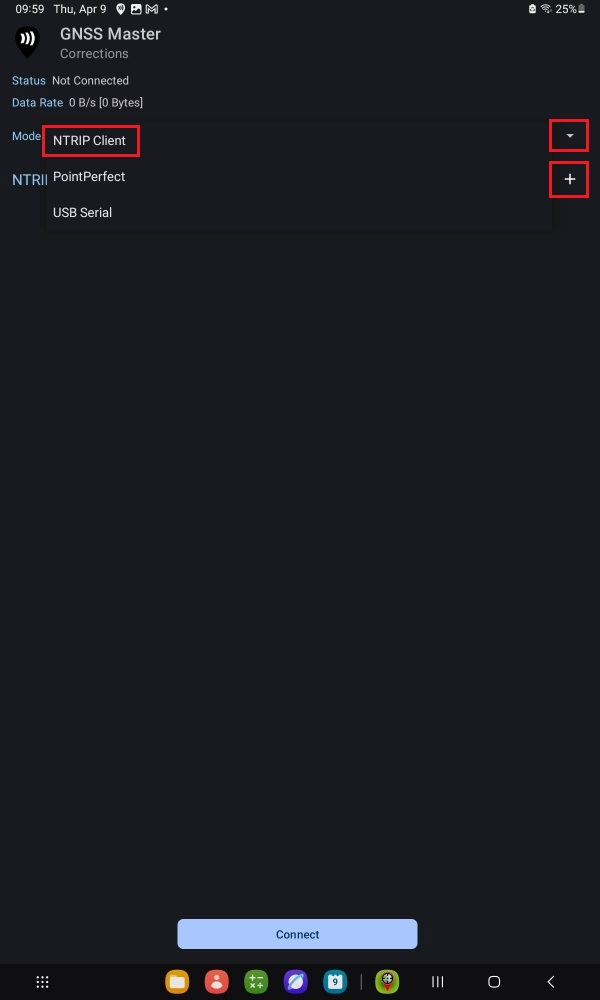
- Open the Mode drop-down menu and select NTRIP Client. Press the + icon.
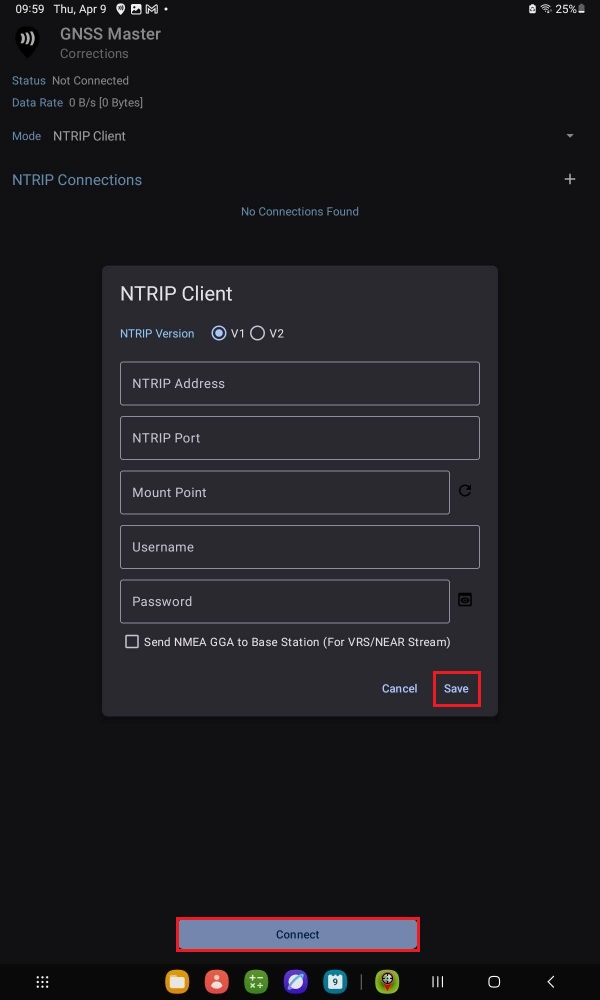
- Input your NTRIP correction service credentials. Press Save and Connect.
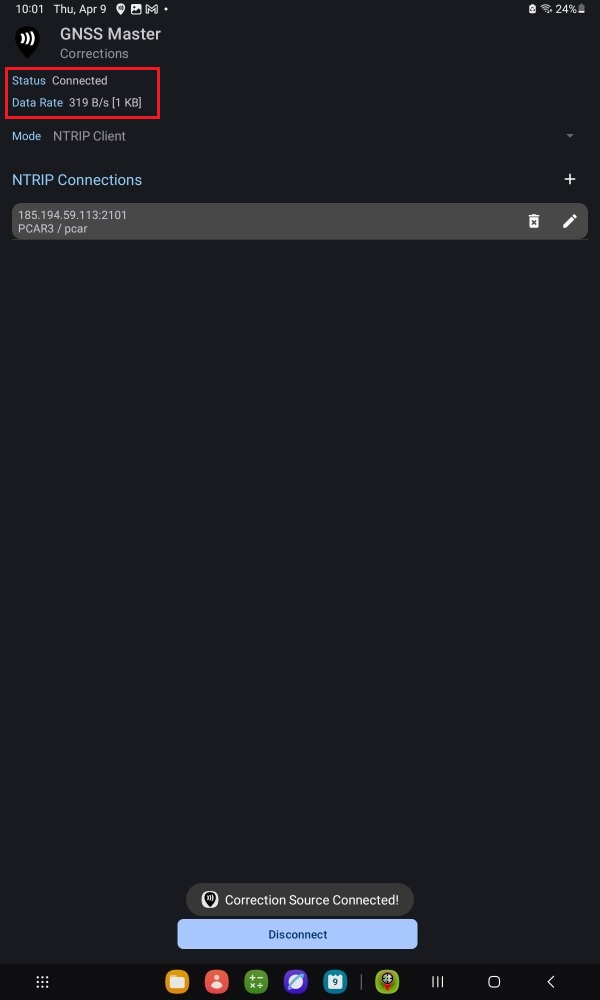
- A successful connection will show with a data bitrate.
- Go to GNSS Master app main menu > GNSS Status. After a few seconds you should get a Fix Type of RTK Float/Fix and centimeter-level accuracy.
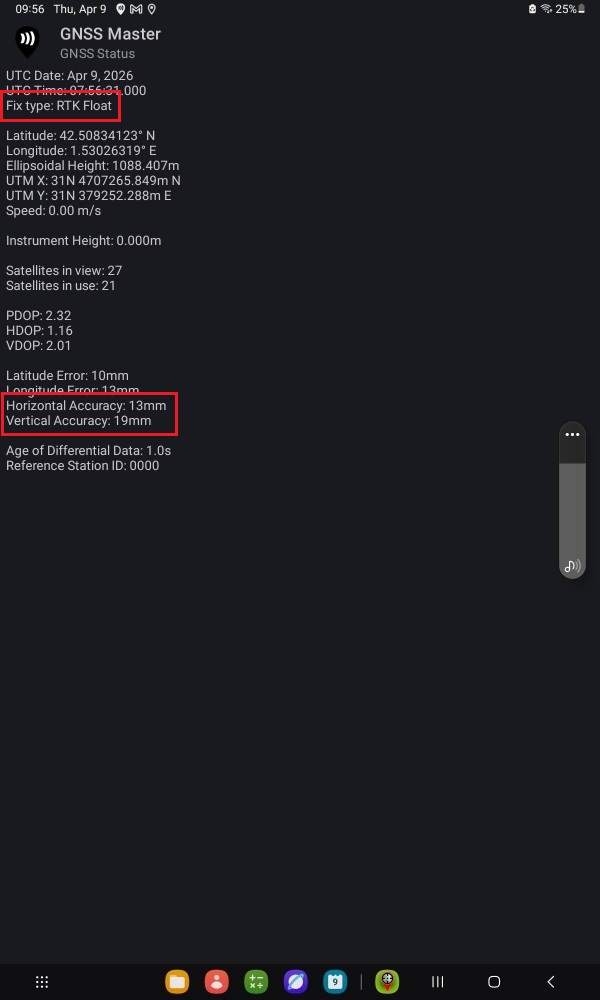
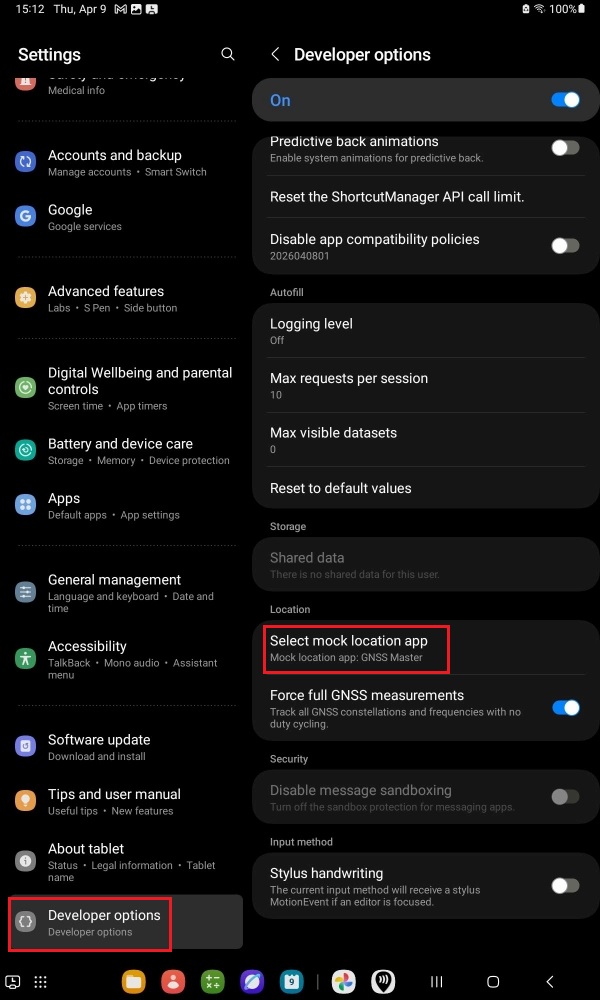
- Now you will have to activate Developer Options and set GNSS Master as the Mock Location app on your Android device. Follow the Ardusimple tutorial on How to use centimeter GPS with any Android app (mock location).
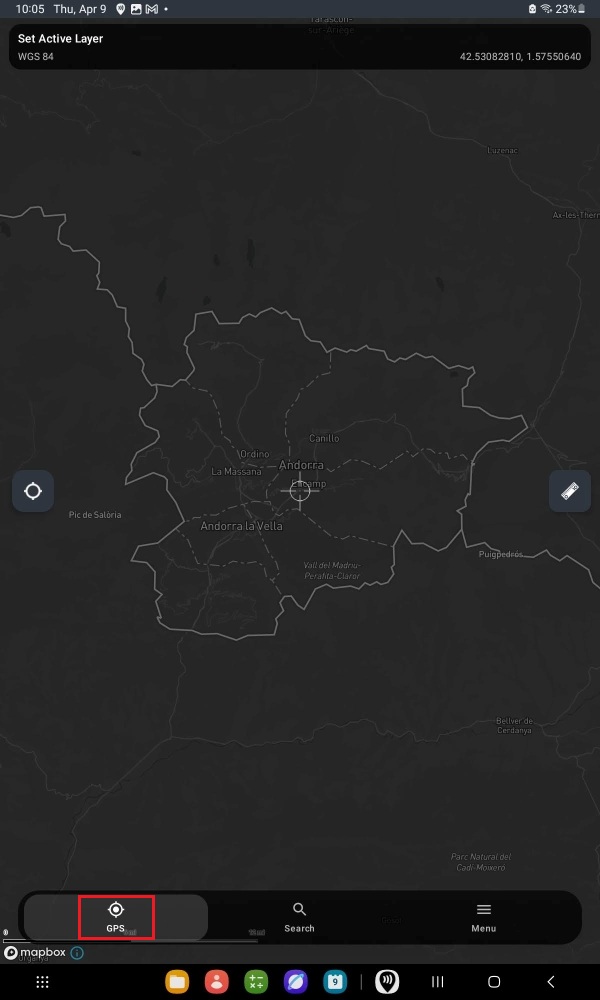
- Open Mapit GIS app and press the GPS icon.
- Press the Enable GPS button.
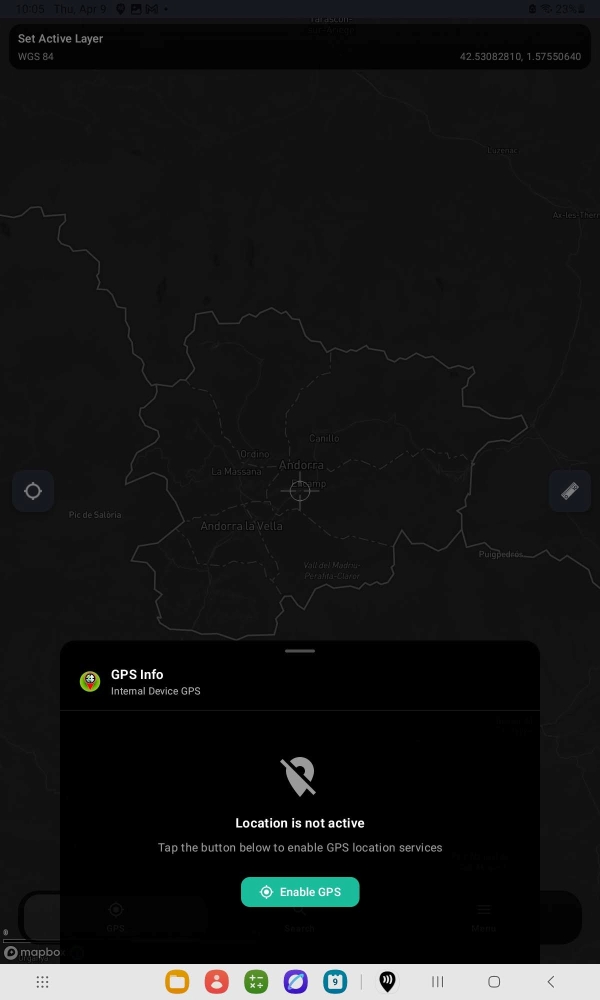
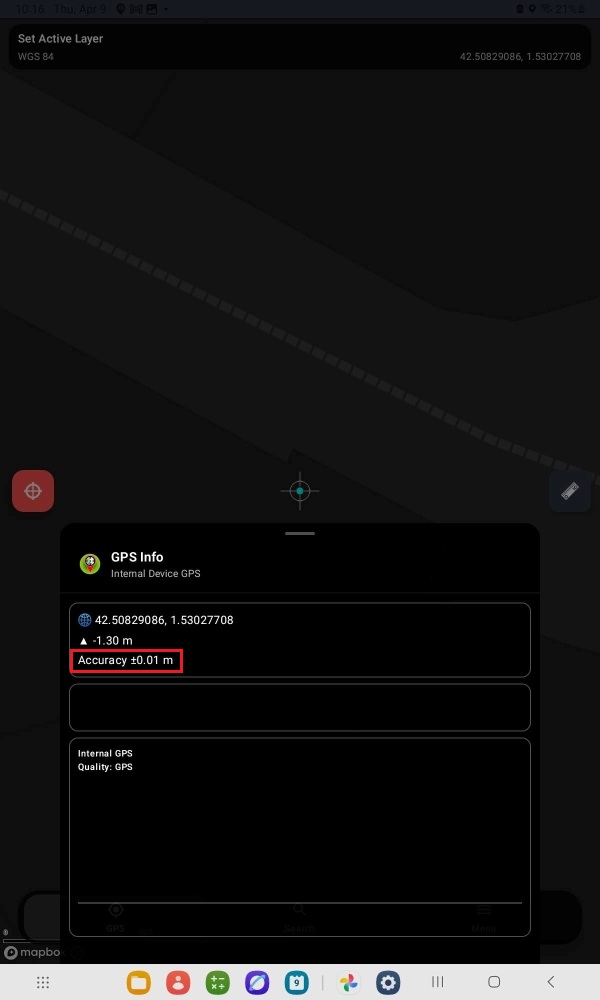
- The map view should center on your location and the GPS Info show centimeter-level accuracy while using the internal GPS device.
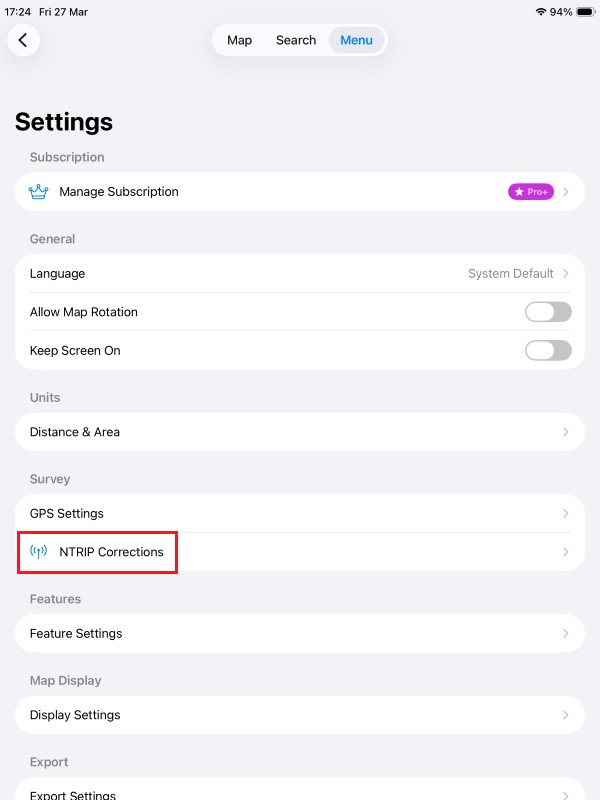
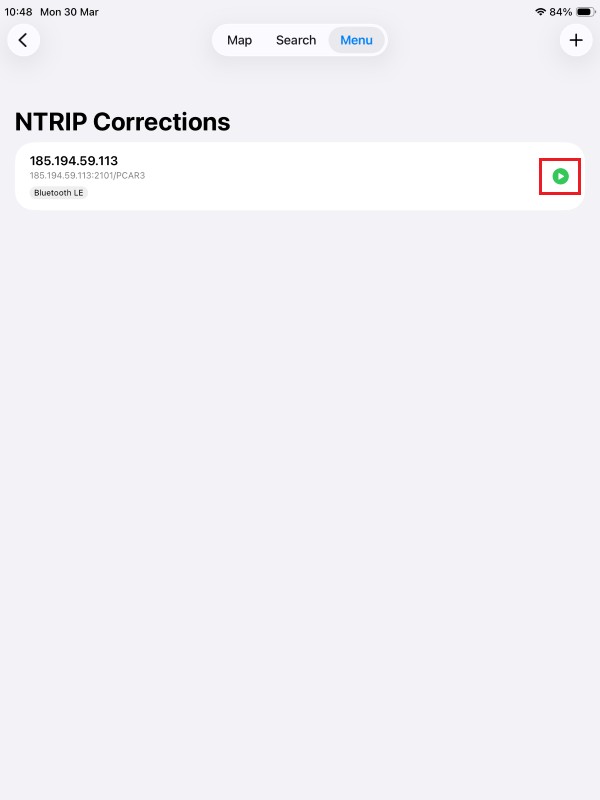
- Go back to main Menu > Settings and select NTRIP Corrections.
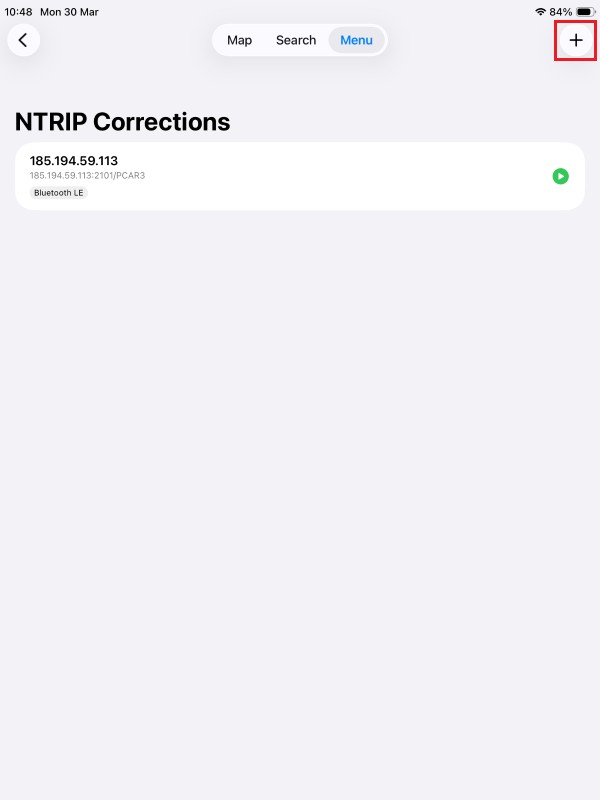
- Press the + icon.
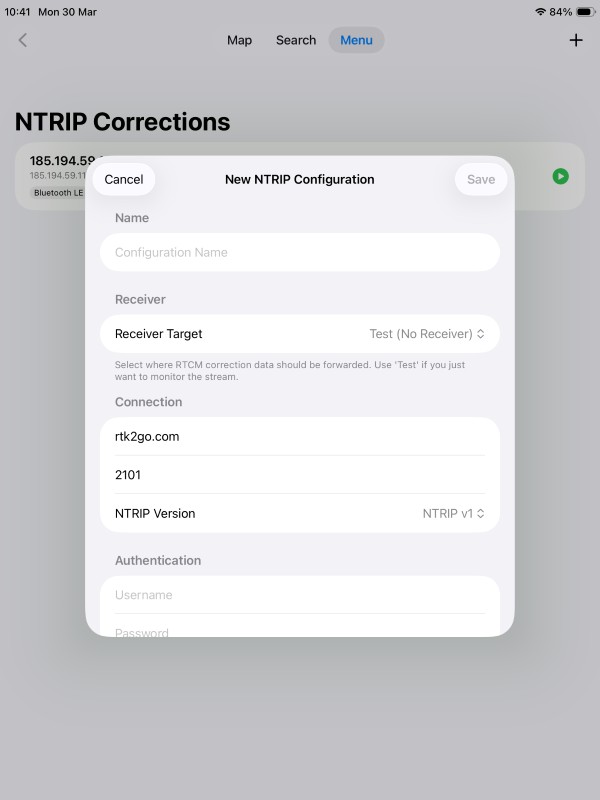
- Input your NTRIP correction service credentials.
- Press the Play icon.
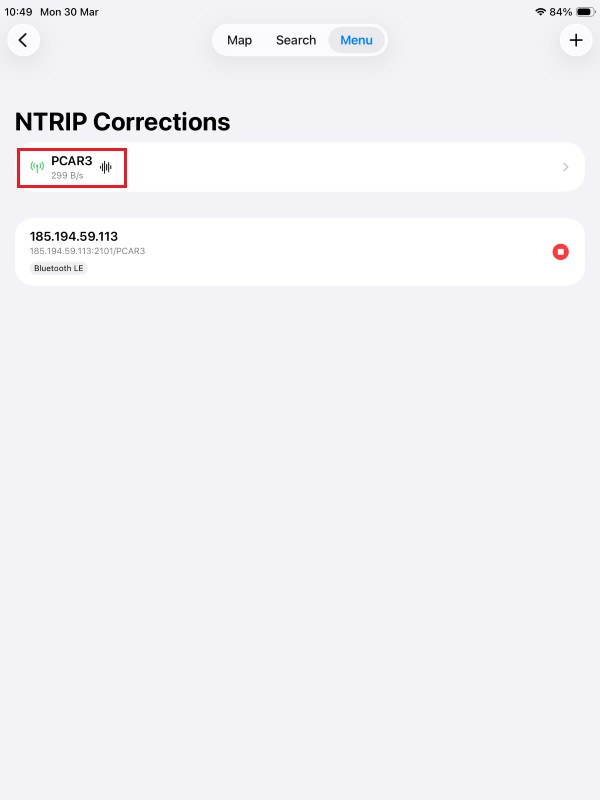
- A successful connection will show with a data bitrate.
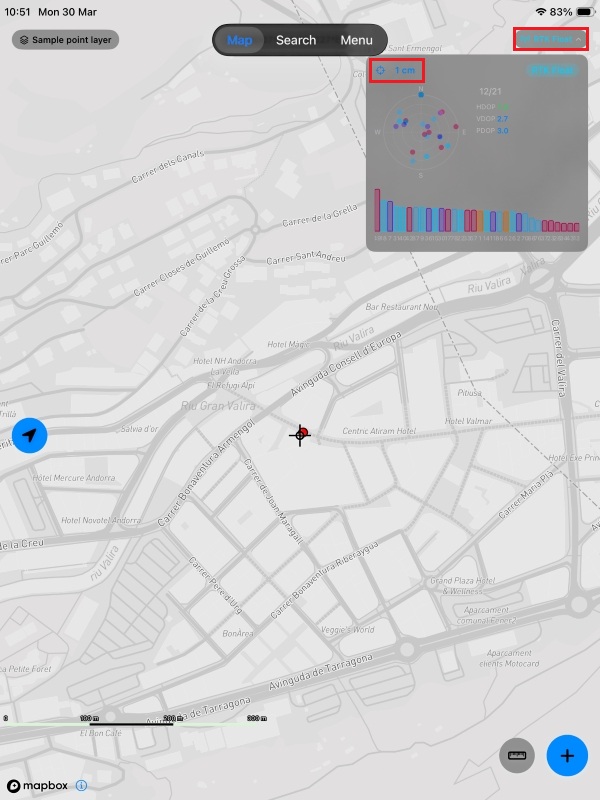
- Go back to the Map view and tap the Antenna icon. You should now have Fix Quality set to RTK Float/Fix and centimeter-level accuracy.
Now you are ready to start your mapping task for a variety of fields as agriculture, forestry, road construction, geology, land surveying… using the Mapit GIS App.
Related products
If you want to follow this tutorial we have all the products in stock and ready to be shipped worldwide within 1-3 days.

Still having issues?
Contact us for support from a real engineer—not AI—or request the tutorial you’re missing