
 and
and 

How to use the odometer functionality of u-blox to measure distance

On this page
Products used in this tutorial
The GNSS odometer is a useful built-in feature available on u-blox RTK receivers. It continuously calculates the distance travelled by the receiver using GNSS position and velocity information, allowing you to measure the length of a route without any additional sensors.
The odometer functionality is configured through the UBX-CFG-ODO message and the measured values are reported through the UBX-NAV-ODO navigation message. The Odometer can provide:
- Distance travelled since the last Odometer reset.
- Accuracy (estimated uncertainty of the measured distance)
- Total accumulated distance since the receiver was powered on.
Unlike measuring the straight-line distance between two points, the Odometer tracks the actual path travelled and accumulates the travelled distance as you move. This makes it useful for measuring walking trails, roads, agricultural field boundaries, inspection routes, robot trajectories, and other real-world paths.
The Odometer can be reset during operation using the UBX-NAV-RESETODO message, allowing you to start a new measurement without restarting the receiver.
In this tutorial, you will learn how to enable the Odometer functionality and monitor the distance measurements in real time using u-center.
Required hardware
- u-blox RTK receiver board (in this tutorial we used simpleRTK2B – Basic Starter Kit)
- GNSS RTK antenna.
- USB-C to USB-C cable (OTG).
- Windows PC or laptop with an internet connection.
Required software
How to use GNSS odometer in u-center to measure a path distance
Enable odometer
- Connect the GNSS antenna to your receiver making sure the antenna has a good view of the sky.
- Connect the receiver to your PC via its USB port and open u-center. Select the COM port to connect to your receiver.
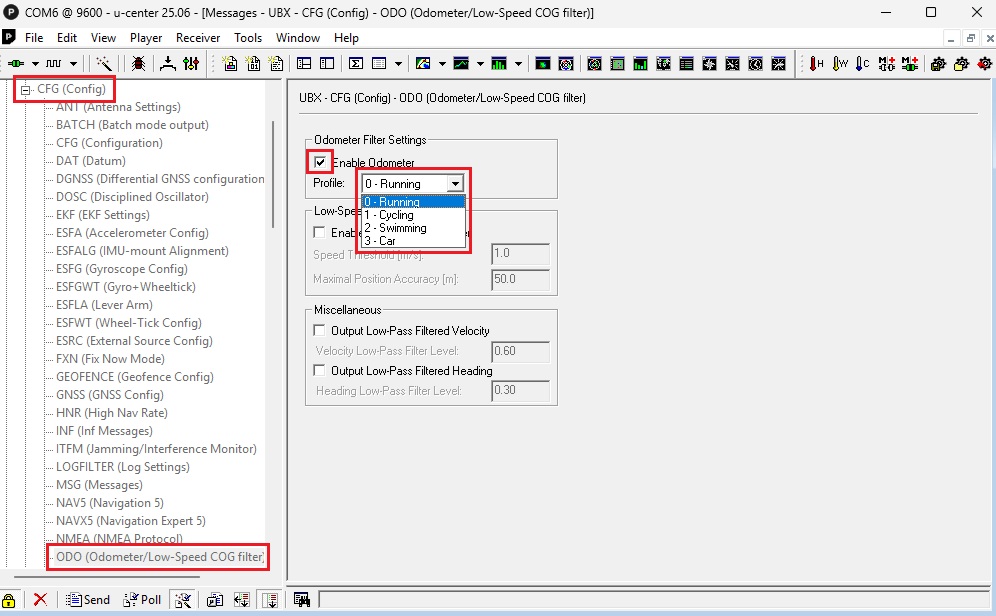
- To activate the Odometer display the messages view and go to UBX -> CFG -> ODO. Enable the Odometer and select the Profile that better fits the way you will travel a path.
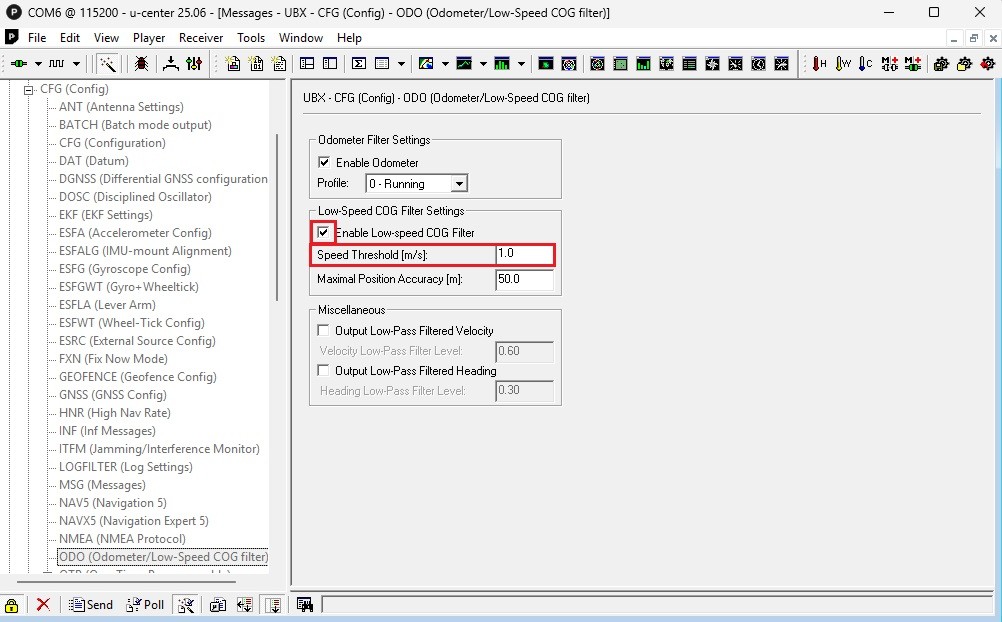
- Due to GNSS precision in some cases the odometer might not be able to differentiate between being static and moving due to GNSS precision. In this case activating the Low-speed COG Filter and setting a Speed Threshold might help. You could start with a low number and raise it by a fraction of the speed you are expecting to move, until you find that when being static the odometer distance is not changing anymore.
Measuring a path length
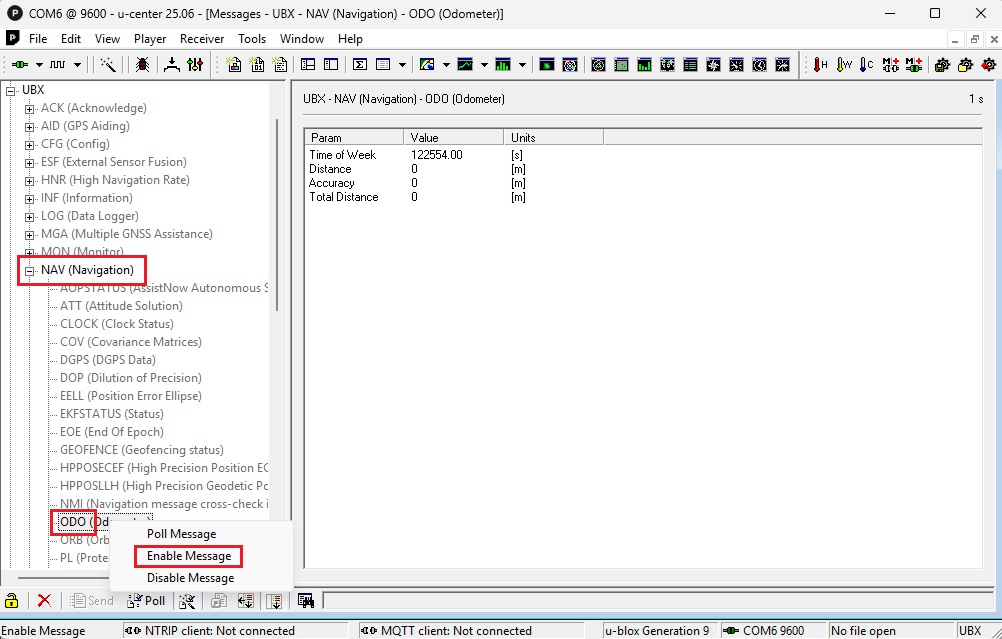
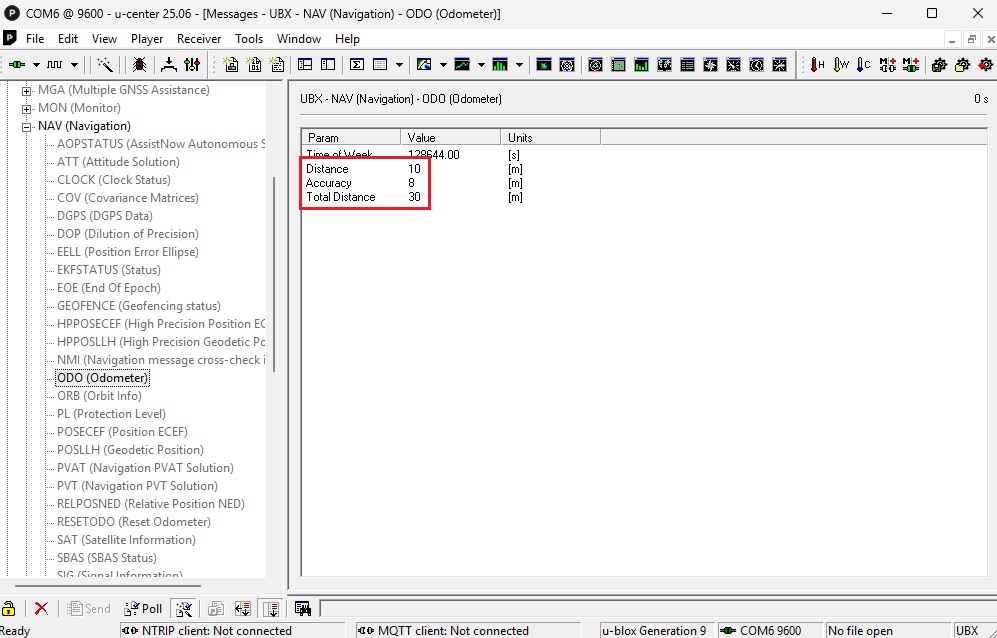
- Go to UBX -> NAV -> ODO and select Enable Message to force it to update in real time. You will find parameters for Distance, Accuracy and Total Distance measured in meters.
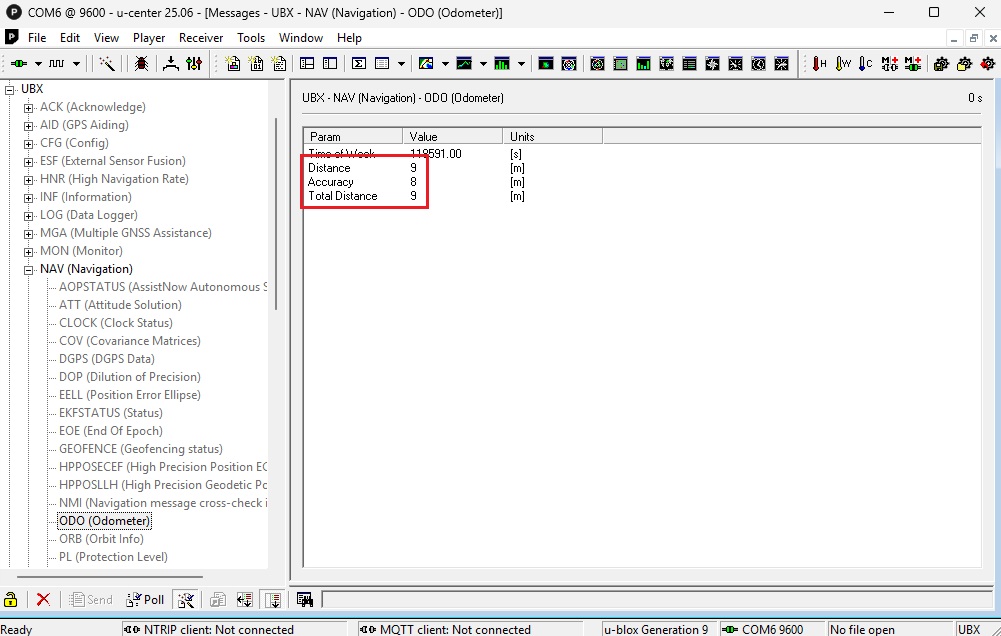
- Start moving through the path you want to measure the length for, you will find the 3 values increasing.
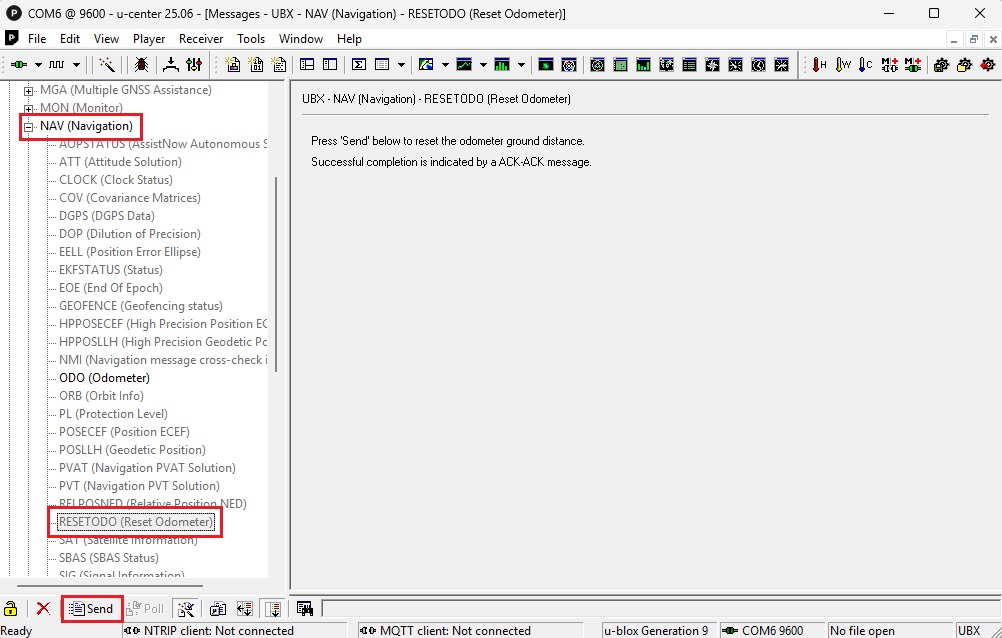
- You can continue following the path, and if at some point you need to reset the Distance you can go to UBX -> NAV -> RESETODO and click the Send button.
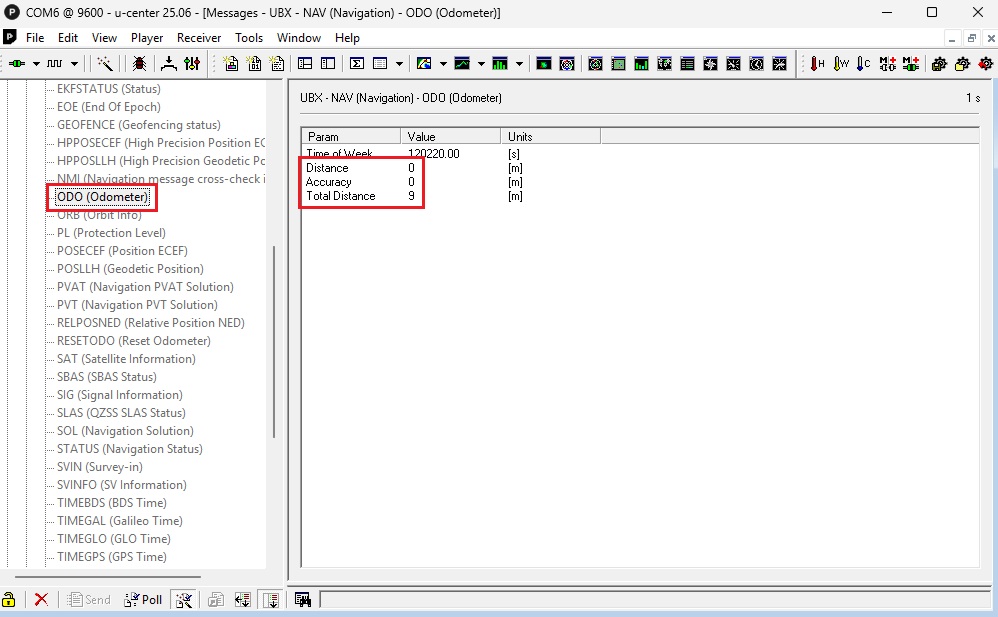
- Back into UBX -> NAV -> ODO you will find that the Distance and Accuracy parameters have been reset to 0, while Total Distance remains.
View results
- If you start moving again the new Distance will continue adding until you complete following the path, to find its final length in the Total Distance parameter.
Reset odometer
- In case you want to reset entirely the measurements just power cycle the receiver.
Related products
If you want to follow this tutorial we have all the products in stock and ready to be shipped worldwide within 1-3 days.
- RTK4 Boards
Micro u-blox ZED-X20P
From 253,00€ This product has multiple variants. The options may be chosen on the product page

Still having issues?
Contact us for support from a real engineer—not AI—or request the tutorial you’re missing