ArcGIS Online is a secure cloud platform for creating, managing, analyzing, and sharing maps and geographic data. Developed by Esri , it is one of the most widely used GIS (Geographic Information System) platforms in the world.
With ArcGIS Field Maps, you can collect accurate location data, view maps, and update information directly from a mobile device.
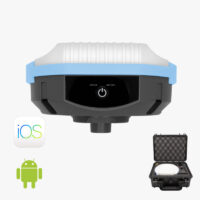
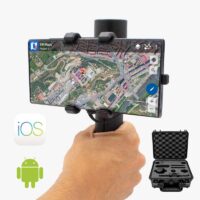
ArcGIS supports high-accuracy GNSS receivers. In this tutorial, we show how to use the ArduSimple RTK Smart Antenna with:
ArcGIS Field Maps Designer web app from an internet browser.
ArcGIS Field Maps mobile app on an Android smartphone.
The ArduSimple RTK Smart Antenna is compatible with both Android and iOS devices, and ArcGIS Field Maps is available for both platforms. However, ArcGIS Field Maps does not include a built-in NTRIP client. For this reason, this tutorial focuses on Android only, because Android allows the use of mock location apps to send high-accuracy GNSS positions to other applications.
GNSS Master (installed on Android to use mock location)
How to use RTK Smart Antenna with ArcGIS Field Maps
Enable Mock Location in your Android Device.
This step only needs to be done once.
Turn on your RTK device and wait for the LED indicators to confirm it is powered and searching for satellites. Place it outdoors in a place with a good sky view, for testing purposes you could place it near to a window.
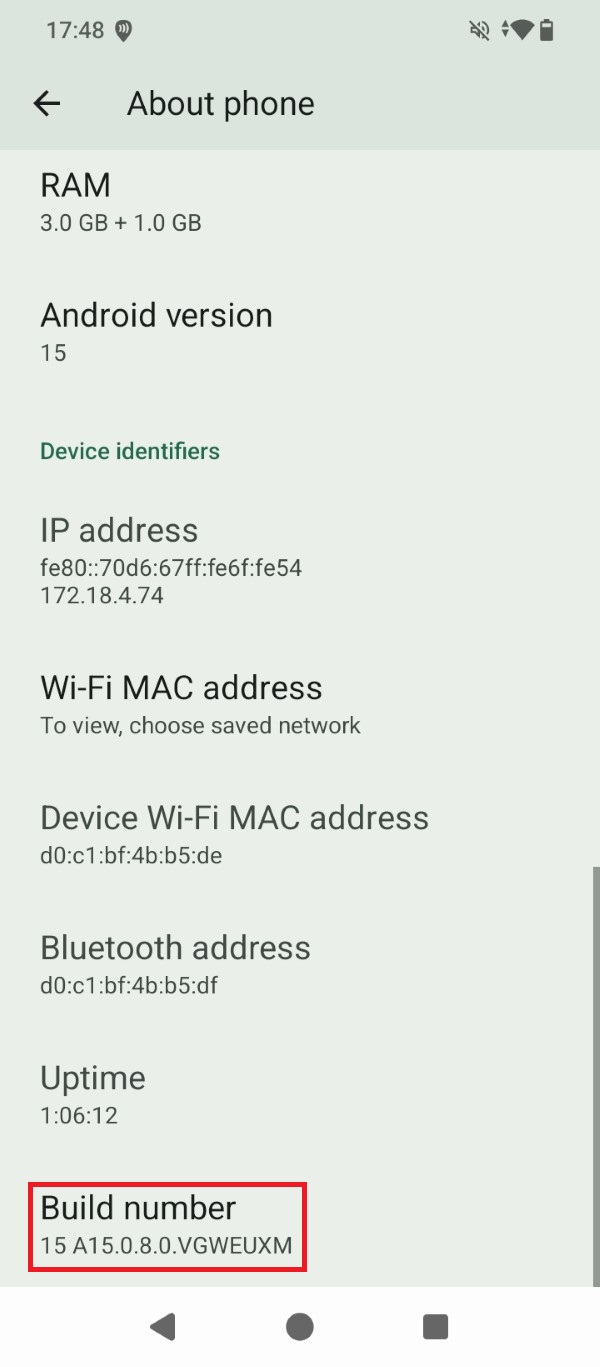
Activate Developer options in your Android device. Go to Settings > About phone and tap the Build number 7 times in a row.
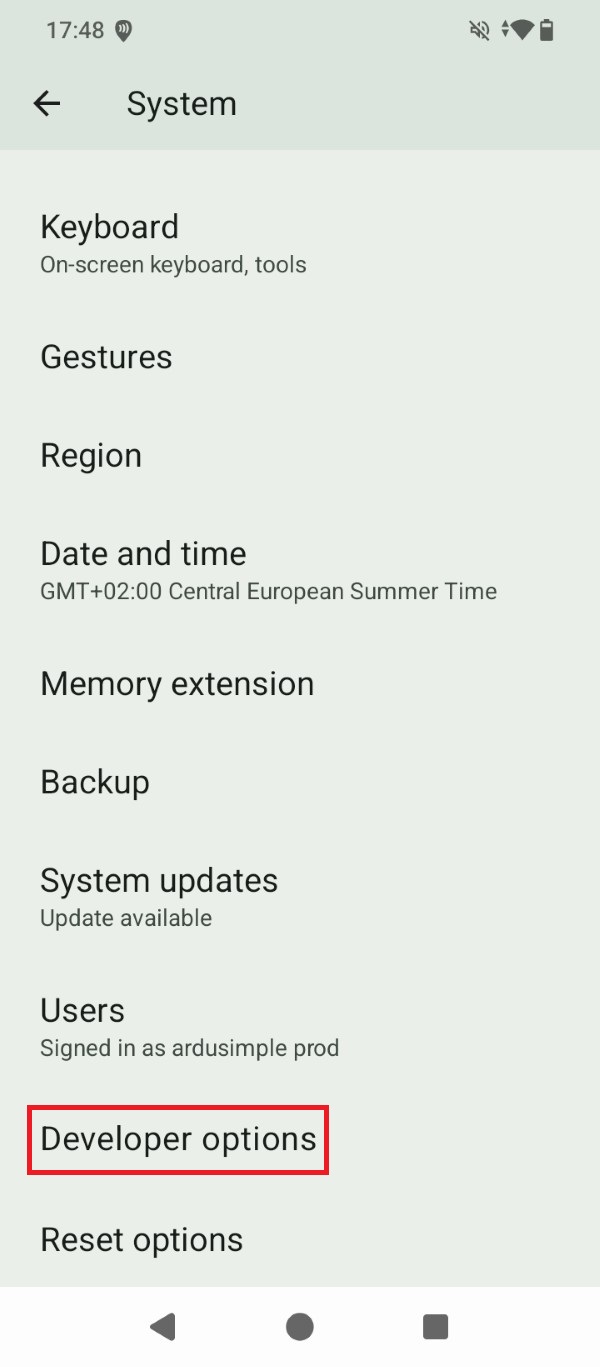
Tap the Developer options that now show under Settings > System.
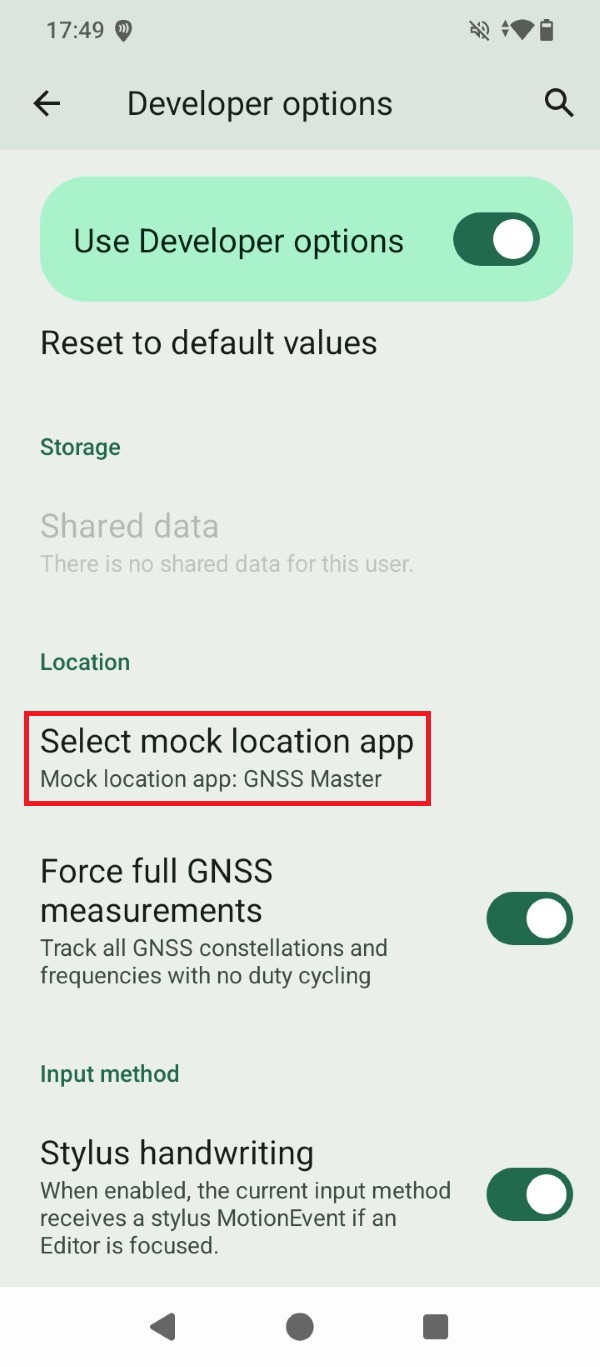
Go to Select mock location app and set GNSS Master as the mock location app for your Android device.
Connect the RTK receiver to your Android device
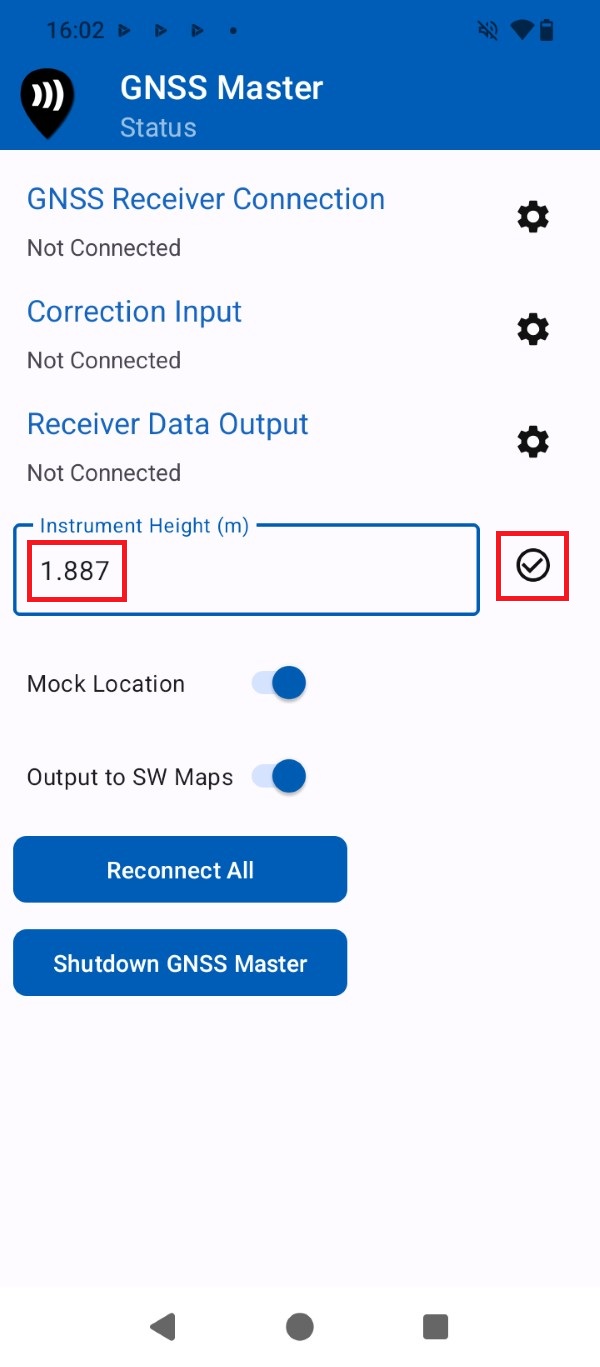
Open the GNSS Master app and input the Instrument Height (pole height + Antenna Phase Center) value in meters. You can find the Antenna Phase Center at your ArduSimple RTK Kit User Guide.
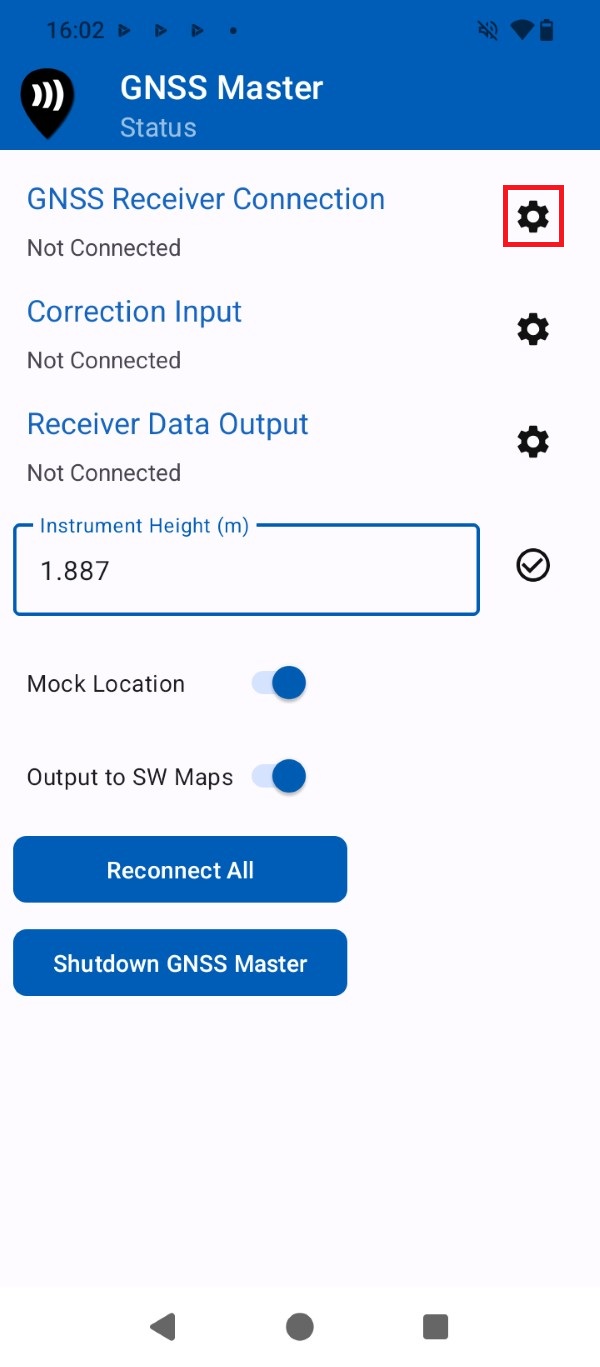
Press the gear icon for GNSS Receiver Connection.
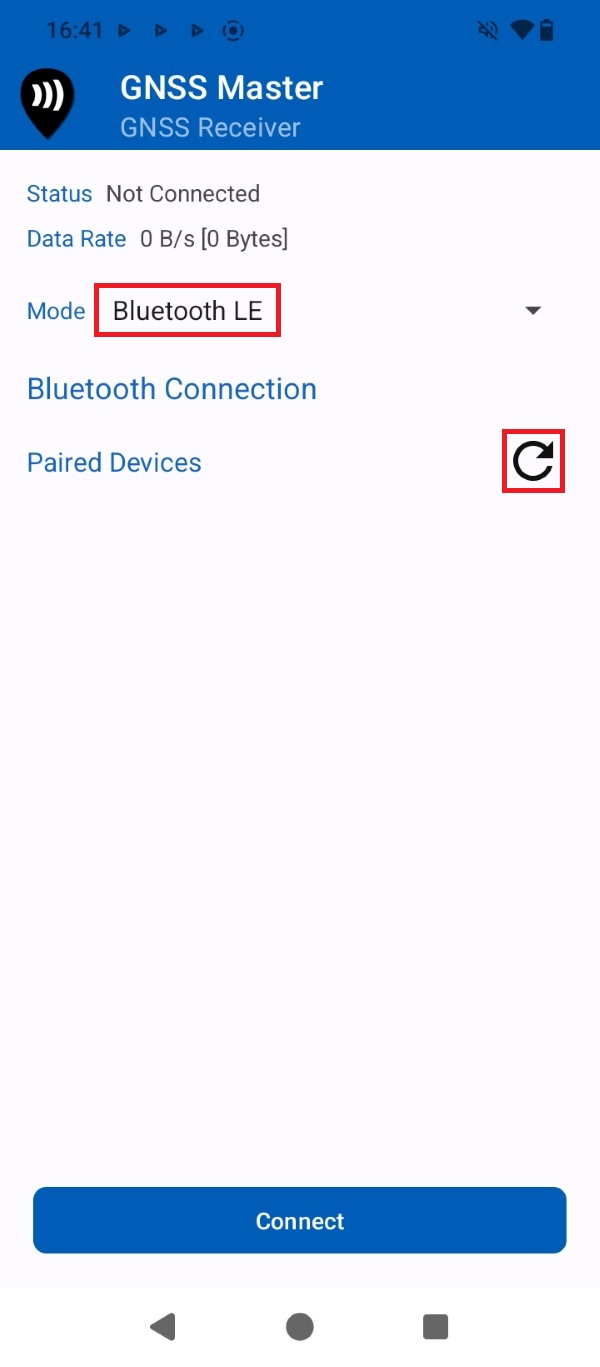
At Mode expand the drop-down menu and select Bluetooth LE. Press the Refresh icon.
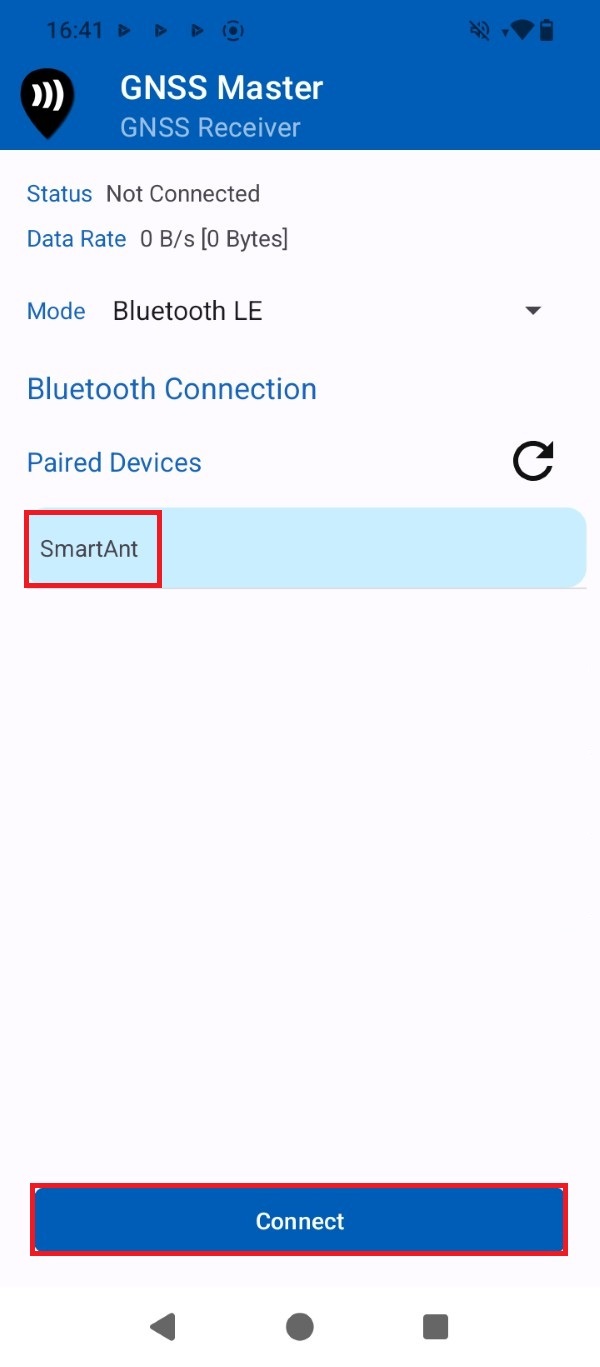
Select your ArduSimple RTK Kit device name from the list and press Connect.
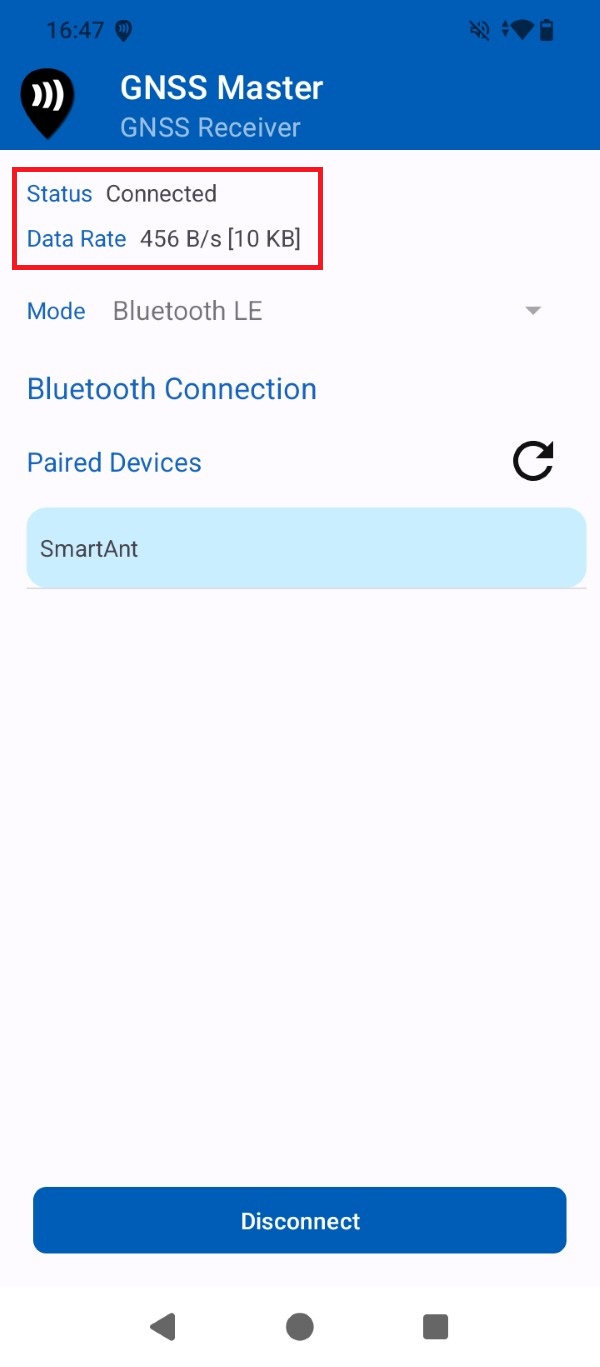
Check that the Status is set to Connected. After a few seconds the GNSS receiver should find enough satellite signals and start sending data.
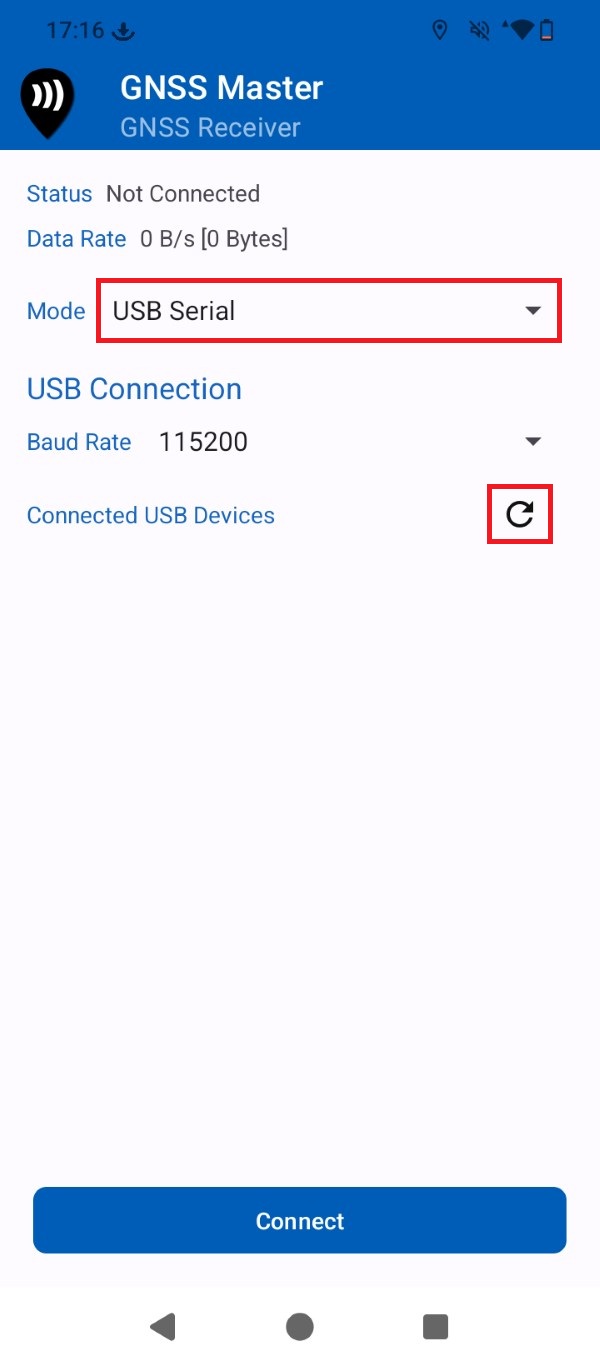
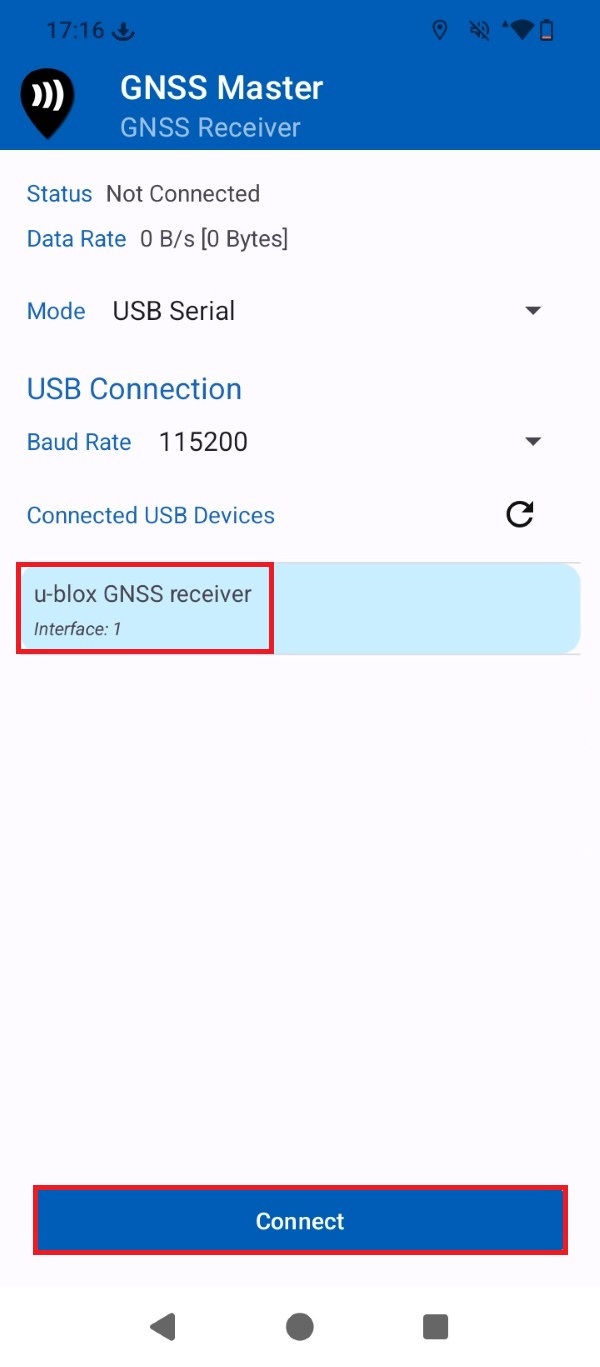
At Mode expand the drop-down menu and select USB Serial. Press the Refresh icon.
Select the GNSS receiver device from the list and press Connect.
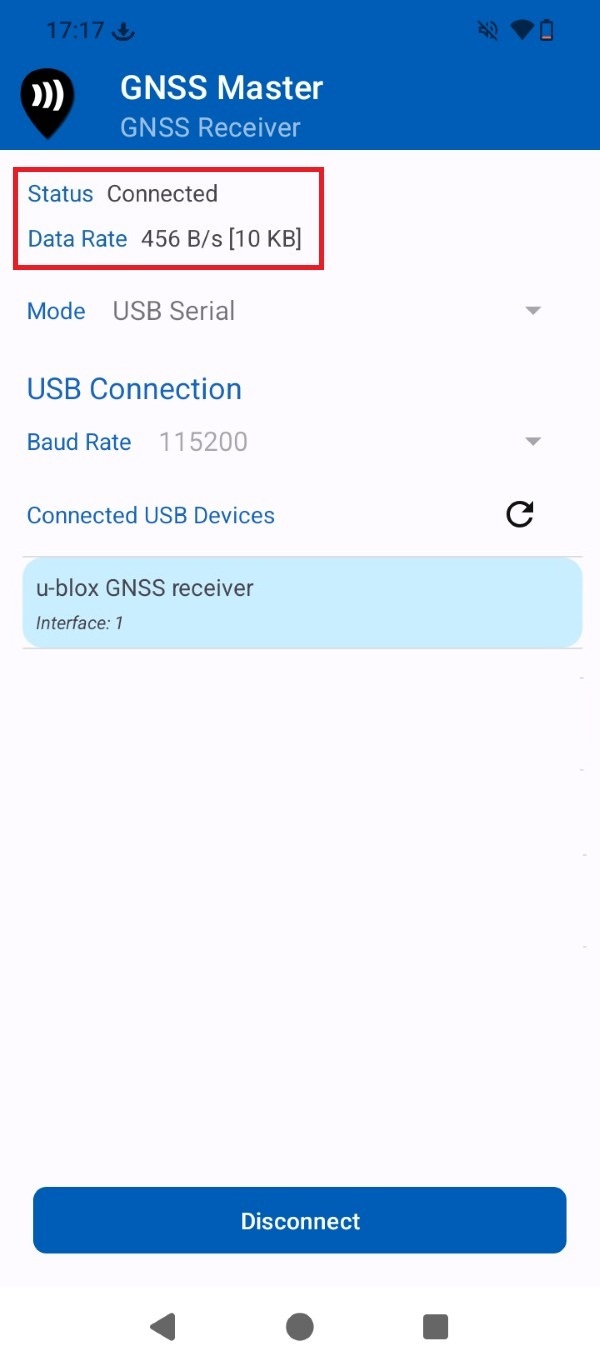
Check that the Status is set to Connected. After a few seconds the GNSS receiver should find enough satellite signals and start sending data.
Get RTK corrections
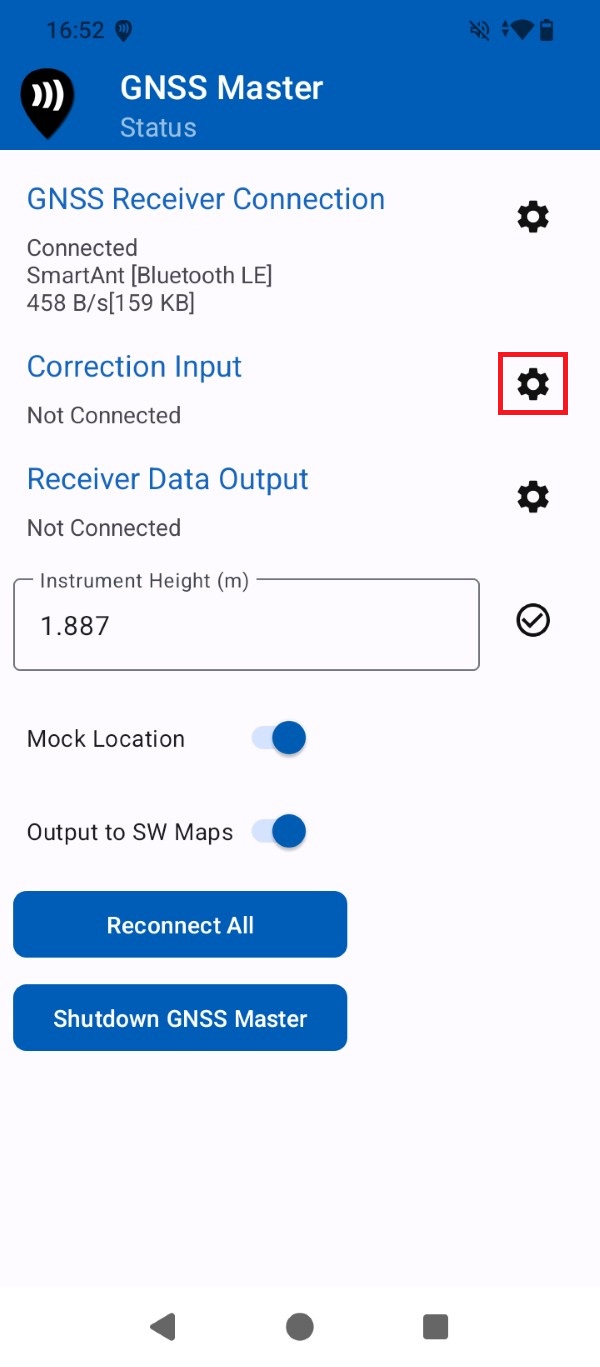
To achieve centimeter-level accuracy, you must connect to an NTRIP service to receive RTK corrections. If you need assistance finding one, consult our prepared list of RTK correction services in your country. GNSS Master app does include a built-in NTRIP client so you can achieve centimeter-level accuracy in your Android smartphone or tablet for free. Go back to GNSS Master Status and press the gear icon for Correction Input.
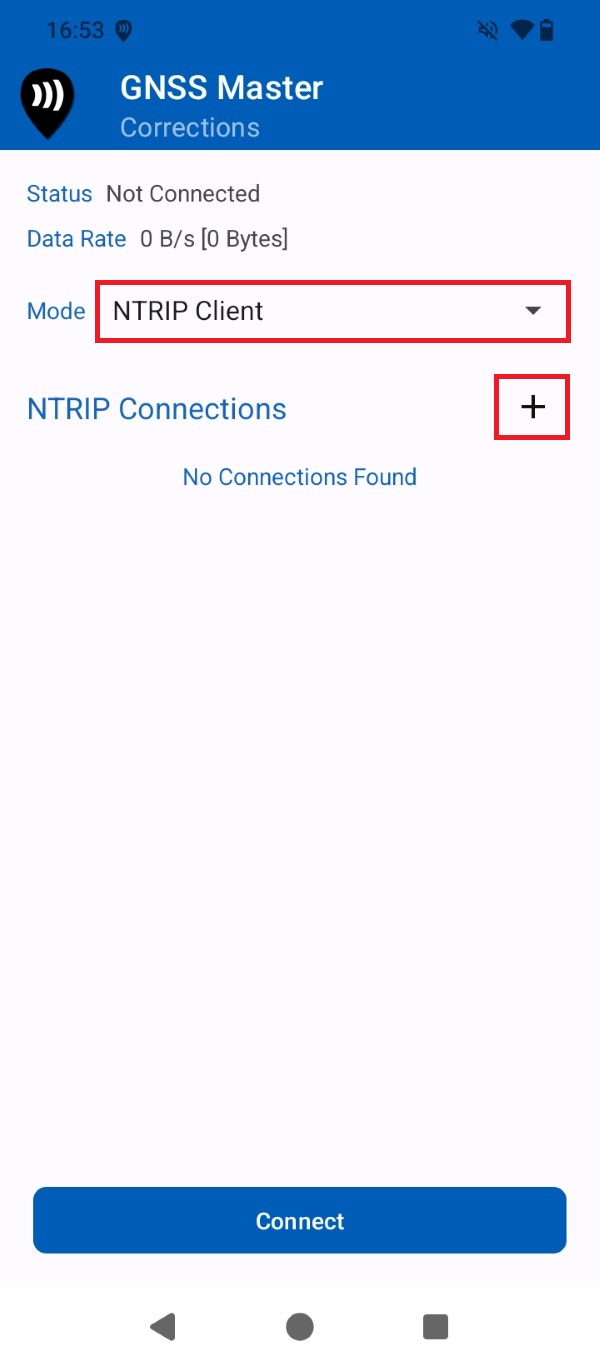
Open the Mode drop-down menu and select NTRIP Client. Press the + icon.
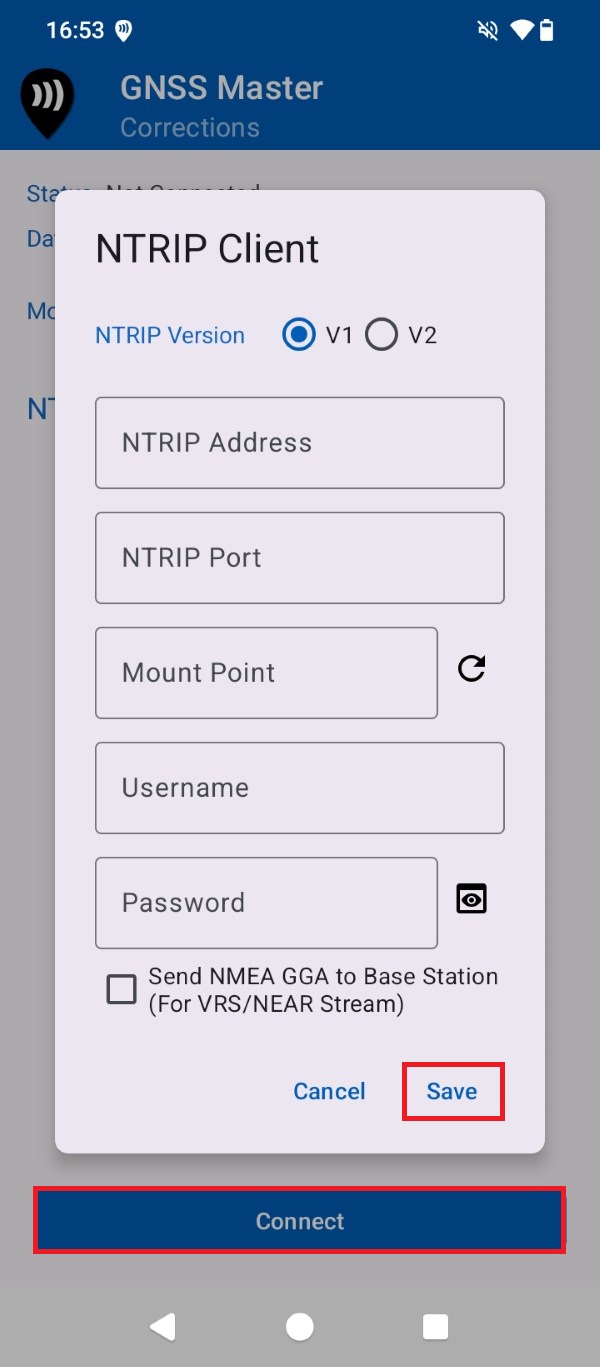
Input your NTRIP correction service credentials. Press Save and Connect.
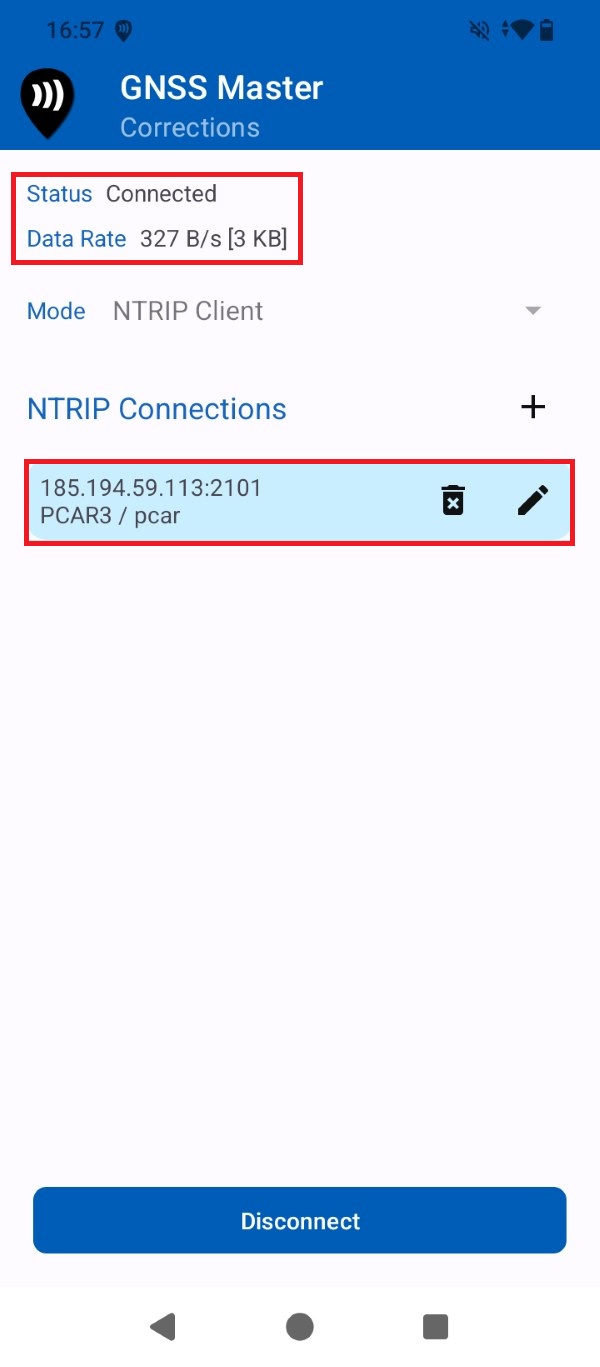
A successful connection will show with a data bitrate.
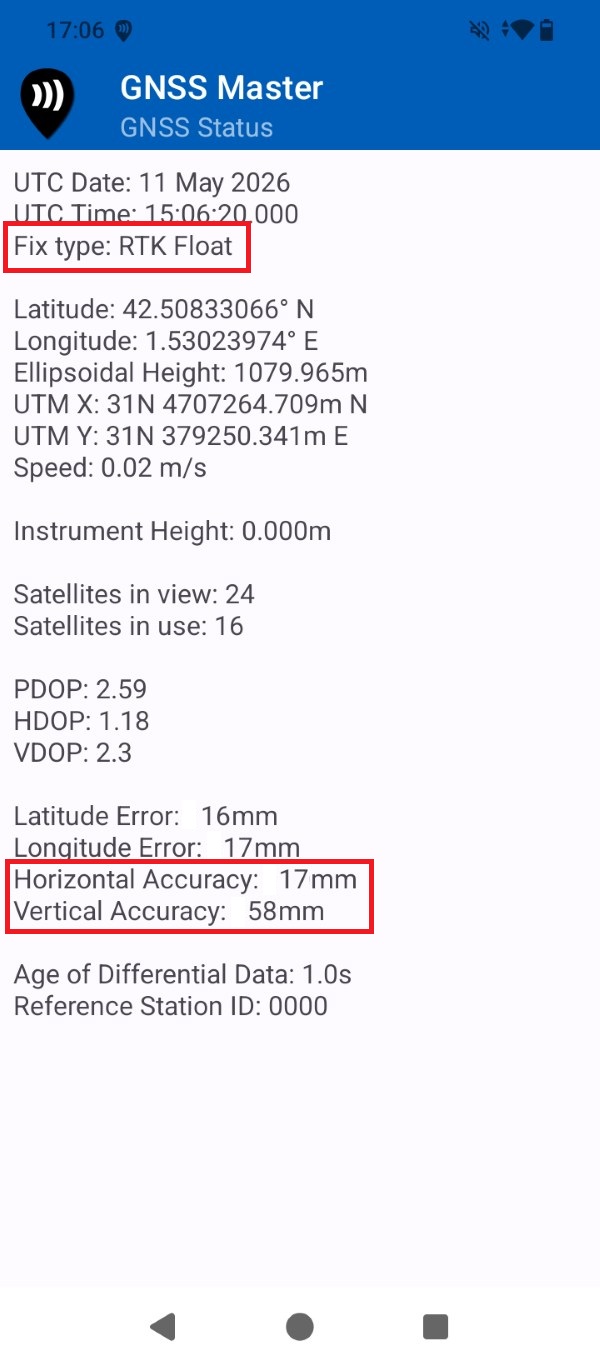
Go to GNSS Master app main menu > GNSS Status. After a few seconds the receiver Fix Type should be RTK Float/Fix and the output data be at centimeter-level accuracy.
Create an ArcGIS trial account
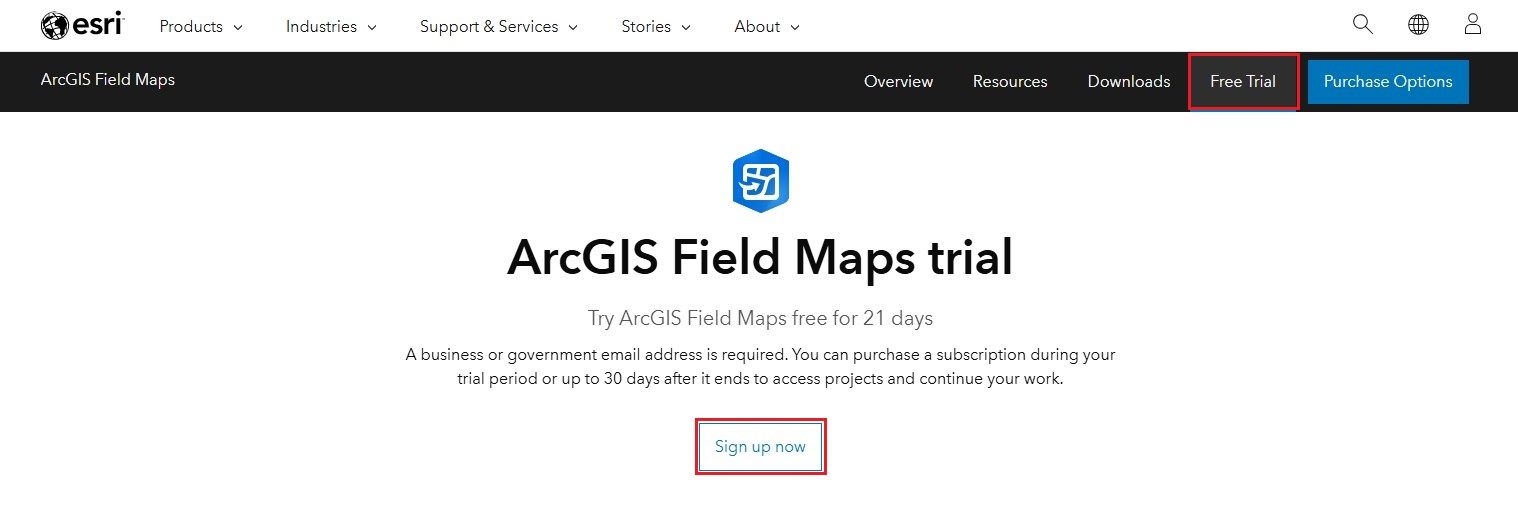
Before start using the ArcGIS services you will have to create an account in the ArcGIS Online platform. If you do not already have a ArcGIS account we recommend starting with a trial account, which you can transfer to a paid account during the 30 days after the trial period without losing any of the work you did during it. This only needs to be done once.
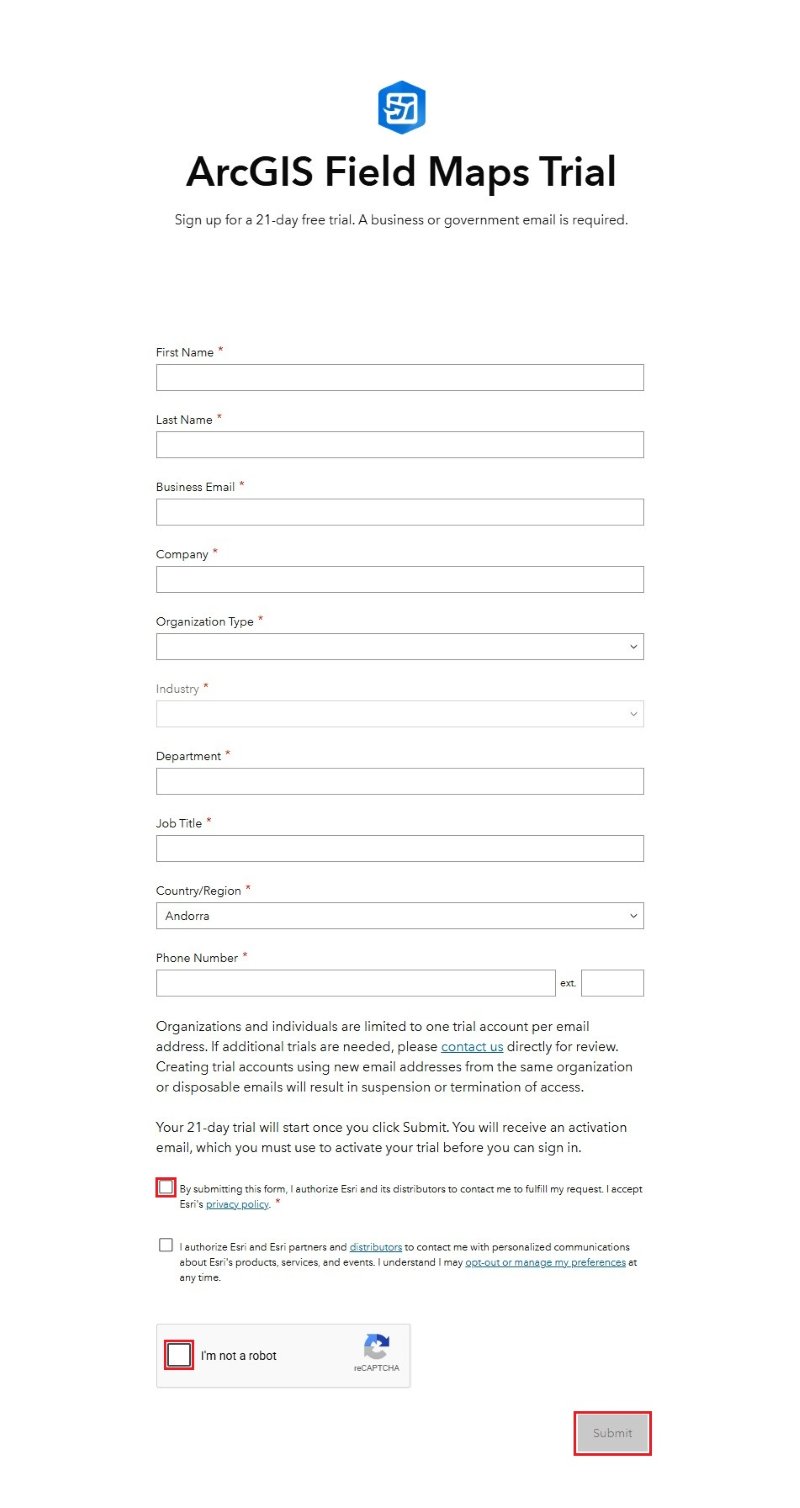
Fill the form with your personal and company information, press Submit.
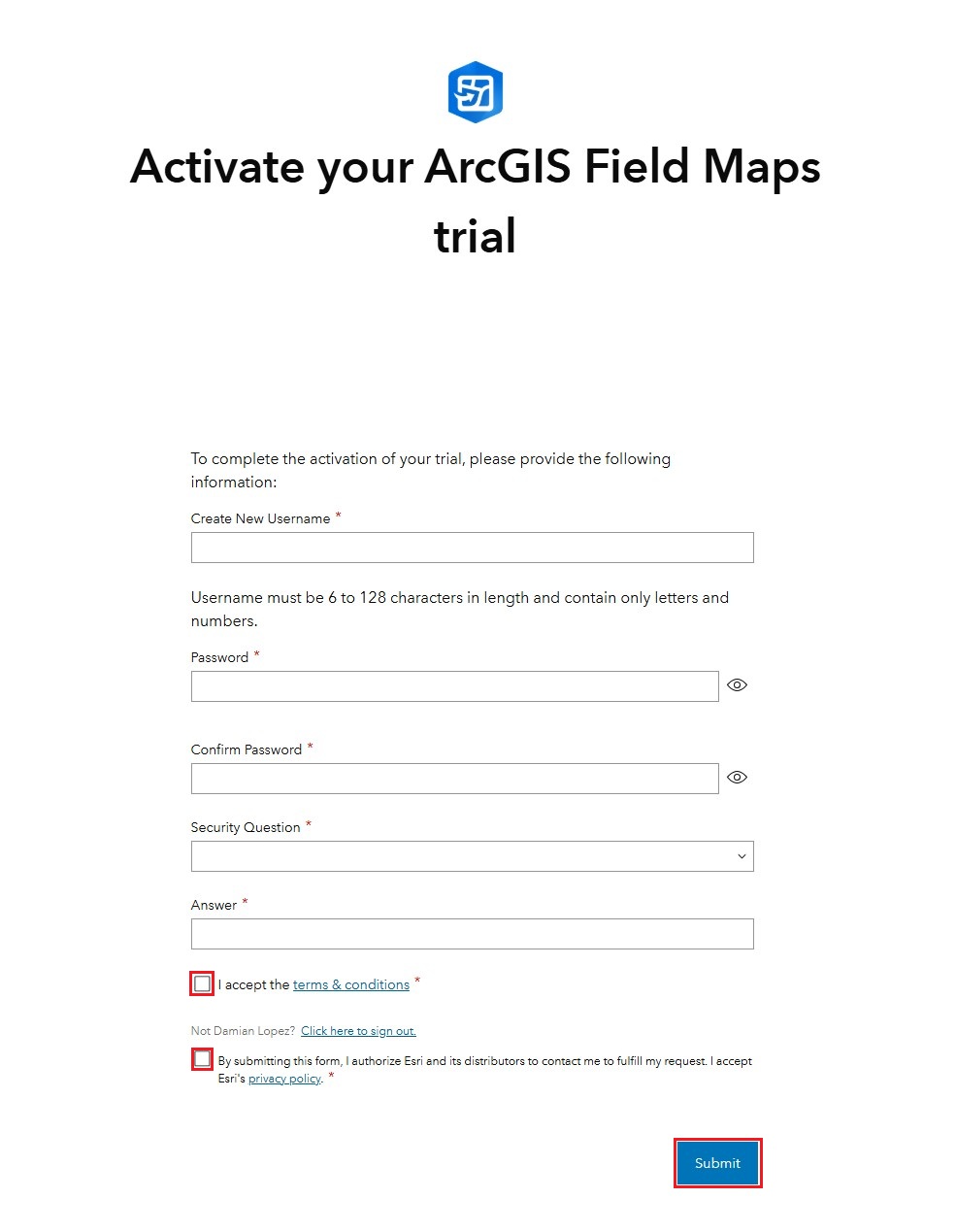
You will receiver an e-mail with a link to activate your ArcGIS Field Maps Trial period. You will be prompted to create a new ArcGIS Field Maps user account, fill in the form and press Submit.
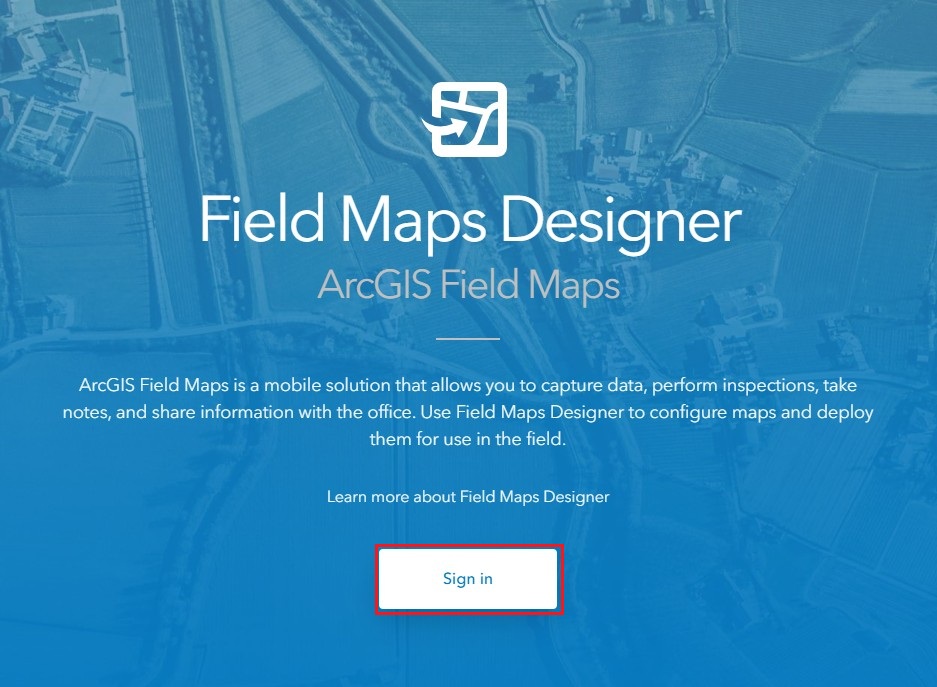
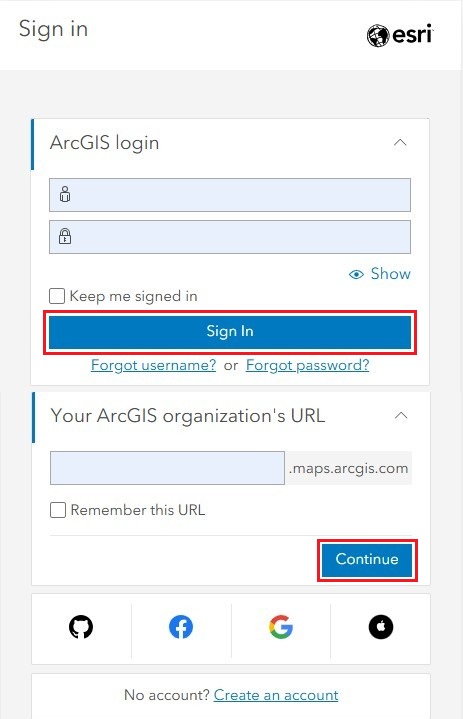
At your organization use your company name and press Continue, and at login use the username and password you created in the previous step and press Sign In.
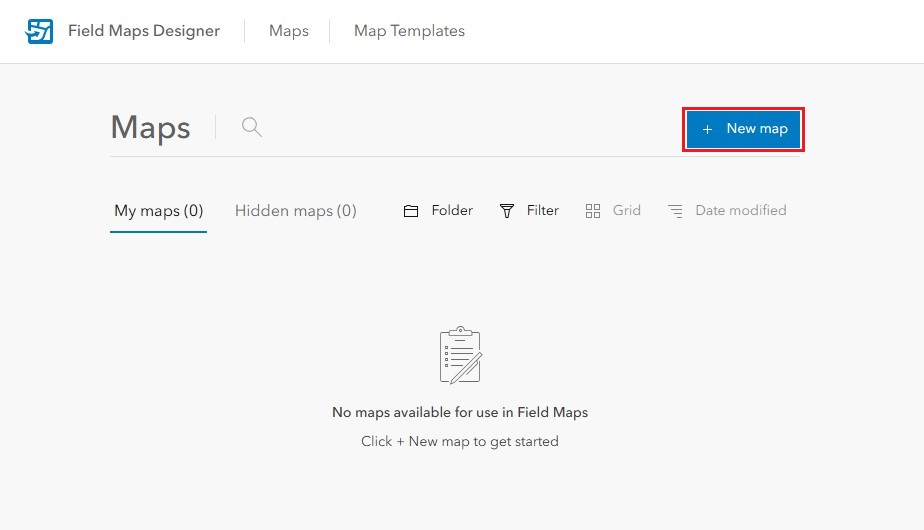
Once inside Field Maps Designer press + New map.
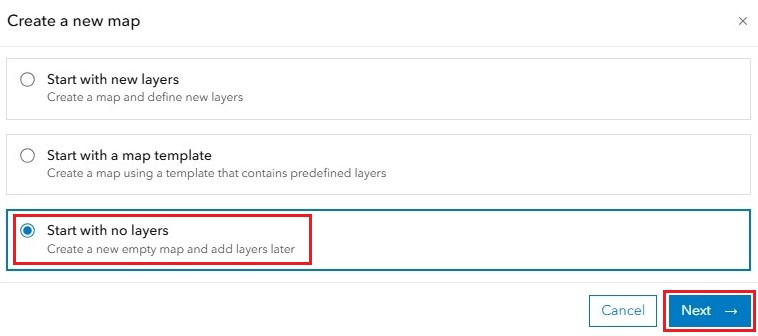
To create a default Map select Start with no layers and press Next.
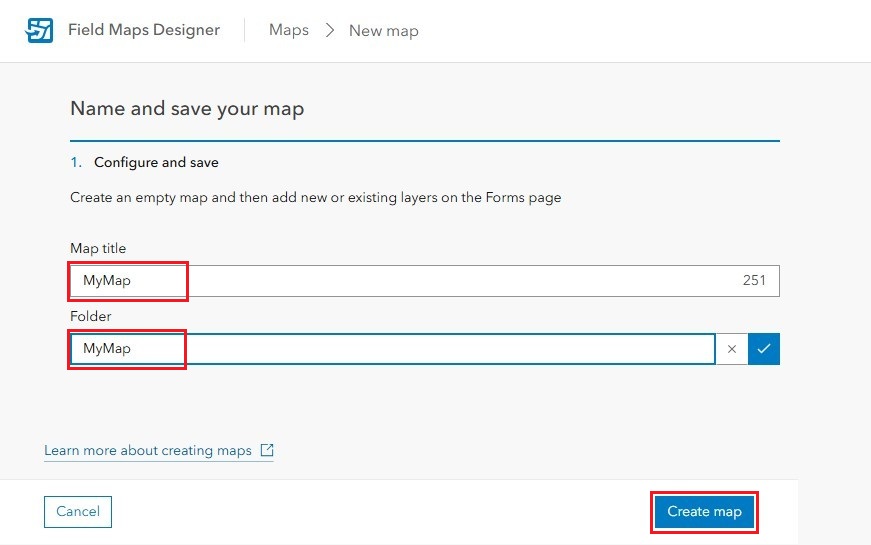
Choose a Map title and Folder, and press Create map.
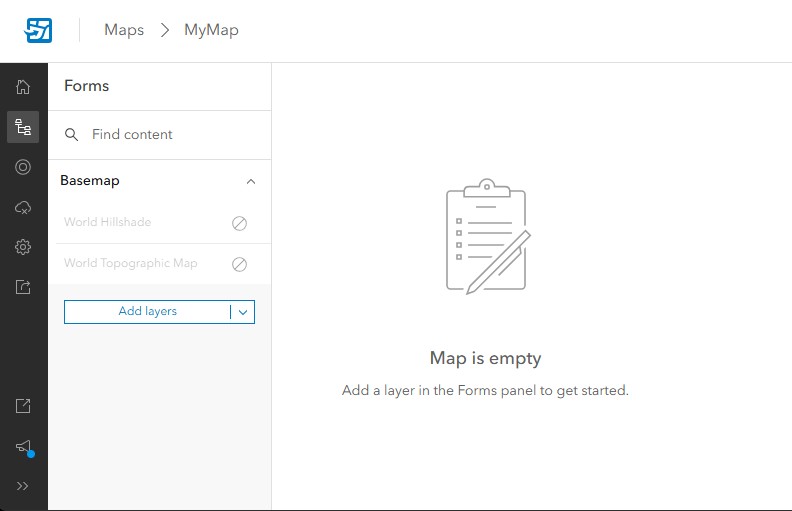
Your new map is now created.
Sign in ArcGIS Field Maps
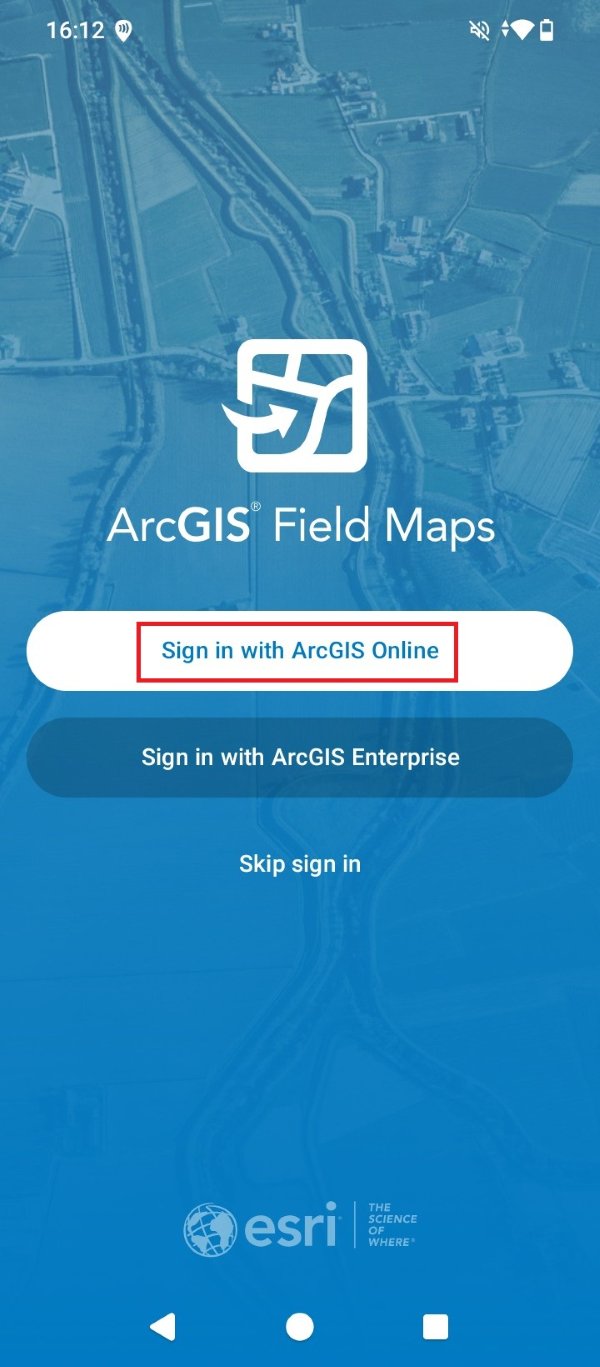
Now open the ArcGIS Field Maps app in the smartphone or tablet. Press Sign in with ArcGIS Online.
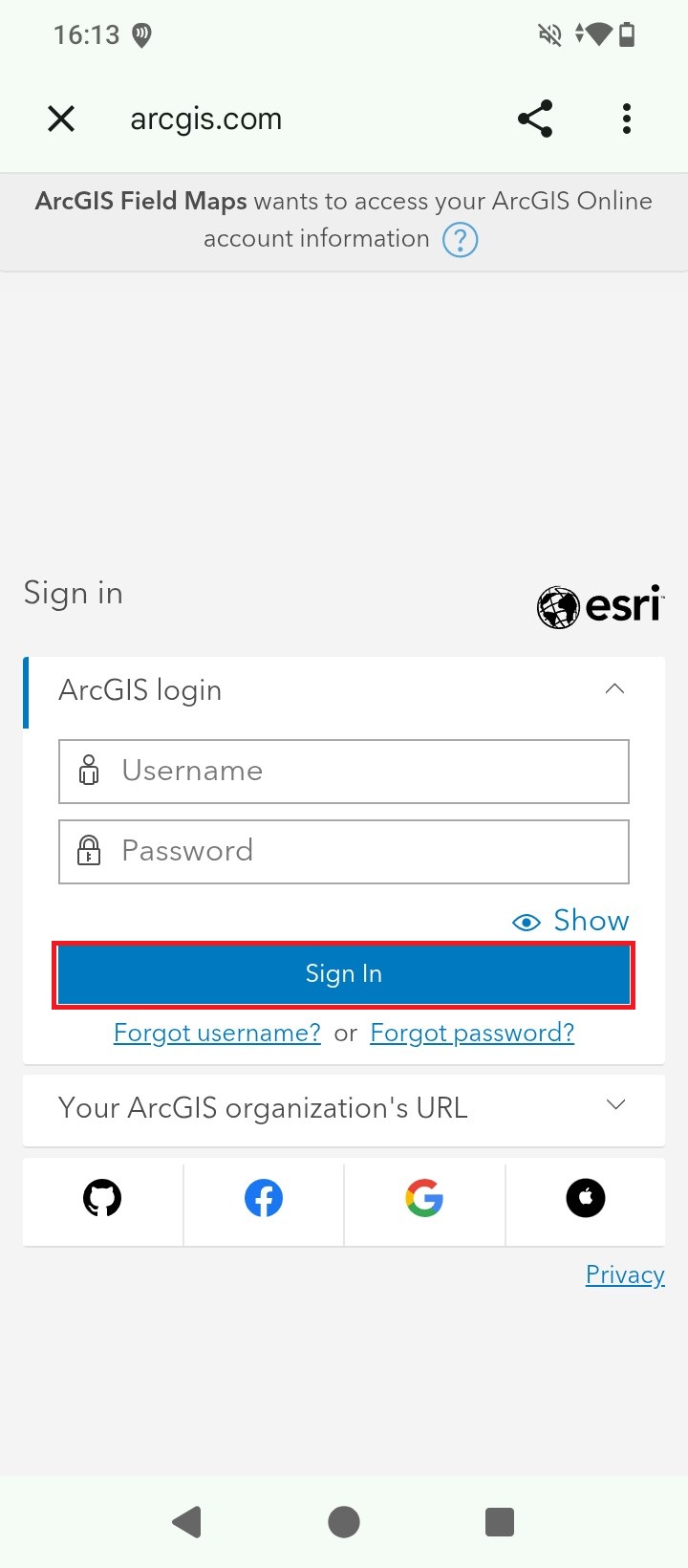
Use the same Username, Password and Company name you used in previous steps 14-15, and press Sign In.
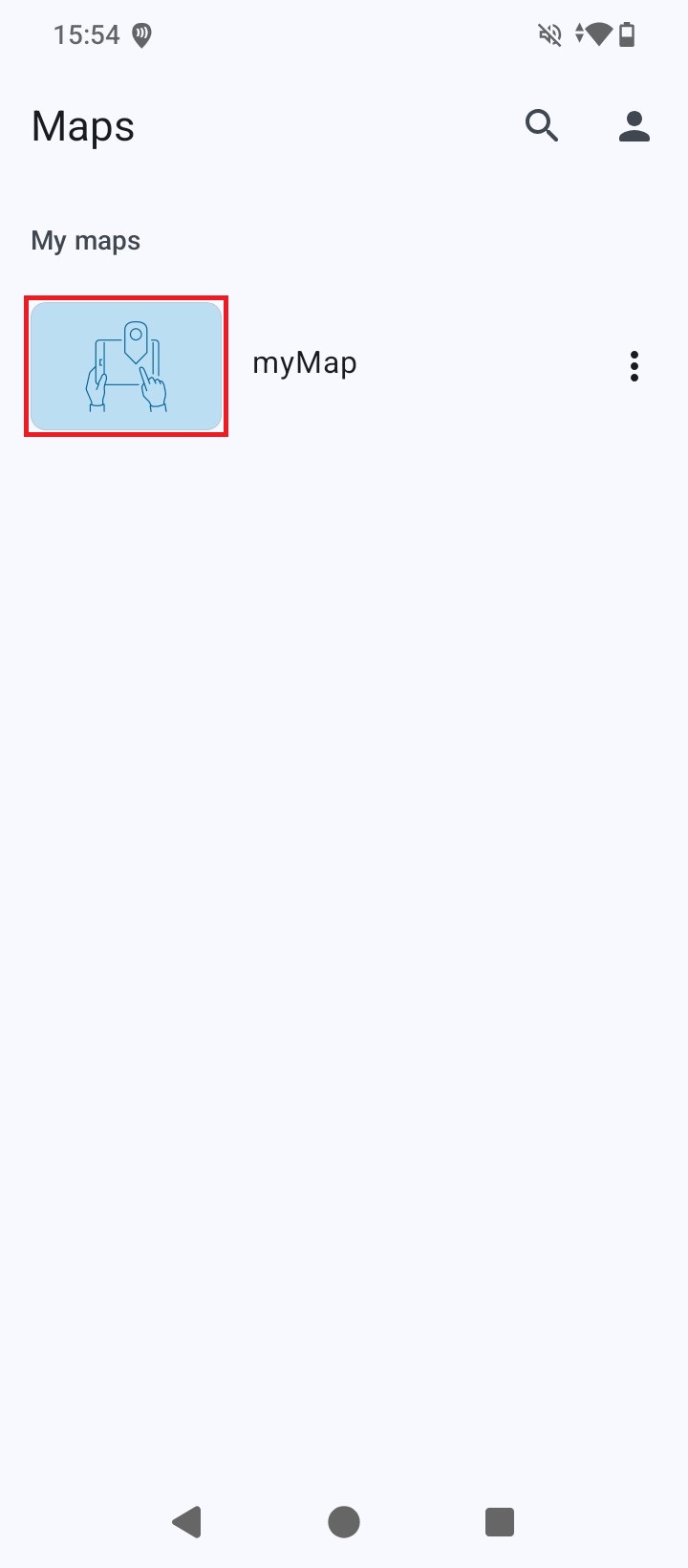
Once inside the app you will find the map you created at step 20. Press the map icon.
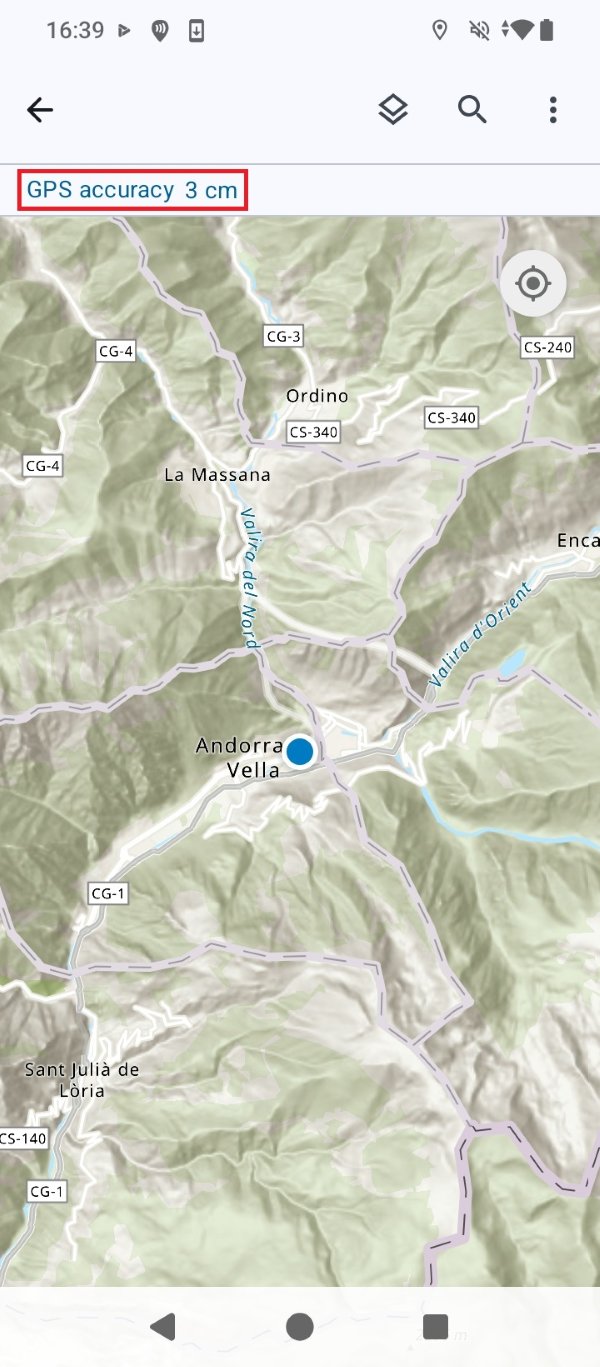
You will be presented with the map view, and above it the GPS accuracy which should be at centimeter-level. You can now start your mapping project with high precision thanks to RTK technology.
Related products
If you want to follow this tutorial we have all the products in stock and ready to be shipped worldwide within 1-3 days.

 and
and  How to get a quotation