
 and
and 

How to use RTK kit with CarryMap app for forestry mapping


In this tutorial, you will find detailed steps on how to use the free CarryMap app for precise, real-time mapping of trees with centimeter-level accuracy using our RTK kit. This app allows users to create and edit points and polygons, record GPS tracks, and add photo attachments.
CarryMap supports external GPS/GNSS receivers but does not have a built-in NTRIP client. For this reason, we will use GNSS Master to receive real-time RTK corrections over the internet and improve measurement accuracy to the centimeter level. By pairing your ArduSimple RTK kit with CarryMap, you can achieve centimeter-level accuracy in your fieldwork.
Before starting this tutorial, make sure you have the credentials to connect to an NTRIP service. If you’re unsure about NTRIP services in your area, we’ve prepared a list of services specific to your country.
Required hardware
- RTK Handheld 2 Mapping Kit
- Android mobile device (smartphone or tablet) with built-in bluetooth and internet connection.
Required software
How to use Carry Map app with external RTK kit for precision mapping
Enable Mock location
- Activate the Mock Location feature on your smartphone by following our tutorial on how to use centimeter GPS with any Android app (Mock Location).
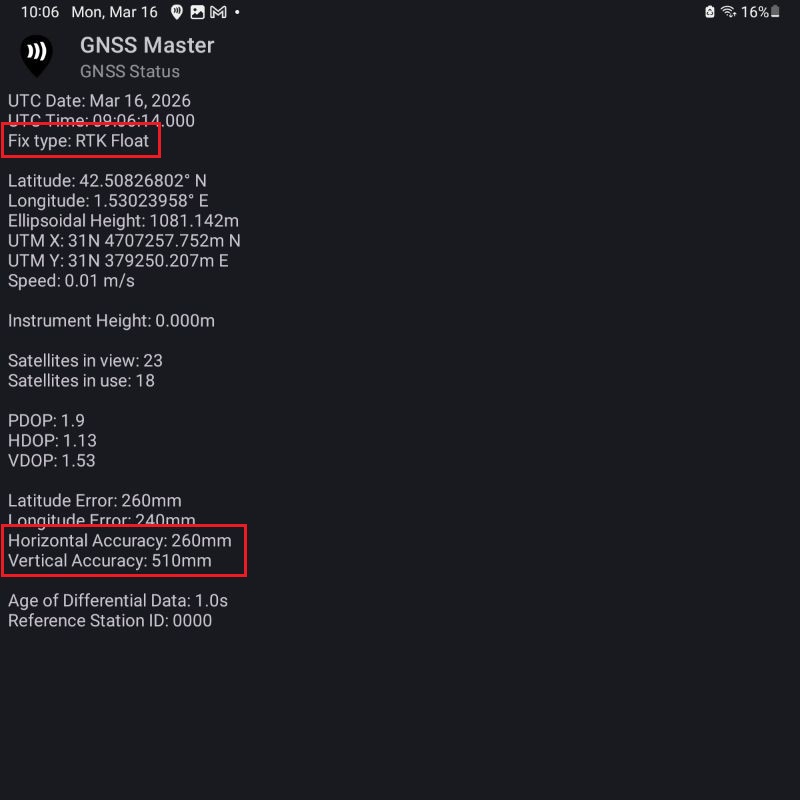
- Now we will verify that the precision of the position provided by the RTK kit to your mobile device are at centimeter-level.
- Open GNSS Master App.
- Go to the GNSS Status section.
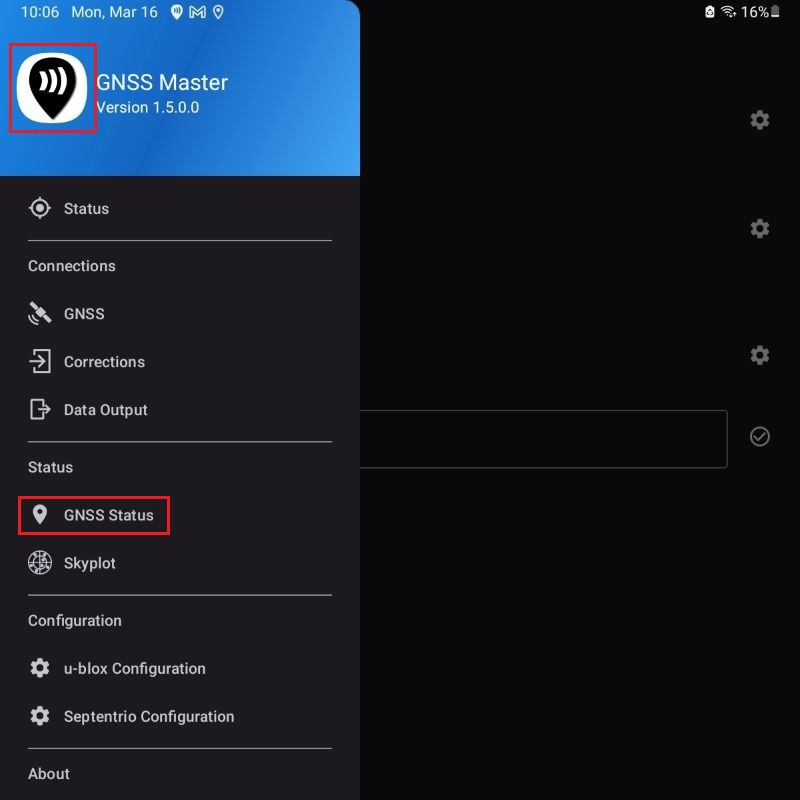
- Fix Type should have a RTK Fix or Float value and Horizontal and Vertical Accuracy be at centimeter-level. Now you are ready for mapping with centimeter level of accuracy.
Map with Carry Map
Now that you have made sure that the ArduSimple RTK receiver kit is providing centimeter-level accuracy you are ready to start using the CarryMap App for your forestry mapping and management tasks.
- Open CarryMap App.
- Go to Maps Catalog tab.
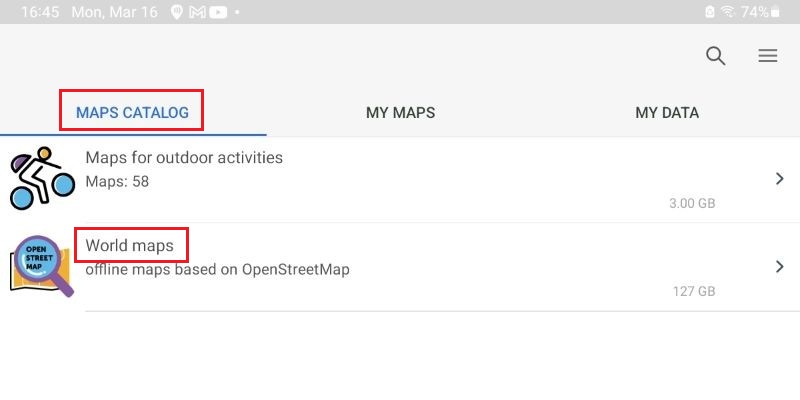
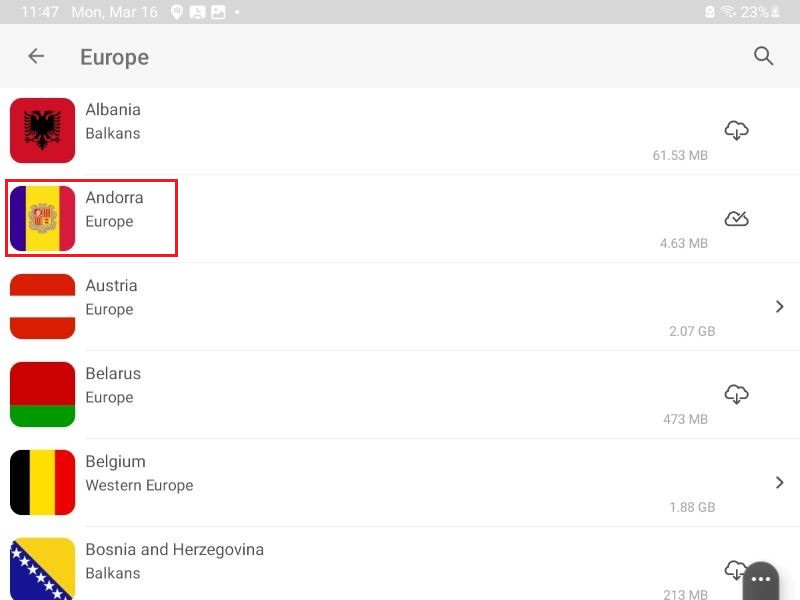
- Download your country map from World maps (in our case Andorra).
- Press again to open the country map.
- Press the center icon to zoom in your position.
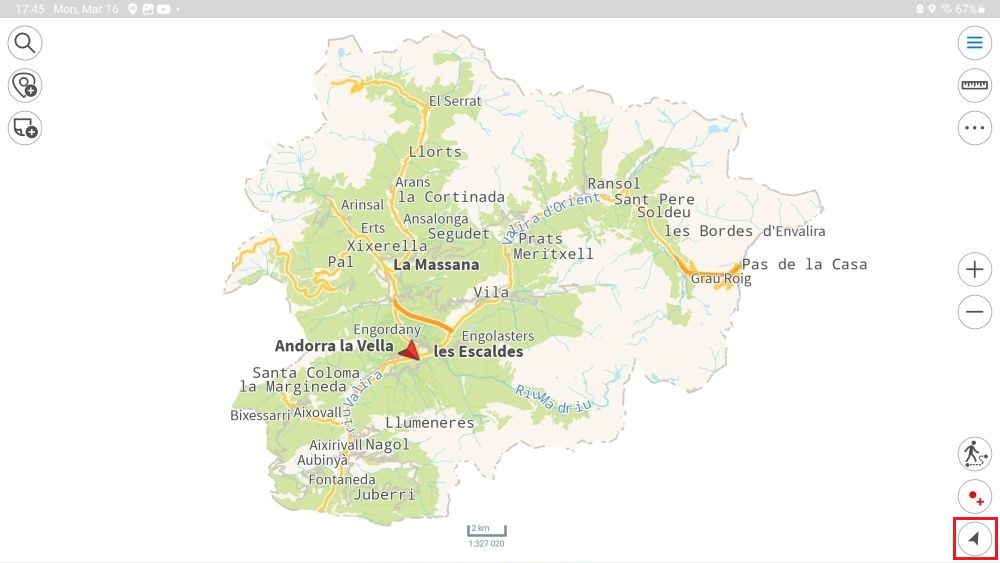
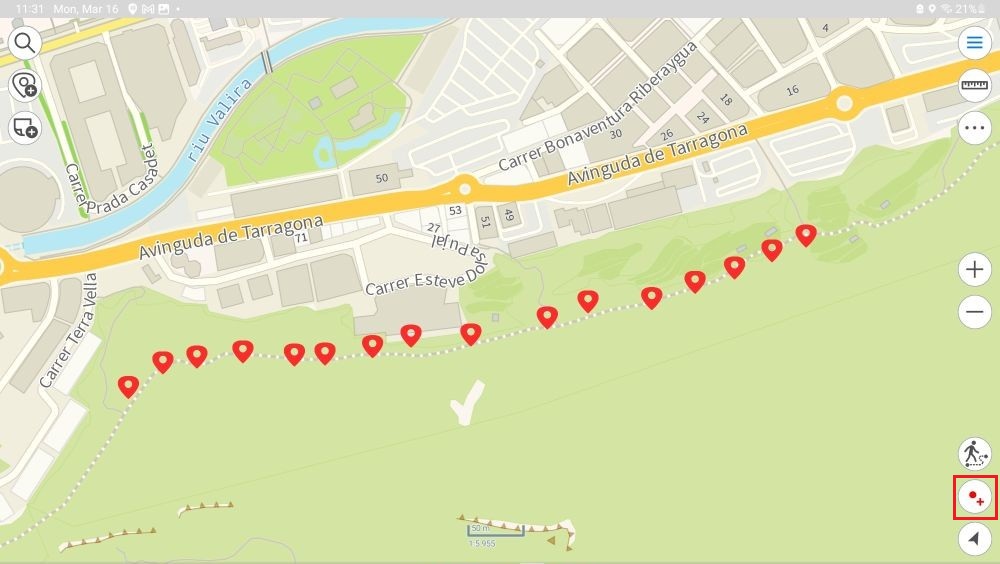
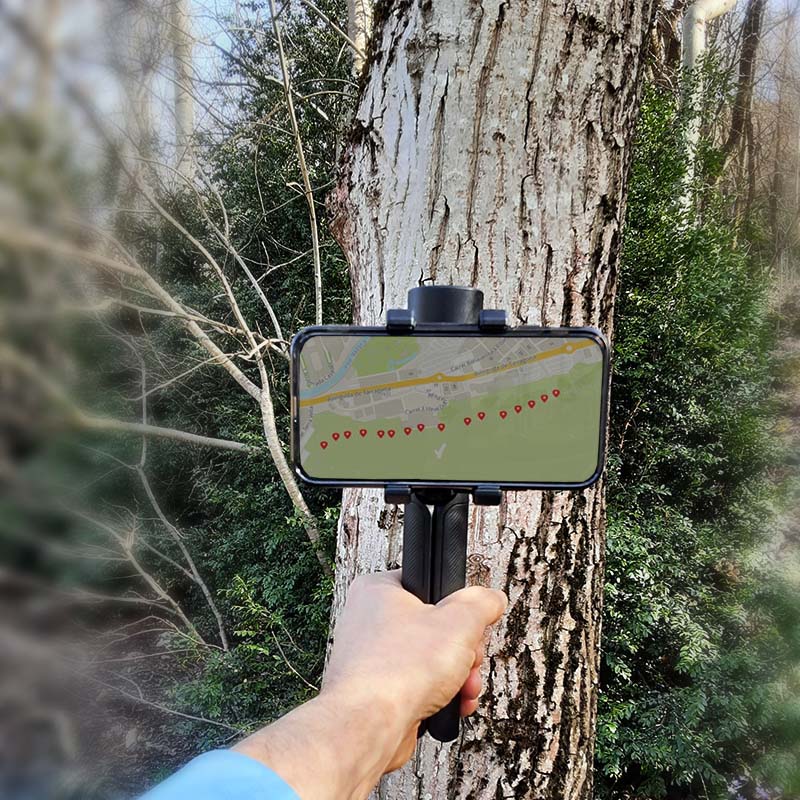
- You can now start mapping. Navigate to the feature you want to map (for example, a tree) and press the Save Point icon. This will create an individual point marking the location of that feature.
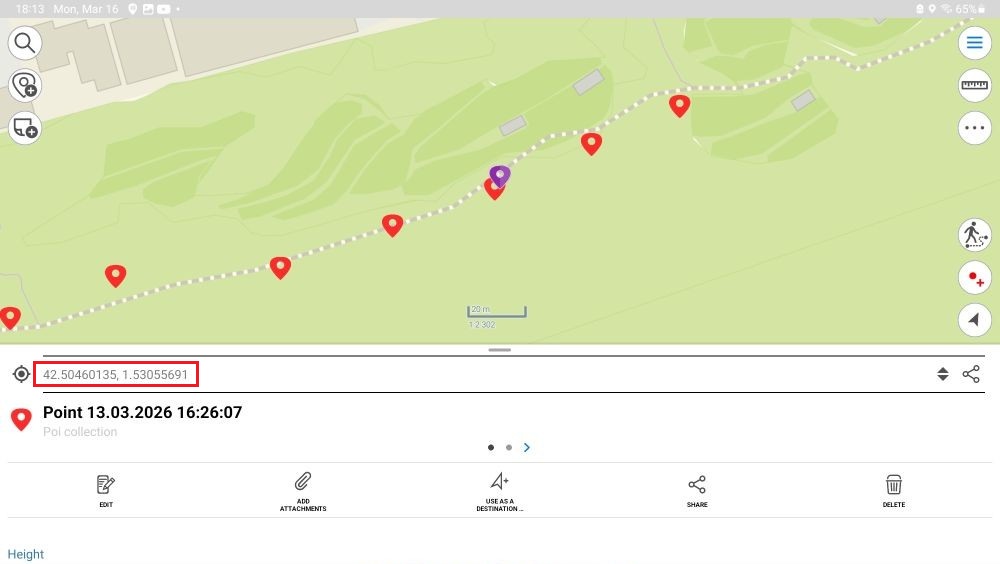
- If you click on one of the saved points you will find that the coordinates.
If you want to follow this tutorial, we have all the products in stock and ready to be shipped:
- Sale!
 Made in EuropeProfessional
RTK Handheld 2 Mapping Kit
549,00€Original price was: 549,00€.449,00€Current price is: 449,00€.


