plane icon
Shipping to
Next-day shipping from Europe with DHL. Get your order worldwide in 2-4 days!
Buy online and get delivered in 2-4 days via our local partners, like shopping locally!
We ship from Europe with DHL, get your order without surprises in 1-3 days!
Next-day shipping from Europe with DHL. Get your order in 14-21 days!
We deliver to Singapore in 2-4 business days. Need help? Contact our team at +65 3174 3631
We deliver to Hong Kong with DHL in 2-4 business days. Need help? Contact our team at +852 5808 4561
We deliver to China in 2-4 business days. Need help? Contact our team at +86 18367375467
We deliver to Taiwan in 2-4 business days. Need help? Contact our team at +886 2 7734 4400
Update (17/12/2025): We have plenty of stock of all our products, find us also in and    Shop now

How to change the baudrate of Ardusimple Bluetooth module

All our Bluetooth modules come pre-configured at 38400bps which works for almost everyone.
We have prepared this tutorial for those users with special needs that need to change the baudrate.

Required hardware:

Required software:

  • Terminal application (here we use RealTerm. If you do not have it installed, you can dowload in here)

How to change the baudrate of the Bluetooth moudule?

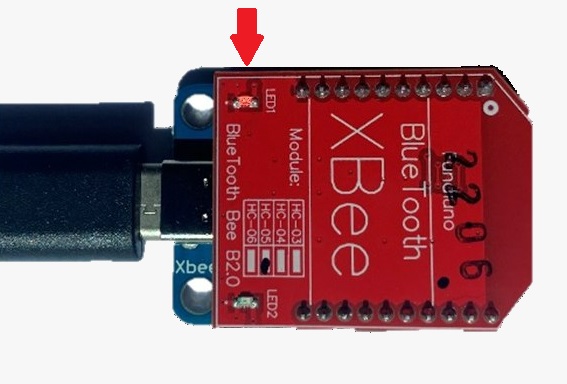
  1. Plug the Bluetooth module to your USB-C Carrier Board for XBee Plugins, and connect to your computer with USB cable. Make sure it is on the right side, so the LED on Bluetooth module will start to blink, as shown in the image.
How to Change the baudrate of ArduSimple Bluetooth module step1
  1. Go to the Device Manager of your computer, check the COM number.
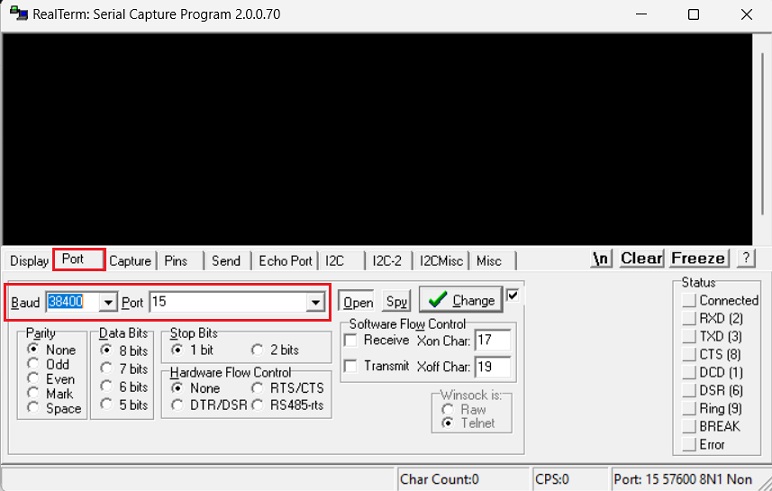
  1. Open RealTerm, Click on Port, set Baud to 38400. And at Port, type in the COM number which can see in your Device Manager, in our case it will be 15.
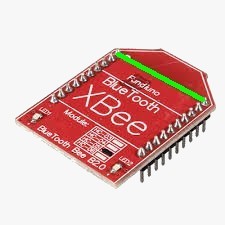
  1. Bridge the two upper pins with a wire (you only need to do it a moment, no need to keep the bridge all the time).
how to change baudrate step4
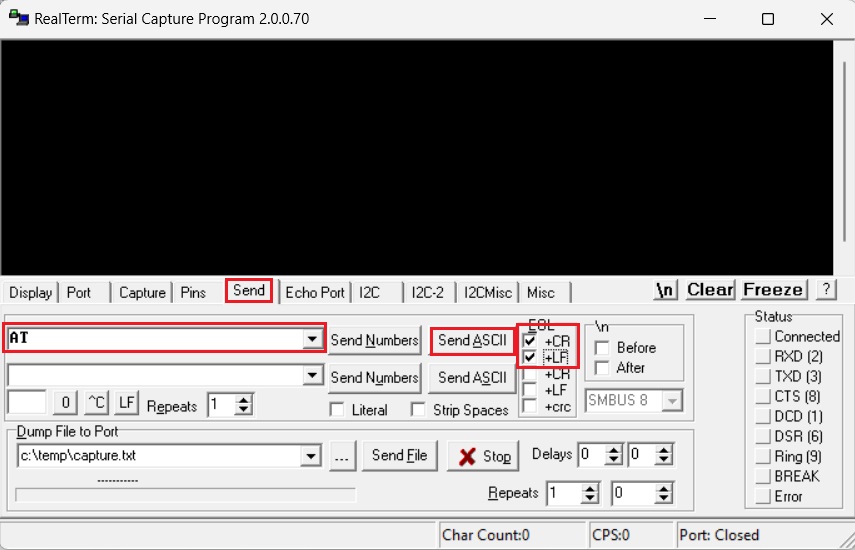
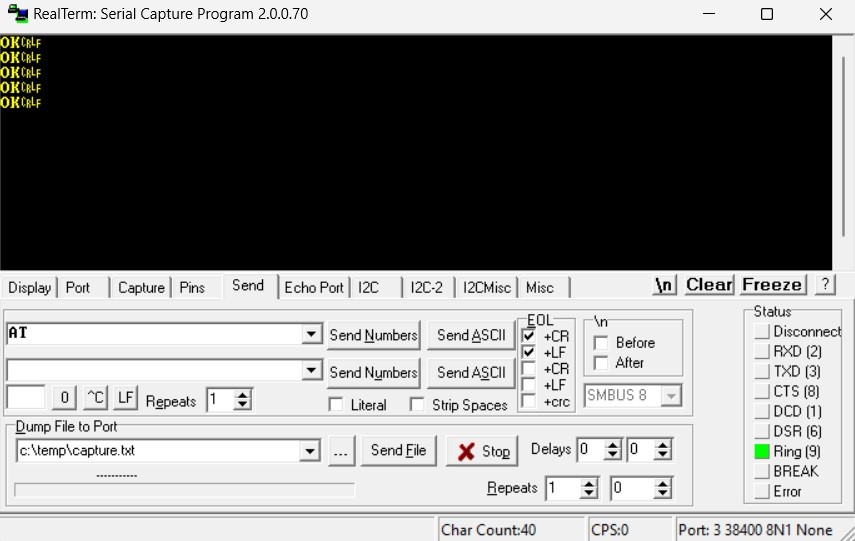
  1. To make sure everything is correct, you can send this string : click Send, type AT, at EOL chose +CR and +LF, then click SendASCII.
  1. The module should respond with OK (if it doesn’t, click Send ASCII button a few times).
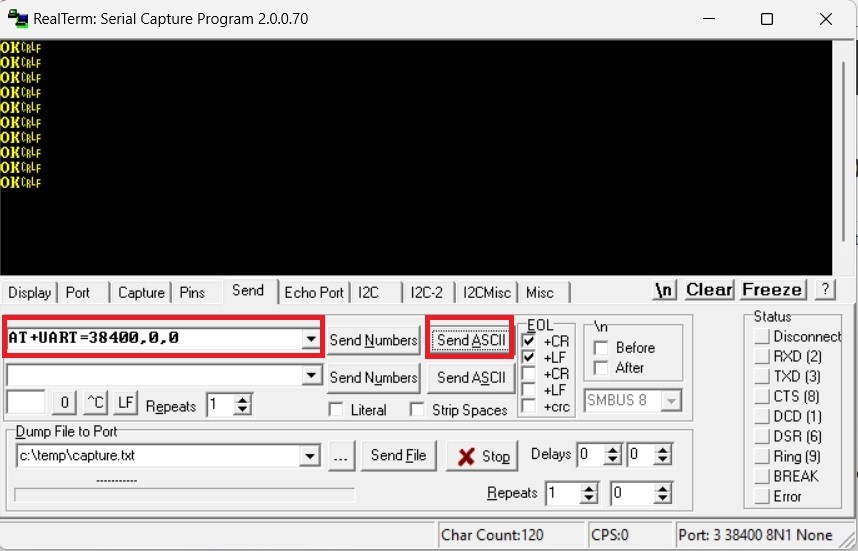
  1. Now you can send AT+UART=38400,0,0 followed by CR and LF to change 38400 for your desired baudrate.
  1. Now you changed the baudrate of our Bluetooth module. Remember to update the baudrate settings on your simpleRTK2B series receiver UART2 port to match the new settings on your Bluetooth module.

If you want to do this tutorial, we have all the products in stock and ready to be shipped.
If you liked this content, you can follow us on Twitter, YouTube, Facebook or LinkedIn to stay updated of content like this.

Got any questions or requests?
Contact us! We'll answer <24 hours!

Icon
Contact ArduSimple
Close

Want to learn more about GPS/RTK?

1. Our engineering team will contact you to solve any questions
2. We will keep you updated about promotions and new product releases
3.You will only hear from us when we have important news, we won’t spam your email